No. A GPU sitting at 70°C under load is running well inside its comfort zone, and on most modern cards it means the cooling is doing its job properly. Graphics chips are built to get hot. The limit printed in your own card’s specs is usually somewhere in the high 80s or 90s, so 70°C leaves you around 20 degrees of room.
The number on its own doesn’t tell the whole story, though. Where you saw it matters more than the reading itself.
Is 70°C safe for a graphics card?
Yes, comfortably. Every modern graphics card ships with a stated maximum operating temperature, and the driver enforces it. NVIDIA publishes a “Maximum GPU Temperature” figure right in the spec table for each card. The RTX 5090 is listed at 90°C, and most recent GeForce cards fall between 88°C and 95°C.
That limit is a throttle point, not a breaking point. When a card reaches its maximum, the driver cuts clock speeds until the temperature comes back down, and if it somehow keeps climbing, the card shuts the system off to protect itself. Nothing is close to unhappy at 70°C.
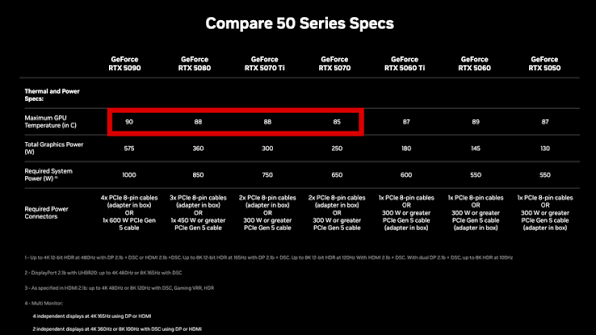
Modern cards also run warmer than older ones on purpose. Instead of holding one fixed speed, they push clocks up until they meet a power or temperature ceiling, then settle there. A card in the 70s is simply using the headroom it was given.
For scale, look at the hungriest consumer card on the market. The RTX 5090 draws up to 575 watts, and in a well-ventilated case it settles into the low-to-mid 70s during sustained 4K gaming. That is a 575-watt flagship landing on roughly the same number you’re worried about. If a mid-range card reads 70°C while gaming, it isn’t straining. It’s just working.
What is a normal GPU temperature?
Normal depends entirely on what the card is being asked to do. Here is what a healthy desktop card looks like across the day.
| What the PC is doing | Typical core temp | Verdict |
|---|---|---|
| Sitting on the desktop | 30°C to 50°C | Normal. Many cards keep their fans off below about 50°C |
| Browsing, video, light 3D | 40°C to 60°C | Normal |
| Gaming or rendering | 60°C to 85°C | Normal, and 70°C sits right in the middle |
| Long benchmark or stress test | 70°C to 85°C | Normal, and about as hot as it should get |
| Sustained 85°C and above | Worth a look | Not dangerous, but the cooling could be better |
Those bands are wide because so much feeds into the final number. A large triple-fan cooler on a 200-watt card will run far cooler than a compact two-fan design on the same chip. Case airflow matters. So does the room you’re sitting in.
Ambient temperature is the part people forget. A cooler can only pull the chip down to a certain distance above the air it is breathing in, so if your room is 30°C instead of 22°C, the card lands roughly 8 degrees higher. The same PC that reads 68°C in January can read 78°C in July, and nothing has gone wrong.
When 70°C actually is a warning sign
70°C becomes a problem when the workload doesn’t justify it. The reading only means something next to what the card was doing at the time, so watch GPU usage in the same overlay. High temperature with high usage is a card at work. High temperature with low usage is a cooling problem.
70°C sitting idle on the desktop. A healthy desktop card idles between 30°C and 50°C. If yours reads 70°C with nothing running, something is keeping it awake or its cooling has slipped. The usual causes are a browser or game launcher using hardware acceleration in the background, a power setting locking the card to maximum clocks, a fan that has stopped spinning, or a heatsink packed with dust.
70°C during something light. A card sitting at 20% usage in an old game and already at 70°C is telling you the same thing.
70°C where you used to see 58°C. A card that has crept 10 degrees warmer over two years, in the same game at the same settings, needs its heatsink cleaned or its thermal paste replaced.
70°C after two minutes, then 90°C after ten. A card that climbs fast and keeps going usually has a cooler contact or mounting problem rather than an airflow one.
Watch the gap, not the number. 70°C with a game pushing the card hard is healthy. 70°C with nothing running is not.
Core, hotspot and memory are three different numbers
If your monitoring tool shows 70°C for the core and something much higher elsewhere, that is expected rather than a fault. Modern cards report several temperatures, and each one has its own limit.
- GPU core, sometimes called edge. The main number, and the one shown in Task Manager, in most overlays, and in almost every guide. This is your 70°C.
- Hotspot, also called junction. The hottest single point anywhere on the chip. It runs 10 to 20 degrees above the core on GeForce cards and often more on Radeon. AMD’s RDNA cards are built around a junction limit of 110°C and only begin throttling there, so a hotspot in the 90s on a Radeon is business as usual.
- Memory junction. The VRAM temperature, and the one that startles people. GDDR6X in particular runs hot by design. On RTX 30-series cards throttling starts near 110°C, and even an RTX 5090 with a core in the low 70s will show memory close to 90°C.
Task Manager and most in-game overlays show only the core figure. To see all three, use GPU-Z or HWiNFO64, both free, and look at the sensors list.
So a card reporting 70°C core, 85°C hotspot and 88°C memory is not three separate problems. It is one perfectly healthy card described three ways.
Does running at 70°C shorten your GPU’s life?
Not enough to matter. Heat does age silicon, and it does dry out thermal paste and wear fan bearings over the years, but the effect at 70°C is small enough to vanish into everything else.
Cards are validated to run at their stated maximum for the length of their warranty and well past it. At 70°C you are 20 degrees under that, spending the card’s life in the easy part of its range. What actually finishes graphics cards off is dust starving the heatsink, a fan seizing, a badly seated power connector, or the card sagging under its own weight in the slot.
There is one honest reason to prefer a cooler card, and it isn’t lifespan. It’s boost clocks. Cards trim their speed in small steps as they warm up, so a card at 60°C usually holds a slightly higher clock than the same card at 78°C. The difference is a few percent, not a transformation, and most people never notice it in frame rates.
Is 70°C too hot for a laptop GPU?
No, and on a laptop it is a genuinely good number. Laptops have a fraction of the cooling volume of a desktop, so their graphics chips run hotter as a matter of course. Anywhere from 75°C to 87°C under a gaming load is normal, and plenty of thin machines sit in the mid-80s all evening without complaint.
If your laptop reads 70°C while gaming, either the game is light or the cooling is working better than most. Judge a laptop on whether frame rates stay steady and the fans aren’t screaming, rather than chasing desktop numbers it was never going to reach. Lifting the back off the desk, keeping the vents clear, and not gaming with the machine on a duvet will do more than any software setting.
How to bring GPU temperatures down anyway
You don’t need to at 70°C. But if you want a cooler or quieter card, these are the changes that actually pay off, roughly in order.
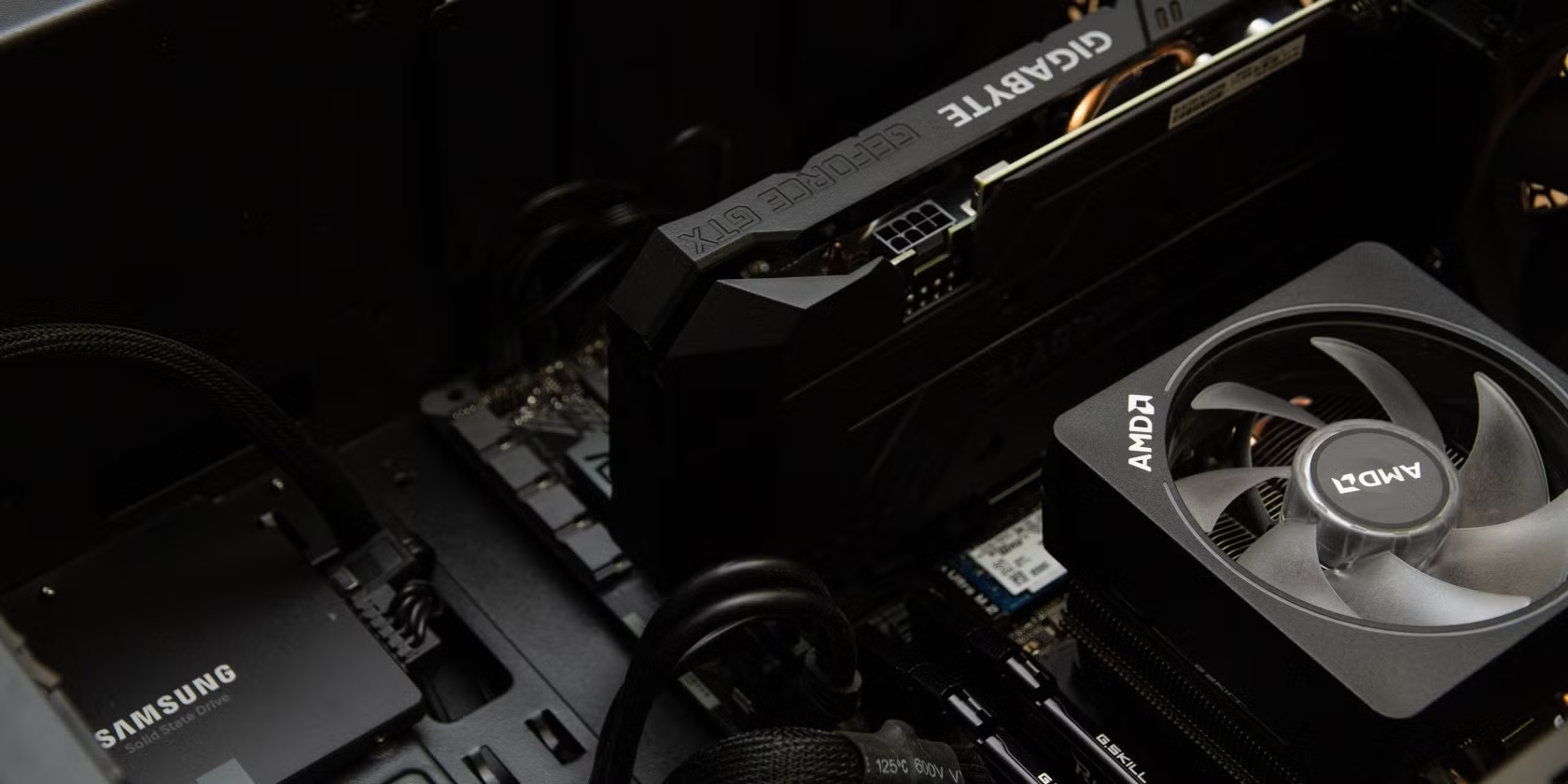
- Clean it. Dust in the heatsink fins and the case filters is the single biggest cause of creeping temperatures on any PC older than a year. Use compressed air, and hold the fans still so they don’t spin.
- Fix the airflow. Intake at the front and bottom, exhaust at the rear and top. A card breathing its own hot air in a sealed case will run warm no matter what else you change.
- Set a fan curve. Both vendors let you shape how fan speed tracks temperature, and AMD’s performance tuning controls and NVIDIA’s equivalent both make it a five-minute job. Trading a little noise for 5 to 8 degrees is the easiest win here.
- Undervolt. Slightly less voltage at the same clock speed means less heat and less power drawn. On most cards this is worth 5 to 10 degrees with no measurable performance loss.
- Trim the power limit. Dropping it to 85% or 90% usually costs 2 to 3 percent of performance and removes a surprising amount of heat.
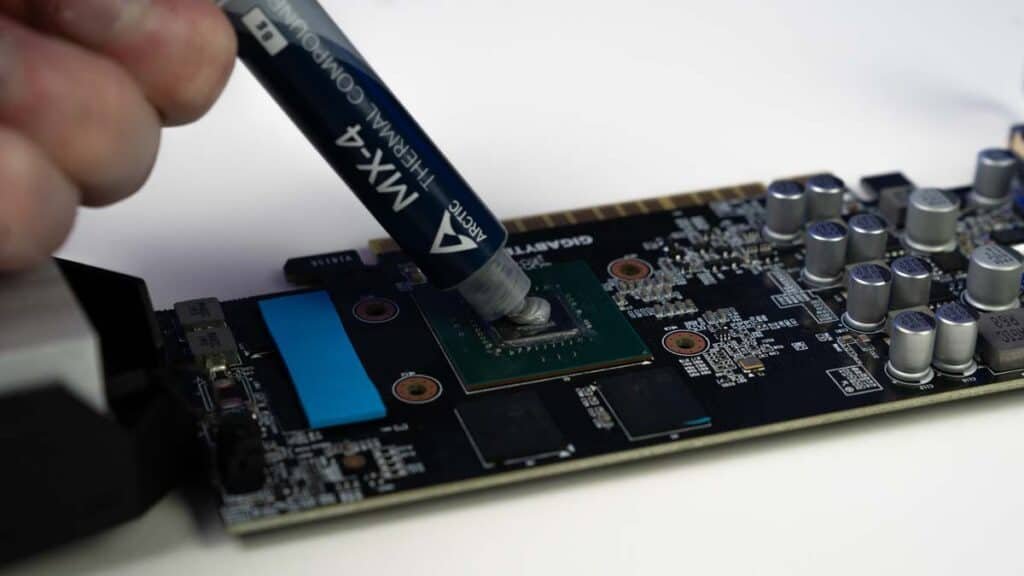
Repasting is a last resort. It is worth doing only on a card several years old that runs much hotter than it used to.
Frequently asked questions
Is 70°C good for a GPU while gaming?
Yes, it’s a good number. Most cards run between 60°C and 85°C while gaming, so 70°C sits comfortably in the middle with around 20 degrees of headroom before the card would start pulling its clock speeds back.
Is 70°C too hot for a GPU at idle?
That one is worth investigating. A desktop card should idle between 30°C and 50°C. At 70°C with nothing running, check for background apps using the GPU, a fan that has stopped spinning, or dust in the heatsink.
At what temperature does a GPU start throttling?
At its stated maximum, usually between 88°C and 95°C on GeForce cards. Radeon cards throttle when the junction sensor reaches 110°C. Below those points cards trim boost clocks gradually rather than throttling outright.
Why is my GPU hotspot much higher than 70°C?
Because the hotspot sensor reads the hottest single point on the chip rather than an average. Sitting 10 to 20 degrees above the core is normal on GeForce cards, and often more on Radeon, where the limit is 110°C.
Should I worry if my GPU hits 85°C?
Usually not. 85°C is still inside the safe range for most cards and simply means the cooler is working hard. Check for dust and airflow if it’s new behaviour, but the card will protect itself either way.
Conclusion
70°C under load is a healthy graphics card temperature and needs no action from you. Your card’s real limit is printed in its specs, usually in the high 80s or 90s, and it will protect itself long before anything is at risk. Judge the reading against what the card was doing: 70°C while gaming is fine, while 70°C sitting idle points to dust, a stopped fan, or a background process. Clean airflow and a sensible fan curve will keep it there.
Related Post:
Satisfactory “GPU Crash Dump Triggered”: What It Means and How to Fix It
What the DaVinci Resolve GPU Configuration Warning Means (and How to Fix It)
“System Is Out of GPU Memory” in Blender: Why It Happens and How to Fix It
GPU Utilization at 100%: When It’s Normal and When It’s Not