The GPU Configuration Warning shows up when DaVinci Resolve has quietly switched from CUDA to OpenCL for image processing, usually right after an app update, because the NVIDIA driver on your machine is older than the version that build of Resolve expects. Resolve still opens and still works. It just runs on a slower processing path until you either update the driver or tell Resolve to accept OpenCL on purpose.
This guide walks through what the warning actually says, why it appears out of nowhere after an update you didn’t ask for, and the exact steps to clear it on Windows, Mac, and Linux. It also covers the one case most guides skip: what to do when the warning keeps coming back even after you’ve “fixed” it once.
None of this means your graphics card is broken or unsupported. It’s a version mismatch between two pieces of software, Resolve and the driver, and it clears up in a few minutes once you know which of the two options below fits your situation.
What does the GPU Configuration Warning mean?
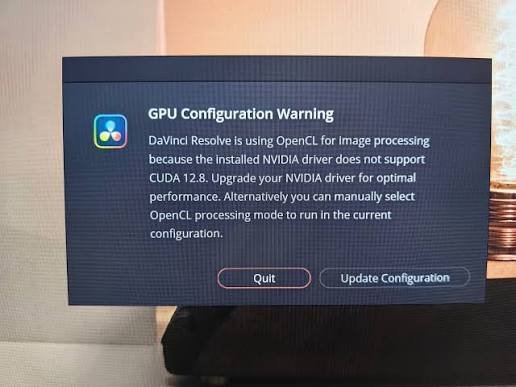
It means Resolve detected that your graphics card driver does not support the version of CUDA the software was built against, so it fell back to OpenCL to keep running. The dialog box usually reads something close to this:
“GPU Configuration Warning: DaVinci Resolve is using OpenCL for image processing because the installed NVIDIA driver does not support CUDA [version number]. Upgrade your NVIDIA driver for optimal performance. Alternatively you can manually select OpenCL processing mode to run in the current configuration.”
Two buttons sit under that message: Update Configuration and Quit. Update Configuration opens Resolve’s GPU settings so you can either update the driver or confirm OpenCL as your processing mode. Quit closes the app without changing anything.
CUDA is NVIDIA’s own compute platform, and it’s what Resolve is optimized around on NVIDIA hardware. OpenCL is an open standard that works across NVIDIA, AMD, and Intel graphics, and Resolve falls back to it automatically when CUDA isn’t available. OpenCL still processes your timeline correctly. It just tends to run slower on NVIDIA cards, because Resolve’s newer color science, noise reduction, and Neural Engine tools are tuned for CUDA first.
The gap between the two isn’t usually visible on a simple cut with a few color nodes. You’ll notice it more on GPU-heavy work: temporal noise reduction, Magic Mask, Super Scale, high node-count grades, and anything running through the DaVinci Neural Engine. Those tools lean on NVIDIA’s Tensor Cores through CUDA, and OpenCL doesn’t have an equivalent path to that hardware, so it falls back to slower general-purpose compute for the same task.
It also helps to know that this warning is different from an outright “unsupported GPU” error or a code 702 processing failure. Those mean Resolve can’t use the card at all. The GPU Configuration Warning means Resolve found a working path, OpenCL, and is simply telling you a faster one exists if you update the driver.
Why does this warning appear after an update?
Each new release of DaVinci Resolve raises the minimum CUDA version it expects the graphics driver to support. Resolve 19 needed NVIDIA Studio driver 550.58 or newer. Resolve 20 moved that floor to 570.65. Resolve 21.0.4 lists NVIDIA Studio driver 581.57 or newer on Windows, tied to CUDA 12.8 support. If your driver was installed months ago and Resolve just auto-updated itself, there’s a good chance the driver hasn’t kept pace, and that mismatch is exactly what triggers the warning.
This is why people who never touched their graphics settings suddenly see the dialog the first time they reopen Resolve after accepting an in-app update. Nothing broke. The software’s requirements just moved past the driver.
Blackmagic Design ships these minimum driver numbers in the readme file that comes with every Resolve build, listed alongside the full system requirements on the DaVinci Resolve support page, and they change often enough that a number correct for one release can be a full point version behind by the next. Checking that page for your specific build before you troubleshoot anything else saves you from chasing the wrong fix.
Two other situations trigger the same dialog without an app update being involved at all. The first is a fresh Windows install, where the default driver Windows Update installs is usually months behind NVIDIA’s current release and doesn’t meet Resolve’s floor. The second is a driver rollback, which happens when troubleshooting a game or another app causes someone to revert to an older, more “stable” driver, not realizing it now falls short of what Resolve needs.
How to fix the GPU Configuration Warning on Windows
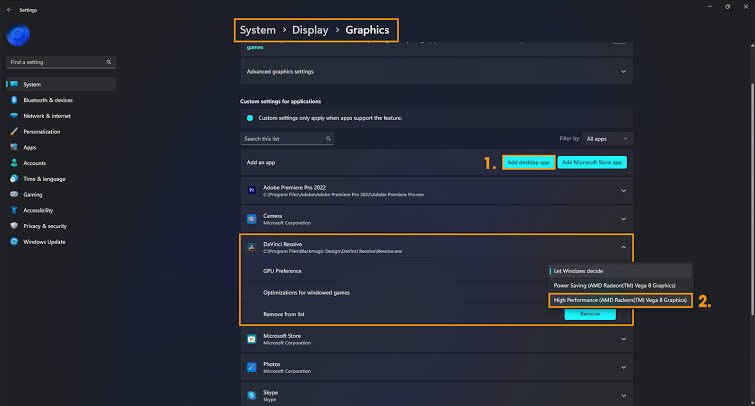
You have two real options: update the NVIDIA driver so CUDA works again, or tell Resolve to run on OpenCL on purpose. Updating the driver is the better fix for most people, since it restores full-speed processing. Here’s how to do each.
Option 1: Update your NVIDIA driver
- Check your current driver version. Right-click the desktop, open the NVIDIA Control Panel, and click Help > System Information. Note the driver version listed there.
- Download the current Studio driver from NVIDIA’s driver download page, not the Game Ready driver. Studio drivers go through extra validation against creative apps like Resolve, Premiere, and Photoshop, and they tend to be more stable for color grading and rendering work.
- Run the installer and choose Custom Install, then check Perform a Clean Installation. This clears out old driver files that sometimes conflict with the new CUDA runtime.
- Restart your computer once the install finishes, even if Windows doesn’t prompt you to. GPU drivers occasionally leave services running until a full reboot.
- Open DaVinci Resolve. The warning should not appear, and CUDA will be selected automatically if GPU Processing Mode is set to Auto.
- Option 2: Manually select OpenCL
If updating the driver isn’t possible right now, for example because other software on the machine depends on the exact driver version you have, you can accept OpenCL instead. Go to DaVinci Resolve > Preferences > System > Memory and GPU Configuration. Under GPU Processing Mode, uncheck Auto and select OpenCL from the list. Click Save, then restart Resolve.
Resolve will open without the warning and will process your timeline on OpenCL. Playback and render times may run a little slower on demanding effects, GPU-heavy noise reduction in particular, but everything still works correctly.
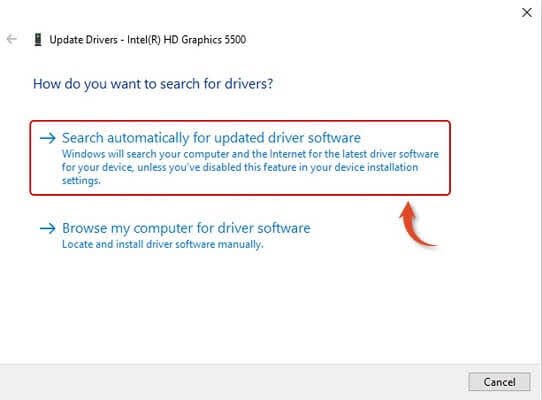
One detail catches people out here: selecting OpenCL from that menu is not the same as selecting the wrong physical GPU. If your system has both an integrated Intel or AMD chip and a discrete NVIDIA card, the same Memory and GPU Configuration screen also lists which physical device Resolve should use. Confirm the discrete NVIDIA card is selected there too, separately from the CUDA or OpenCL choice, or you’ll end up running on the weaker integrated graphics by accident.
Should you update the driver or switch to OpenCL?
Updating the driver is worth doing in almost every case, because it’s free, reversible, and restores full performance. Staying on OpenCL makes sense only when a driver update carries a real risk to other software you rely on daily.
| Situation | Update the driver | Stay on OpenCL |
|---|---|---|
| Resolve is your main GPU-heavy app | Yes, do this first | Only as a temporary step |
| You also run Photoshop or Lightroom with tuned OpenCL settings | Still safe, Studio drivers rarely break other creative apps | Reasonable if you want zero risk before a deadline |
| You’re mid-project with a delivery deadline | Update after delivery, not during | Yes, finish the project first |
| Effects, noise reduction, or Neural Engine tools feel slow | Yes, CUDA speeds these up noticeably | Not recommended long term |
A driver update through NVIDIA’s Custom Install with a clean install rarely causes problems for other software, since it replaces the GPU driver layer that Photoshop, Lightroom, and Resolve all sit on top of. If you’re on a tight deadline, though, finishing the current project on OpenCL and updating right after is a perfectly reasonable call.
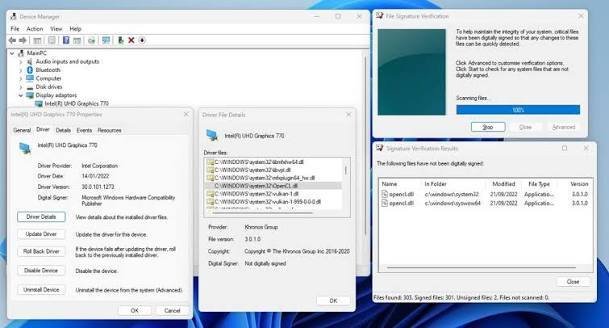
There’s a middle path worth knowing about too. NVIDIA’s driver installer lets you check installed components before confirming, so you can see the CUDA and OpenCL runtime versions it’s about to install without committing. If you want to sanity check compatibility with a specific app before updating, that screen tells you what’s coming without changing anything yet.
Fixing it on Mac and Linux
Mac
Modern Resolve releases on Mac run on Apple Silicon and use Metal rather than CUDA or OpenCL, so the GPU Configuration Warning in its NVIDIA form doesn’t apply there. Intel Macs with an older Resolve version and an AMD graphics card can still see an OpenCL-related GPU warning if the macOS version is outdated. In that case, update macOS through System Settings > General > Software Update, then reopen Resolve.
Linux
On Linux the warning almost always points to the installed NVIDIA driver package, not to Resolve itself. Open a terminal and run nvidia-smi to check your current driver version against what your Resolve build’s readme file lists as the minimum. If the driver is too old, install a newer one through your distribution’s driver manager or NVIDIA’s repository, then reboot.
If Resolve still won’t detect CUDA after the driver update, check that the nvidia-opencl-icd and matching libnvidia-compute packages for your driver version are installed and that no competing Mesa OpenCL ICD files are sitting in /etc/OpenCL/vendors/. A stray Mesa entry in that folder can make Resolve pick the wrong OpenCL platform even when the NVIDIA driver is correctly installed.
Running clinfo from a terminal is the fastest way to confirm what Resolve itself sees. It lists every OpenCL platform currently registered on the system, and if NVIDIA CUDA doesn’t appear in that list at all, the driver install didn’t complete correctly even if nvidia-smi shows a version number. Reinstalling the driver package, rather than just the kernel module, usually resolves that gap.
What if the warning keeps coming back?
A warning that returns after every Resolve update, even though you keep updating the driver, usually means one of three things is happening.
- Resolve auto-updates faster than you update the driver. Turn off automatic updates in Resolve’s preferences and update both together on your own schedule instead.
- A second, older NVIDIA driver package is still partially installed. Use NVIDIA’s own uninstaller or Windows’ “Apps & Features” to fully remove the old driver before installing the new one, rather than installing over it.
- GPU Processing Mode reset to Auto during the update and picked a card you didn’t intend to use, on a laptop with both integrated and discrete graphics. Check Preferences > System > Memory and GPU Configuration and confirm the correct GPU is selected, not just the processing mode.
On laptops with switchable graphics, forcing Resolve to always launch on the discrete NVIDIA GPU through the NVIDIA Control Panel’s Program Settings tab also prevents the warning from reappearing when Windows decides to run Resolve on integrated graphics instead.
It’s also worth checking whether the warning is tied to a specific project rather than the app itself. A project created on a different machine, or one with render cache settings pointed at a GPU that no longer matches your current hardware, can trigger a GPU-related prompt on open even when your driver and Resolve version are both fully current. Opening Resolve’s project settings and confirming the timeline resolution, render cache format, and optimized media settings match your actual hardware rules that out.
Frequently asked questions
Is it safe to click Update Configuration in the warning dialog?
Yes. It opens Resolve’s GPU settings screen so you can choose to update the driver or confirm OpenCL. It doesn’t change anything on its own or install software automatically.
Will switching to OpenCL hurt render quality?
No. OpenCL produces the same output as CUDA. The difference is speed, not accuracy, particularly on GPU-heavy tools like noise reduction and some Neural Engine features.
Does updating the NVIDIA driver affect Photoshop or Lightroom?
Rarely. A Studio driver installed with Custom Install and a clean install replaces the shared GPU driver layer those apps also use, and NVIDIA validates Studio drivers against major creative applications before release.
Why does the warning list a specific CUDA version number?
That number is the minimum CUDA toolkit version the installed Resolve build was compiled against. Newer Resolve versions raise this number, which is why an older driver that worked fine last month can trigger the warning after an update.
Can I ignore the warning and keep clicking Quit?
Quit closes Resolve without launching it, so you can’t work that way. You need to either update the driver or select OpenCL manually to get past the dialog and into the app.
Conclusion
The GPU Configuration Warning is Resolve telling you plainly that your NVIDIA driver is behind what the current build expects, and that it has switched to OpenCL to keep working in the meantime. Updating to the latest NVIDIA Studio driver with a clean install clears it in almost every case and restores full CUDA performance. If you can’t update right away, selecting OpenCL manually in Preferences keeps you working without the dialog reappearing at every launch.
Related Post:
What Is a Good GPU Clock Speed in MHz?
Fix GPU memory leak [Forge/Fabric]: what it does and how to install it
M4 Pro GPU Equivalent: What NVIDIA and AMD Cards It Matches
How to Fix “Could Not Find a Version That Satisfies the Requirement faiss-gpu”