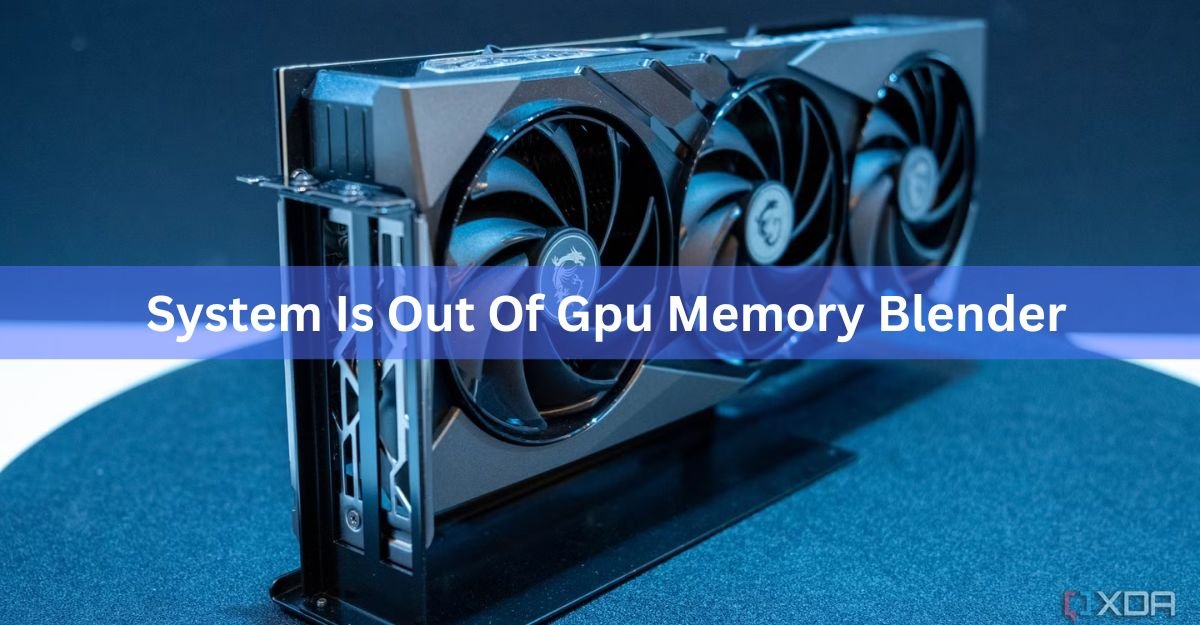
“System is out of GPU memory” means Cycles asked your graphics card for more memory than it had free, so the render stopped. Everything in the scene has to fit inside your card’s VRAM, and that memory is separate from the RAM on your motherboard. The fix has two halves: free up the VRAM that other things are holding, then shrink what the scene needs. Most of it takes about ten minutes.
What the message actually means
Before tracing a single ray, Cycles copies the whole scene onto the graphics card. Meshes, image textures, the acceleration structure it builds to find surfaces quickly, and the buffers that hold the image and the light paths in flight. If any one of those allocations fails, the render stops and you get this message.
Your card’s memory is a hard ceiling, and each GPU can only use its own. NVIDIA cards joined by an NVLink bridge are the one exception. They can pool memory through a preference called Distributed Memory Across Devices, at a small cost in speed.
Why it fires when your card looks half empty
The Mem and Peak numbers in the render window count Cycles scene data only. Several other things sit in VRAM at the same time and none of them appear in that readout.
- Everything else on your desktop. Your browser, chat apps, a second Blender window. On Windows a couple of gigabytes can be gone before you press F12.
- The 3D viewport. In Material Preview or Rendered shading the viewport keeps its own copy of the scene, and the final render then loads a second one.
- Path state buffers. Cycles keeps millions of light paths in flight at once and reserves memory for all of them up front. The amount scales with the card, so a faster GPU can reserve a bigger block.
- The denoiser. OptiX and GPU OpenImageDenoise both allocate buffers sized to your output resolution.
- A build spike. The acceleration structure needs extra room while it is being built, right before rendering starts.
That is why a scene reporting 3 GB of peak memory can still fail on an 8 GB card.
Find out what your scene really needs
Get a number before you change any settings.
Turn on Blender’s own readout first. Right-click the status bar at the bottom of the window and enable Video Memory (most drivers report it). You can then watch free memory drop as you switch the viewport to Rendered.
Next, watch the card from outside Blender while a render runs. On Windows, the Performance tab in Task Manager has a Dedicated GPU memory graph for each card. In a terminal, nvidia-smi prints used and total memory for NVIDIA cards.
Then run one test: render the frame at 25 percent resolution. If that finishes and 100 percent doesn’t, the problem is the buffers that scale with pixels, so go to the render settings below. If 25 percent fails too, the scene data itself is too big, and textures and geometry are where to look.
One more test narrows it further. Set the render texture resolution in the Simplify panel to 25 percent and render again. If it now completes, your textures are the problem rather than your meshes, and you know exactly which section to spend time in.
Fixes that take five minutes
Work down this list in order. Most crashes stop here.
- Close everything else. Every open app with a window is holding video memory.
- Switch the 3D viewport to Solid shading before you render, so the viewport isn’t holding a second copy of the scene.
- Save, restart Blender, render again. Memory from earlier renders is not always handed back cleanly.
- Render from the command line: blender -b scene.blend -f 1. No interface and no viewport means no second copy. This alone rescues a lot of animations.
- Turn off GPU denoising. In Render Properties > Sampling > Denoise, disable Use GPU. Denoising moves to the processor: slower per frame, but it stops a render dying at frame 40.
- Turn off Persistent Data in Render Properties > Performance > Final Render. It keeps scene data loaded between frames to save reload time, and that data has to live somewhere.
| Don’t just lower samples. Sample count changes render time, not memory. Cycles loads the same scene and reserves the same path buffers whether you render 32 samples or 4,096. |
Cut what the scene needs
Textures are usually the culprit
Image textures are the biggest single consumer in most scenes, and the cost climbs fast with resolution.
| Texture size | Memory per image |
|---|---|
| 1K | 4 MB |
| 2K | 16 MB |
| 4K | 64 MB |
| 8K | 256 MB |
Four 8K maps on one material, say base colour, roughness, normal and displacement, come to roughly a gigabyte for a single surface. Twenty materials like that will not fit on any consumer card.
Three things to do about it:
Turn on the texture cache if you are on Blender 5.2 LTS or newer. It lives in Render Properties > Performance > Texture Cache, with Auto Generate enabled. Blender writes an optimised .tx copy of each image into a blender_tx folder beside it, then loads only the tiles and detail levels the camera actually needs. On texture-heavy benchmark scenes the saving reaches around 80 percent, in exchange for a little render time and some disk space. Render farms and custom cache locations get extra controls, set out in the texture cache documentation.
Drop Texture Resolution under Render Properties > Simplify. In 5.2 this percentage slider replaced the old Texture Limit dropdown. Set the viewport to 25 or 50 percent and interactive work gets much lighter without touching the final render.
Resize the source files. A wall thirty metres from camera does not need an 8K map.
Instance geometry instead of copying it
Duplicating with Shift+D creates a full copy of the mesh data. Alt+D creates a linked duplicate that shares one copy, and a collection instance does the same for a whole group of objects. For a street of identical bollards or a forest built from three tree models, that is the difference between a scene that fits and one that doesn’t.
Watch subdivision as well. Each level roughly quadruples the face count, so level 4 is about 256 times the base mesh. Cap it with Max Subdivision under Simplify, and set render levels per object rather than leaving everything at 3 or 4.
Check what is actually being sent to the card, too. Hiding an object with the eye icon only hides it in the viewport. It still loads and renders. The camera icon in the Outliner is the one that keeps an object out of the render, and turning it off for anything outside the frame is free memory. Turn on the Disable in Renders filter in the Outliner if that column isn’t showing.
Hair, particles and volumes
Hair and dense particle systems are memory-hungry because every strand carries geometry. Max Child Particles under Simplify scales them all down at once, which is the quickest way to test whether hair is what is breaking the render.
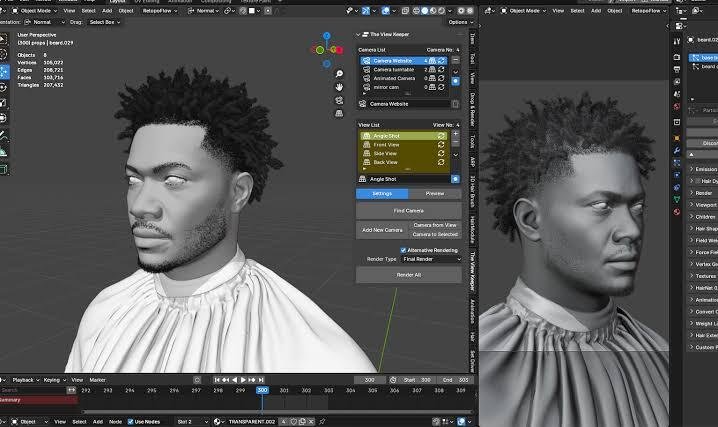
Volumes store a voxel grid, and halving the resolution of a smoke or cloud domain cuts that grid dramatically. Bake to disk where you can, and keep domains tight around the effect instead of filling a large box with empty voxels.
Render settings that lower the peak
Tiling is the most useful one, under Render Properties > Performance > Memory. With Use Tiling on, Cycles renders in tiles of 2048 pixels by default and writes finished ones to disk rather than holding the entire image and all its passes in memory at once. Lower the tile size to 1024 or 512 on a small card. It costs a little speed and saves a lot of memory at 4K and above.
Passes each add another full-resolution buffer, and Cryptomatte adds several. Open View Layer Properties and switch off the ones you won’t use in compositing.
Resolution percentage scales everything that depends on pixels. Rendering at 50 percent quarters the pixel count, so image buffers, denoiser buffers and tile memory all shrink together. It is a good stopgap for a test render or a client preview.
Tiling helps with a second problem as well. When one card both drives your monitors and runs the render, Windows limits how long the GPU can spend on render work before it steps in, and a heavy scene can trip that limit. A smaller tile size often gets you past it. Two cards, one for display and one for rendering, is the proper answer.
When to render on the CPU instead
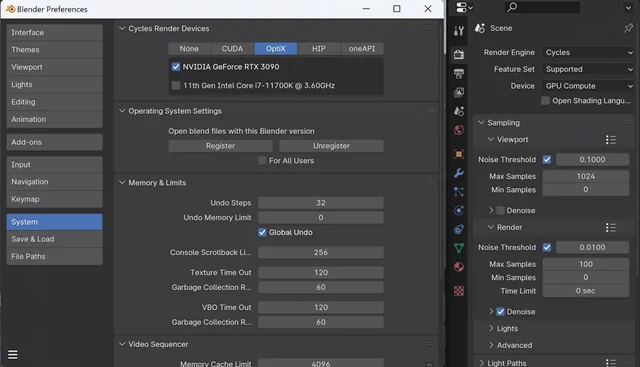
If the scene really does not fit, set Device to CPU in Render Properties. Cycles then uses system RAM, and 32 or 64 GB of RAM gives far more headroom than any consumer graphics card. The image comes out the same. It just takes longer.
Two other exits are worth knowing. You can render a frame in pieces with Render Region (Ctrl+B in camera view) and join them in the compositor, or send the job to a render farm with larger cards. Either beats rebuilding a scene you are happy with. Blender’s GPU rendering documentation also lists the hardware and driver requirements for each backend, which is worth a check if the error started after a driver update.
Frequently asked questions
Why does Blender say it is out of GPU memory when Task Manager shows free VRAM?
The failure is one allocation, not the total. Cycles may need a single large block, and the viewport, the denoiser and other apps are all holding memory that the peak figure in the render window never counted.
Will adding more system RAM fix it?
Not for GPU rendering. Cycles renders from the card’s own VRAM, so extra RAM only helps once you switch Device to CPU. More RAM does make CPU rendering a practical fallback for very large scenes.
Does rendering on the CPU change how the image looks?
No. Cycles produces the same result on both, so you can render half an animation on the GPU and half on the CPU. The only real difference is time, often several times slower.
Why does the error only appear part-way through an animation?
Memory builds up between frames. Persistent Data keeps scene data loaded, and GPU denoising can add to the total each frame, so a render can survive 40 frames and then stop. Turning both off usually fixes it.
How much VRAM do I need for Cycles?
It depends on your texture and geometry budget rather than a fixed number. As a guide, 8 GB handles single products and characters at 2K to 4K textures, while large interiors and dense foliage are far more comfortable at 16 GB or more.
Conclusion
The error is a VRAM ceiling, not a broken file. Free the memory other things are holding first: close other apps, put the viewport in Solid shading, render from the command line, and move denoising to the processor. Then bring the scene under the ceiling with smaller textures, the texture cache, linked duplicates and tiled rendering. A good result is a frame that renders with a few hundred megabytes of VRAM still free, so the next shot doesn’t fail either.
Related Post:
What Is a Good GPU Clock Speed in MHz?
Fix GPU memory leak [Forge/Fabric]: what it does and how to install it
M4 Pro GPU Equivalent: What NVIDIA and AMD Cards It Matches
How to Fix “Could Not Find a Version That Satisfies the Requirement faiss-gpu”