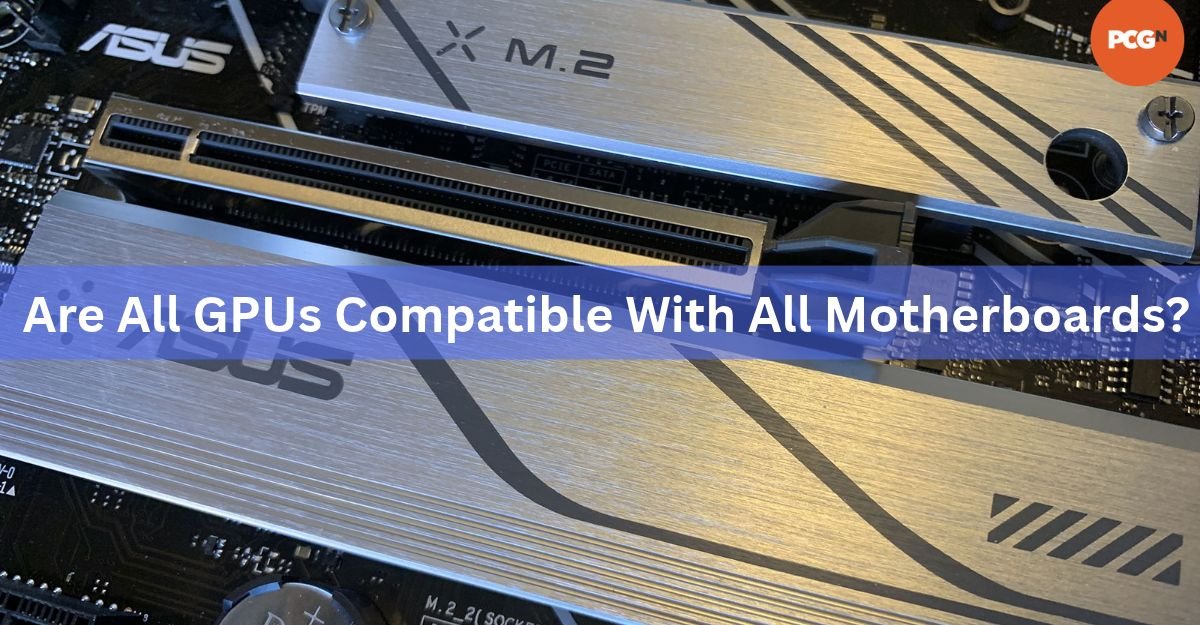
Almost, but not quite. Any modern graphics card will plug into and run on any modern motherboard that has a PCIe x16 slot, because every current GPU uses that same slot and every PCIe version works with every other. What changes from one board to the next is how well the card runs, and whether the rest of your PC can support it.
When a GPU upgrade goes wrong, it’s almost always for one of five reasons: a very old board with the wrong slot, a slower slot that holds back certain cards, old firmware settings, a power supply that’s too weak, or a case that’s too small. Here’s how to check each one on your own PC in a few minutes.
Why almost any GPU fits almost any motherboard
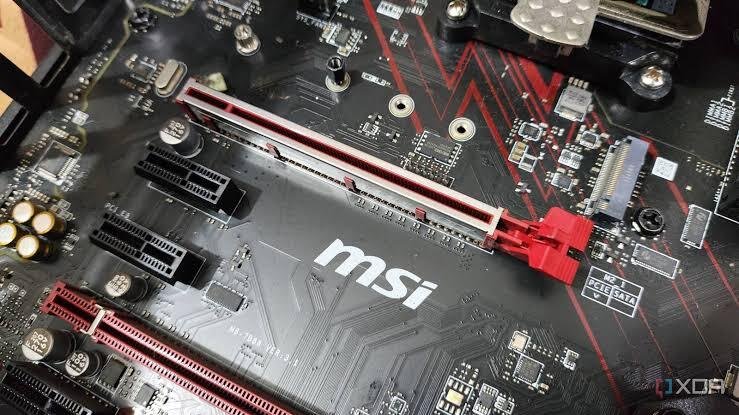
Graphics cards and motherboards meet in one place: the PCI Express slot, or PCIe for short. It’s the long slot, usually the one closest to the CPU, marked x16. The “x16” means it has 16 lanes, which work like lanes on a road. More lanes let more data move at once.
Nearly every desktop graphics card from the last 20 years uses this slot, and nearly every desktop motherboard has at least one. The standard is also built to stay compatible across versions. A newer card works in an older slot, and an older card works in a newer slot. When the PC starts, the card and the board agree on the fastest speed they both support and run at that. A PCIe 5.0 card in a PCIe 3.0 slot simply runs at PCIe 3.0 speed.
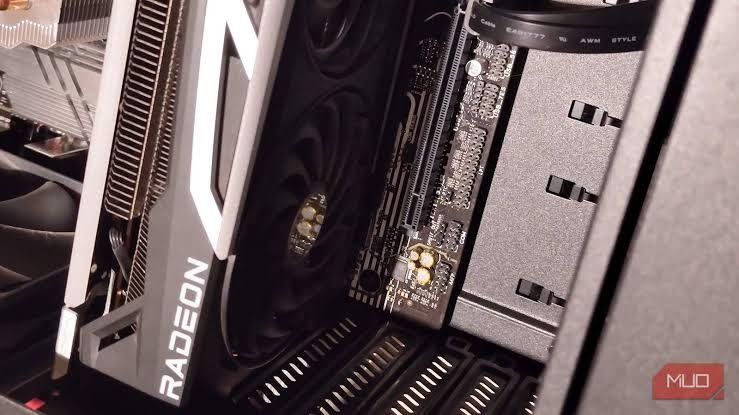
Brand doesn’t matter either. An NVIDIA card works on an AMD motherboard, and an AMD Radeon or Intel Arc card works on an Intel board. The slot doesn’t care who made the chip.
Quick rule: if your motherboard has a full-length PCIe x16 slot and was made in roughly the last 10 years, it can run a current graphics card. The real questions are speed, power and space.
When a graphics card won’t work at all
There are only a few true dead ends. They’re rare on modern hardware, but it’s worth ruling them out first.
- Very old boards with AGP or PCI slots. Before PCIe took over in the mid-2000s, graphics cards used a slot called AGP. An AGP board can’t take a PCIe card, and no adapter makes it a practical option.
- Boards with no x16 slot. Some tiny office PCs, thin clients and server boards only have short x1 slots, or none at all. A standard graphics card has nowhere to go.
- Boards without UEFI firmware. Most boards made before about 2011 only have an old-style BIOS. Some newer cards show the startup logo on these boards and then go black, or show nothing at all.
- A slot that’s physically blocked. A large CPU cooler, a drive cage or the case itself can stop the card from seating fully.
If none of these apply to you, your board and card are compatible. Everything from here on is about getting full speed and a stable system.
Does the PCIe version on your motherboard matter?
For most cards, only a little. For some budget cards, it matters more than you’d expect. The difference comes down to how many lanes the card actually uses.
Each PCIe version doubles the speed of the one before it. Here’s roughly how much data can move in each direction:
| PCIe version | Where you’ll find it | Full x16 link | x8 link |
|---|---|---|---|
| PCIe 3.0 | Intel 10th gen and older, AMD B450 and older | About 16 GB/s | About 8 GB/s |
| PCIe 4.0 | AMD B550, X570 and many B650 boards, many Intel 500 and 600 series boards | About 32 GB/s | About 16 GB/s |
| PCIe 5.0 | AMD X670E, B650E, X870 and X870E, many Intel Z690 and newer boards | About 64 GB/s | About 32 GB/s |
High-end cards like the RTX 5080 or Radeon RX 9070 XT use all 16 lanes. Even in a PCIe 3.0 slot they still have a lot of room, so the loss is usually a few percent at most.
Some budget and mid-range cards only wire up 8 lanes, or even 4. The RTX 5060 and RTX 5060 Ti run at x8, and the older Radeon RX 6500 XT runs at x4. On a PCIe 5.0 board that’s fine. On a PCIe 3.0 board, an x8 card gets a quarter of the bandwidth it was designed for.
Testing shows what that costs. The RTX 5060 Ti 16GB loses about 4 to 5 percent on average when held to PCIe 3.0 x8. The 8GB version is hit harder, because when it runs out of video memory it has to pull data across the slot. Across 27 games at 1440p, it lost about 6 percent just going from PCIe 5.0 down to 4.0, and closer to 10 percent in some games.
Tip: on a PCIe 3.0 board, lean toward a card that uses a full x16 link, or pick the version with more video memory.
Which slot should the card go in?
Use the top x16 slot. On most boards it’s the only one wired straight to the CPU with all 16 lanes. Lower full-length slots often run at x4 through the chipset, even though they look exactly the same. Some boards also cut the top slot to x8 when you fill certain M.2 drive slots. Your motherboard manual shows how each slot is wired.
BIOS settings that can make or break a new card
Your motherboard’s firmware, the BIOS, controls how the card starts up and how it talks to the CPU. Two settings matter most.
UEFI mode vs legacy (CSM) mode
Modern boards run in UEFI mode. Many also have a CSM option (Compatibility Support Module), which makes the board behave like an older BIOS. Newer graphics cards are built for UEFI, and running in CSM mode can cause startup trouble.
A clear example: in May 2025, NVIDIA confirmed that RTX 5060 and 5060 Ti cards could show a blank screen after a restart on some older boards running in Legacy/CSM mode. Its fix, posted on the NVIDIA GPU UEFI Firmware Update Tool page, starts with switching the board to UEFI mode and updating the motherboard BIOS.
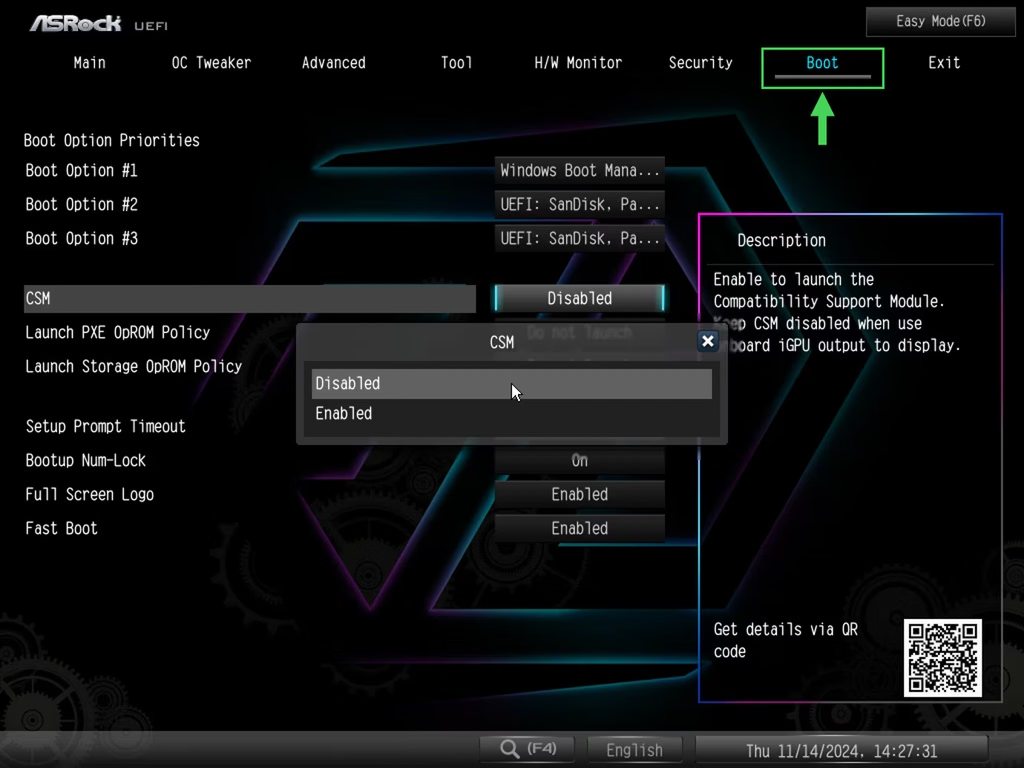
Switching to UEFI needs your Windows drive to use the GPT format instead of the older MBR format. Windows 11 uses GPT by default. On an older Windows 10 install, Microsoft’s built-in MBR2GPT tool can convert the drive without wiping it, though a backup first is smart.
Resizable BAR
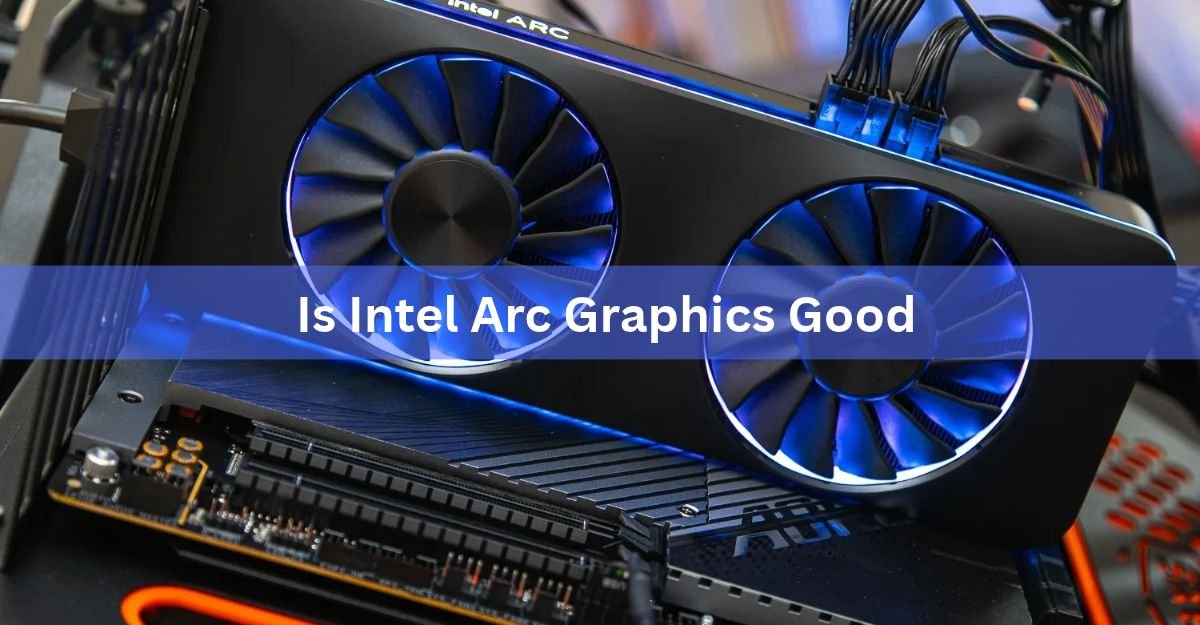
Resizable BAR lets the CPU reach all of the card’s video memory at once, instead of in small 256 MB chunks. AMD calls it Smart Access Memory. On NVIDIA and AMD cards it’s a small bonus. On Intel Arc cards it’s close to a requirement. The Intel Arc desktop quick start guide lists Resizable BAR, a full-size PCIe 3.0 or newer x16 slot, and CSM turned off as the setup Arc needs for good performance.
In practice, that means an Intel 10th gen or newer CPU on a board with Resizable BAR support, or an AMD Ryzen 3000 (not the G models) or newer on a 500-series or newer board. Many 10th gen boards need a BIOS update before the option appears.
To turn it on, open the BIOS, disable CSM, then enable Above 4G Decoding and Re-Size BAR Support. On some boards, the Resizable BAR option only shows up after you enable Above 4G Decoding, save and restart.
Can your power supply handle the card?
This is the most common real blocker, and it has nothing to do with the motherboard. A PCIe x16 slot can deliver up to 75 watts. That’s enough for a few low-power cards, but most gaming cards need much more, so they pull extra power straight from the power supply (PSU) through their own cables.
Check two things:
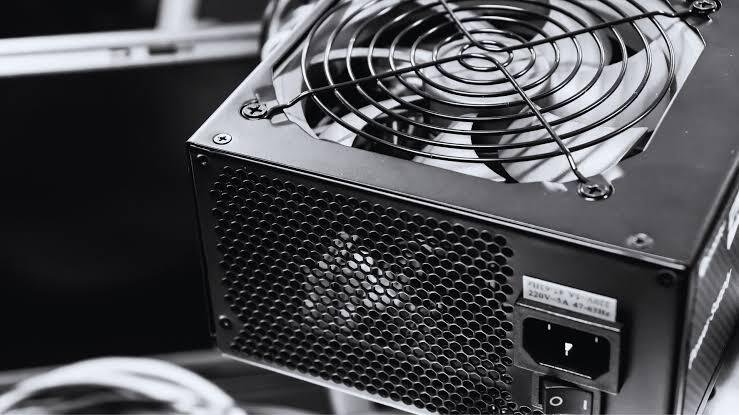
Wattage. The card maker lists a recommended PSU size on the spec page. Intel asks for at least 600 W for its Arc B580, and NVIDIA recommends 1,000 W for the RTX 5090. Follow the number for your exact card.
Connectors. Cards use 6-pin, 8-pin or the newer 16-pin power plug. Your PSU needs the right cables, and you should use separate cables rather than one split cable for cards that need two plugs.
Prebuilt office PCs from brands like Dell, HP and Lenovo are the usual trouble spot. Many ship with small power supplies, some under 300 W, with no spare graphics cables. Some use custom-shaped power supplies that are hard to replace. For these PCs, look at cards that draw 75 W or less and need no extra cable, such as the 70 W RTX 3050 6GB.
Will the card physically fit?
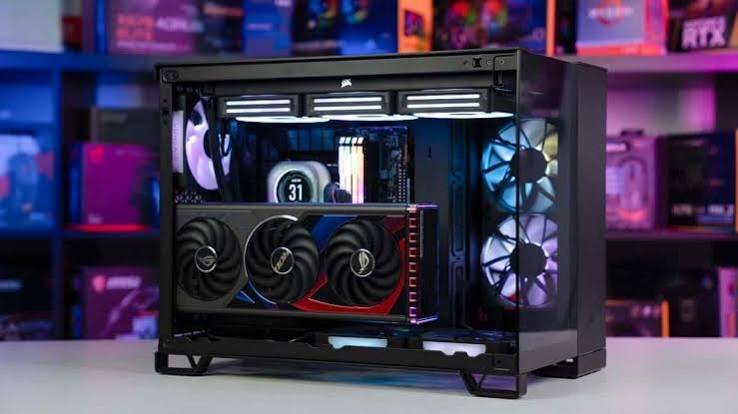
A card can be fully compatible with your motherboard and still not fit your case. Modern cards are big. Many high-end models are longer than 300 mm and take up three or more slots of width.
Before you buy, check the card’s length, height and thickness against your case’s maximum GPU length (it’s on the case spec page). Front fans or a radiator can eat into that number. Then look at what sits under the slot. A thick card can cover M.2 slots, SATA ports and front-panel headers, and on a small Mini-ITX board it can block almost everything below it.
Heavy cards can also sag over time, which strains the slot. That’s why many large cards now come with a support bracket. Use it.
How to check GPU and motherboard compatibility
This takes about five minutes and covers every point above.
- Find your motherboard model. On Windows, press Win + R, type msinfo32 and press Enter. Look for BaseBoard Manufacturer and BaseBoard Product.
- Open the board’s spec page. Confirm it has a PCIe x16 slot and note its PCIe version. Check how the lower slots and M.2 slots share lanes.
- Check the card’s link. The card’s spec sheet will say something like “PCIe 5.0 x8” or “PCIe 4.0 x16.” An x8 or x4 card on a PCIe 3.0 board will lose some speed.
- Check your firmware. Update the BIOS, make sure the board boots in UEFI mode, and see whether Resizable BAR is available. For Intel Arc, it must be on.
- Check your power supply. Compare its wattage and cables with the card maker’s recommendation.
- Measure your case. Compare the maximum GPU length and free slot space with the card’s size.
If all six check out, the card will work, and it will work at close to its full speed.
Frequently asked questions
Can I put an NVIDIA GPU in an AMD motherboard?
Yes. NVIDIA, AMD and Intel graphics cards all use the same PCIe x16 slot, so any of them works on an AMD or Intel motherboard. The CPU and motherboard brand make no difference to whether the card runs.
Will a PCIe 5.0 GPU work in a PCIe 3.0 or 4.0 slot?
Yes. PCIe works across versions, so the card runs at the slot’s slower speed. Full x16 cards lose very little. Cards that use only 8 or 4 lanes, like the RTX 5060 Ti, lose a few percent on PCIe 3.0.
Why does my new graphics card show no display?
Check that every power cable is fully plugged into the card, and that your monitor is connected to the card, not the motherboard. Then update the BIOS and switch it from CSM or legacy mode to UEFI mode.
Can I add a graphics card to a Dell or HP office PC?
Often, yes, if it has a PCIe x16 slot. The limits are usually the small power supply and tight case. Low-profile cards that draw 75 W or less and need no power cable are the safest choice.
Do I need to update my BIOS before installing a new GPU?
It’s a good idea, especially on boards more than a few years old. BIOS updates add Resizable BAR support and fix startup problems with newer cards. Update it while your old card is still installed.
Conclusion
Nearly every modern GPU is compatible with nearly every modern motherboard, because they all share the PCIe x16 slot and every PCIe version works together. Only very old AGP-era boards and boards with no x16 slot are true dead ends. For everything else, check four things: the slot’s PCIe version against the card’s lane count, UEFI and Resizable BAR in the BIOS, your power supply, and your case size. Get those right and the card runs at its best.
Related Post:
Unsupported GPU Processing Mode in DaVinci Resolve: How to Fix It
Do You Need to Uninstall Drivers When Upgrading Your GPU?
What Are Good Temps for a CPU and GPU? Safe Ranges for Idle, Gaming, and Heavy Loads
Do I Need a GPU Support Bracket? A Plain Answer by Card Weight