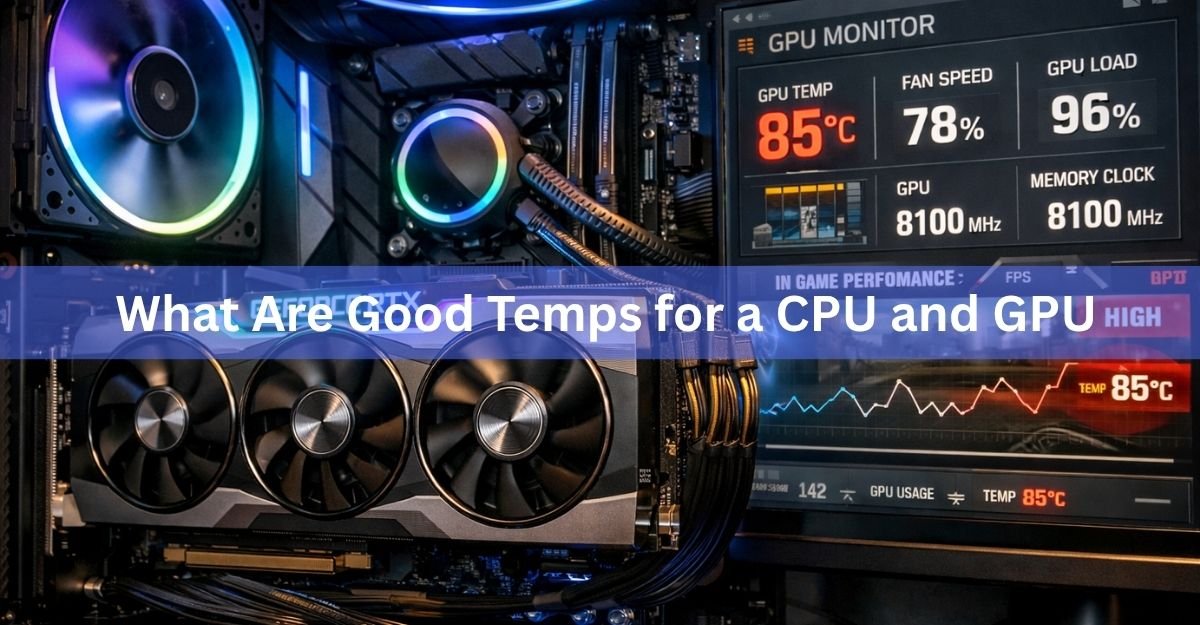
A good CPU temperature is about 30 to 45°C at idle and 60 to 80°C under load. A good GPU temperature is about 30 to 45°C at idle and 60 to 80°C while gaming. Both parts are still safe into the mid 80s, and neither will be damaged by a short spike above that.
The number where you should actually worry depends on who made the chip. Intel CPUs slow themselves down at 100 to 105°C, AMD Ryzen CPUs at 95°C (89°C for the X3D gaming chips), NVIDIA graphics cards at 88 to 90°C, and AMD Radeon cards at a 110°C hotspot reading. The rest of this guide explains those numbers, how to read your own, and what to do if yours are high.
What are good CPU temperatures?
A desktop CPU should sit between 30 and 45°C when the PC is doing nothing, climb to 60 to 80°C in games, and can legitimately reach 85 to 95°C in a long video render or a stress test. The table below is a quick reference for a desktop PC in a room at about 20 to 25°C.
| What the PC is doing | Good | Fine | Worth checking |
|---|---|---|---|
| Idle on the desktop | 30 to 45°C | 45 to 55°C | Over 60°C |
| Browsing, video, office work | 40 to 60°C | 60 to 70°C | Over 75°C |
| Gaming | 60 to 75°C | 75 to 85°C | Over 90°C |
| Rendering, encoding, stress test | 70 to 85°C | 85 to 95°C | At the chip limit for long stretches |
The “worth checking” column does not mean the CPU is being damaged. It means the cooler, the case airflow, or the thermal paste may not be doing its job, and you are probably losing some performance to heat. Modern chips protect themselves long before anything breaks.
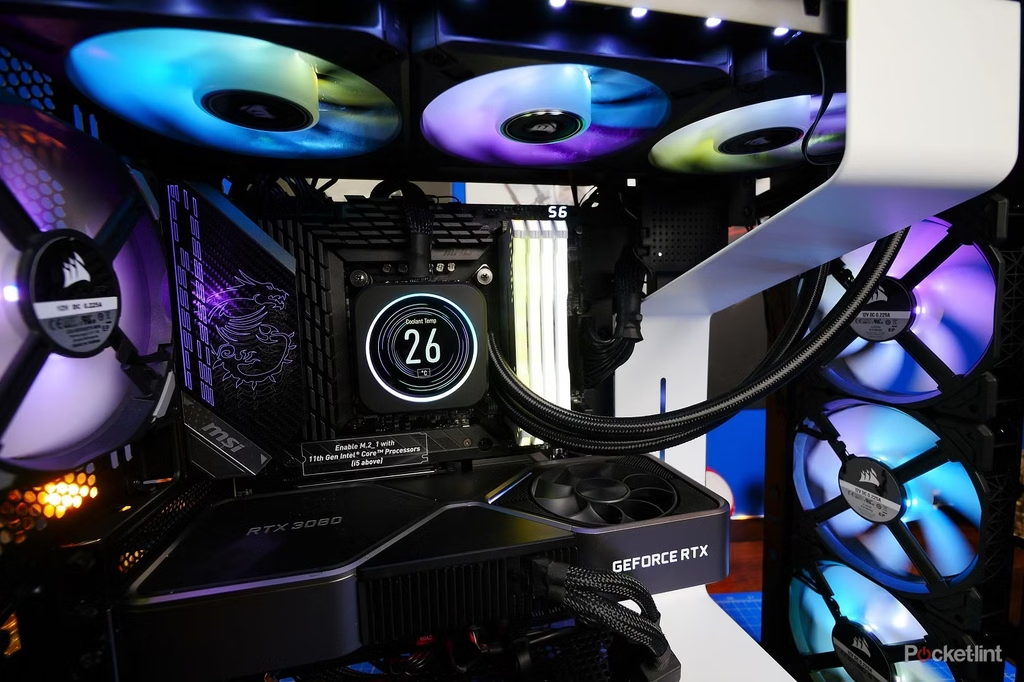
One thing catches a lot of people out: a CPU that reads 20 to 25°C when the room is 22°C is not possible with normal air or liquid cooling. If you see that, the sensor or the software is wrong, not the cooling.
What are good GPU temperatures?
A graphics card should idle at 30 to 45°C, run games at 60 to 80°C, and should not need to go past about 85°C on its main core reading. Graphics cards run hot by nature because they draw far more power than a CPU. A high-end card can pull 300 to 575 watts on its own, and all of that turns into heat inside a fairly small cooler.
| What the GPU is doing | Good | Fine | Worth checking |
|---|---|---|---|
| Idle or desktop | 30 to 45°C | 45 to 55°C | Over 60°C |
| Light gaming, video | 50 to 65°C | 65 to 75°C | Over 80°C |
| Heavy gaming, 4K, ray tracing | 65 to 78°C | 78 to 85°C | Over 88°C |
| Stress test (FurMark, etc.) | 70 to 82°C | 82 to 88°C | Throttling below its boost clock |
Those figures are for the main GPU temperature reading, sometimes called the edge or core temperature. Most cards also report a hotspot (junction) temperature and a memory temperature, and both run hotter. A hotspot 10 to 20°C above the core is normal. Memory in the high 80s or low 90s on a fast GDDR6X or GDDR7 card is also normal, and only becomes a concern in the high 90s.
Quick rule: under 80°C on either chip is good, 80 to 85°C is fine, and the point where the chip starts protecting itself is 88 to 110°C depending on the maker. Only sustained numbers at that limit mean you have a cooling problem to fix.
Why do AMD, Intel, and NVIDIA chips have different limits?
Every chip has a maximum temperature set by its maker, usually called TjMax (short for maximum junction temperature). When the chip reaches it, the chip lowers its own clock speed and voltage until it cools a little. That is called thermal throttling. It costs performance but it does not cause damage, because the chip is doing exactly what it was designed to do.
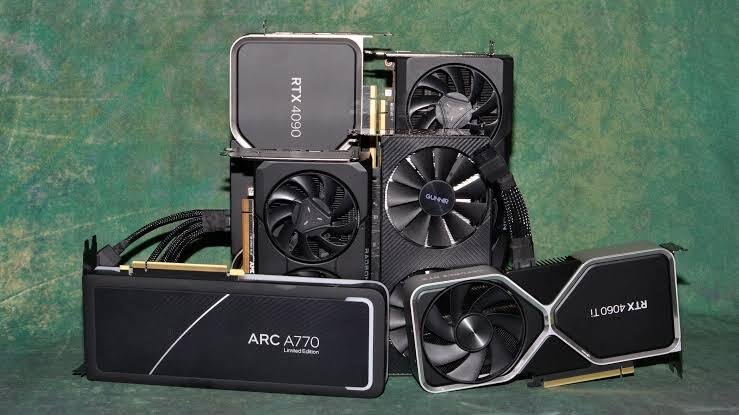
The limits differ because each company designs its silicon and its boost behaviour differently. Here is where each one sits as of 2026.
AMD Ryzen CPUs (Ryzen 5000, 7000, and 9000)
The limit is 95°C, and on the X3D models with stacked cache (such as the 7800X3D and 9800X3D) it is 89°C. Ryzen 7000 and 9000 chips are built to boost until they hit that limit and then hold there. AMD ran its reliability testing at 95°C, and a Ryzen 9 sitting at 95°C for a full render is running exactly as intended. On a good cooler most Ryzen chips stay in the 70s and 80s during games and only touch 95°C under an all-core load.
Intel Core CPUs (12th through 14th Gen and Core Ultra)
The limit is 100°C on 12th, 13th, and 14th Gen Core processors and 105°C on the Core Ultra 200 series. Some low-power laptop chips throttle at 85°C, and a few high-end desktop parts allow 110°C. You can look up your exact chip on Intel’s processor temperature page and its product spec listing. Intel’s big desktop chips (the 13900K, 14900K, and 285K) draw a lot of power and will reach their limit on a weak cooler. In games they typically run 60 to 80°C.
NVIDIA GeForce cards (RTX 30, 40, and 50 series)
NVIDIA now lists a maximum GPU temperature per model: 90°C for the RTX 5090 and RTX 4090, and 88°C for the RTX 5080. Below that ceiling, the card’s boost logic quietly starts trimming clocks from around 83°C on most models, so a GeForce card that is stuck at 85 to 88°C is already giving up a little speed. In practice a well-cooled RTX 50 card runs games in the 60s to mid 70s, with the memory in the 80s.
AMD Radeon cards (RX 6000, 7000, and 9000)
Radeon cards report two main numbers. The regular GPU temperature behaves like NVIDIA’s, usually 60 to 80°C in games. The junction or hotspot temperature can go all the way to 110°C, and AMD treats anything up to 110°C during normal gaming as within spec. A Radeon hotspot of 95 to 100°C with a core reading in the 70s is normal. A hotspot that sits pinned at 110°C while the fans run flat out is the sign of a cooler that is not making good contact, which is worth a support ticket.
At what point is a CPU or GPU too hot?
A chip is too hot when it sits at its maker’s limit for minutes at a time during normal use, or when it throttles so hard that games stutter and frame rates drop. Short spikes to the limit when a game loads or a render starts are not a problem.
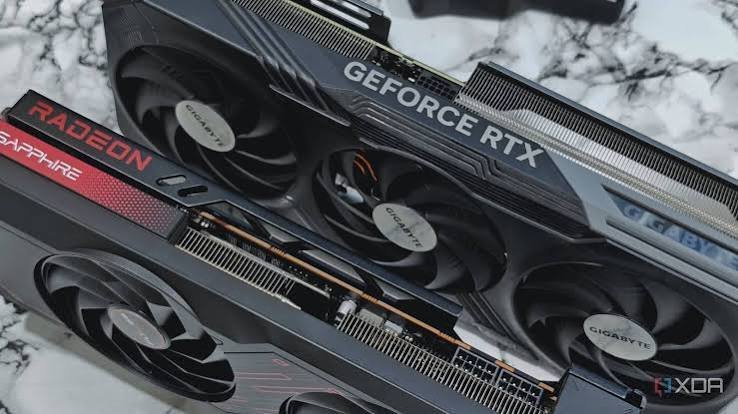
Two things make heat matter beyond the raw number. First, performance: a CPU held at its limit runs slower than the same chip at 80°C, sometimes by 10 to 30 percent in all-core work. Second, the parts around the chip: a graphics card that runs at 90°C for hours also cooks its memory, its power delivery components, and the thermal paste and pads, and those age faster than the silicon itself. Keeping a card in the 70s is mostly about protecting everything else on the board.
Heat also shows up as noise. Fans ramp with temperature, so a PC that stays 10°C cooler is usually a much quieter PC.
How do you check CPU and GPU temperatures?
The fastest way on Windows 11 is Task Manager: open the Performance tab and click your GPU to see its temperature live. Task Manager does not show CPU temperature, so for that you need a free monitoring tool.
- HWiNFO shows every sensor on the system, including CPU package, per-core, GPU core, hotspot, and memory temperatures, plus minimum and maximum values over your session. You can get it from the HWiNFO download page. It is the tool most people use to diagnose heat problems.
- MSI Afterburner adds an on-screen overlay so you can watch GPU and CPU temperatures while you play. It works with any brand of graphics card.
- The NVIDIA app or AMD Adrenalin software show GPU temperature and fan speed and let you adjust the fan curve.
- Ryzen Master and Intel XTU are the CPU makers’ own tools and show the exact limit for your chip.
Whichever tool you use, look at the reading during a 20 to 30 minute game session, not just at idle. Idle numbers tell you very little. And check the maximum value, not only the current one, because short spikes are where problems hide.
How to lower CPU and GPU temperatures
If your readings sit in the “worth checking” column, work through this list from cheapest to most involved. Most heat problems are airflow or dust, and those cost nothing to fix.
- Clean the dust. Blow out the case intake filters, CPU cooler fins, and graphics card heatsink with compressed air every few months. A clogged filter alone can add 10°C.
- Fix the airflow. Aim for front and bottom fans pulling air in and rear and top fans pushing it out, with the case sitting in open space rather than shoved into a cabinet. A cramped or badly arranged case can hold the CPU and GPU 10 to 15°C hotter than a well-ventilated one.
- Raise the fan curve. In Afterburner, Adrenalin, or your motherboard’s BIOS, make the fans ramp up earlier. This trades a little noise for lower temperatures.
- Set a power limit or undervolt. Lowering a GPU’s power limit by 10 to 20 percent often drops temperatures by 5 to 10°C while costing only a few percent of performance. On Ryzen, a lower PPT limit or Eco Mode does the same. On Intel, make sure the BIOS is using the default power limits rather than an unlimited setting.
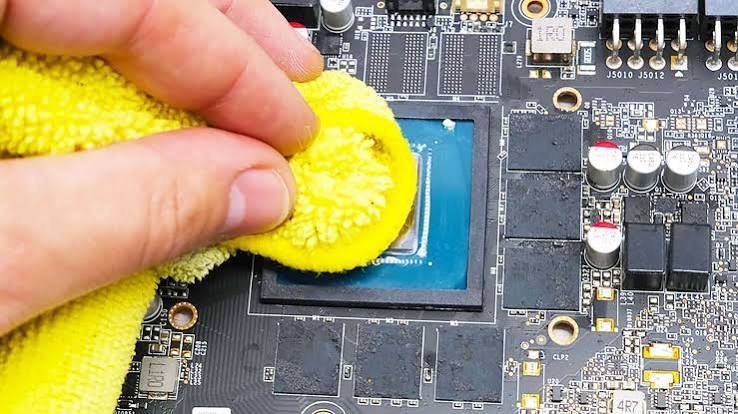
- Replace the thermal paste. CPU paste dries out after three to five years. Repasting is a 15 minute job on a CPU. On a graphics card it means taking the cooler off, which is fiddlier and may affect the warranty, so leave it as a last resort.
- Upgrade the cooler. A stock or budget CPU cooler cannot handle a 14900K or a Ryzen 9. A good 120mm tower or a 240mm liquid cooler is the fix when nothing else works.
Room temperature matters too. Every degree the room rises, the chip rises with it. A PC that is fine in winter can throttle in a hot summer room with no air conditioning.
Are laptop temperatures different?
Yes. Laptop CPUs and GPUs run 10 to 15°C hotter than desktop parts because the cooling is much smaller, so add about 10°C to every number in the tables above. A gaming laptop CPU at 85 to 95°C and a GPU at 80 to 87°C in a demanding game is normal, and the chips throttle safely if they get any hotter.
The fixes are more limited: keep the vents clear, use the laptop on a hard flat surface rather than a bed or lap, consider a cooling pad, and switch to the balanced power mode if the performance mode is running the chips at their limit. Cleaning the fans and repasting a laptop is possible but more involved than on a desktop.
Frequently asked questions
Is 80°C too hot for a CPU?
No. 80°C is a normal gaming temperature for a modern desktop CPU and well below the 95 to 105°C point where Ryzen and Intel chips slow themselves down. It only becomes worth investigating if the CPU sits at 80°C while idling or doing light work.
Is 85°C too hot for a GPU while gaming?
It is safe but on the warm side. Most GeForce cards begin trimming clocks around 83°C and hit their limit at 88 to 90°C, so a card at 85°C is losing a little performance. Better case airflow or a slightly higher fan curve usually brings it back into the 70s.
Why does my Ryzen CPU sit at 95°C?
Because it is designed to. Ryzen 7000 and 9000 chips boost until they reach 95°C and then hold there under heavy all-core work. That is normal and does not shorten the chip’s life. If it bothers you, a lower power limit or Eco Mode drops it into the 70s or 80s for a small performance cost.
Is a 100°C hotspot on an AMD Radeon card normal?
Yes. Radeon cards allow a junction (hotspot) reading of up to 110°C, and 95 to 100°C during a demanding game with a core temperature in the 70s is expected. Only a hotspot pinned at 110°C with the fans at full speed points to a cooler contact problem.
What is a good idle temperature for a CPU and GPU?
Around 30 to 45°C for both, in a room at about 20 to 25°C. Idle readings up to 55°C are fine, especially with a quiet fan profile. A CPU or GPU that idles above 60°C usually has a dust, airflow, or thermal paste problem worth fixing.
Conclusion
Good CPU and GPU temperatures are 30 to 45°C at idle and 60 to 80°C under load, with anything up to 85°C still fine. Each maker sets the real ceiling: 95°C for Ryzen, 100 to 105°C for Intel, 88 to 90°C for GeForce, and 110°C hotspot for Radeon, and the chip protects itself at that point. Check your numbers during a real gaming session with HWiNFO, and if they sit at the limit, start with dust and airflow before spending money.
Related Post:
Is 70°C Too Hot for a GPU? What the Number Really Means
Red Light on GPU When PC Is Off: What It Means and When to Worry
Client Server Runtime Process High GPU Usage: Why It Happens and How to Fix It
How to Know If Your GPU Is Failing: 7 Warning Signs and How to Test It
Satisfactory “GPU Crash Dump Triggered”: What It Means and How to Fix It