The clearest signs that your GPU is failing are visual artifacts (random dots, lines, or flashing shapes on screen), games crashing while the desktop stays stable, sudden black screens with the fans roaring at full speed, and blue screens that name the graphics driver. One of these on its own can have a different cause, so the job is really two steps: spot the symptom, then rule out the drivers, heat, and power problems that copy GPU failure almost perfectly.
This guide covers both. First the warning signs, roughly in order of how telling they are. Then a short process to confirm whether the card itself is dying, and what you can still do about it before buying a new one.
The 7 warning signs of a failing GPU
1. Visual artifacts on screen
Artifacts are the single strongest sign of a hardware problem. They look like random colored dots (often pink, green, or white), thin horizontal lines, checkerboard patterns, or textures in games that flicker, stretch, or turn into spikes. They appear because the video memory (VRAM) or the graphics chip itself is returning bad data, so the picture gets drawn wrong.
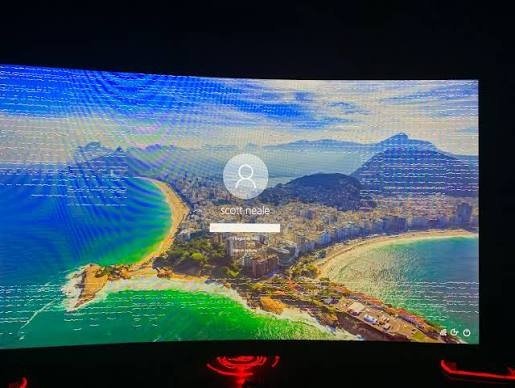
Location matters here. If the glitches show up only in one game, that game or its settings may be at fault. If they show up across several games, in Windows itself, or even on the BIOS screen before Windows loads, the hardware is almost certainly the problem, because drivers are not even running at that point.
2. Crashes that only happen under load
A very common pattern: the PC is fine for browsing, video, and office work, but games or video exports crash within minutes. Sometimes you get a message that the display driver stopped responding, sometimes the program just closes with no error at all, and sometimes the whole PC restarts.
This happens because light work barely touches the card, while a game pushes it to full power, full heat, and full memory use all at once. A chip or memory module that is starting to fail will pass the easy test and fail the hard one, every time.
3. Black screens with fans at full speed
The screen suddenly goes black mid-game, the audio may loop or cut out, and the GPU fans spin up to maximum. This means the card stopped sending a signal entirely, and with nothing controlling them, the fans default to full speed. You usually need to hold the power button to recover. If this happens more than once, treat it seriously: it points at the card or at the power feeding it.
4. Blue screens that name the graphics driver
Blue screens have many causes, but some point straight at graphics. Stop codes like VIDEO_TDR_FAILURE or VIDEO_SCHEDULER_INTERNAL_ERROR, or a crash file that names nvlddmkm.sys (NVIDIA) or atikmpag.sys (AMD), tell you the graphics driver was the part that fell over. A one-off after a driver update is usually nothing. A repeating pattern under load is a warning.
5. Performance that keeps getting worse
A healthy card gives you roughly the same frame rate in the same game at the same settings, month after month. If that number keeps sliding down, or smooth games have turned into a stutter fest, something has changed. Often the real cause is heat: dust builds up, thermal paste dries out, and the card slows itself down (thermal throttling) to protect the chip. That is a fixable cooling problem, but left alone for long enough, constant high heat also shortens the card’s life.
6. Fan trouble and strange noises
Grinding, clicking, or rattling from the card usually means a fan bearing is wearing out. A fan that never spins, or one stuck at 100 percent all the time, is just as bad. Fans are the one moving part on a graphics card, so they are usually the first thing to physically fail, and a dead fan quietly cooks everything else on the board.
7. No display at all
You power on and the monitor reports no signal. Before declaring the card dead, check the basics: the cable must be plugged into the graphics card’s ports, not the motherboard’s, and the card’s power connectors must be fully clicked in. Reseat the card in its slot. If a card that worked yesterday shows nothing today, with all connections confirmed, it may genuinely be gone, and the tests below will confirm it.
Is it really the GPU? Rule these out first
Most “failing GPU” cases turn out to be something cheaper. Work through this list before blaming the card.
- Drivers. A corrupted or badly updated driver can produce artifacts, crashes, and black screens on a perfectly healthy card. Do a clean reinstall: remove the old driver completely with Display Driver Uninstaller (DDU) in Safe Mode, then install a fresh driver from NVIDIA, AMD, or Intel. This one step quietly fixes a large share of suspected GPU failures.
- Heat. Open Task Manager’s Performance tab or a tool like HWiNFO and watch the GPU temperature while you play. A card sitting at 90 degrees Celsius and above is throttling or crashing because of cooling, not because the chip is broken. Dust and dried thermal paste are the usual suspects.
- Power supply. An aging or undersized PSU produces crashes and black screens under load that look identical to GPU failure, because the card only draws serious power when it is working hard. Check that the 8-pin or 12V-2×6 power connectors are fully seated, and be suspicious of any PSU that is old, cheap, or barely rated for your card.
- Cable and monitor. A worn DisplayPort or HDMI cable can cause flicker, black flashes, and signal dropouts on its own. Swap the cable, try a different port on the card, and if you can, test with another monitor.
- Overclocks. Any GPU or memory overclock, including a factory one pushed further in software, can cause artifacts and crashes. Reset everything to stock speeds before judging the hardware.
How to test your GPU, step by step
Once drivers, heat, power, and cables are cleared, these five steps give you a firm answer. Do them in order; each one narrows things down further.
- Watch temperatures at idle and under load. Note the idle temperature on the desktop, then the temperature after 15 minutes of gaming. Compare them with the table in the next section. A card that runs far hotter than it used to has a cooling problem worth fixing before any other conclusion.
- Run a stress test. Download FurMark, a free tool that pushes the card to a worst-case load, and run it for 10 to 20 minutes while watching the on-screen temperature. A healthy card finishes the run with a stable picture. Artifacts, a crash, a driver reset, or temperatures climbing past 90 degrees Celsius all mean something is wrong. Modern cards protect themselves by throttling at around 95 degrees, but there is no reason to sit there: stop the test if temps keep climbing.
- Check what Windows has recorded. Open Reliability Monitor (search for “reliability” in the Start menu) and look at the crash history. Repeated entries about the display driver failing, or Event Viewer warnings that name nvlddmkm or amdkmdag, show the graphics stack has been falling over for a while, even if you only noticed recently.
- Run the PC without the card. If your CPU has built-in graphics (desktop AMD Ryzen 7000 chips and newer have it, and Intel chips have it unless the model ends in “F”), shut down, remove the graphics card, plug the monitor into the motherboard, and use the PC normally for a day. If every symptom disappears, the card or its power feed was the cause.
- Swap the card into another PC. This is the definitive test. If the card misbehaves the same way in a different machine with a different PSU and different drivers, the card is the problem, full stop. It is also the test a repair shop will run first, so doing it yourself saves a diagnostic fee.
Quick rule: symptoms that survive a clean driver install, stock clocks, good temperatures, and a second PC are hardware. Everything else is worth fixing first.
What normal GPU temperatures look like
Temperatures explain a lot of symptoms on their own, so it helps to know what is normal before you panic. Exact limits vary by model, but these ranges hold for most modern cards.
| Situation | Typical range | What it tells you |
| Idle on the desktop | 30 to 50°C | Normal. Some cards stop their fans entirely here. |
| Gaming or rendering | 60 to 85°C | Normal under load, even at the top of the range. |
| Sustained 85 to 95°C | Too hot | Cooling problem: dust, dead fan, or dried paste. Fix it soon. |
| 95°C and above | Critical | The card throttles hard or shuts down to protect itself. |
The trend matters more than any single number. A card that has always gamed at 80 degrees is fine. A card that used to game at 70 and now hits 90 in the same title has a cooling system that degraded, and that is worth fixing before the heat causes real damage.
Can a failing GPU be saved?
Sometimes, yes. What you can do depends on what actually failed.
Fix the cooling. Blow the dust out of the heatsink with compressed air, and if the card is a few years old, repaste the chip and replace the thermal pads. A surprising number of “dying” cards come back to full health with fresh paste and clean fins, because the only thing failing was the cooling.
Replace a fan. Replacement fans for popular card models are cheap and swap in with a few screws. This is far better value than replacing the whole card over a worn bearing.
Undervolt or underclock. Lowering the card’s voltage or clock speed slightly in a tool like MSI Afterburner can stabilize a marginal chip and cut heat sharply. Treat this as borrowed time, not a cure, but it can keep a card usable while you save for a replacement.
Use the warranty. Most graphics cards carry a 2 to 3 year manufacturer warranty, and artifacts or crashing at stock settings are exactly what it covers. Check the purchase date before spending anything on repairs.
When artifacts appear at stock speeds, with clean drivers, good temperatures, and the fault following the card into a second PC, the silicon or memory is failing and no home fix will reverse it. Board-level repair shops can replace memory chips, but the cost only makes sense on expensive cards. For everything else, plan the replacement on your schedule instead of the card’s: keep your work saved, avoid long unsaved sessions, and buy before it dies completely.
Frequently asked questions
Can a GPU die suddenly with no warning signs?
Yes. A power spike, a failed memory chip, or a cracked solder joint can kill a card overnight. Most failures do give warnings first, though, which is why taking artifacts and load crashes seriously usually buys you time to test and replace on your own terms.
How long does a graphics card normally last?
With normal use, 5 to 8 years is common, and many cards retire because they are slow rather than broken. Fans and thermal paste wear out first, so a card that is kept cool and dust-free tends to outlive one that runs hot every day.
Do artifacts always mean the GPU is dying?
No. Overclocks, corrupted drivers, and even a bad display cable can produce glitches on a healthy card. Artifacts at stock speeds, after a clean driver install, appearing across several games or in the BIOS screen, are the version that points firmly at hardware.
Is it safe to keep using a failing GPU?
It will not usually damage the rest of the PC, but expect crashes at the worst moments, so save work often and back up anything important. If the card smells burnt, shows scorch marks, or trips the PSU’s protection, stop using it immediately.
Can overheating permanently damage a GPU?
Modern cards throttle at roughly 90 to 95 degrees Celsius to protect themselves, so one hot session will not kill them. Running near those temperatures every day is different: constant heat dries the paste, wears the fans, and slowly shortens the life of the board.
Conclusion
Artifacts, crashes under load, black screens with screaming fans, and driver blue screens are how a GPU tells you it is in trouble. Before believing it, do a clean driver install with DDU, check temperatures, and confirm the power side is solid, because those three copy every symptom of a dying card. Then stress test, and if the fault follows the card into another PC at stock speeds, it is hardware. A good outcome is a firm answer within an afternoon, not weeks of guessing.
Related Post:
Is 70°C Too Hot for a GPU? What the Number Really Means
Red Light on GPU When PC Is Off: What It Means and When to Worry
Satisfactory “GPU Crash Dump Triggered”: What It Means and How to Fix It
What the DaVinci Resolve GPU Configuration Warning Means (and How to Fix It)
“System Is Out of GPU Memory” in Blender: Why It Happens and How to Fix It