A normal GPU fan speed is 0 RPM at idle on most modern graphics cards, and somewhere between 40 and 70 percent of maximum while gaming, which usually works out to about 1,200 to 2,500 RPM. The fans don’t hold one pace. They follow a fan curve, a built-in map that links fan speed to temperature, so the fans spin faster as the chip heats up and slow down, or stop, when it cools.
That one idea explains almost everything your card does. It explains why the fans are silent on the desktop, why they roar when a game loads, and why the right question is rarely “is this fan speed too high?” and almost always “is my temperature under control?”
This guide covers how fan speed is measured, what counts as normal at idle and under load, how to check your own numbers, how to set a custom fan curve on any brand of card, and how to tell normal behavior apart from a fan that is actually failing.
What GPU fan speed actually measures
Fan speed shows up in two units, and mixing them up causes most of the confusion.
RPM (revolutions per minute) is the real, physical number: how many full turns the fan blades complete each minute. Most desktop graphics card fans idle around 800 to 1,200 RPM once they spin up, cruise between 1,500 and 2,500 RPM under load, and top out somewhere between 3,000 and 4,000 RPM.
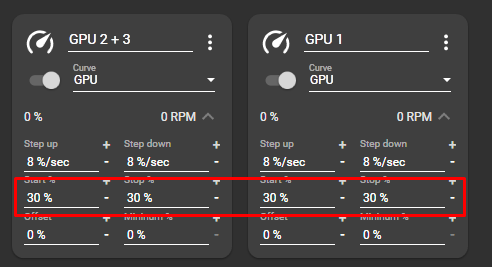
Percentage is relative. It tells you how close the fan is to its own maximum, whatever that maximum happens to be. That’s why 50 percent on one card can mean 1,100 RPM and on another 1,700 RPM. Percentages are handy for setting fan curves, but they say nothing about noise or airflow until you know the RPM behind them.
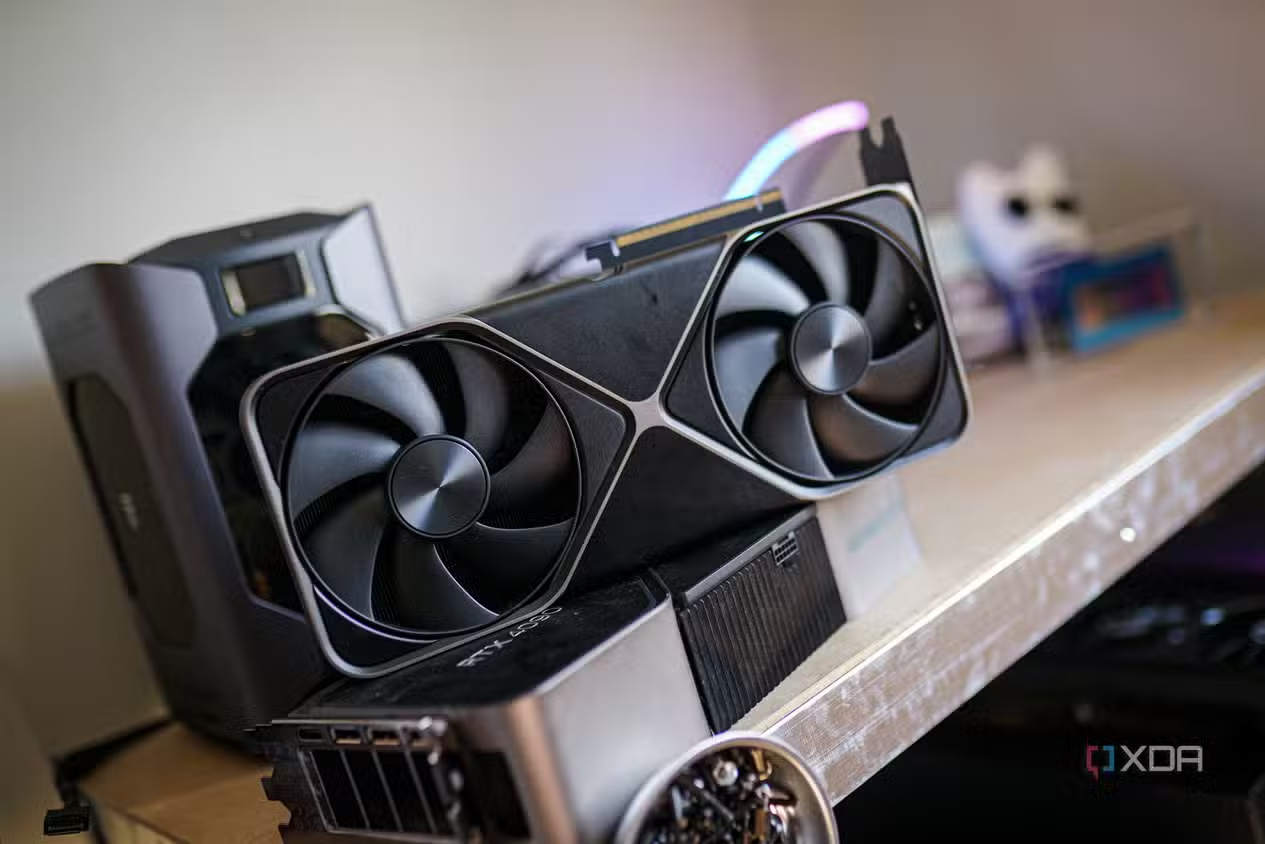
Two more things are worth knowing. Many cards carry two or three fans, and some models spin the middle fan in the opposite direction to cut turbulence between the blades. And on plenty of cards the fans share a single controller, so you set one speed for all of them rather than each fan on its own.
Why your fans sit at 0 RPM, and why that’s fine
If your fans are not spinning at all right now, that is probably by design. Almost every card released in the last decade ships with a zero RPM mode, which board partners often call fan stop. Below a set temperature, usually somewhere between 50 and 60°C, the fans switch off completely. The heatsink alone can soak up the small amount of heat a card makes while you browse or watch video.
The payoff is a silent PC at the desk and less wear on the fan bearings, which are the part of a graphics card most likely to fail first. The fans wake up the moment a real load pushes the temperature past the threshold.
The only time stopped fans are a problem is when the temperature keeps climbing anyway. If the card passes 70°C under load and the fans still refuse to move, jump to the troubleshooting section near the end.
What counts as a normal GPU fan speed?
| Situation | Typical fan speed | Typical core temperature |
|---|---|---|
| Idle (desktop, browsing) | 0 to 30%, often 0 RPM | 30 to 50°C |
| Video playback, light work | 0 to 40% | 40 to 55°C |
| Gaming | 40 to 70% (about 1,200 to 2,500 RPM) | 60 to 80°C |
| Stress tests, hot rooms, small cases | 70 to 100% | 75 to 90°C |
Treat the table as a sanity check, not a rulebook. Cooler designs vary a lot. A big triple-fan card can hold 65°C at 40 percent, while a compact dual-fan card doing the same work might need 65 percent to reach the same temperature. Neither one is broken. Laptops sit a step higher again: their fans are small, so they spin faster, whine at a higher pitch, and fight temperatures 5 to 10°C above what a desktop card would show.
The number that actually matters is the temperature. A fan running at 80 percent while the core sits at 70°C is doing its job. A fan loafing at 30 percent while the core touches 90°C is not. Judge the cooling by the result, and treat the fan speed as the means to that end.
Room temperature counts too. The fans can only push the air you feed them, so expect higher speeds in summer, in small cases, and in rooms without air conditioning.
The temperatures your fans are fighting
Fan speed only makes sense next to the limits it protects.
NVIDIA cards typically start pulling back their clock speeds, called thermal throttling, once the core reaches roughly 83 to 90°C, with hard limits around 90 to 93°C on recent generations. AMD works differently. Its cards report a junction, or hotspot, temperature measured at the hottest point on the chip, and RX 6000, 7000, and 9000 series cards are built to run that sensor as high as 110°C before throttling. A Radeon showing a 95°C hotspot next to a 70°C core is behaving as designed, not overheating.
For everyday gaming, a core temperature under 80°C is a comfortable target on any modern card. It leaves headroom for hot days and long sessions, and short spikes above it do no harm. What you want to avoid is a card pinned at its throttle point for hours, because that costs performance and works the whole cooler harder than it needs to.
If your card runs hot even at high fan speeds, the fix is usually case airflow, dust removal, or aging thermal paste, not more RPM.
How to check your GPU fan speed
Windows will not show you fan speed on its own. Task Manager displays GPU usage and temperature, but not fan RPM, so you need a monitoring tool. The good news: every option below is free.
MSI Afterburner is the easiest place to start, and despite the name it works with cards from every brand. Open its monitoring panel and you get fan speed in both percent and RPM alongside temperature and clock speeds. Its on-screen display can overlay those numbers in the corner of a game, which is the best way to watch what the fans do under a real load.
HWiNFO64 digs deepest. It reads every sensor the card exposes, including separate RPM figures for each fan on models that report them, plus memory and VRM temperatures.
GPU-Z is a lightweight choice whose Sensors tab logs fan speed over time, useful for spotting a spike you heard but didn’t see.
Your driver software works too. AMD’s Adrenalin app shows fan speed under Performance and then Metrics, and the NVIDIA App includes a statistics overlay.
When you check, look at two moments, not one. At idle, expect stopped or slow fans and a temperature in the 30s or 40s. Then start a game or a benchmark and watch the readings for ten minutes, because the numbers that matter are the ones after the card warms through, not the ones in the first thirty seconds. A card that settles at 70°C and 55 percent fan speed is telling you a very different story from one still climbing past 85°C with the fans already flat out.
Download MSI Afterburner only from MSI’s official Afterburner page or Guru3D. Fake Afterburner sites have been used to spread malware, and MSI itself warns that any other download source is an impostor.
How to change GPU fan speed
Fan control is safe and fully reversible. Unlike overclocking, it changes no clocks and no voltages; the worst outcome of a bad setting is extra noise or extra heat, and switching back to automatic undoes everything.
With MSI Afterburner (any brand of card)
Afterburner offers two levels of control: a fixed speed and a full custom curve.
For a fixed speed:
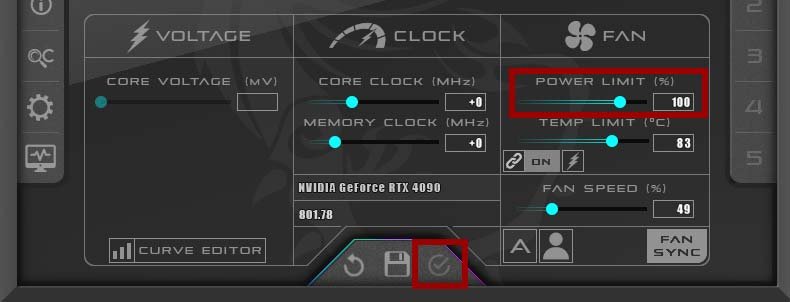
- Click the Auto button next to the fan slider so control switches to manual.
- Drag the Fan Speed slider to the percentage you want.
- Click the checkmark to apply. The fans hold that speed until you switch back to Auto.
A fixed speed is fine for a quick test, but it is the wrong tool for daily use, because it is either too loud at idle or too weak under load. A curve fixes both.
For a custom curve:
- Click the gear icon to open Settings, then choose the Fan tab.
- Tick “Enable user defined software automatic fan control.” A temperature-versus-speed graph appears.
- Drag the points, or click the line to add new ones, so the curve stays low at low temperatures and rises as the card heats up. The next section gives sensible values.
- Click OK, then Apply in the main window.
- Save the setup to a profile slot and enable “Start with Windows” so the curve loads on every boot.
With AMD Software: Adrenalin Edition
Radeon owners can skip third-party software entirely, because AMD builds fan control into the driver and documents every option in its performance tuning support guide. The short version:
- Open AMD Software: Adrenalin Edition, go to the Performance tab, then Tuning.
- Under Tuning Control, choose Manual (Custom).
- Switch Fan Tuning on and accept the warning prompt.
- Enable Advanced Control to reveal the curve, then drag the points to shape it. You can also keep or disable Zero RPM for silent idle here.
- Click Apply Changes.
Other tools worth knowing
ASUS GPU Tweak III adds per-fan sliders on ROG and TUF cards, and FanControl, a free open-source app, can run your GPU and case fans from one place, handy when you want the case fans to react to GPU temperature too. Whatever you pick, keep only one fan tool active at a time. Two programs sending different commands to the same fans will fight each other, and the result is speeds that surge and settle at random.
How to build a fan curve that’s quiet and cool
A good curve follows one principle: quiet when the card is cool, firm when it is hot, and gradual in between. A starting point that suits most cards:
- Up to 50°C: 0 to 30 percent. Keep zero RPM mode if your card offers it.
- 60°C: about 40 percent.
- 70°C: about 55 percent.
- 80°C: about 75 percent.
- 85°C and above: 100 percent.
Avoid steep cliffs between points. A jump from 40 to 80 percent inside five degrees produces the surging, revving sound people hate most, because the card crosses that band constantly during gameplay. A smooth slope keeps pitch changes slow enough that your ears stop noticing them. If your software offers hysteresis, a delay before the fans slow down after a temperature drop, a value of 3 to 5°C smooths things further.
One choice at the bottom of the curve deserves a thought. Zero RPM idle is silent but lets the card drift warm before the fans wake, and some people dislike the little whoosh each time they spin up. A constant low minimum, around 25 to 30 percent, keeps the card cooler at idle and removes the start-stop cycling, at the cost of a faint hum. Either is fine. Pick whichever your ears prefer.
Then test it. Play a demanding game for 20 to 30 minutes with the overlay on and watch where the temperature settles. Under 75°C and quiet enough for you means you are done. Too warm, raise the middle of the curve. Too loud, lower the points below 70°C first, since that is where the card spends most of its time.
Change one part of the curve at a time and re-test. You are trading noise against temperature, and small moves make it obvious which side you just gave up.
Should you just run the fans at 100 percent?
A fixed 100 percent is almost never worth it. The chip does not care, but the fans do. Fan bearings are wear parts, and the failure people actually see on aging graphics cards is a dead or rattling fan long before anything electronic gives out. Holding maximum RPM around the clock spends that lifespan for nothing, and the noise is hard to live with besides.
The cooling gain also shrinks as speed rises. Going from 40 to 70 percent might drop the core 10°C. Going from 70 to 100 percent often buys only another 3 to 5°C, because the heatsink can only hand heat to the air so fast.
Full speed has its moments: a benchmark run, a long render on a hot day, a cramped case doing sustained work. Use it as a tool for those sessions, not as a default.
When fan behavior means something is wrong
Fans that never spin, even under load. First rule out zero RPM mode by launching a game and watching the temperature. If it climbs past 70°C and the fans stay still, set the speed to 100 percent manually. A fan that ignores a direct 100 percent command is stuck or dead. Power the PC down, check for an obstruction (a stray cable resting in the blades is common), and clean out dust. If it still won’t turn, the fan or its header has failed. Replacement fans for most cards cost a small fraction of a new card, and a card under warranty should go back to the seller.
Fans stuck at 100 percent. When a card loses the signal from its own fan speed sensor, many models default to full blast as a safety measure, so a failing sensor often shows up as constant maximum noise rather than silence. A clean driver reinstall rules out software. After that, suspect the fan itself, and check that only one fan control app is running.
Grinding, clicking, or rattling. That is the bearing talking, or a blade clipping something. Clean the fan, look for a sagging cable or a peeling sticker, and if the noise stays, plan to replace the fan before it seizes.
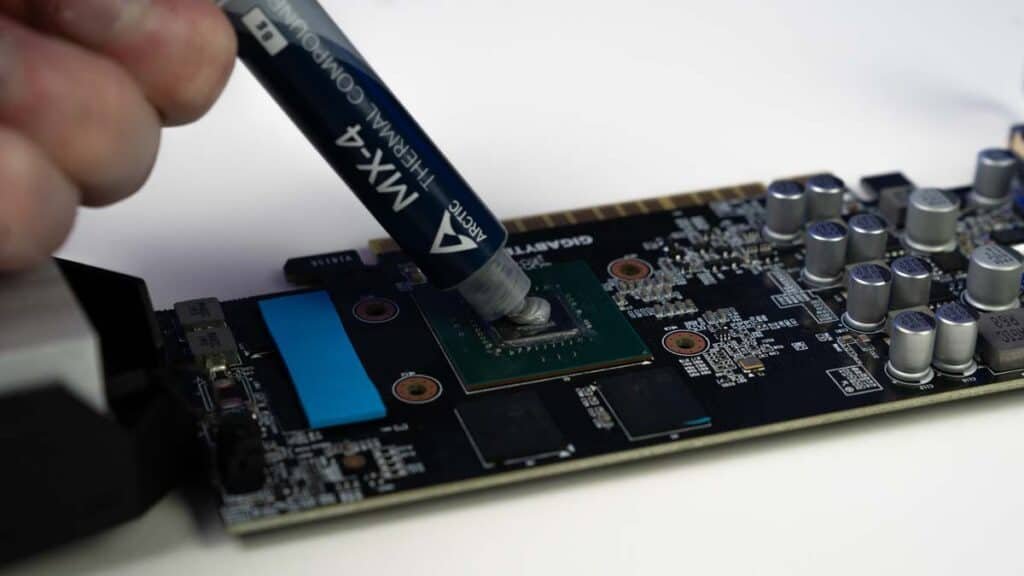
Fan speeds creeping up over the months. If the same game now needs 70 percent where 55 used to do, the cooler is choking on dust or the thermal paste is drying out. A can of compressed air through the heatsink fins, with the fans held still so they don’t overspin, often wins back five degrees for free. Cards several years old may also benefit from fresh paste and thermal pads, a job worth a careful guide but well within reach of anyone comfortable with a screwdriver.
Speeds surging up and down in menus. Usually a curve problem, not a fault. The card is bouncing across a steep section of its curve at a temperature it hovers around. Flatten that region or add hysteresis.
Frequently asked questions
What is a good GPU fan speed while gaming?
Between 40 and 70 percent is typical, but judge by temperature, not the number. If the core stays under 80°C and the noise doesn’t bother you, the speed is right for your card and case.
Why are my GPU fans not spinning at all?
Most modern cards stop their fans below roughly 50 to 60°C to stay silent at idle, so stopped fans on the desktop are normal. It only signals a fault if the temperature keeps rising under load while the fans stay still.
Is it bad to run GPU fans at 100 percent?
It won’t hurt the chip, but it wears the fan bearings faster and is loud. Past about 70 percent the extra cooling is small anyway. Save full speed for benchmarks and long, heavy workloads.
Does a higher fan speed increase FPS?
Only if the card was thermal throttling. Faster fans hold temperatures below the throttle point so the GPU keeps its boost clocks. If it wasn’t throttling, extra fan speed adds noise, not frames.
How do I check GPU fan speed without installing anything?
Windows can’t show it natively and Task Manager doesn’t include it, but your driver software already can. AMD’s Adrenalin app lists fan speed under Performance and then Metrics, and the NVIDIA App has a statistics overlay.
Conclusion
Let the temperature lead and the fan speed follow. At idle, 0 RPM is normal on modern cards. In games, 40 to 70 percent with a core under 80°C means everything is working. To make it quieter or cooler, set a custom curve in MSI Afterburner or AMD Adrenalin, keep the slope gradual, and test it in a real game. Save 100 percent for short, heavy sessions, and treat strange noises or a card that stays hot at full fan speed as a hardware problem, not a settings problem.
Related Post:
Why Is My GPU Usage So High? (And When It Actually Matters)
Should I Remove the GPU When Moving My PC?
GPU Overheated? What It Means and How to Fix It
How to Check If Your GPU Damaged Your Motherboard
CPU and GPU Temp: What’s Normal, What’s Too Hot, and How to Check