Yes, remove the GPU if the move involves a long drive, rough roads, a moving truck, a flight, or any courier. For a short, careful car trip, you can leave it installed as long as the case rides flat on its side with the motherboard facing down. That one rule covers most situations. The rest comes down to how heavy your card is and how much handling the PC will get along the way.
Here’s how to make the call for your setup, and exactly how to remove, pack, and reinstall the card without damaging anything.
Why the graphics card is the part most likely to break in a move
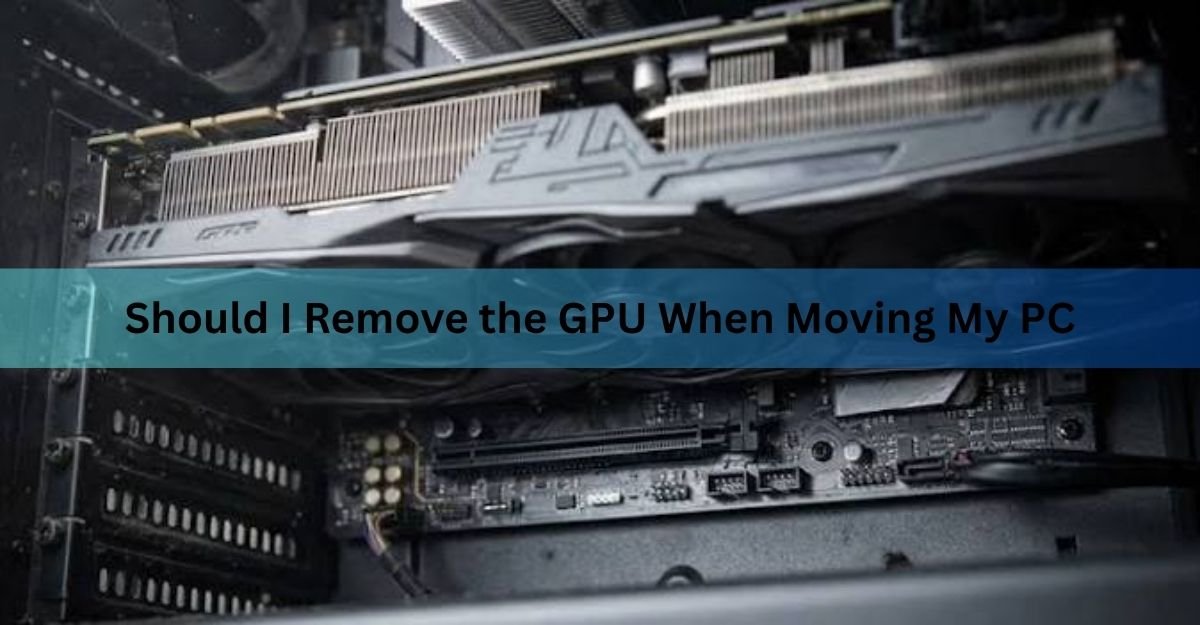
The GPU is the heaviest component in your PC that hangs off a connector instead of sitting flat. Nvidia’s RTX 5090 Founders Edition weighs about 1.8 kg (4 pounds) and stretches 304 mm, roughly a foot long, and many partner cards with triple-slot coolers weigh even more. All of that mass is held by a thin PCIe slot at one end and one or two small bracket screws at the other.
Inside a parked, stationary PC, that’s manageable, which is why anti-sag brackets exist in the first place. In a moving car, every bump turns the card into a lever. The far end bounces, the slot end takes the strain, and the load lands on the PCIe connector, the motherboard around it, and the card’s own circuit board. As Corsair’s guide to transporting a gaming PC puts it plainly, if the slot or the card’s connector breaks, repair is close to impossible.
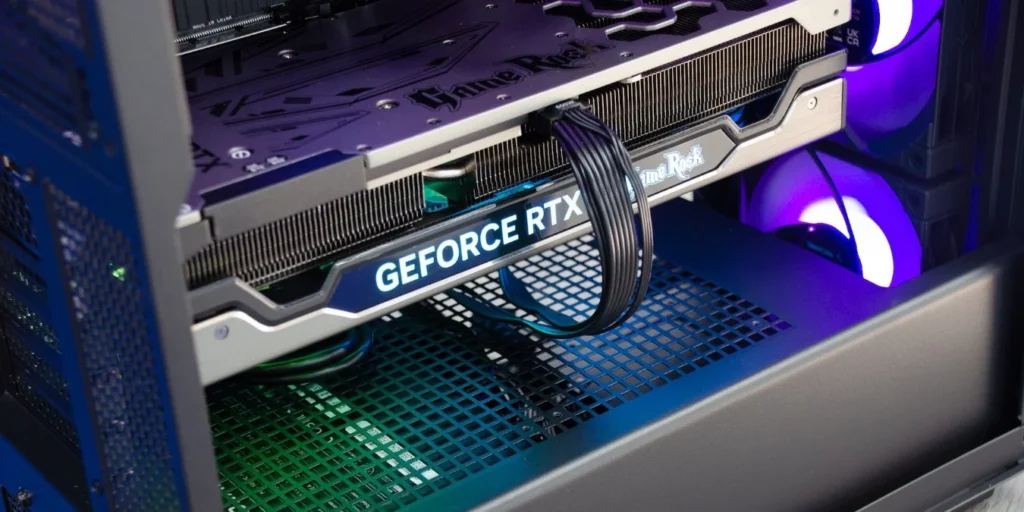
The damage isn’t always obvious either. A card can survive a move looking perfect, then start crashing or showing screen artifacts weeks later because tiny cracks formed in solder joints during the trip. That’s the real reason this question matters: the failure mode is often invisible until it isn’t.
When you should remove the GPU
Take the card out whenever the PC will face sustained vibration, unknown handling, or anyone else’s hands. In practice, that means:
- Long or bumpy drives. The drive is longer than about 30 minutes, or the roads are rough, unpaved, or full of speed bumps.
- Professional movers. The PC will sit in a truck with furniture, get stacked, tilted, or carried by people who don’t know what’s inside.
- Shipping by courier. Couriers drop boxes. Assume yours will be dropped at least once and pack for it.
- Air travel. Checked baggage gets thrown. If the PC flies, the GPU comes out and rides in your carry-on.
- Heavy, oversized cards. If your card needed an anti-sag bracket while sitting still, it has no business bouncing down a highway installed.
Removing the card takes about ten minutes. Set against the price of a modern GPU, which is often 40 to 50 percent of the whole build’s value, it’s the cheapest insurance you’ll ever buy.
When it’s fine to leave the GPU installed
You don’t need to strip the PC for every trip. Leaving the card in is reasonable when all of these are true: the drive is short, you’re the one carrying and driving, the PC rides inside the cabin (a padded seat or footwell, not the trunk), and the case lies flat on its side with the motherboard facing the floor.
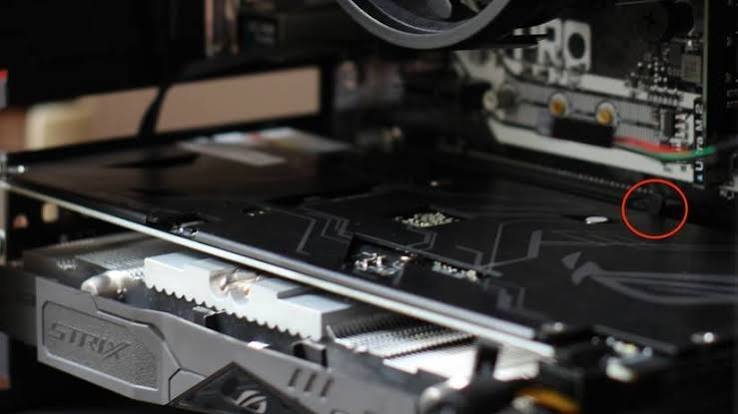
That orientation is the whole trick. With the case on its side, the GPU points straight up and its weight presses down into the slot instead of hanging off it sideways. Gravity stops working against the connector. An upright case in a moving car is the worst of both worlds: the card hangs horizontally off the slot while the whole thing vibrates.
Smaller cards change the math too. A compact dual-fan card in the 700 to 900 gram range puts far less strain on the slot than a 2 kg flagship, so a short trip with a modest card installed is a low-risk event.
There’s one setup where you should leave the card in even for a rough move: a custom water-cooling loop. Pulling a GPU out of hardline tubing is a major job, and the tubes themselves become the fragile part. The better approach is to drain the coolant, leave everything mounted, and pack the inside of the case with foam so the tubing and fittings can’t flex.
| Situation | Leave the GPU in? | Extra steps |
|---|---|---|
| Short drive (under 30 minutes), you carry the PC yourself | Usually fine | Lay the case on its side, motherboard down |
| Long drive, rough roads, or the PC rides with other cargo | Remove it | Pack the card in its original box |
| Professional movers or a moving truck | Remove it | Carry the card with you if you can |
| Shipping the PC by courier | Remove it | Double-box the card, insure the shipment |
| Custom water-cooled loop | Leave it in | Drain the loop, fill the case with foam |
How to remove the GPU safely, step by step
The removal itself is simple. The mistakes people make are forgetting the power cables, forcing the card against the slot latch, and building up static. Work on a hard surface, not carpet, and you’re set.
- Power everything down. Shut down Windows, flip the power supply switch to off, and unplug the wall cable. Then press the case power button for a few seconds to drain leftover charge.
- Ground yourself. Touch a bare metal part of the case before reaching inside. That discharges any static from your body. Keep touching the case now and then as you work.
- Open the case. Remove the side panel so you can see the full length of the card.
- Unplug the GPU power cables. Press the clip on each PCIe power connector and pull the cables out of the card. They can be stiff; squeeze the clip fully before pulling.
- Unscrew the bracket. One or two screws hold the card’s metal bracket to the back of the case. Remove them and put them straight back into the empty holes so they don’t get lost.
- Release the PCIe slot latch. Support the card with one hand, then press the small latch at the back end of the slot with a finger of the other. Some boards have a push-button style release instead. The card should loosen with a faint click.
- Lift straight up. Pull the card straight up out of the slot, holding it by the edges and the metal bracket. Never pull at an angle, and never touch the gold contacts.
If the card won’t budge, the latch isn’t fully released. Stop and press it again. Forcing a stuck card is how slots and latches snap.
How to pack the GPU for the trip
The original box is the best packaging the card will ever have. The molded foam was designed for that exact model, which is why it survived the courier network on the way to you. If you kept it, use it.
Slide the card into an anti-static bag first. The risk of a static kill is small, but the bags cost almost nothing and remove it entirely. If you don’t have one, avoid wrapping the bare card directly in plastic; plain paper or the original foam is safer against the board itself.
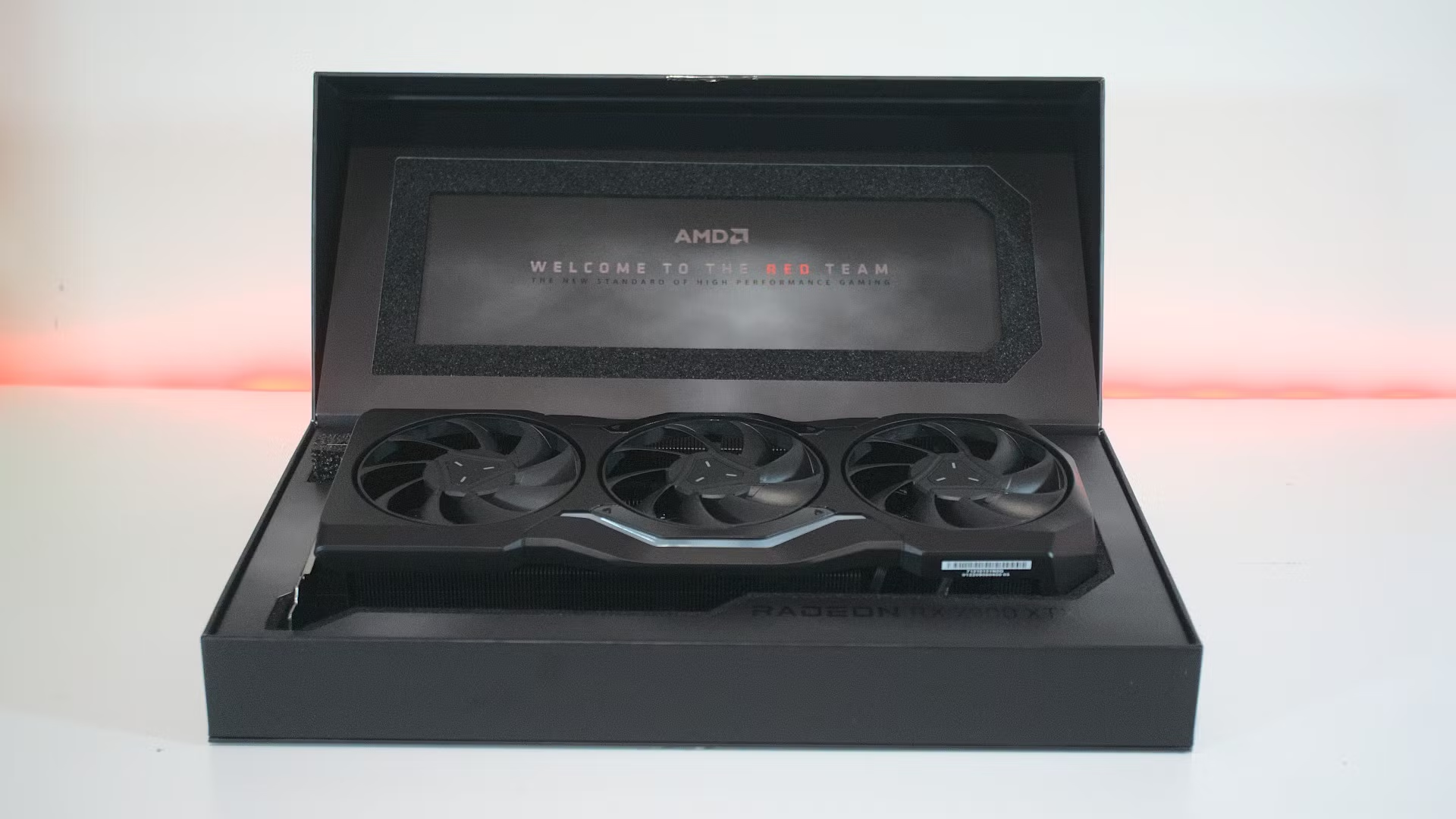
No original box? Wrap the card in two or three layers of bubble wrap and place it in a snug cardboard box. It shouldn’t rattle when you shake the box, and it shouldn’t be squeezed when you close it.
Skip loose packing peanuts. They shift during the trip and leave the card sitting against a bare box wall by the time it arrives.
If the PC is being shipped rather than driven, keep the GPU with you instead. A graphics card in your backpack is safer than the same card in any courier’s van.
How to pack the rest of the PC
With the card out, the PC is much tougher, but a few more minutes of prep protects everything else.
First, deal with the other heavy hanger-on: a large tower air cooler. Big twin-tower coolers weigh over a kilogram and hang off the CPU socket the same way a GPU hangs off its slot. For a serious move, unscrew the cooler (leave the mounting backplate in place), clean off the old paste, and reapply fresh thermal paste when you rebuild. All-in-one liquid coolers can stay; their pump block is light. Older mechanical hard drives are the other fragile part, since a hard knock can damage their moving platters. SSDs don’t care.
Then fill the empty space inside the case. Loose cables and dangling connectors whip around during transport. Air pillows or foam inserts pressed gently into the case before you close the panel keep everything still. Avoid materials that shed or build static, like foam peanuts, inside the case.
Finally, box the whole thing. The case’s original box and foam caps are ideal for a car move. Sit the box flat in the car, motherboard side down, ideally on a seat with the belt around it rather than in the trunk, where the suspension is stiffest. If you’re shipping the PC and no longer have the original packaging, it’s worth reading the official packing guidance from Nvidia’s GeForce support pages and your case maker before trusting a courier with a bare tower in a random box.
Putting it back together at the new place
Reinstalling is the removal in reverse, with one extra habit: check before you power on. Open the side panel and look for anything that shook loose in transit. Press gently on the RAM sticks, check that fan cables and front-panel connectors are still seated, and make sure nothing is resting where it shouldn’t be.
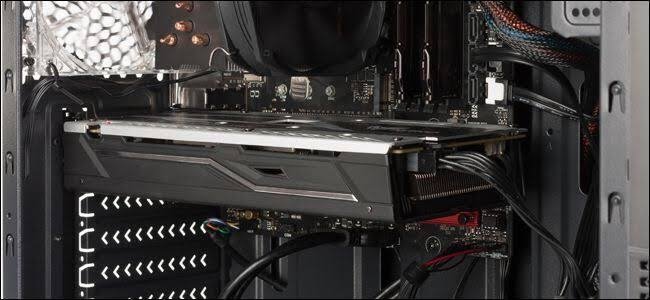
Then seat the GPU. Line the card up with the slot, press straight down on the spine above the connector until the latch clicks, screw the bracket back in, and reconnect the power cables until each clip snaps home. A half-seated power connector is the most common cause of a rebuilt PC that won’t display anything, so give each cable a light tug to confirm it’s locked.
First boot after a move can take slightly longer than usual while the motherboard retrains memory. That’s normal. Once you’re at the desktop, run a game or a benchmark for ten minutes and watch for artifacts or crashes. A clean run means the move went fine.
Frequently asked questions
Can I move my PC without removing the graphics card?
Yes, for a short drive where you handle the PC yourself. Lay the case flat on its side so the GPU points up, keep it inside the cabin on padding, and drive normally. For anything longer or rougher, take the card out.
What’s the safest position for a PC in a car?
Flat on its side with the motherboard facing the floor. In that position the GPU and CPU cooler press into their sockets instead of hanging off them. A back seat with the seatbelt around the box beats the trunk, which sits over the stiffest part of the suspension.
Do I really need an anti-static bag for the GPU?
It’s cheap insurance rather than a strict requirement. Static damage during a short move is rare, but a bag costs almost nothing and removes the risk. If you don’t have one, the original box and foam alone are still a safe way to carry the card.
Should I remove the CPU cooler too?
Only large tower air coolers, which can weigh over a kilogram and strain the CPU socket during a rough move. Remove those, then reapply thermal paste when you rebuild. All-in-one liquid coolers and small low-profile coolers can stay installed.
Is it safe to fly with a GPU in my luggage?
Put it in your carry-on, packed in its box or wrapped in padding, not in checked baggage. Checked bags get thrown and stacked. Security may swab or inspect the card, which is routine, and X-ray scanners don’t harm electronics.
Conclusion
Remove the GPU for any move with real distance, rough roads, movers, couriers, or flights, and carry it separately in its original box or a padded, snug one. For a short, careful drive, leaving it installed is fine if the case lies on its side with the motherboard facing down. Ten minutes with a screwdriver protects the single most expensive part in the machine, and a quick visual check before the first boot finishes the job.
Related Post:
Steam Deck GPU Equivalent: Which Graphics Card It Matches
The Best GPU for Games Like Overwatch and Minecraft (2026)
CPU and GPU Temp: What’s Normal, What’s Too Hot, and How to Check