If your screen goes black mid-game and iCUE freezes at the same moment, it looks like Corsair’s software just took down your graphics card. It didn’t. iCUE cannot damage a GPU, and it almost never crashes one on its own. What’s really happening is a shared dependency: iCUE uses your graphics card to draw its interface and constantly reads sensor data from it, so when your display driver stumbles, iCUE falls over at the same time. The driver is the patient. iCUE is just the first thing to scream.
That distinction matters, because it points you at the right fix. Nine times out of ten this is a driver or settings issue you can solve in a few minutes, not a dying card. Here’s why the two crash together, and the exact order to work through the fixes.
Does ICUE actually crash or damage your GPU?
No. iCUE is a lighting and monitoring app. It has no ability to overvolt, overclock, or physically stress your graphics card the way a mining workload or a bad overclock can. What people call “iCUE crashing my GPU” is usually one of two things: the display driver crashing and taking iCUE down with it, or iCUE’s own window freezing while the rest of the system keeps running
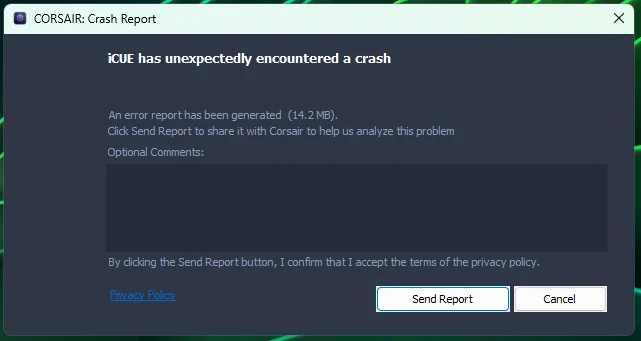
You can tell them apart in seconds. If your whole screen goes black, flickers, or shows a “display driver stopped responding” message, and your RGB fans jump back to their default rainbow pattern, that’s a driver-level event. If only the iCUE window locks up while your game keeps playing, that’s an app crash. Both are fixable, and neither means your card is broken.
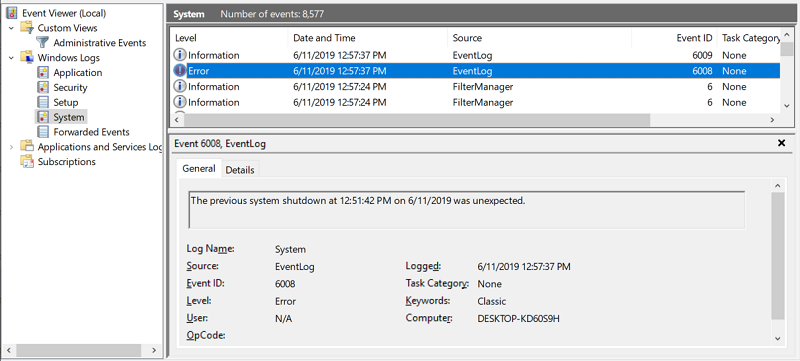
| Quick gut check: Open Event Viewer (search it in the Start menu), go to Windows Logs, then System, and look for a warning that reads “Display driver nvlddmkm stopped responding and has successfully recovered.” If you see that stamped at the exact time iCUE died, your driver is the cause, not Corsair. |
Why ICUE and your graphics driver crash together
iCUE is hardware accelerated, which means it uses your GPU to render its own interface, lighting previews, and any LCD screens on Corsair coolers. On top of that, iCUE polls your graphics card many times a second to pull temperature, clock speed, power draw, and usage figures for its dashboard. So iCUE is leaning on the exact same driver your games use, and it’s talking to the card constantly in the background.
When the display driver crashes for any reason, Windows resets it. For a fraction of a second, every program relying on that driver loses its connection to the GPU. Your game might recover. iCUE, which is mid-conversation with the card, often doesn’t, and it hangs until you force it to close. That’s why the black screen and the frozen iCUE window arrive together. It looks like cause and effect, but they’re both downstream of the same driver reset.
There’s a second pattern worth knowing. On some systems, iCUE’s constant sensor polling can itself nudge an already-unstable driver over the edge, especially right after a driver update, or when the card is idling at very low clocks and iCUE’s requests force it to spike. In those cases iCUE isn’t the root cause, but its polling is the trigger that exposes a driver that was going to fail anyway. This is why the same PC can be rock solid in a game benchmark yet freeze on the desktop with iCUE open.
This has flared up publicly more than once. When certain NVIDIA GeForce drivers shipped a regression, iCUE users saw runaway CPU usage and crashes, and NVIDIA listed the conflict directly in its own driver notes. The behavior showed up in Bluestacks too, another app that leans hard on the GPU, which is a strong hint the driver was at fault rather than Corsair’s code.
The quick checks to try first
Start with the low-effort fixes. These solve a surprising share of cases and take five minutes total. Work down the list and test after each one.
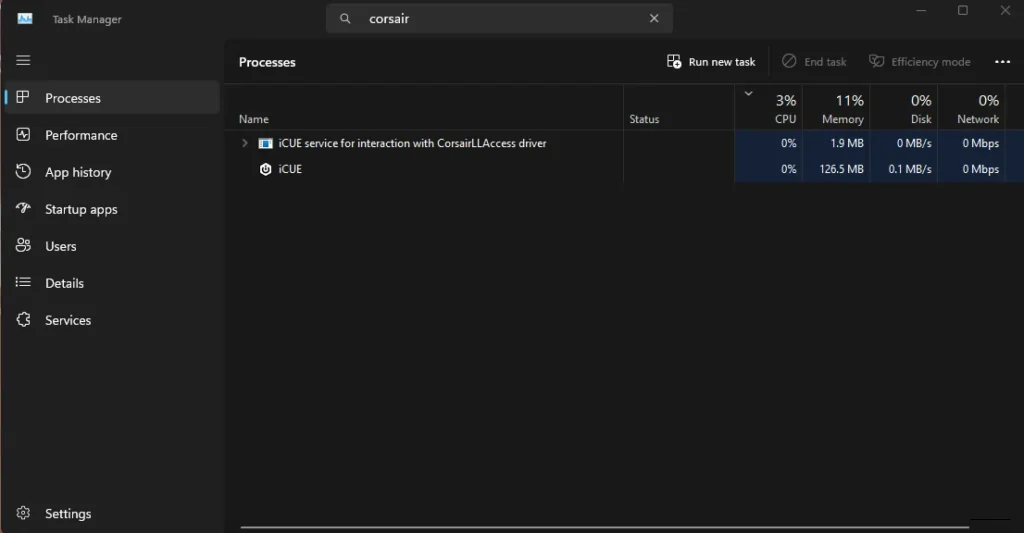
- Fully close iCUE, don’t just minimize it. Right-click the iCUE tray icon and quit, then check Task Manager and end any leftover Corsair services. Closing the window alone leaves background services running.
- Reboot properly. A full restart clears a stale driver or service that got into a bad state after sleep or a Windows update. This alone fixes a lot of “it started today” crashes.
- Update iCUE. Open iCUE, go to Settings, and install any available update. Bugs that cause profile-switch or launch crashes are often patched in newer builds.
- Update your device firmware. In iCUE, check each connected device for a firmware update. Do them one at a time and reboot after, and never unplug a device mid-flash.
- Skip the sleep problem. If iCUE only crashes after your PC wakes from sleep, turn off Fast Startup in Windows power settings and do a full shutdown to test. Waking from sleep can leave the GPU or USB devices in a bad state.
- Repair the iCUE install. Download the latest installer from Corsair, run it as administrator, and use the repair option to rebuild iCUE’s services without wiping your profiles. This clears crashes that started after a messy update or an interrupted install.
Before you touch anything more involved, export your iCUE profiles. Save copies of your lighting, macros, DPI stages, and fan curves so a reinstall or a bad update can’t cost you your setup. It takes a minute and gives you a clean fallback.
If the crashes stop after these checks, you’re done. If they continue, the cause is deeper, and the next two sections cover the two most common culprits: iCUE’s GPU polling and a bad driver.
How to stop ICUE from polling your GPU
If your crashes line up with iCUE being open, cutting its link to the graphics card is the most direct fix. You lose GPU temperature readouts inside iCUE, but you keep all your lighting, fan, and device control, and you stop iCUE from poking the driver. This is often enough on its own.
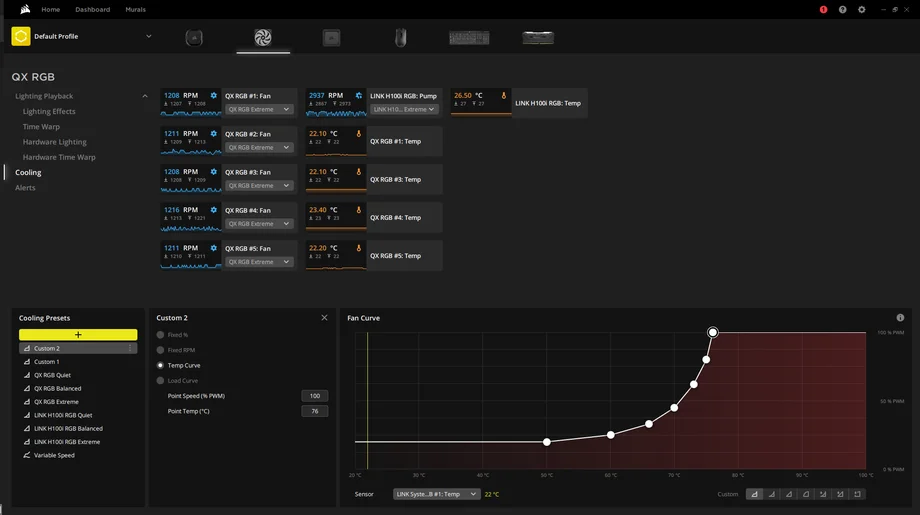
Remove the GPU widgets from the dashboard.
- Open iCUE and go to the dashboard (the sensor and graph view).
- Delete any GPU temperature, clock, or usage widgets. Closing the dashboard isn’t enough; the widgets keep polling, so remove them entirely.
- If you rarely use the dashboard at all, turn it off and rely on a lighter tool for temperatures.
Uninstall the NVIDIA GPU plugin in iCUE.
iCUE controls RGB on some graphics cards through a separate plugin, and that plugin is a common source of GPU-related crashes and “iCUE stopped detecting my GPU” errors after a driver update. If you don’t have RGB on your card, or you can live without iCUE controlling it, remove the plugin from iCUE’s settings. Corsair documents which cards the Nvidia graphics card plugin supports, so you can check whether you even need it before pulling it.
Trim the rest of iCUE’s background load.
- Turn off the iCUE SDK under Settings if you don’t use game-based lighting effects, which stops iCUE from constantly listening for external commands.
- Disable game-based profile switching, which forces iCUE to monitor running processes.
- On coolers with an LCD screen, lower the screen’s frame rate in the AIO settings. A high LCD frame rate leans harder on the GPU and has been tied to spikes.
| Tip: Change one thing at a time and game for a while before changing the next. If the crashes stop after you remove the GPU widgets, you’ve found your cause and can leave the rest of iCUE alone. |
Fixing a bad graphics driver (the real culprit)
Since the driver is usually the true cause, a clean driver reinstall is the highest-value fix in this whole guide. A normal driver update installs new files on top of old ones and can carry a corrupt setting straight into the new version. A clean install wipes the slate.
Do a clean install with DDU.
- Download the latest driver for your card straight from NVIDIA’s driver page (or AMD’s or Intel’s site) but don’t install it yet. Save the file somewhere easy to find.
- Download Display Driver Uninstaller (DDU) from its official source, wagnardsoft.com. Only use the official download; fake copies exist.
- Create a system restore point first, in case you want to roll back.
- Boot into Safe Mode, run DDU, choose GPU and your card’s brand, then pick “Clean and restart.”
- When Windows comes back, run the driver installer you saved. Choose Custom, then tick “Perform a clean installation.”
If your crashes began right after a driver update, don’t reach for the newest driver, roll back instead. The latest release is sometimes the problem. During the public iCUE conflict, Corsair pointed users to an earlier known-good driver while the newer branch was buggy. NVIDIA keeps older Game Ready drivers available, so you can grab a version from before the trouble started and clean-install that.
One more driver-adjacent fix, mostly for NVIDIA users. In the NVIDIA Control Panel, under Manage 3D Settings, try setting Power Management Mode to “Prefer maximum performance.” Some users found their black-screen crashes were tied to the card dropping to very low idle clocks and then spiking when iCUE polled it. Forcing higher clocks smoothed that out. It runs the card a little warmer at idle, so treat it as a targeted workaround rather than a default.
Stop RGB and monitoring apps from fighting each other
iCUE is rarely the only thing talking to your hardware. If you also run another RGB or monitoring tool, two programs end up fighting for the same sensors, USB devices, and GPU data, and that conflict shows up as crashes and freezes. This is one of the most common hidden causes.
The usual suspects are other RGB control apps like ASUS Armoury Crate, MSI Center or Mystic Light, Gigabyte Control Center, Razer Synapse, Logitech G HUB, NZXT CAM, SignalRGB, and OpenRGB. Hardware monitors that read sensors aggressively, such as MSI Afterburner, HWiNFO, or AIDA64, can collide with iCUE the same way, because both are polling the GPU and CPU at the same time.
How to sort it out:
- Pick one RGB app and remove the rest. Running two lighting controllers at startup is asking for trouble.
- If you need a second monitoring tool, slow its polling rate so it isn’t reading the GPU several times a second alongside iCUE.
- Test by closing the other app entirely and gaming for a session. If the crashes vanish, you’ve found the conflict.
Motherboard sensor and lighting software is the sneakiest offender here, because it often installs itself and runs in the background without you thinking of it as an “RGB app.” If you have both iCUE and your motherboard’s control suite fighting over lighting, disabling one usually clears things up.
When it’s the hardware, not the software
Most of the time this is software, but not always. If you’ve done a clean driver install, cut iCUE’s GPU polling, and removed conflicting apps, and you still get black screens, it’s time to look at the hardware itself, especially the graphics card, its power, and its cooling.
A useful test is to see whether the crash happens without iCUE running at all. Fully close iCUE and its services, then stress the GPU with a benchmark like 3DMark, Unigine Heaven, or FurMark, or just play a demanding game. If the card crashes with iCUE completely shut down, iCUE was never the problem, and you’re looking at a driver, power, thermal, or hardware fault.
Signs that point toward hardware rather than software include:
- Crashes that happen in games and benchmarks even with iCUE closed.
- A full blue screen or an instant reboot, which usually signals a power or hardware fault rather than a simple driver reset.
- Crashes that only appear under heavy load, which can point to an unstable overclock or an underpowered or failing power supply.
- Visual artifacts, colored dots, or corruption on screen before the crash.
If any of these match, undo any GPU overclock (including factory “OC” profiles via the card maker’s tool), make sure your power supply comfortably covers the card, and check that the card’s temperatures are sane under load. Newer high-end cards have also shipped with their own launch-driver bugs that took several updates to settle, so keeping the driver current genuinely matters even when the fix is otherwise hardware-shaped.
USB and power delivery are worth a second look too, because Corsair coolers, fan hubs, and controllers are demanding devices. Plug high-draw hardware like a Commander Core, an AIO cooler, or a wireless receiver straight into a rear motherboard USB port rather than a front-panel header or an unpowered hub. A flaky USB connection makes iCUE repeatedly drop and re-detect devices, which can look like a crash and, on a shaky system, add to instability. Reseating the graphics card in its slot and reseating its power cables is a two-minute check that occasionally fixes a black-screen problem outright.
Frequently asked questions
Can ICUE permanently damage my graphics card?
No. iCUE only reads sensor data and controls lighting and fans. It can’t overvolt or overload the card, so it can’t cause physical damage. Crashes that seem to come from iCUE are driver or software issues, not hardware harm.
Why does my screen go black when ICUE is open?
Because iCUE relies on the same display driver as your games and polls the GPU constantly. When that driver briefly crashes and resets, your screen goes black and iCUE freezes at the same time. The driver is the cause; iCUE just reacts to it.
Should I just uninstall iCUE to stop the crashes?
You can, but you’ll lose control of your Corsair lighting, fans, and cooling. Try disabling iCUE’s GPU monitoring and doing a clean driver install first. Uninstalling iCUE only helps confirm the driver is at fault if crashes stop.
The crashes started right after a driver update. What now?
Roll back to the previous driver rather than installing the newest one. New releases occasionally introduce bugs that break iCUE. Use DDU to cleanly remove the current driver, then install an older, known-good version from your GPU maker’s site.
Does disabling GPU monitoring in ICUE actually help?
Often, yes. Removing GPU widgets from the dashboard and the NVIDIA plugin stops iCUE from polling the card, which removes the trigger for many crashes. You keep all lighting and fan control and only lose GPU readouts inside iCUE.
Conclusion
iCUE can’t damage or truly crash your GPU. It shares your display driver and constantly polls the card, so when the driver glitches, iCUE freezes at the same moment and takes the blame. Work the fixes in order: quick reboot and updates, then cut iCUE’s GPU polling, then a clean driver reinstall or rollback, then clear out conflicting RGB and monitoring apps. A good result is simple: stable gaming with iCUE open and no more black screens. If crashes survive all that with iCUE closed, the trail leads to hardware.