The “Unsupported GPU Processing Mode” error means DaVinci Resolve asked your graphics driver which processing mode it can use (CUDA, OpenCL, or Metal) and got back an answer it could not work with. The fastest fix is to set the GPU processing mode manually in Preferences under Memory and GPU. If that fails, a clean reinstall of your graphics driver clears the error on most machines.
Those two fixes solve the problem for the majority of people who see this message. When they don’t, the cause is usually one of four things: a driver update that broke compatibility, a leftover environment variable hiding your GPU, a laptop running Resolve on the wrong graphics chip, or a card that no longer meets Resolve’s minimum requirements. This guide covers every fix, in the order you should try them.
What the error actually means
DaVinci Resolve leans on your graphics card harder than almost any other editing program. Color grading, Fusion effects, noise reduction, and playback all run on the GPU. To do that work, Resolve talks to the card through one of three processing modes: CUDA on NVIDIA cards, OpenCL on AMD and Intel cards, and Metal on Macs.
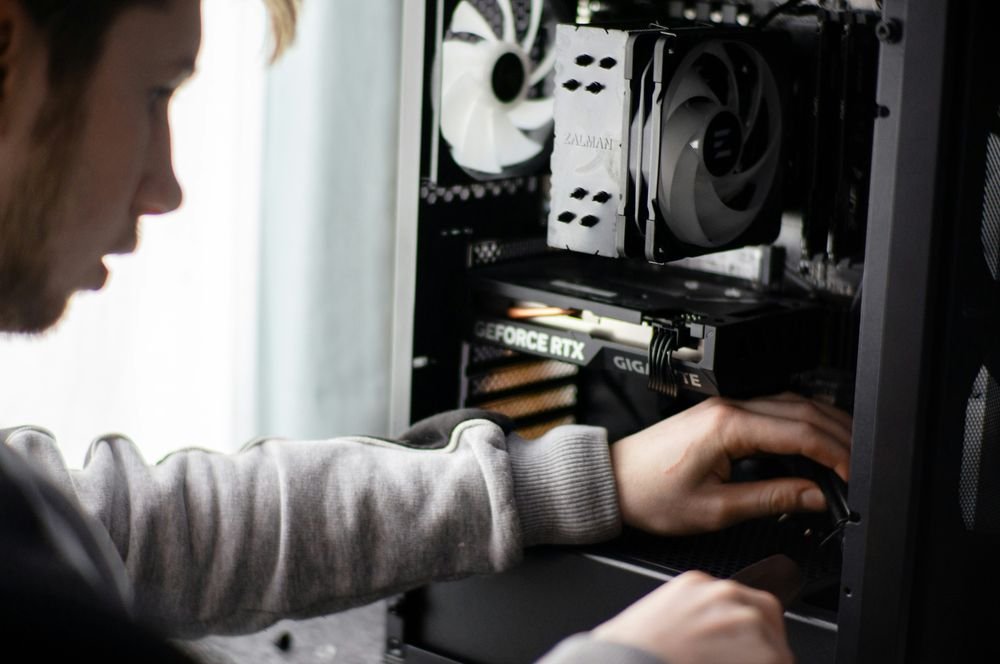
Every time Resolve starts, it asks the graphics driver which of these modes is available. The error pops up when the driver sends back an invalid response, reports no supported mode at all, or blocks access to a mode the card actually has. In other words, it is a communication failure between the software and the driver. Your GPU is usually fine. The message between Resolve and the card is what broke.
That distinction matters because it tells you where to look. You rarely need new hardware. You need to fix the conversation, and that means either telling Resolve which mode to use yourself or repairing the driver that keeps giving the wrong answer.
First, check that your GPU meets Resolve’s requirements
Before you change any settings, spend one minute ruling out the simplest cause: a card or driver that falls below what your version of Resolve needs. The requirements have gone up over the years, so a GPU that ran Resolve 17 without complaint can trigger this exact error after an upgrade to a newer release.
| Resolve version | GPU requirement | VRAM |
| 16.2.7 to 18.x | CUDA 11 (NVIDIA compute capability 3.5+) or OpenCL 1.2 | 2 GB minimum |
| 19 and 20 | CUDA 12.8 or OpenCL 1.2, NVIDIA Studio driver 570.65 or newer | 4 GB minimum |
| 21 | Same as version 20 on Windows and Linux; Apple Silicon only on Mac | 4 GB minimum |
For NVIDIA owners, “compute capability” is a number NVIDIA assigns to each card generation that says which CUDA versions it can run. You can look up your card on NVIDIA’s compute capability list. CUDA 11 needs a score of 3.5 or higher, which rules out most cards older than the GTX 700 series. CUDA 12 needs 5.0 or higher, so Resolve 19 and later effectively require a GTX 900 series card (from 2014) or newer.
If your card clears the bar for the Resolve version you have installed, move on to the fixes below. If it does not, skip ahead to the last section, because no settings change will get an unsupported card working.
Fix 1: Set the GPU processing mode manually
By default, Resolve tries to detect the right processing mode on its own. When that auto-detection stumbles, picking the mode yourself often clears the error instantly. This is the first thing to try because it takes under a minute and changes nothing on your system.
- Open DaVinci Resolve. The error message usually still lets you reach the project manager, so click past it if you can.
- Click the DaVinci Resolve menu in the top-left corner and choose Preferences. The shortcut is Ctrl+, on Windows or Cmd+, on Mac.
- Stay on the System tab and open the Memory and GPU section.
- Under GPU configuration, untick the Auto box next to GPU processing mode.
- Pick CUDA if you have an NVIDIA card, OpenCL for AMD or Intel, or Metal on a Mac.
- Untick the Auto box next to GPU selection too, and make sure your actual graphics card is ticked in the list.
- Click Save, then close and reopen Resolve.
If the processing mode dropdown is greyed out, or your graphics card is missing from the GPU selection list, Resolve cannot see the card at all. That points straight at the driver, which is exactly what the next fix repairs.
Fix 2: Do a clean reinstall of your graphics driver
The graphics driver is the translator between Resolve and your GPU, and a corrupted or half-updated driver is the single most common cause of this error. A normal driver update installs on top of the old files and can leave the damage in place, so the goal here is a clean install that wipes the old driver completely first.
On NVIDIA cards, download the Studio driver rather than the Game Ready driver. Both come from the same place, but the Studio branch is tested against creative apps like Resolve and is noticeably more stable with it. During installation, choose the Custom option and tick “Perform a clean installation”.
On AMD cards, the Adrenalin installer has a factory reset option that removes every trace of the previous driver before installing the new one. Use it. Skipping the reset is the main reason a reinstall fails to fix anything on AMD systems.
For stubborn cases on either brand, run Display Driver Uninstaller (DDU) first. It is a small free tool that you run in Windows safe mode. It strips out every driver file, registry entry, and leftover from past installs, giving the new driver a genuinely blank slate. After DDU finishes, restart normally and install the fresh driver you downloaded from NVIDIA, AMD, or Intel directly, not through Windows Update.
Fix 3: Roll back the driver if the error started after an update
Sometimes the newest driver is the problem. If Resolve worked fine last week and the error appeared right after a driver or Windows update, the new driver version and your Resolve version may simply not get along yet. The fix is to go back to the version that worked.
- Press the Start button, type “Device Manager”, and open it.
- Expand Display adapters, right-click your graphics card, and choose Properties.
- Open the Driver tab and note the current driver version.
- Click Roll Back Driver if the button is available. If it is greyed out, download the previous driver version from the NVIDIA, AMD, or Intel website and install that instead.
- Restart your PC and open Resolve again.
One catch: Windows can quietly reinstall the newer driver during its next update cycle and put you right back where you started. To stop that, open Settings, go to System, then About, click Advanced system settings, open the Hardware tab, choose Device Installation Settings, and select No. Your rolled-back driver will now stay put until you change it yourself.
Fix 4: Delete the CUDA_VISIBLE_DEVICES environment variable
This one only applies to NVIDIA systems, but when it applies, it is the whole problem. CUDA_VISIBLE_DEVICES is a Windows setting that tells CUDA programs which graphics cards they are allowed to see. Some software installs it to pin work to a specific GPU. If the value is wrong, or points at a card that is no longer in the machine, Resolve asks for CUDA and finds nothing, which produces this exact error.
- Press Start, type “environment variables”, and open “Edit the system environment variables”.
- Click the Environment Variables button near the bottom of the window.
- Look through both lists, User variables and System variables, for an entry named CUDA_VISIBLE_DEVICES.
- If you find it, write down its value somewhere in case another program needs it, then select it and click Delete.
- Click OK on every window, restart your PC, and launch Resolve.
If the variable is not there, nothing on your system set it, and you can cross this fix off the list in ten seconds.
Fix 5: Laptop and multi-monitor problems
Most gaming and creator laptops have two GPUs: a low-power chip built into the processor and a dedicated NVIDIA or AMD card. Windows decides which one each program gets, and it sometimes hands Resolve the weak integrated chip. Resolve then queries a GPU that cannot give it the mode it wants, and you get the error even though a perfectly good card is sitting idle in the same machine.
To force Resolve onto the dedicated card, open Settings, go to System, then Display, and click Graphics. Browse to the Resolve program file (Resolve.exe, normally in C:\Program Files\Blackmagic Design\DaVinci Resolve), add it to the list, open its options, and set it to High performance. On NVIDIA laptops you can do the same thing in the NVIDIA Control Panel under Manage 3D settings by setting the preferred graphics processor for Resolve.
Display setups can trip the error too. A flaky HDMI or DisplayPort connection on a second monitor can confuse the driver at the exact moment Resolve queries it. If you run more than one screen, unplug the second monitor, launch Resolve, and plug the monitor back in once the program is open. If the error disappears, swap the cable on that monitor or switch it to a different port.
How to confirm the fix actually worked
Once Resolve opens without the warning, take two minutes to confirm it is really using the right card, because a silent fallback to the wrong GPU can hide behind a clean startup. Go back to Preferences, open Memory and GPU, and check that your graphics card is listed by name under GPU configuration with the mode you expect next to it.
Then give it a real job. Drop a clip on a timeline, add a node with some color adjustments on the Color page, and play it back. On Windows, open Task Manager, switch to the Performance tab, and watch the GPU graph while the clip plays. Activity on your dedicated card during playback means Resolve is talking to the right hardware. A flat line on the dedicated card while the integrated chip spikes means Windows is still routing Resolve to the wrong GPU, and Fix 5 needs another pass.
A note for Mac and Linux users
This error is mostly a Windows problem, because Windows is where driver installs go wrong. Macs handle graphics through Metal, which ships with macOS itself, so there is no separate driver to corrupt. When the error does show up on a Mac, updating macOS and reinstalling Resolve fixes it in nearly every case. One version limit worth knowing: Resolve 21 runs only on Apple Silicon Macs with macOS 15, so an Intel Mac tops out at Resolve 20.
On Linux, the requirements are stricter. Resolve officially targets Rocky Linux 8.6 and needs a discrete GPU with the proprietary NVIDIA driver installed, not the open-source Nouveau driver that many distributions load by default. If Resolve reports an unsupported mode on Linux, installing the official NVIDIA driver for your card and rebooting resolves it far more often than any setting inside the program.
When your GPU really is too old
If your card falls below the requirements table above, the error is telling you the truth, and you have three realistic options.
- Install an older version of Resolve. Every past release is still available in the download archive on the Blackmagic Design support page. Resolve 18.6 is the practical ceiling for CUDA 11 cards like the GTX 700 and 900 series, and Resolve 16.2.6 was the last release that ran on CUDA 10 cards older than that.
- Switch modes if your card supports OpenCL 1.2 but not the required CUDA version. Some older NVIDIA cards fall into this gap, and manually selecting OpenCL in Preferences (Fix 1) gets them working.
- Upgrade the card. Any GPU with 4 GB of VRAM from the last eight years or so clears the bar for current Resolve versions. On a budget, a used GTX 1060 or RX 580 does the job for HD editing; an RTX 3060 with 12 GB of VRAM is the sweet spot for 4K work.
You can grab both old installers and the current release from Blackmagic Design’s support center, which also hosts the official minimum requirements document for each version. Checking that document before any major Resolve upgrade takes two minutes and prevents this whole error from appearing in the first place.
Frequently asked questions
Why did this error appear after a Windows update?
Windows updates often replace your graphics driver with a generic version that Resolve cannot talk to properly. Reinstall the latest Studio driver from NVIDIA, or the current AMD or Intel driver, directly from the manufacturer, and the error normally disappears.
Should I pick CUDA or OpenCL as the processing mode?
Pick CUDA on any NVIDIA card that supports it, since it is faster and more stable in Resolve. Use OpenCL on AMD and Intel cards, and Metal on Macs. Only choose OpenCL on an NVIDIA card if it is too old for the required CUDA version.
Can I run DaVinci Resolve without a dedicated graphics card?
Older versions up to 18.x can run on integrated graphics with 2 GB of VRAM through OpenCL, though performance is rough. Resolve 20 and 21 on Windows require a discrete GPU with at least 4 GB of VRAM, so integrated chips are no longer enough.
Do NVIDIA Studio drivers really matter for Resolve?
Yes. Blackmagic lists a minimum Studio driver version (570.65 for Resolve 20) in its requirements, and the Studio branch is tested against creative apps. Game Ready drivers can work, but they are a common cause of GPU errors in Resolve.
Will reinstalling DaVinci Resolve itself fix the error?
Rarely, because the problem almost always sits on the driver side, not in Resolve. Reinstall Resolve only as a last resort after trying the manual mode setting, a clean driver install, a rollback, and the environment variable check.
Conclusion
The “Unsupported GPU Processing Mode” error is a broken conversation between Resolve and your graphics driver, not a broken graphics card. Set the processing mode manually in Preferences first, and if that fails, do a clean driver reinstall with the NVIDIA Studio driver or AMD’s factory reset option. Rolling back a bad update, deleting a stray CUDA variable, and forcing a laptop onto its dedicated GPU cover the rest. A good result is simple: Resolve opens straight to the project manager with no warning at all.
Related Post:
How to Undervolt a GPU with MSI Afterburner (Cooler, Quieter, Same FPS)
What GPU Is the Radeon 890M Equivalent To? A Plain Answer
Why NZXT CAM Doesn’t Show Your GPU Temp (and How to Fix It)
Xbox One GPU Equivalent: What PC Graphics Card Matches Each Model