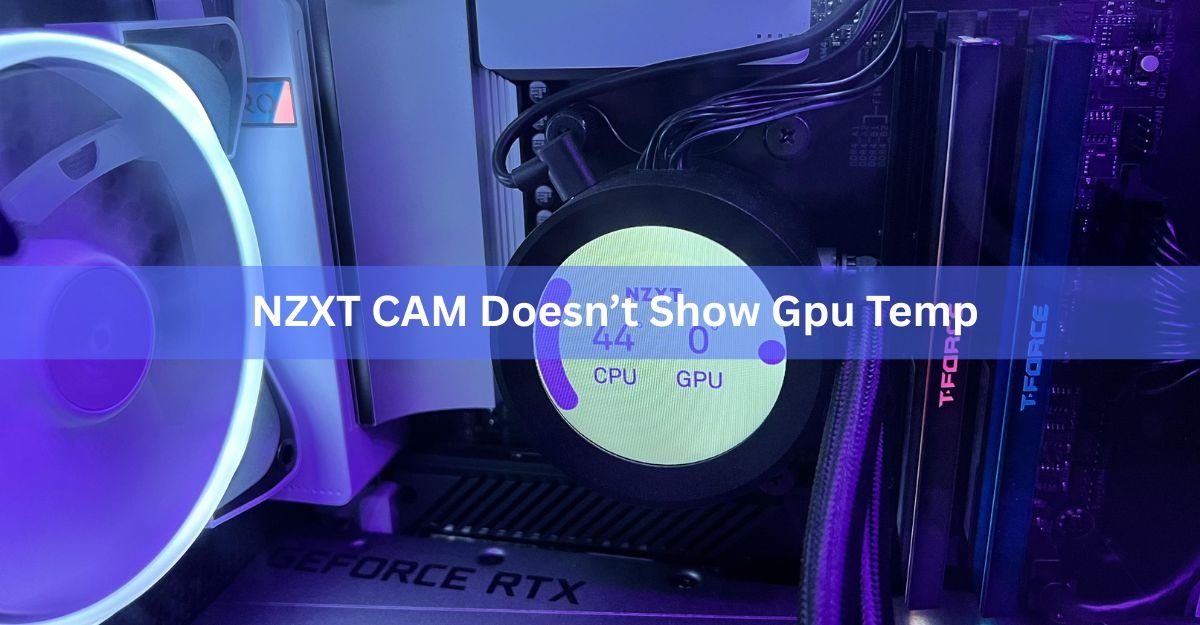
When NZXT CAM shows your GPU temperature as N/A, a blank space, or a number that clearly isn’t real, it almost always means CAM is reading from the wrong display device or a graphics driver got interrupted. In most cases you can fix it by picking the correct Primary GPU inside CAM, doing a clean reinstall of your graphics driver, and power cycling the PC. Here’s how to work through it, starting with the fix that solves it most often.
Fastest thing to try first: open the GPU panel in CAM, look for the Primary GPU dropdown, and make sure your real graphics card is selected instead of an integrated or virtual display.
Why CAM stops showing your GPU temp
CAM reads temperature from sensors on your hardware, and it has to know which device to ask. Trouble starts when it asks the wrong one, or when the driver that exposes those sensors isn’t loaded properly. A few common causes:
- The wrong display device is selected. If a laptop-style integrated GPU or a virtual display shows up alongside your real card, CAM may latch onto it and report nothing useful.
- A graphics driver update or conflict. A fresh driver install, or two graphics tools fighting over the card, can cut off the reading until things settle.
- A very new or very old card. A card released after your CAM version shipped may not be readable yet, and some older cards were never supported.
- The CAM background service stalled. CAM runs a service that does the actual monitoring. If it hangs, the app keeps running but the numbers stop.
Work through the fixes below in order. Each one takes a couple of minutes, and you can stop as soon as your temp comes back.
Fix 1: Set the correct Primary GPU
This is the single most common fix, so start here. CAM lets you tell it which graphics device to monitor, and the default choice is sometimes wrong.
- Open CAM and click the GPU panel to expand it.
- Look for a dropdown labeled Primary GPU. It appears only when CAM detects more than one display device.
- Select your dedicated graphics card, not an integrated Intel or AMD graphics chip and not a virtual display.
- Click Back in the top-left of the GPU details window, then check the PC Monitoring panel to confirm the right numbers now show.
Other devices you might see in that list include integrated graphics like Intel UHD or AMD Radeon integrated, USB display adapters, and virtual displays. Any of these can steal the reading, which is exactly why the dropdown exists. NZXT walks through the same steps in its guide on CAM not reading component information.
Fix 2: Remove a virtual display that’s hijacking the reading
If your temp is missing or shows a crazy number like 269 or 360 degrees, a virtual display adapter is often the culprit. These get added by screen-mirroring tools and by some cooler screens, and CAM can read them instead of your real GPU.
The one that trips people up most is a LuminonCore IDDCX Adapter, a virtual display that comes with tablet or screen-mirroring software. Disabling it in Device Manager usually clears the bad reading right away.
- Right-click the Start button and open Device Manager.
- Expand Display adapters.
- Look for anything that isn’t your real GPU, such as an IDDCX adapter or a USB display device.
- Right-click it and choose Disable device. Leave your actual graphics card alone.
- Close and reopen CAM, then recheck the GPU temp.

If disabling the adapter breaks the little screen on a cooler or a mirroring feature you actually use, re-enable it and instead just select your real card as the Primary GPU in Fix 1.
Fix 3: Update or cleanly reinstall your GPU driver
A missing or half-installed driver stops CAM from reading the card. Updating to the latest driver fixes many cases, and a clean reinstall fixes the stubborn ones, especially after you swap cards or switch brands.
Update first: grab the current driver straight from the maker. For Nvidia cards use the Nvidia driver download page, and for AMD cards use AMD’s driver page. Install it, restart, and check CAM.
Still nothing? Do a clean install. Download the newest driver, then run the installer and choose the clean-install option so it wipes old files first. This clears out leftovers from a previous card, which is a frequent cause when you’ve recently changed GPUs or moved between Nvidia, AMD, and Intel graphics.
After a card swap, the temp often goes missing simply because old driver files linger and confuse CAM. A clean install is the reliable way to reset that.
Fix 4: Power cycle and restart the CAM service
Sometimes the driver and settings are fine, but the reading is stuck. A full power cycle forces the hardware and drivers to reload cleanly, which is different from a normal restart.
- Shut the PC down as you normally would.
- Unplug it from the wall, or flip the power supply switch on the back to the O position.
- Leave it off with no power for 5 to 10 minutes.
- Plug it back in and start up as usual, then open CAM.
If the app itself feels stuck, restart its background service. Press Ctrl + Shift + Esc to open Task Manager, end any NZXT CAM processes, then reopen CAM. Running CAM as administrator (right-click its icon, Run as administrator) can also help when Windows is blocking sensor access.
When your GPU is simply too new or too old
If none of the above works, CAM may not support your exact card yet. A card released after your CAM version shipped won’t read correctly until an update adds it, and some older cards were never added at all.
First, make sure CAM is fully updated, since compatibility for new cards arrives through those updates. If it’s current and the card still won’t read, report it: open the Settings gear in the bottom-left of CAM, use the Support link, and include the maker, the full model number with any revision, and which reading is wrong. That report goes to the team that adds new-device support.
In the meantime, you can still watch your temps with a free tool while you wait for a fix. More on that below.
Readings that look wrong instead of missing
Not every problem is a blank. Two things people mistake for bugs are actually normal or have a simple cause.
The temp doesn’t match another program
A small gap between CAM and a tool like HWiNFO or GPU-Z is expected. They read sensors on slightly different schedules, so one may sit a degree or two above or below the other. Neither is broken. Only a large, constant gap points to a real reading fault.
The load looks far too low
If CAM shows 1 or 2 percent load while Task Manager shows much more, that’s also normal. CAM measures load against the CPU’s full maximum speed, while Task Manager measures it against whatever capacity is available right now. They’re answering slightly different questions, so the numbers differ.
A backup way to see your GPU temp
While you troubleshoot, you don’t have to fly blind. GPU-Z and HWiNFO both read GPU temperature reliably and are free, so keep one open to confirm your card isn’t actually overheating. If those tools show a normal temp, your GPU is fine and the problem is only CAM’s display, which takes the pressure off while you fix it.
Frequently asked questions
Why does NZXT CAM show my GPU temp as N/A?
Usually CAM is reading the wrong display device or your graphics driver isn’t loaded properly. Set your real card as the Primary GPU in CAM, then update or clean-install the driver and power cycle the PC.
Why is my NZXT CAM GPU temperature wildly wrong, like 269 degrees?
A virtual display adapter, often a LuminonCore IDDCX device, is being read instead of your GPU. Open Device Manager, expand Display adapters, and disable that adapter, then reopen CAM.
Does reinstalling CAM fix a missing GPU temp?
Sometimes, but selecting the correct Primary GPU and reinstalling the graphics driver fixes it more often. Try those first, since a CAM reinstall alone rarely helps if the driver or device selection is the real issue.
CAM stopped reading my GPU after I installed new drivers. What now?
Do a clean driver install so old files are removed, then power cycle the PC. Driver conflicts, especially after switching between Nvidia, AMD, or Intel graphics, are a common cause of the reading dropping out.
Is CAM broken if its temp differs from HWiNFO or GPU-Z?
No. A small, steady difference is normal because the tools read sensors on different schedules. Worry only if the gap is large and constant, or if CAM shows no reading at all.
Conclusion
A missing GPU temp in CAM is almost always a device-selection or driver hiccup, not a dead card. Start by setting the correct Primary GPU, disable any virtual display that’s stealing the reading, then clean-install your GPU driver and power cycle the PC. A good result is your real card’s temperature reappearing in the PC Monitoring panel and holding steady. If the card is brand new, update CAM and report it, and keep GPU-Z open in the meantime.
Related Post:
LM Studio GPU Not Detected? Here’s How to Fix It
What Does the Ti Mean in a GPU? Nvidia’s Ti Suffix Explained
How to Switch From an NVIDIA to an AMD GPU (Clean, Step by Step)