Short answer: if you have a fairly recent graphics card and up-to-date drivers, turn it on. On modern hardware the feature is low risk, it slightly lowers the load on your processor, and on an RTX 40 or 50 series card it is the switch that lets DLSS Frame Generation work at all.
That said, it is not a magic “more frames” button, and a small number of setups run better with it off. Here is how to decide for your own PC, what the setting really does, and how to flip it in a minute.
What hardware-accelerated GPU scheduling actually does
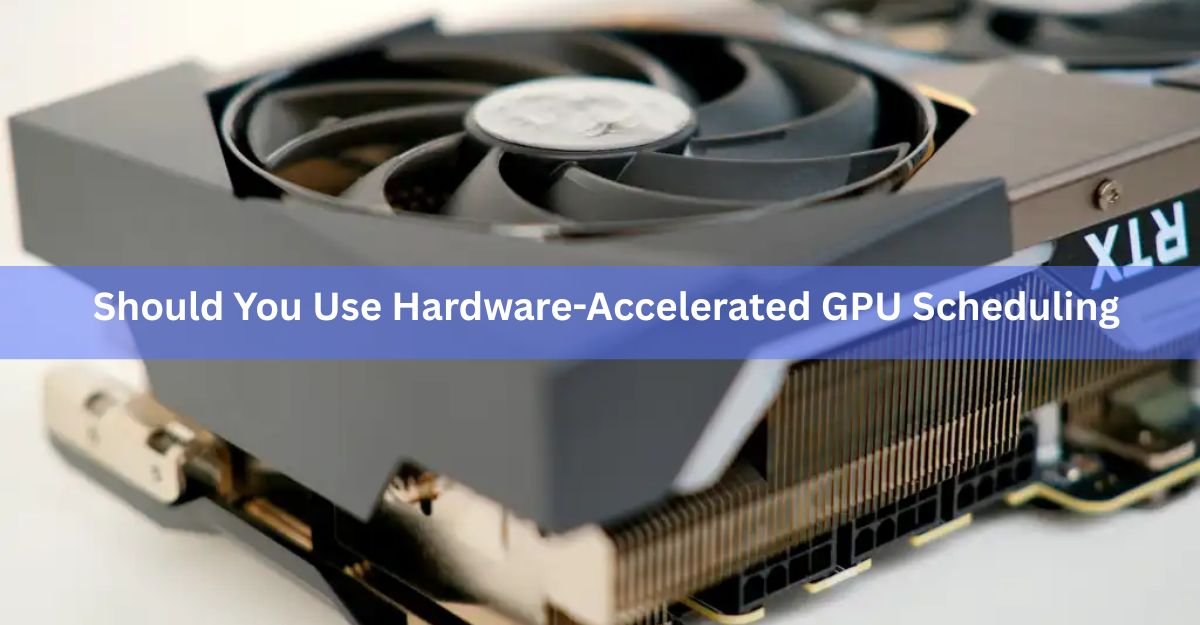
Hardware-accelerated GPU scheduling, often shortened to HAGS, is a Windows feature that hands some of the graphics scheduling work from your CPU over to a dedicated scheduler on the GPU itself.
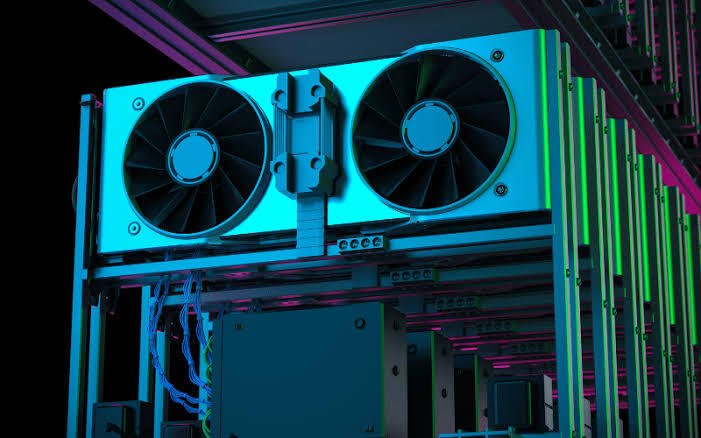
Normally your processor lines up the frames and other GPU work, then your graphics card renders them. That hand-off adds a tiny bit of delay. With HAGS on, the GPU manages more of its own queue, which trims CPU overhead and can smooth out how frames are delivered. It first arrived with the Windows 10 May 2020 update (version 2004) and is now part of every version of Windows 11.
The key thing to hold onto: it changes how frames get scheduled, not how many your card can produce. The payoff is usually smoother pacing and lower latency in some games, not a big jump in your average frame rate.
Who should turn it on
For most people on modern hardware, on is the right default. Windows 11 assumes it, and recent GPU drivers are built around it. Use this quick guide based on what you own.
| Your setup | Turn HAGS on? | Why |
|---|---|---|
| RTX 40 or 50 series | Yes | Required for DLSS Frame Generation, and drivers assume it. |
| RTX 30 / RX 6000 or newer | Yes | Neutral to slightly better frames, lower CPU overhead. |
| Video editor or streamer | Test first | Some pro apps and dual-tasking setups can lose a little. |
| 8GB VRAM at high resolution | Test first | More likely to see stutter; watch VRAM use. |
| Older GPU / outdated driver | Leave off | Toggle may not even appear, and gains are unlikely. |
The strongest reason to enable it sits in that top row. NVIDIA’s DLSS Frame Generation will not turn on unless HAGS is enabled at the Windows level. This is not a rumor from a forum. CD PROJEKT RED’s own support page for Cyberpunk 2077 spells out that DLSS Frame Generation needs a GeForce RTX 40 series card and hardware-accelerated GPU scheduling switched on in the operating system.
If you want the full detail on how the feature works and why Microsoft shipped it as opt-in, the DirectX developer blog post that introduced it is the primary source.
Quick rule: RTX 40 or 50 owner? Leave HAGS on and stop thinking about it, or Frame Generation will stay greyed out.
When you should leave it off
A few situations are worth flagging before you flip the switch and forget it.
You edit video or stream while gaming. Some creative apps and dual-tasking setups can lose a small amount of performance with HAGS on. If your work pays the bills, benchmark your own workflow both ways rather than trusting a general claim.
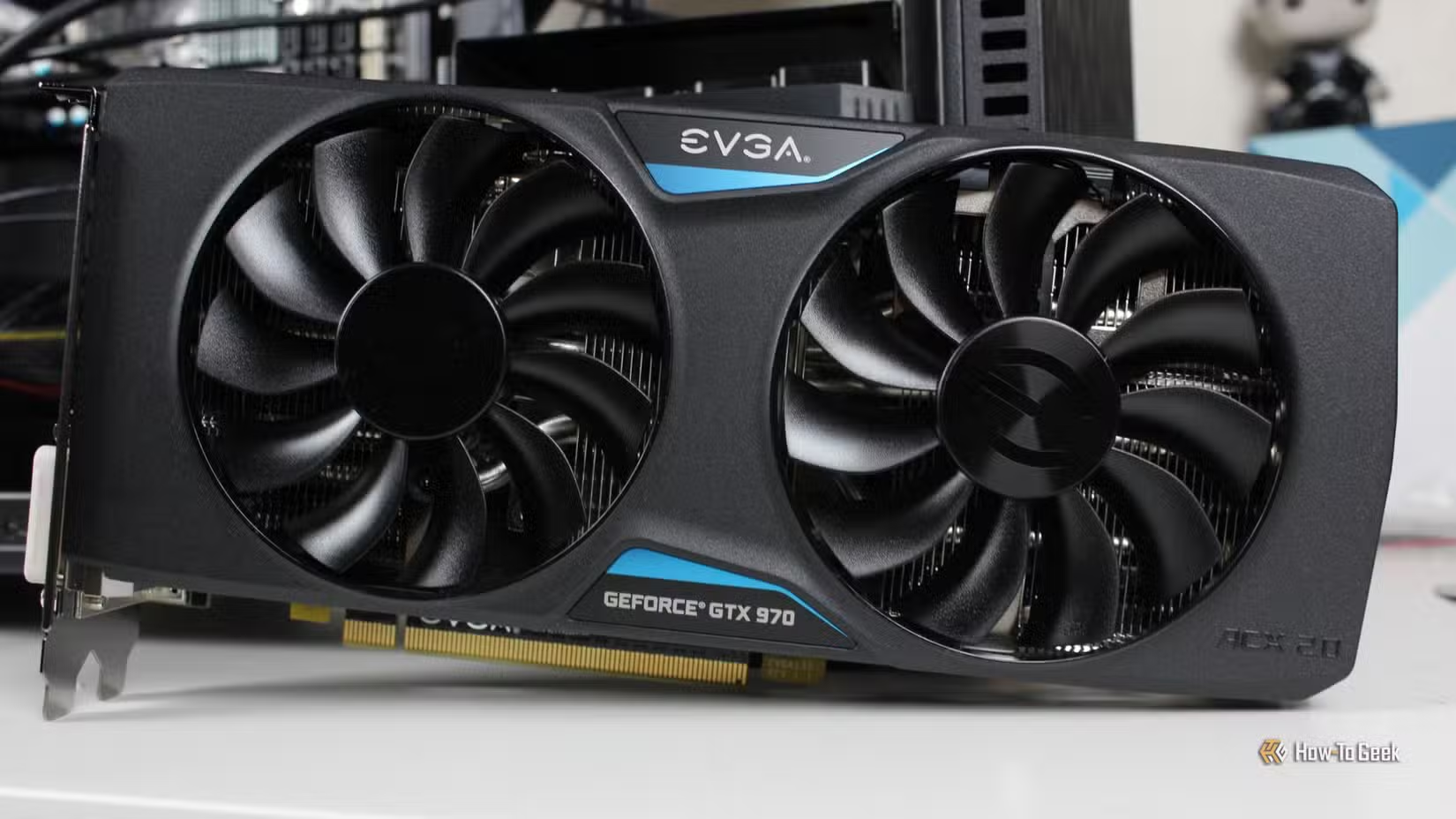
You have 8GB of VRAM or less and play at high resolution. Stutter tied to HAGS shows up most on older cards, outdated drivers, and memory-limited GPUs pushed hard. Turning it off can even free up a little VRAM.
You notice a real regression. Micro-stutter, higher DPC latency, or hitching in VR are the classic signs. If a game feels worse right after you enable it, switch it back off and restart. It reverses cleanly with no downside.
The honest picture is simple: on average the feature costs you nothing, sometimes it helps a little, and once in a while a specific combo of card, driver, and game runs smoother with it disabled. Testing is the only way to know your case.
What you need before the toggle even shows up
If you open the settings and the HAGS switch is missing, your system does not currently support it. Windows only shows the toggle when three things line up:
- Windows: Windows 10 version 2004 (May 2020 update) or newer, which includes every build of Windows 11.
- A supported GPU: NVIDIA GTX 1000 series or newer, or AMD Radeon RX 5600/5700 or newer. Intel Arc cards with current drivers also qualify.
- A WDDM 2.7 or later driver: In practice any driver from the last two or three years for a supported card meets this.
A missing toggle almost always means an outdated driver rather than a hardware wall. Grab the latest driver straight from NVIDIA, AMD, or Intel rather than relying on Windows Update, then restart and check again. Skip third-party “driver updater” tools; they cause more problems than they solve.
How to turn it on in Windows 11 and Windows 10
The steps are almost identical on both. Enabling or disabling it always needs a restart to take effect, so do not judge performance until after the reboot.
- Open Settings (press Windows + I).
- Go to System, then Display.
- Scroll down and click Graphics.
- Click Change default graphics settings.
- Toggle Hardware-accelerated GPU scheduling to On.
- Restart your PC.
On Windows 10 the path is the same idea: search for “graphics settings” from the Start menu, open the graphics settings page, flip the toggle, and restart. After the reboot, come back to the same screen and confirm it stayed on.
Tip: If you run a mix of GPU vendor tools, avoid stacking conflicting latency features. Turning HAGS on can clash with a separate anti-lag setting, so pick one and test rather than running everything at once.
Does it actually boost FPS?
Mostly, no, and that is fine. Independent benchmarks over the years have landed on “neutral to slightly positive” for raw frame rate. One recent gaming test found roughly 1% higher average FPS and close to 2% better 1% lows with it enabled, plus a small but consistent edge in input latency. Those are refinements you feel more than numbers you brag about.
Rendering results are more mixed. Testing on creative apps has shown a small boost in some engines like After Effects and Blender, and a slight drop of around 5% in others such as V-Ray on certain cards. That is exactly why the advice for creators is to test your actual projects instead of assuming.
So the case for turning it on is not “more frames.” It is that modern drivers are designed around it, it costs you nothing on average, it can smooth frame pacing, and it unlocks Frame Generation on current NVIDIA cards. For most people that adds up to a clear on.
Frequently asked questions
Does HAGS increase FPS?
Not meaningfully. Expect neutral to about 1% higher average frames on modern cards. The real benefits are lower CPU overhead, slightly better frame pacing, and reduced input latency in some games, rather than a bigger frame rate.
Is HAGS required for DLSS Frame Generation?
Yes. NVIDIA’s DLSS Frame Generation will not activate unless HAGS is enabled in Windows. On RTX 40 and 50 series cards, leave it on or the Frame Generation option stays greyed out in your games.
Why is the HAGS toggle missing on my PC?
Your driver or GPU does not currently expose it. Update to the latest driver from NVIDIA, AMD, or Intel, make sure you are on Windows 10 version 2004 or newer, then restart and check Settings again.
Can HAGS cause stuttering?
Sometimes. It is most often reported on older GPUs, outdated drivers, or cards with 8GB of VRAM or less at high resolution. If new stutter appears after enabling it, check your VRAM use, update drivers, or simply turn it back off.
Should streamers and video editors turn it on?
Test first. Some creative apps and combined stream-and-play setups lose a little performance with HAGS on. Benchmark your real workflow both ways, then keep whichever setting runs your projects smoothest.
Conclusion
If your GPU is from the last few years and your drivers are current, turn hardware-accelerated GPU scheduling on and leave it there. It lowers CPU scheduling overhead, can smooth frame delivery, and is mandatory for DLSS Frame Generation on RTX 40 and 50 cards. Do not expect a big FPS jump. A good result is a system that feels the same or a touch smoother. If you ever see new stutter, switch it off, restart, and you are back where you started.
Related Post:
Why NZXT CAM Doesn’t Show Your GPU Temp (and How to Fix It)
Xbox One GPU Equivalent: What PC Graphics Card Matches Each Model
LM Studio GPU Not Detected? Here’s How to Fix It
How to Make Minecraft Use Your GPU (Fix Lag and Low FPS)
What Does the Ti Mean in a GPU? Nvidia’s Ti Suffix Explained
![Fix GPU memory leak [Forge/Fabric]: what it does and how to install it](https://nobelspot.com/wp-content/uploads/2026/08/GPU-Fan-Speed-33.jpg)