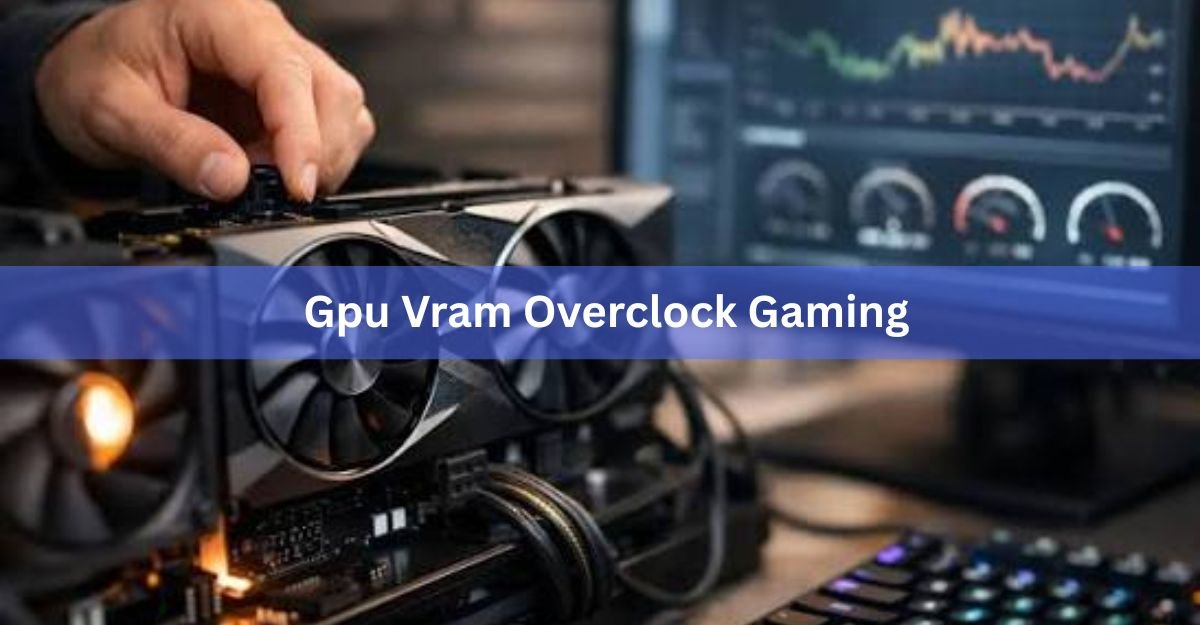
Overclocking your GPU’s VRAM raises the speed of the memory chips on your graphics card, so the GPU can pull textures and other data faster. In games that lean on memory, that usually buys you a few percent more frames. It is a small, low-cost win, not a magic switch, and on some newer cards a clock that is set too high can actually slow you down. Here is what the gain really looks like and how to get it safely.
What happens when you overclock VRAM
VRAM is the fast memory that sits on your graphics card and holds everything the GPU needs to draw a frame: textures, meshes, and buffers. Overclocking it means running those memory chips above their default clock speed, which raises memory bandwidth, the amount of data the GPU can move per second.
Think of it like widening a pipe. The GPU core does the drawing, but it can only work as fast as it is fed. If the memory is the slow part on your card, a faster memory clock lets the core spend less time waiting. That shows up as slightly higher frame rates and, often, a bit less stutter.
A VRAM overclock makes existing memory faster. It does not add memory. If a game keeps filling your card’s memory, more speed will not fix that.
How much faster does it actually make games?
For most cards, a solid VRAM overclock adds somewhere around 2 to 6 percent in real games. In synthetic tests, the change is easier to see because they react to small hardware tweaks more than games do. In one hands-on test, pushing an RX 6600 XT’s memory up by 250 MHz lifted the 3DMark Steel Nomad score by about 5 percent, while the in-game Forza Horizon 5 average moved only a frame or two.
That gap is normal. A game’s frame rate depends on the CPU, the GPU core, the settings, and the memory all at once. Memory bandwidth is only sometimes the thing holding you back, so freeing it up only sometimes helps. When it does help, texture-heavy games at high resolutions tend to benefit most, because they move the most data.
For comparison, overclocking the GPU core itself often adds more, roughly 5 to 15 percent on many cards. The two stack, so people who want the full benefit usually tune both. VRAM is the smaller of the two levers, but it is free performance, and it takes ten minutes to try.
When it helps and when it does nothing
A VRAM overclock helps most when memory bandwidth is your bottleneck. That is more likely in these cases:
- You play at 1440p or 4K, where the card moves far more texture data each frame.
- You run games with large, high-resolution texture packs.
- Your card has a fast core paired with a narrower memory bus, so memory is the weak link.
It does little or nothing when something else is the limit. If your CPU can’t keep up, or you are already hitting a frame cap, faster memory changes nothing. And if a game is running out of memory capacity, a higher clock won’t stop the texture pop-in and stutter that come from a full memory buffer. The only real fixes there are lower texture settings or a card with more memory.
How to overclock VRAM, step by step
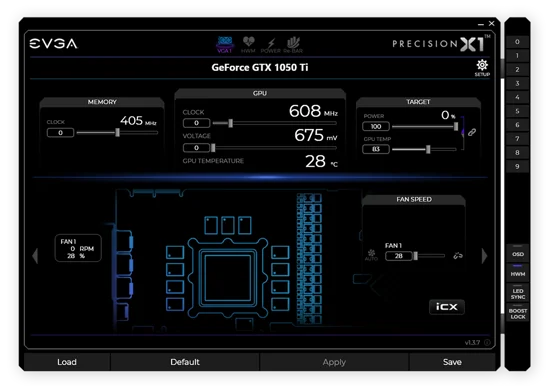
You do not need to open your PC or flash anything. A free tuning app does it all in software, and every change resets when you reboot until you save a profile. A widely used tool that works on both NVIDIA and AMD cards is MSI Afterburner. AMD owners can also use the built-in tuning in AMD Software, and NVIDIA owners can use the automatic scanner in the NVIDIA app.
- Set a baseline. Run a game or a benchmark loop and note your current average FPS and score, so you can measure any change.
- Raise the power limit. In your tuning app, push the power limit slider to its maximum. This lets the card draw the extra power a stable overclock needs.
- Add memory clock in small steps. Increase the memory clock by about 50 to 100 MHz at a time, then apply. Small steps make it easy to find your card’s limit.
- Test after each step. Run a stress test or a benchmark loop for a few minutes. Watch for crashes, artifacts (odd flickering or coloured dots), and, importantly, your score. If the score keeps climbing, keep going.
- Back off when it stops helping. When you hit a crash, artifacts, or a score that stops rising or drops, step the clock back down to the last setting that was clearly stable and faster.
- Confirm and save. Run a longer stress test with a tool like FurMark or Unigine Superposition. If it holds for 15 to 30 minutes with no crash and no visual glitches, save it as a profile so it loads on startup.
Keep an eye on memory temperature during testing, not just the core. Hot memory is the most common cause of an overclock that seems fine at first and then crashes an hour into a session.
The error-correction catch on modern cards
Here is the part older guides miss. Recent memory, including GDDR6 and GDDR6X, has built-in error handling. When you push the clock too high, the memory controller does not always crash or show artifacts. Instead it detects the bad data and quietly retries the transfer until it succeeds.
Those retries cost time. So past a certain clock, your memory keeps running “stable,” but it moves less useful data and your frame rate goes down, even though nothing looks broken. NVIDIA calls this Error Detection and Replay, and it means you cannot judge a modern memory overclock by crashes alone. TechPowerUp’s testing notes describe how performance plateaus and then falls once the memory starts replaying errors.
The practical takeaway: chase the best score, not the biggest number. Watch your benchmark result at each step and keep the clock where performance peaks. If a higher clock gives a lower score, that is the error handling kicking in, and you have gone too far.
Is overclocking VRAM safe for your GPU?
For a modest overclock, the risk is low. A software memory overclock does not add voltage on most cards, so the main effect is a little extra heat. Modern memory also protects itself, both through the error handling above and by throttling if it gets too hot. The realistic worst case from a normal overclock is a crash or a frozen game, which a reboot fixes.
Still, a few things are worth knowing. Overclocking can void your warranty, and any overclock adds heat, which over years can shorten a component’s life. Push memory far enough and you can trigger the retries that lose performance. None of this makes a careful, modest overclock dangerous, but it is why small steps and good cooling matter. If your card runs hot at stock, sort the cooling first.
The safe recipe is simple: raise the clock gradually, test at every step, keep temperatures in check, and settle at the point where you get the best stable score rather than the highest clock the app will accept.
Frequently asked questions
How much can I overclock my VRAM?
Every chip is different, so there is no set number. Many cards handle a memory bump in the range of 5 to 15 percent, but the real limit is wherever your benchmark score peaks. Go up in small steps and stop when the score stops rising.
Does overclocking VRAM increase FPS?
Usually a little, around 2 to 6 percent in games that are limited by memory bandwidth. If your bottleneck is the CPU, the GPU core, or a frame cap, you may see almost no change. Texture-heavy games at 1440p or 4K benefit most.
Should I overclock the GPU core or the VRAM?
Both, if you want the full benefit. A core overclock usually adds more, often 5 to 15 percent, while VRAM adds a smaller slice. They stack, so tuning both gives the best result. If you only do one, start with the core.
Why did my FPS drop after a VRAM overclock?
On modern GDDR6 and GDDR6X memory, a clock set too high triggers error retries that cost bandwidth, so performance falls without any crash or visible glitch. Lower the memory clock to the point where your benchmark score was highest.
Will overclocking VRAM damage my graphics card?
A modest software overclock is low risk, since it usually adds no voltage and the memory throttles when hot. The main effects are extra heat and a possible warranty issue. Keep steps small and temperatures in check and the risk stays minimal.
Conclusion
Overclocking VRAM is a quick, low-risk way to add a few percent of frame rate, and it helps most in texture-heavy games at higher resolutions. Raise the memory clock in small steps, test after each one, and on modern cards watch your benchmark score, since a clock that is too high quietly loses speed instead of crashing. A good result is a stable profile that gives you the best score, paired with a GPU core overclock if you want the full gain.
Related Post:
Should You Use Hardware-Accelerated GPU Scheduling? A Plain 2026 Answer
AMD Ryzen Z2 Extreme GPU Equivalent: What Desktop Card It Matches
How to Undervolt a GPU with MSI Afterburner (Cooler, Quieter, Same FPS)