High GPU usage is normal when your graphics card has real work to do. In a game, 95 to 100 percent usage means the card is pulling its weight. It only points to a problem in two cases: when usage stays high while your PC sits idle on the desktop, or when the card runs at 100 percent and your game still performs badly.
Idle spikes almost always trace back to a background app, a graphics driver problem, or a Windows process called Desktop Window Manager. In rare cases, hidden mining malware is the cause. This guide covers both situations: how to see exactly what is using your GPU, what counts as normal, and how to fix the causes that are not.
Is high GPU usage normal?
Under load, yes. A graphics card is designed to run flat out. Unlike a CPU, where constant 100 percent usage often signals trouble, a GPU at full tilt in a game is doing exactly what you paid for. Every bit of headroom it leaves unused is performance you are not getting.
In fact, low GPU usage in a demanding game is often the worse sign. If your card sits at 60 percent while frame rates drop, the GPU is usually waiting on the CPU, which means the processor is the bottleneck, not the graphics card.
The number that actually protects your hardware is temperature, not usage percent.
Usage tells you how busy the card is. Temperature tells you whether it is safe. Most modern cards are built to run at up to about 83 to 85 degrees Celsius under load, and they slow themselves down automatically before heat can cause damage.
First, find out what is using your GPU
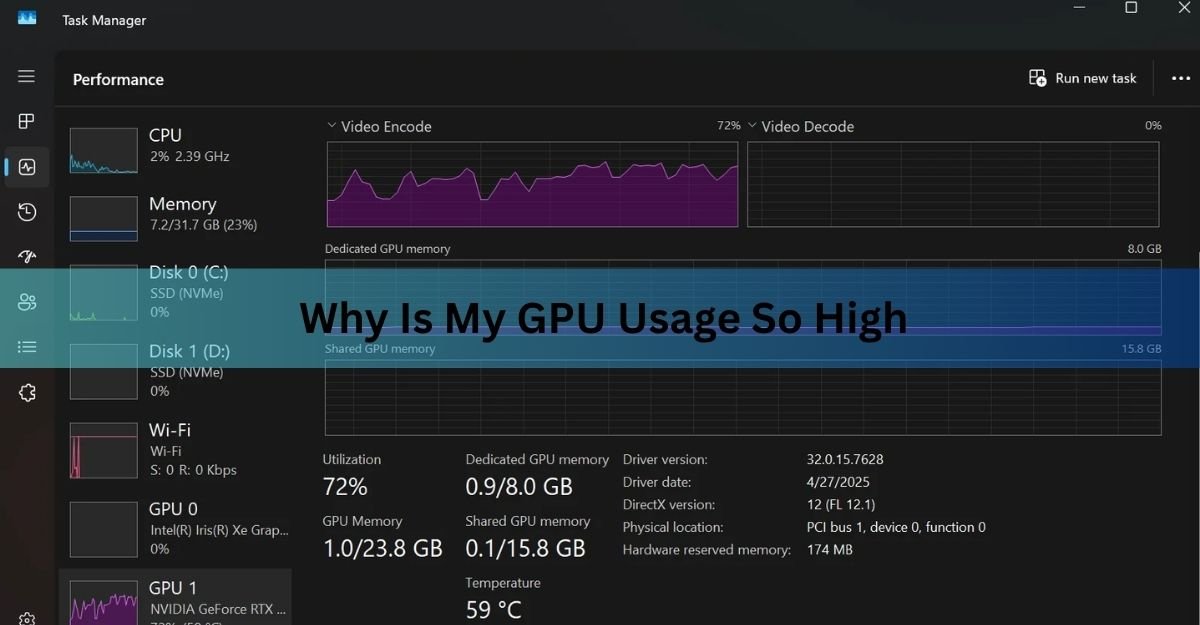
Before changing any settings, identify the process behind the load. Windows makes this quick:
- Press Ctrl + Shift + Esc to open Task Manager.
- On the Processes tab, click the GPU column header to sort by usage. The heaviest process jumps to the top.
- If you do not see a GPU column, right-click any column header and tick GPU and GPU Engine.
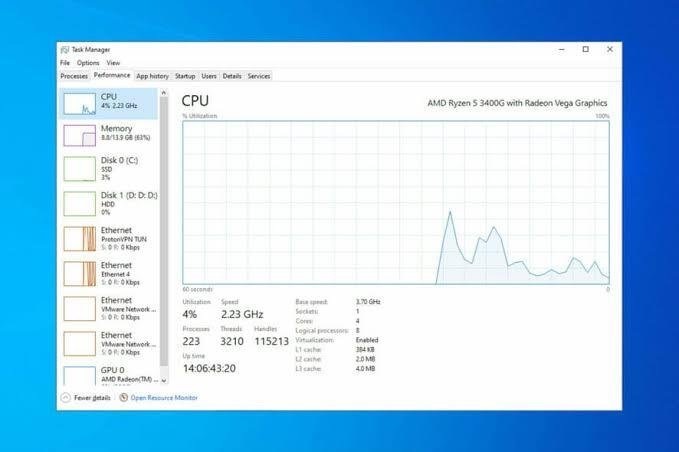
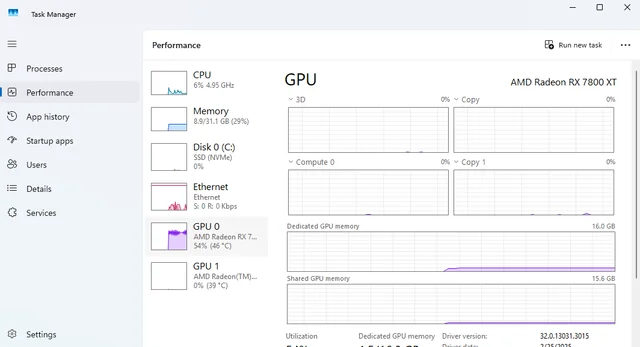
- For the overall picture, open the Performance tab and select your GPU on the left.
- Task Manager is good enough for finding the guilty process, but its percentages can mislead because it reports per engine (3D, video decode, copy) rather than the whole chip. For a second opinion, free tools like GPU-Z or MSI Afterburner read the sensors directly and log usage, clock speeds, and temperature over time.
What normal looks like: on an idle desktop, total GPU usage should sit around 0 to 5 percent, with Desktop Window Manager at 1 to 3 percent. Watching a video pushes the decode engine to maybe 5 to 20 percent. Gaming should push the card near 100 percent.
High GPU usage while gaming: almost always fine
If your game runs smoothly and temperatures stay in a safe range, 100 percent usage needs no fix at all. Leave it alone and enjoy the frames.
Act only when full usage comes with bad performance. Three situations are worth fixing:
- The settings ask more than the card can give. Stutter and low frame rates at 100 percent usage mean the workload is too heavy. Lower the two or three most expensive settings first: shadows, ray tracing, and render resolution. Upscalers such as DLSS or FSR recover a lot of performance with little visual cost.
- The frame rate is uncapped. Menus and loading screens can render hundreds of frames per second for no benefit, pinning the GPU at 100 percent and spinning the fans up. Cap the frame rate at or just above your monitor refresh rate, either in the game or through the NVIDIA or AMD control panel, or turn on VSync.
- Something extra runs on top of the game. Overlays and background recording from Discord, Steam, or ShadowPlay each shave off a little performance. Close what you are not using.
High GPU usage at idle: the real problem cases
Sustained usage above roughly 10 percent with nothing open means something is quietly drawing on the card. These are the usual suspects, in order of how often they turn out to be the cause.
Background apps you forgot about
Modern apps love your GPU. Browsers use it to render pages and video, so a few tabs with autoplaying clips or animated ads can hold 10 to 20 percent on their own. Chat apps like Discord, the Steam client, animated wallpaper tools such as Wallpaper Engine, and always-on recording features each add a slice. None looks alarming alone, but stacked together they can hold an idle PC at 30 or 40 percent.
The test is simple: close everything, watch the usage graph settle, then reopen apps one at a time and see which one moves the needle.
Desktop Window Manager (dwm.exe)
Desktop Window Manager is the Windows process that draws everything you see: window frames, the taskbar, transparency, and animations. Because it composes the whole screen on the GPU, it always shows some usage, normally 1 to 3 percent at idle.
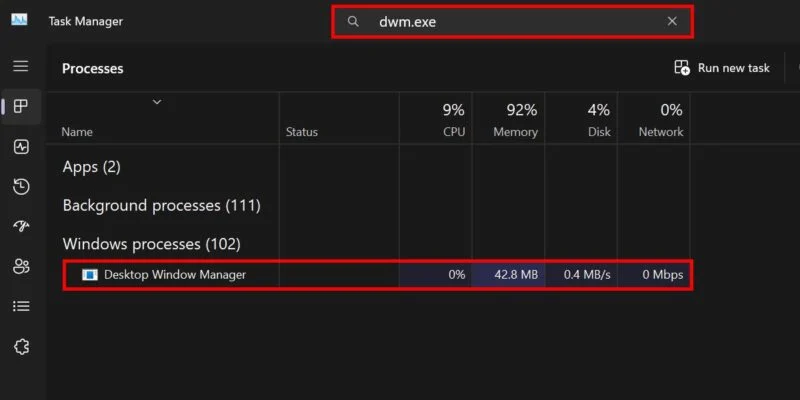
When DWM alone climbs past 10 percent on an empty desktop, it is usually reacting to something else: a buggy graphics driver, the Hardware-accelerated GPU scheduling feature, HDR running on a card that struggles with it, or a multi-monitor setup mixing different resolutions and refresh rates. Fix the trigger and DWM calms down on its own.
An outdated or corrupted graphics driver
A bad driver is the single most common cause of unexplained idle load, and it often appears right after a Windows update or a driver upgrade. A rendering bug can trap the card in a loop where it keeps redrawing work that has not changed. NVIDIA, AMD, and Intel all ship fixes for exactly these bugs in their regular driver releases, so grab the newest package straight from the NVIDIA driver download page or AMD’s driver and support page rather than waiting for Windows Update to catch up.
Mining malware
Rare, but real. Some malware uses your graphics card to mine cryptocurrency for someone else, and it is built to hide. Telltale signs: fans spin up while nothing is open, the GPU shows load that vanishes the moment you open Task Manager, or a process with a random, unfamiliar name sits on the 3D engine. If the pattern fits, run a full scan (not a quick one) before trying anything else.
On a laptop: the wrong GPU doing the work
Most gaming laptops carry two graphics chips: a low-power one built into the processor for the desktop, and a discrete card for games. Windows decides which app runs on which, and it sometimes gets it wrong, waking the big card for a browser or a chat app. That shows up as idle usage, extra heat, and battery life that drops off a cliff.
You can override the choice yourself. Go to Settings, System, Display, then Graphics, pick the app, and set it to Power saving so it runs on the integrated chip. An external monitor plugged straight into the laptop can also force the discrete card awake, since on many models that port is wired to it directly.
Here is the short version, matched to what you actually see on screen:
| What you see | Most likely cause | First thing to try |
| 100% in games, smooth, temps under 85 C | Normal behavior | Nothing, this is the goal |
| 100% in games with stutter or low FPS | Settings too heavy or uncapped frame rate | Cap FPS, lower shadows and ray tracing |
| 20 to 50% on an empty desktop | Background app or browser tabs | Sort Task Manager by GPU, close the top process |
| Desktop Window Manager above 10% at idle | Driver bug, GPU scheduling, HDR, or mixed monitors | Update the driver, then toggle GPU scheduling |
| Load appears when idle, drops when you look | Possible mining malware | Full scan with Windows Security |
How to fix high GPU usage at idle, step by step
Work through these in order. Most systems are fixed by step 2 or 3.
- Close the obvious offenders. Sort the Processes tab by the GPU column and close whatever sits at the top that you do not need. Watch the Performance tab for a minute after each close so you can tell which app was responsible.
- Update the graphics driver with a clean install. Download the latest driver from your card maker and pick the clean or custom install option, which wipes old settings that may be causing the loop. For stubborn cases, remove the old driver fully with Display Driver Uninstaller (DDU) in Safe Mode first.
- Turn off hardware acceleration app by app. In Chrome or Edge, go to Settings, then System, and switch off graphics acceleration. Discord has the same switch under Advanced settings, and Steam under Interface. Turn it off only in apps that show up high in Task Manager; acceleration is useful where it behaves.
- Toggle Hardware-accelerated GPU scheduling. Go to Settings, System, Display, Graphics, then Change default graphics settings, flip the switch, and restart. This feature helps some systems and hurts others, so test both positions and keep whichever gives you a quieter idle.
- Trim your startup apps. In Task Manager, open the Startup apps tab and disable anything you do not need at boot, especially wallpaper engines, game launchers, and recording tools. Fewer apps at startup means fewer surprise GPU users.
- Run a full malware scan. Open Windows Security, choose Virus and threat protection, then Scan options, and pick Full scan. A quick scan often misses miners, which are designed to dodge casual checks.
- Check your display settings. Set resolution and scaling to the recommended values, match refresh rates across monitors where you can, and try switching HDR off. Each of these lightens the compositing work Desktop Window Manager has to do every second.
- Put Desktop Window Manager in Efficiency Mode. If DWM itself is still the heavy process, right-click it on the Processes tab and choose Efficiency Mode. This lowers its priority so it stops crowding out everything else while you track down the deeper cause.
- If none of that helps and the load persists on a completely clean boot, the remaining suspects are a corrupted Windows installation or failing hardware. At that point a fresh driver stack, a repair install of Windows, or a look at the card in another PC will settle it.
Frequently asked questions
Is 100% GPU usage bad?
No. While gaming or rendering, 100 percent usage is the goal, since it means the card is fully used. It is only a concern if it comes with stutter, temperatures above about 85 degrees Celsius, or if it happens while the PC is idle.
Why is my GPU usage high when nothing is running?
Something is running, just quietly. The usual causes are browser tabs with hardware acceleration, apps like Discord or Wallpaper Engine, a buggy graphics driver, or Desktop Window Manager reacting to one of them. Sort Task Manager by the GPU column to find the exact process.
Can high GPU usage damage my graphics card?
Usage itself cannot. Heat is the only real risk, and modern cards throttle themselves before reaching dangerous temperatures. Keep the card dusted, make sure case airflow is decent, and it can run at 100 percent for years.
How do I check which program is using my GPU?
Press Ctrl + Shift + Esc to open Task Manager, then click the GPU column on the Processes tab to sort by usage. For more detail, enable the GPU Engine column, or use a free sensor tool like GPU-Z for readings straight from the card.
Does high GPU usage mean I have a virus?
Usually not; drivers and background apps explain most cases. Suspect a miner only when load appears while the PC is idle, drops as soon as you open Task Manager, or comes from a process you cannot identify. A full Windows Security scan settles it.
Conclusion
High GPU usage in games is the card doing its job; only stutter, heat above roughly 85 degrees Celsius, or heavy load on an idle desktop deserve action. Find the process in Task Manager first, then fix in order: close background apps, clean-install the latest driver, switch off hardware acceleration in the guilty app, and scan for malware if the load hides from you. A healthy PC idles at 0 to 5 percent and hits 100 only when you ask it to.
Related Post:
Steam Deck GPU Equivalent: Which Graphics Card It Matches
The Best GPU for Games Like Overwatch and Minecraft (2026)
CPU and GPU Temp: What’s Normal, What’s Too Hot, and How to Check
![Fix GPU memory leak [Forge/Fabric]: what it does and how to install it](https://nobelspot.com/wp-content/uploads/2026/08/GPU-Fan-Speed-33.jpg)