If Cudo Miner runs but your graphics card sits at zero, the fix is almost always one of four things. Turn on third-party miners in settings, update or cleanly reinstall your graphics driver, run the newest version of the app, or cool the card down and back off the overclock. Most people are hashing again within half an hour.
The tricky part is that the same blank result comes from very different causes. A card that says Not detected has a different problem from one that says Stopped or one that benchmarks fine then quits after five minutes. So instead of trying everything at random, work down this list in order. It starts with the fix that solves the most cases and moves toward the rarer ones.
Before you start, take ten seconds to note two things: the exact status shown next to your card, and whether it ever hashed at all or stopped part way through. Those two facts alone rule out half the possible causes and point you at the right section. There is no need to reinstall Windows or buy new hardware for what is nearly always a settings or driver issue.
Why your GPU stops mining in Cudo
A GPU can fail to mine for one of a handful of reasons: the app cannot see the card, it can see it but has no compatible work to give it, the card is too old or has too little memory, the driver is broken, or the card runs hot and crashes. The status shown next to your device is the fastest clue to which one you are dealing with.
Find your status in the table, then jump to the matching section below.
| Status you see | What it usually points to |
|---|---|
| Not detected / No devices found | The app cannot see the card at all. Almost always a driver problem or third-party miners being switched off. |
| Stopped | The card is detected but no work is assigned. Often the workload for your card sits behind the third-party miner toggle. |
| No jobs | The miner is connected but the pool has nothing to send, or the coin your card can mine has dropped off. |
| Detected but 0 H/s | The card is listed and even benchmarked, but a crash, a driver conflict, or a memory limit stops it from hashing. |
| Starts then stops | It runs for a few minutes then quits. This points to heat, a power ceiling, or an unstable overclock. |
One thing worth knowing up front: your card needs at least 4 GB of video memory (VRAM) to mine reliably, and it has to be on the list of hardware Cudo supports. If your card clears that bar, the fixes below will cover almost every case.
Fix 1: Turn on third-party miners
This is the single most common fix, so try it first. Cudo ships with third-party miners switched off by default. These are mining programs that Cudo did not build itself, and they need your permission before the app will run them. The catch is that a lot of GPU workloads live behind that toggle. With it off, your card can look completely undetected even though nothing is wrong with it.
How to enable it
- Open the Cudo Miner desktop app and sign in.
- If you set the device up already, detach the configuration so you can reach the settings.
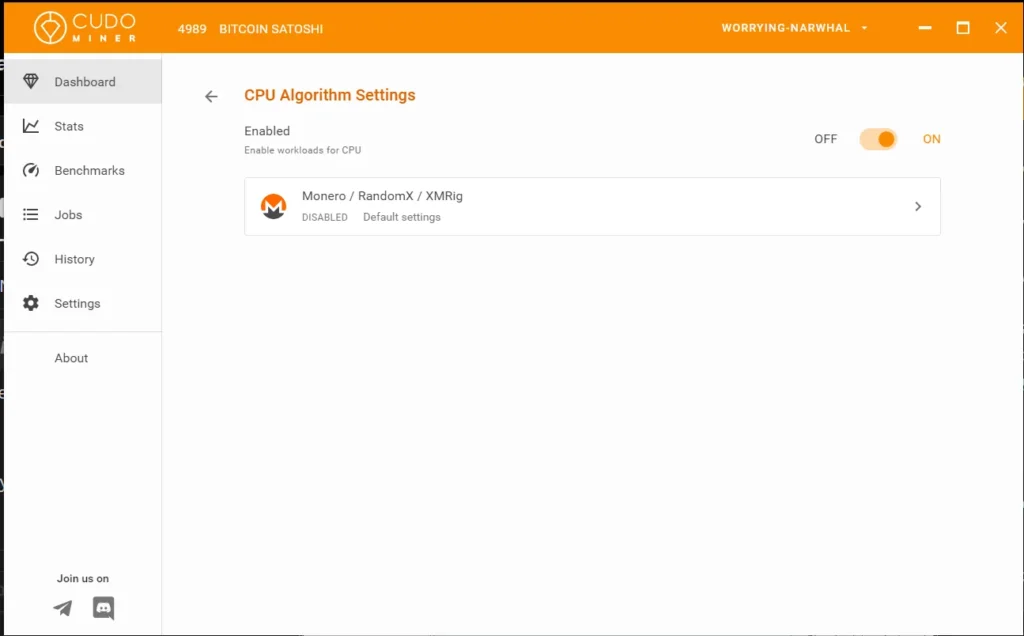
- Open Settings and find Enable third-party miners.
- Read the disclaimer, switch the toggle on, then save.
- Restart the miner. Your card should now show up and start benchmarking.
Why it works: turning this on gives the app a much wider set of mining programs to try. Cudo explains the trade-off on its third-party miners help page, and most users leave it on because it also tends to improve earnings.
Only change this one setting. Leave the rest of the advanced options alone unless you know what they do, because a wrong change there can cause new problems that are harder to trace.
After you switch it on, give the app time. Cudo runs a benchmark on each card the first time, testing it across different algorithms to find the best fit. This can take one to three hours depending on your hardware, and during it the card may look busy without settling on a steady rate yet. That is normal, and the card still earns while it benchmarks, so let it finish before you decide something is broken.
Fix 2: Repair the graphics driver
If the card still will not show up, the driver is the next suspect. The driver is the software that lets Windows and the miner talk to your card. An old, half-installed, or mismatched driver is the top reason a card reads as Not detected, and it is easy to fix.
Update to the current driver
Get the newest driver straight from the maker, not from Windows Update, which often lags behind. For NVIDIA cards, use the official NVIDIA driver page, and for AMD cards use the AMD Radeon Software download. Pick your exact model, install, and reboot before you check Cudo again.
If the newest one does not help, roll back
Newer is not always better for mining. A recent driver can drop support for an older card or an older algorithm. If the current driver leaves your card blank, install a slightly older version instead. Working down one or two releases at a time often lands on one that your card is happy with.
Do a clean install if things are messy
When a card keeps flickering in and out or shows up with the wrong name, leftover files from an old driver are usually to blame. This happens most on machines that have had several driver versions over the years, or that once ran a different brand of card. Fully remove the current driver, then install the fresh one. A clean install clears out the conflicting bits that a normal update leaves behind, which a simple update on top of the old files will not touch.
If you run both an onboard graphics chip and a separate card, the app can also latch onto the wrong one. Make sure Windows is set to use your mining card as the active graphics device, and that the card is the one showing up in Cudo, so the miner is not pointed at a chip that cannot do the work.
NVIDIA extra step: if your card is still hidden after a clean driver install, Cudo sometimes needs a file called NVML.dll. Copy it from C:\Windows\System32, create the folder C:\Program Files\NVIDIA Corporation\NVSMI, and paste the file there. If you cannot find NVML.dll at all, reinstall your driver, which puts it back.
Fix 3: Update or reinstall Cudo Miner
An out-of-date app causes plenty of detection trouble on its own. Older builds shipped with known GPU bugs that were later patched, so if you have been running the same copy for months, that alone can be the problem.
The clean route is to remove the app fully, download the latest version from the official Cudo website, and sign back in. A fresh copy of the current build clears out the old bugs and resets any broken files from the previous install. Always download from the official site, never a mirror or a random link, because mining software is a common target for fake copies.
Fix 4: Check memory and card support
Some cards simply cannot mine what Cudo is trying to give them, and no setting will change that. Two limits matter here.
The 4 GB memory floor
Your card needs at least 4 GB of VRAM. Many coins also grow the amount of memory they need over time, through something called the DAG file, which slowly gets bigger. A 4 GB card that mined a coin last year can quietly fall out of range once that file outgrows its memory. When that happens the card shows up but produces nothing, and switching to a lighter coin or algorithm is the fix.
This is worth flagging because it looks exactly like a bug. The card is detected, the driver is fine, the app is current, and still nothing hashes. If your card has 4 GB or less and suddenly stopped on a coin it used to mine, the DAG size is the likely reason, and no driver reinstall will bring it back on that particular coin. Pointing it at a coin with lighter memory needs is the way forward.
Supported hardware
Cudo keeps a list of the cards it supports. A very old GPU, an onboard laptop chip, or an unusual card may not be on it. If your model is not supported, the app will not mine on it no matter what you change. This is worth checking early so you are not chasing a fix that cannot exist.
Fix 5: Stop overheating and power crashes
A different pattern needs a different fix. If mining starts fine and then stops after a few minutes, the card is detected and working, so the problem is not drivers or settings. It is heat, power, or an unstable overclock.
Heat
Mining pushes a card at full load far longer than gaming does, and temperatures climb. When a card gets too hot it protects itself by throttling down or shutting the work off. Watch the temperature in a tool like GPU-Z or MSI Afterburner. If it climbs past the low 80s Celsius under load, improve airflow, clean the dust out, and give the card more breathing room.
The memory temperature matters as much as the core, and on many cards it runs hotter. Cheap fixes go a long way here: add a case fan aimed at the card, prop open the side panel, or raise the fan curve so the card spins up sooner. If the card sits in a cramped case or a warm room, even a small drop in air temperature around it can be the difference between a steady run and a card that keeps cutting out.
Power
Mining can spike your system’s power draw higher than the card’s headline number, because that figure leaves out the memory and the rest of the board. If your power supply cannot keep up, the card cuts out under load. Easing off helps: drop the power limit a little, and if you run more than one card on a stretched supply, that ceiling matters even more.
Unstable overclock
An overclock that looks stable in a game can crash under a mining load. If you pushed the core or memory clocks, set them back to stock and test again. Once it runs clean at default speeds, raise the clocks slowly, a small step at a time, and stop before it becomes unstable. Turning off Cudo’s own overclocking while you diagnose removes one more variable.
Quick rule: card blank from the start points to drivers, settings, or the app. Card that runs then quits points to heat, power, or overclock. Sorting your problem into those two buckets saves a lot of guessing.
Fix 6: Whitelist Cudo in your antivirus
Antivirus tools often flag mining software, including the third-party miners Cudo downloads, and quietly block or delete them. Because mining programs behave a little like malware from a scanner’s point of view, this is common and does not mean anything is actually wrong.
Add Cudo Miner and its mining processes to your antivirus allow list, and check Windows Defender too. If files keep vanishing after you install them, this is almost certainly why. Once the processes are whitelisted, they can run without being cut off mid-job.
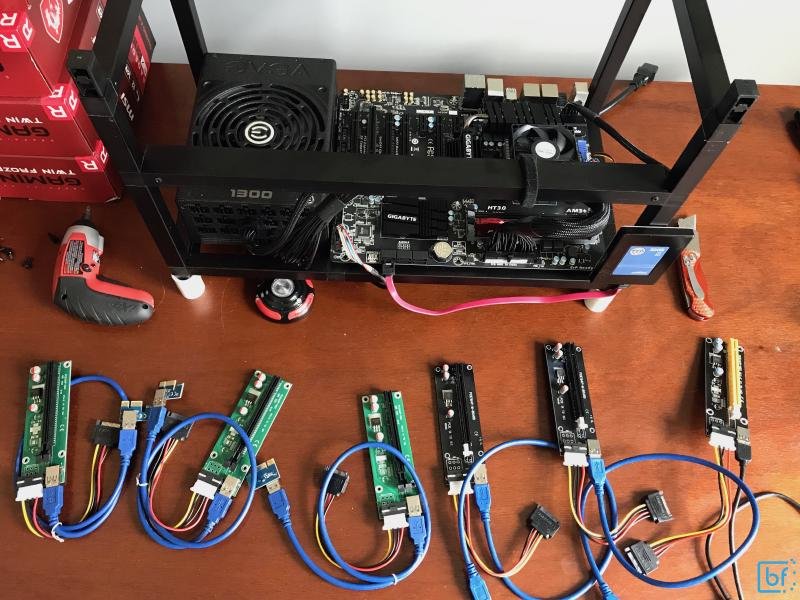
If only some cards work in a multi-GPU rig
Running several cards adds a few failure points that a single card never hits. When most of your rig mines but one or two cards stay blank, the problem is usually physical rather than software.
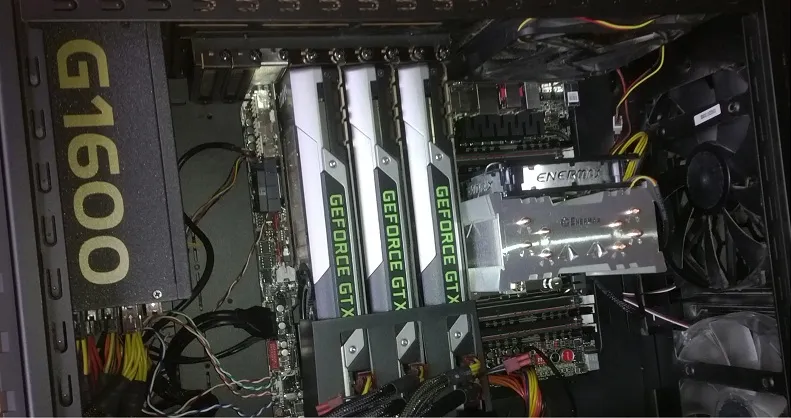
Start with the connection. A loose riser, a bad USB cable on a riser, or a dodgy PCIe slot can drop a single card while the rest run fine. Reseat the riser and the power leads to the affected card, and if you have a spare riser, swap it in to rule the cable out. Check that every card has its own power connected, since a card that is seated but unpowered will not appear.
Power is the other common limit. Each extra card raises the total draw, and a supply that handled three cards can crash when you add a fourth. If cards started dropping right after you added one, the supply is the first thing to suspect. Lowering the power limit on each card reduces the total load and can bring an unstable rig back to steady mining.
When the card is fine but the coin is not
Sometimes nothing is broken at all. Cudo switches between coins based on which one pays best right now, and if there is nothing profitable for your specific card, it may show No jobs or sit idle. That is the app doing its job, not a fault.
You can confirm the card itself works by pointing a standalone miner at it, such as lolMiner or T-Rex, and seeing whether it hashes there. If it does, your hardware is fine and the quiet spell in Cudo is down to profitability, not a problem you need to fix. On a very capable card, mining may also simply earn less than the electricity costs, which is a business question rather than a technical one.
This is the last box to tick because it is the easiest to mistake for a fault. If you have already enabled third-party miners, sorted the driver, updated the app, and confirmed the card is supported with enough memory, and the card still sits idle, there is a good chance nothing is broken. The app is waiting for work worth doing. In that case the answer is patience, or choosing a coin manually if you would rather mine steadily than chase the most profitable one.
Frequently asked questions
Why is Cudo Miner not detecting my GPU?
Most often because third-party miners are switched off, which hides many GPU workloads. Turn them on in Settings first. If the card is still missing, update or cleanly reinstall your graphics driver.
Does my graphics card need a minimum amount of memory?
Yes. Your card needs at least 4 GB of VRAM to mine reliably in Cudo. Some coins need even more over time, so a 4 GB card can fall out of range and stop earning on that coin.
Cudo Miner starts then stops after a few minutes. Why?
That points to heat, power, or an unstable overclock, not settings. Check your temperature, reset clocks to stock, and lower the power limit if your supply is stretched. Then test again.
My antivirus keeps deleting Cudo files. Is that normal?
Yes, scanners often flag mining software by default. Add Cudo Miner and its mining processes to your antivirus allow list, and check Windows Defender too, so the files are not removed mid-job.
Cudo shows my GPU but says No jobs. What does that mean?
Usually there is no profitable coin for your card right now, so the app stays idle. That is normal behavior. Confirm the card works by running a standalone miner like T-Rex or lolMiner against it.
Conclusion
When Cudo Miner will not use your GPU, work down in order: enable third-party miners, fix the driver with an update or a clean install, run the latest app, and confirm your card has 4 GB of memory and is supported. If it mines then stops, treat it as heat, power, or overclock. A good result is your card listed as active with a steady hashrate that holds without dropping. Most people get there in well under an hour.
Related Post:
Why Is My GPU Usage So High? (And When It Actually Matters)
Should I Remove the GPU When Moving My PC?
GPU Overheated? What It Means and How to Fix It