Overclocking a GPU is free, mostly safe, and takes an afternoon. It also usually buys you a fairly small speed boost, somewhere around 5 to 15 percent on today’s cards. So the honest answer to “should you?” is: only if you want the last few frames and enjoy tinkering. If you just want your games to run well, you can skip it and lose almost nothing.
Here is the full picture: what overclocking really does, how much faster it makes your card, the risks that actually matter, and a smarter option that more people should try first.
A quick note on the year. In 2026, cards are built to run closer to their real limit than ever. NVIDIA’s Blackwell cards and AMD’s RDNA 4 cards both use aggressive automatic boosting straight out of the box. That is great for you as a buyer, because you get most of the card’s performance without lifting a finger. It also means the room left for manual overclocking is smaller than it was five or six years ago. Keep that in mind as you read: the tweak is real, but the ceiling is lower than the old forum stories suggest.
What overclocking a GPU actually does
Your graphics card has a clock speed, measured in megahertz (MHz). It tells you how many cycles the chip runs each second. A higher clock means the card does more work per second, which shows up as more frames per second in games.
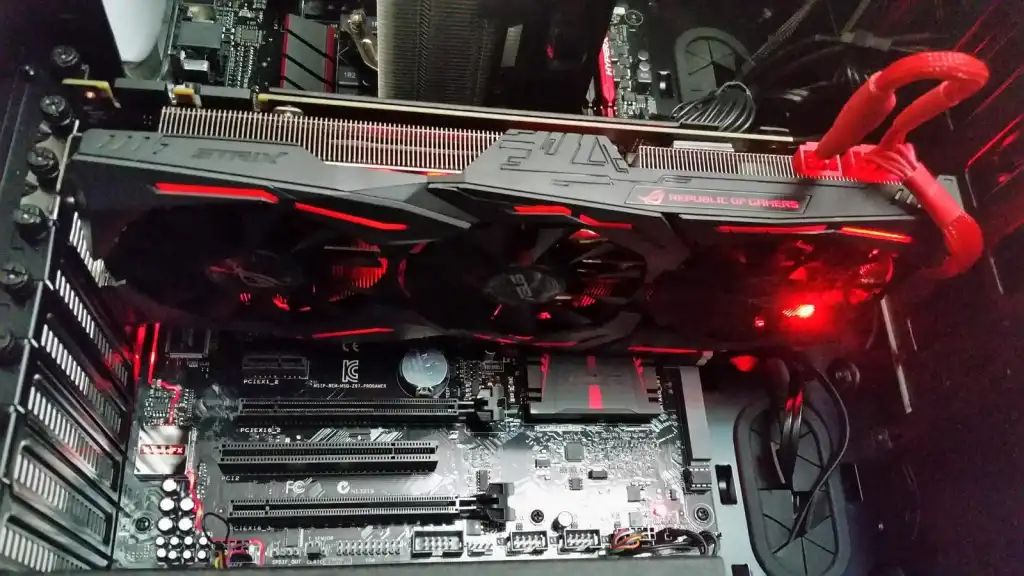
Overclocking means nudging that clock speed above the factory setting. A card also has separate memory clock (the speed of its onboard VRAM) and a power limit (how much wattage it is allowed to pull). You can raise all three with free software, no screwdriver needed.
There is a catch that shapes this whole decision. Modern cards do not run at one fixed speed. They boost on their own, moment to moment, based on temperature and power headroom. A card rated to boost around 2,500 MHz might already swing between 2,400 and 2,700 MHz depending on how cool it is staying. So a manual overclock is less about setting a new top speed and more about nudging that automatic boost a little higher and helping it hold there for longer. That is why the gains are modest: the card is already doing most of the work for you.
So, should you overclock your GPU?
The short verdict, then the reasons.
Do it if: you like tuning your PC, you own a mid-range or older card, or you are a few frames short of a smooth 60 or 144 FPS and want to close the gap without spending money. In those cases a free 10 percent can genuinely change how a game feels.
Skip it if: your games already run fine, you own a laptop with tight cooling, or the idea of an hour of stability testing sounds like a chore. You will barely notice the difference, and your time is worth more than the handful of frames.
Rule of thumb: overclocking is worth it when you are close to a target frame rate and want to get over the line for free. It is not worth it as a fix for a card that is simply too slow for the games you play.
One more honest point. Overclocking will not turn a budget card into a high-end one. If you are 30 percent short of the performance you want, no safe overclock will get you there. That is an upgrade, not a tweak.
How much faster will it really make your GPU?
Real gains land in a narrow band. On current cards, a stable overclock usually adds 5 to 15 percent more frames. Older cards, like the RTX 30 or RX 6000 series, sometimes reach closer to 20 percent because they left more room on the table. The newest cards give the smallest gains, because they already boost aggressively out of the box.
A concrete example helps. A card running a game at 100 FPS might land around 108 to 112 FPS after a solid overclock. In a fast esports title already running at 200 FPS, you might gain 15 to 20 frames. Useful, but not life-changing.
The type of game matters too. A core-clock overclock helps most in games that lean hard on raw graphics power. A memory-clock overclock helps most in games that stream lots of textures and detail, the big open-world titles where the card is constantly pulling data from its VRAM. That is why some players save a separate profile per game: a small memory bump for the sprawling open world, a small core bump for the competitive shooter. For most people, one modest all-round profile is plenty.
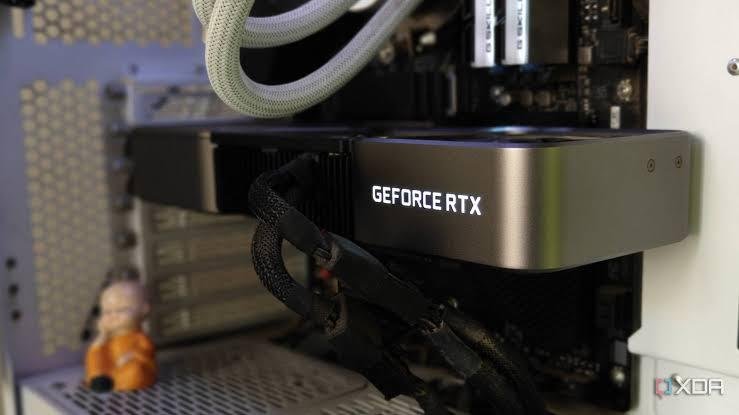
Resolution changes the math as well. At 4K the graphics card is nearly always the hardest-working part, so an overclock has the best chance to show up as real frames. At 1080p your processor often sets the pace, and a faster GPU may do little. If you play at a lower resolution and already get high frame rates, keep your expectations modest.
Two other things affect your result:
- The silicon lottery. Two identical cards can overclock differently. One chip might hold a higher clock than the next off the same shelf, purely by luck of manufacturing. There is no way to know until you try.
- Where the bottleneck is. If your processor is the slow part in a game, a faster GPU changes nothing. Overclocking only helps when the graphics card is the thing holding you back.
The table below sums up what each tweak tends to give you and where it can bite.
| What you tweak | Typical result | Risk if pushed too far |
|---|---|---|
| Core clock (+MHz) | A few extra frames in GPU-heavy games | Driver crash or black screen, easy to spot and undo |
| Memory clock (+MHz) | Bigger help in texture-heavy games | Silent errors that hurt speed and cause visual glitches |
| Power limit (+%) | Higher, steadier boost clocks | More heat and fan noise, faster wear over years |
| Undervolt (-mV) | Lower temps, quieter, similar or better speed | Rare crashes if you cut voltage too hard |
The real risks (and which ones matter)
Overclocking a GPU is far less scary than it used to be. Cards have built-in protections, and if you push a core clock too high, the screen usually just goes black or the driver resets. Reboot, dial it back, and you are fine. Nothing is damaged.
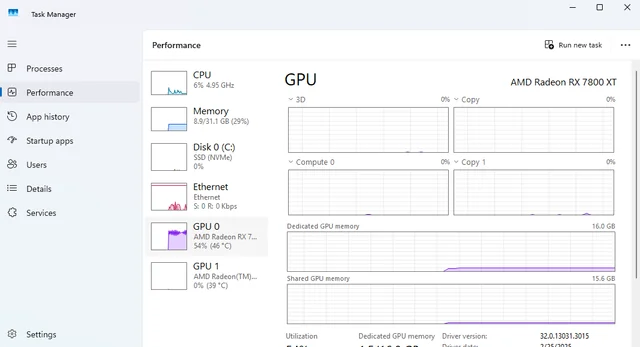
That said, a few risks are real and worth understanding.
Heat and noise
A higher clock and power limit make the card run hotter, so the fans spin up. Keep the GPU under about 80 to 85 degrees Celsius under load and you are in safe territory. If your case has poor airflow, overclocking will push temperatures and noise up faster than the frames go up.
Long-term wear
Running a chip hotter and at higher voltage for years can shorten its life a little. In practice most cards are replaced long before this matters, but it is a real trade, not a myth. More voltage adds heat quickly for a small speed gain, which is why raising voltage is the tweak to be most careful with.
The sneaky one: memory errors
Memory overclocking has a trap. Push the memory clock too far and the VRAM starts making tiny errors. Instead of crashing, the card quietly re-sends or corrects the bad data, which costs speed. So your frame rate can actually drop even though nothing looks wrong. Past a certain point you also get visible glitches: flickering textures or odd shapes on screen.
The fix is simple: after raising memory speed, run a benchmark and watch the score. If the score stops rising or starts falling as you push higher, you have gone too far. Back off until the score is at its best, not its highest clock.
The warranty question
Worth knowing before you start: AMD states in its own tuning software that overclocking beyond stock specifications can void your product warranty, even when you do it with AMD’s own tools. Policies vary by brand and region, so if your card is new and you want to keep the warranty spotless, that is a reason to leave it at stock.
How to tell if it is worth it for your PC
Before you spend an afternoon on this, five minutes of checking tells you whether there is anything to gain.
Check what is holding you back. Open a task monitor while you play a demanding game and watch two numbers: GPU usage and processor usage. If your graphics card is pinned near 100 percent and your processor has room to spare, the GPU is your limit and an overclock can help. If it is the other way around, your processor is the bottleneck and overclocking the card will barely move the needle. This one check saves a lot of wasted effort.
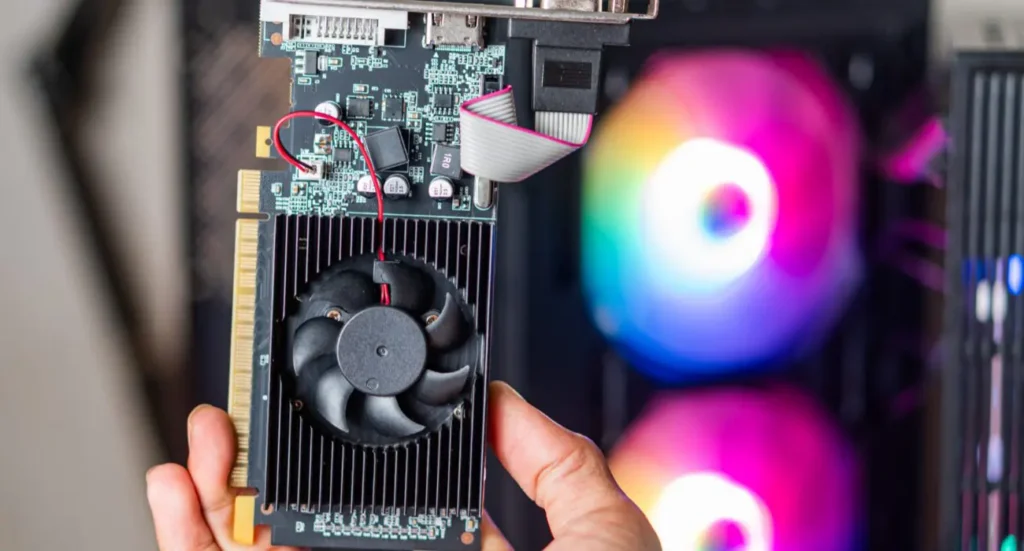
Check your temperatures. Run a game for twenty minutes and note the GPU temperature. If it is already brushing 83 or 84 degrees at stock, you have little thermal headroom, and overclocking will just push it hotter and force the card to pull back. Sort out airflow first, or lean toward undervolting instead.
Check your card’s age. Older cards tend to have more room to give. If you own something from a couple of generations back and it is running out of steam, an overclock is more likely to feel worth it than on a brand-new card that already boosts hard.
If all three point the right way, GPU-limited, cool enough, and a card with some headroom, go ahead. If they do not, you now know the honest answer is skip it.
Who should overclock, and who should skip it
A quick sort, since this is really a personal call.
Good candidates:
Owners of desktop cards from a couple of generations back, where the extra headroom is largest.
Anyone sitting just below a smooth frame rate who wants to get over the line for free.
People who find PC tinkering genuinely fun and do not mind an hour of testing.
Better off skipping:
Laptop owners. Mobile cards hit heat limits fast in a cramped chassis, so gains are small and temperatures climb quickly.
Anyone whose games already run smoothly. There is nothing to gain.
Anyone who wants a quiet, cool, hands-off machine that just works.
Undervolting: the smarter tweak for most people
Here is the move most guides bury. Instead of pushing your card harder, you can undervolt it: run the same speed at lower voltage. Because modern cards are usually limited by heat and power, feeding them less voltage often lets them hold their boost clock for longer. The result is a card that runs cooler and quieter, lasts longer, and sometimes performs slightly better in long sessions.
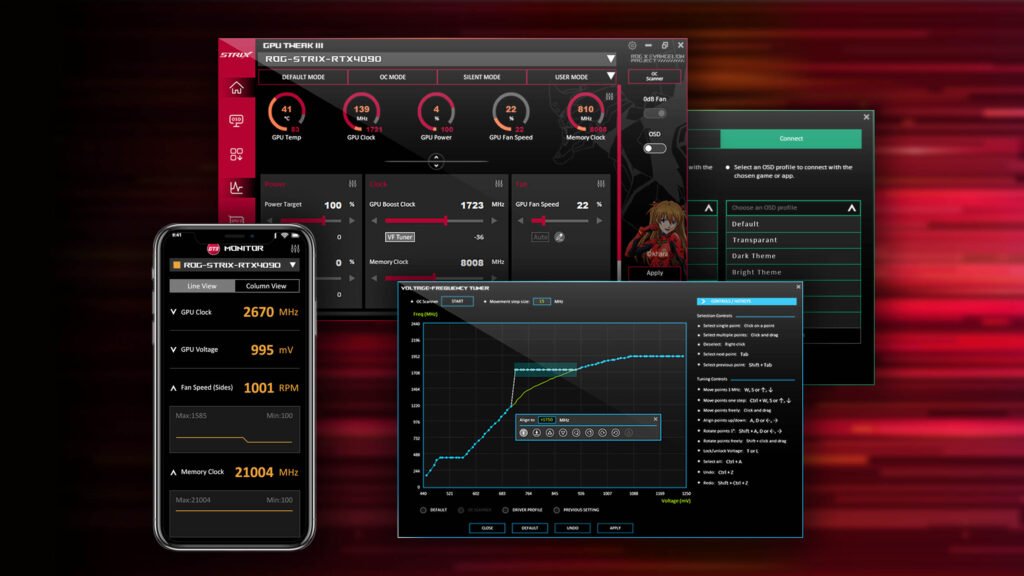
For a lot of people that combination beats a raw overclock. You lose the bragging-rights top clock, but you gain a calmer, longer-lived card with performance that is the same or better where it counts. If you only try one thing from this article, try undervolting.
Simple plan: undervolt for a cooler, quieter card and steadier performance. Overclock on top only if you are chasing every last frame.
How to do it safely, in short
This is not a full tutorial, but here is the safe shape of it. For NVIDIA and most cards, the free MSI Afterburner utility is the standard tool. AMD owners can use the built-in tuning controls in AMD Software: Adrenalin Edition, no extra download needed.
- Get a baseline. Run a benchmark or a demanding game at stock and note your frame rate and score. This is what you are trying to beat.
- Raise the power limit. Push it to its maximum first. This gives the card more room to hold its boost, and it is the safest single change.
- Nudge the core clock up slowly. Add about 10 to 20 MHz at a time, then test. If the screen goes black or the game crashes, you have found the edge; drop back a step.
- Do the memory clock carefully. Raise it in small steps and watch your benchmark score. When the score stops improving, stop. Higher is not better here.
- Stress test for real. Run a benchmark or a game for a couple of hours. A clock that survives ten minutes can still fail after the card gets fully hot. Only a long test proves it is stable.
Set a custom fan curve while you are in there. Slightly louder fans that keep the card cooler often unlock a better, steadier result than pushing clocks alone.
Frequently asked questions
Is overclocking a GPU safe?
Yes, for the most part. Modern cards have protections, and pushing too far usually causes a harmless crash you can undo. The real trade-offs are more heat, more fan noise, and slightly faster long-term wear, not sudden death.
How much faster will overclocking make my GPU?
Usually 5 to 15 percent more frames, sometimes up to 20 percent on older cards. A game running at 100 FPS might reach around 110. The newest cards gain the least because they already boost aggressively.
Does overclocking a GPU reduce its lifespan?
A little, if you run it hotter and at higher voltage for years. In practice most cards are replaced long before wear becomes a problem. Keeping temperatures under about 85 degrees Celsius keeps the risk low.
Should I undervolt or overclock my GPU?
For most people, undervolt. It gives a cooler, quieter, longer-lasting card and often steadier performance in long sessions. Overclock on top only if you want to chase every last frame.
Will overclocking void my warranty?
It can. AMD states overclocking beyond stock specs may void the warranty, even using its own software, and policies vary by brand and region. If keeping the warranty spotless matters, leave the card at stock.
Conclusion
Overclocking a GPU is safe, free, and mildly rewarding, but the payoff is small: usually 5 to 15 percent, and less on the newest cards, because they already boost themselves near their limit. Do it if you enjoy tuning or you are a few frames short of a smooth target. Skip it if your games run fine or you own a laptop. And for most people, undervolting is the smarter first move: a cooler, quieter, longer-lasting card with performance that holds up just as well.
Related Post:
Does Undervolting a GPU Decrease Performance? Here Is What Actually Happens
Cooling a GPU With a CPU Cooler: What Actually Works and What Breaks
Does Overclocking VRAM Boost Gaming Performance? What to Expect
How to Fix the “Unsupported GPU Processing Mode” Error in DaVinci Resolve
Should You Use Hardware-Accelerated GPU Scheduling? A Plain 2026 Answer
![Fix GPU memory leak [Forge/Fabric]: what it does and how to install it](https://nobelspot.com/wp-content/uploads/2026/08/GPU-Fan-Speed-33.jpg)