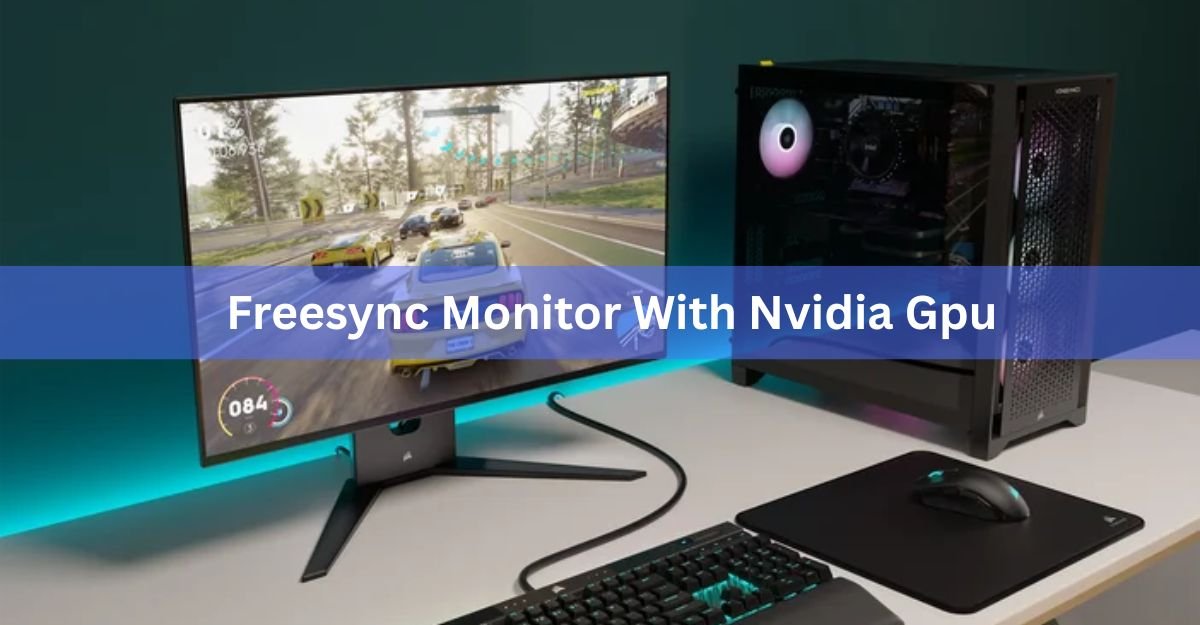
Yes. A FreeSync monitor works with an NVIDIA graphics card, and you get the same smooth, tear-free gaming you would get with an AMD card. Both FreeSync and NVIDIA’s matching feature run on the same open standard, so the two talk to each other once you flip a couple of switches. You just need the right cable, a recent driver, and a card from the GeForce GTX 10 series or newer.
This guide walks through why it works, how to turn it on in a few minutes, the one cable mistake that stops it cold, and what to look for if you are still shopping for a screen.
Does FreeSync work with an NVIDIA GPU?
It does. Since early 2019, NVIDIA drivers can read the same variable refresh rate signal that FreeSync monitors send out. NVIDIA calls its side of this feature G-Sync Compatible, and it lets a GeForce card sync its frame output to your monitor’s refresh rate. The result is no screen tearing and far less stutter, which is exactly what FreeSync was built to do.
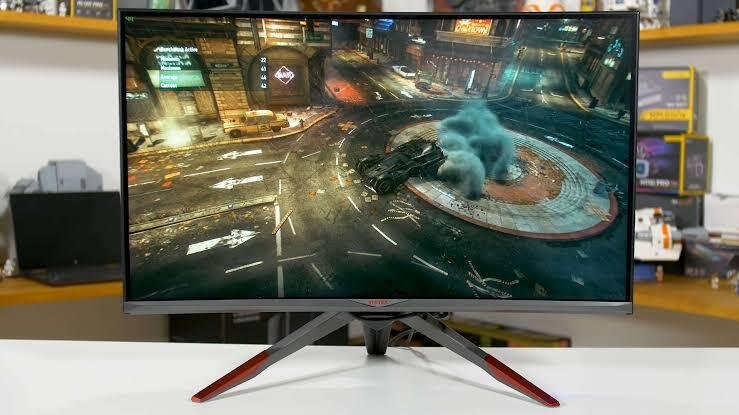
Screen tearing happens when your monitor refreshes partway through drawing a new frame, so you see the top of one frame and the bottom of another. Variable refresh rate, or VRR, fixes this by letting the monitor wait for the graphics card instead of refreshing on a fixed clock. FreeSync, G-Sync, and G-Sync Compatible are all names for this same idea.
Quick answer: if your monitor supports FreeSync and your NVIDIA card is a GTX 10 series or newer, plug in over DisplayPort, update the driver, and turn on G-Sync in the NVIDIA app. That is the whole job.
Why FreeSync works on NVIDIA cards
FreeSync is AMD’s brand name for a feature built on top of VESA Adaptive-Sync, an open standard that comes free with the DisplayPort connection. Because it is open, any graphics card that supports Adaptive-Sync can use a FreeSync monitor’s syncing, not just AMD cards.
NVIDIA added support for this standard on GeForce GTX 10 series (Pascal) cards and everything newer, including the RTX 20, 30, 40, and 50 series. So the card reads the FreeSync monitor’s refresh range and matches its frames to it. The monitor does not know or care that an NVIDIA card is driving it; the syncing runs on the shared standard underneath.
This is why the marketing labels matter less than they seem. A monitor sold as “FreeSync” and one sold as “G-Sync Compatible” are usually the same kind of Adaptive-Sync panel. The G-Sync Compatible badge just means NVIDIA tested that exact model and confirmed it runs cleanly. Plenty of untested FreeSync monitors work fine too.
G-Sync Compatible vs FreeSync: what’s the difference?
There are three tiers to know. A native G-Sync monitor has a dedicated NVIDIA chip inside it, which adds cost but gives a very wide sync range. G-Sync Compatible is a FreeSync or Adaptive-Sync monitor that NVIDIA has tested and approved. A plain FreeSync monitor uses the same standard but has not been through NVIDIA’s testing.
For most people, the difference between G-Sync Compatible and a good FreeSync monitor is small to none. The table below sums up how the three compare when you are using an NVIDIA card.
| Feature | G-Sync (module) | G-Sync Compatible / FreeSync |
|---|---|---|
| How it works | Dedicated chip inside the monitor | Open Adaptive-Sync standard, driver-based |
| Extra cost | Higher, hardware adds to the price | Little or none, built into the panel |
| VRR range | Often 1Hz to max refresh | Depends on the panel, often 48Hz to max |
| NVIDIA GPU support | Yes, GTX 10 series and newer | Yes, GTX 10 series and newer |
| AMD GPU support | Mostly, via FreeSync fallback | Yes |
NVIDIA’s own testing shows how selective the badge is. In its first round, only about 6 percent of the Adaptive-Sync monitors it tried passed, mostly because many had a narrow sync range or a low top refresh rate. That does not mean the other monitors fail to sync; it means NVIDIA would not stamp its name on them. Many still run VRR well once you enable it by hand.
What you need before you start
Turning FreeSync on with an NVIDIA card takes a few minutes. Before you begin, check that you have these four things in place.
- A FreeSync or Adaptive-Sync monitor. Almost every FreeSync display qualifies.
- A GeForce GTX 10 series card or newer. That covers GTX 16, and RTX 20, 30, 40, and 50 series cards.
- A DisplayPort cable. This is the reliable route; more on the HDMI catch below.
- A recent NVIDIA driver. Support started with driver 417.71, so any current driver is fine. Grab the latest from NVIDIA’s driver page.
How to turn on FreeSync with an NVIDIA GPU
Once the checklist above is sorted, the setup is a two-part job: switch it on in the monitor, then switch it on in the NVIDIA software. Follow these steps in order.
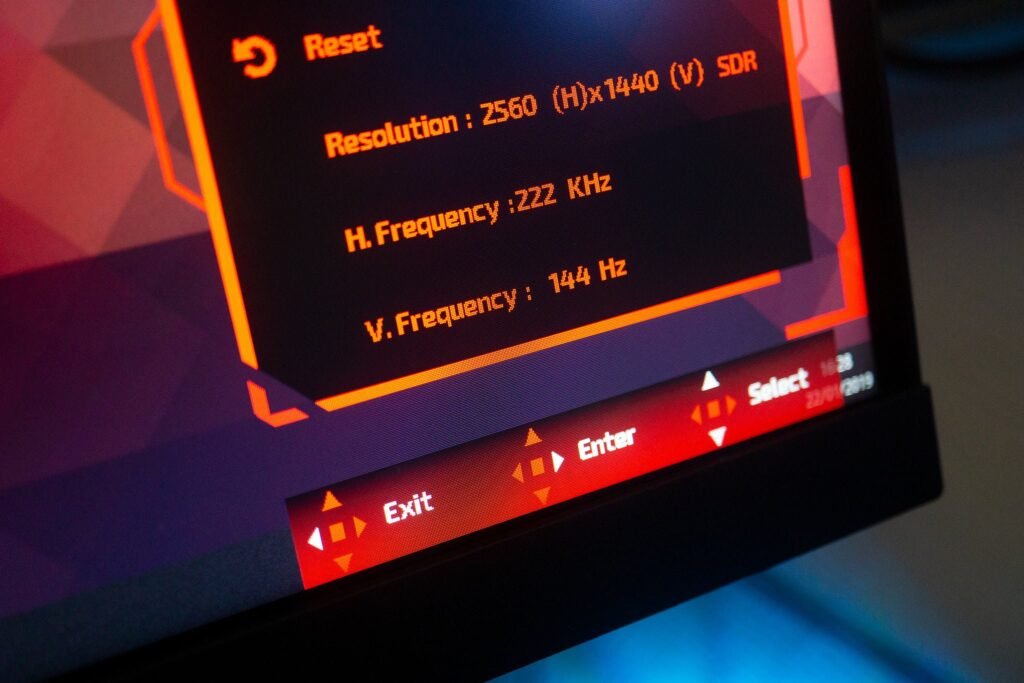
- Enable FreeSync in the monitor’s menu. Use the buttons or stick on the monitor to open its on-screen menu. Look under Image, Display, or Gaming for a setting named FreeSync, Adaptive-Sync, or VRR, and turn it on.
- Connect over DisplayPort. Plug the monitor into your card with a DisplayPort cable if you have not already. This step matters more than it looks; see the next section.
- Update your NVIDIA driver. Open the NVIDIA app (or GeForce Experience) and install the latest Game Ready driver, then restart if asked.
- Open the NVIDIA Control Panel or NVIDIA app. Right-click the desktop and choose NVIDIA Control Panel, or open the Display section of the NVIDIA app.
- Go to Set up G-Sync. Under the Display heading, click Set up G-Sync. Tick the box marked Enable G-Sync, G-Sync Compatible.
- Pick your display and mode. If you run more than one screen, select the FreeSync monitor in the list. Choose full screen only, or full screen and windowed if you game in a window.
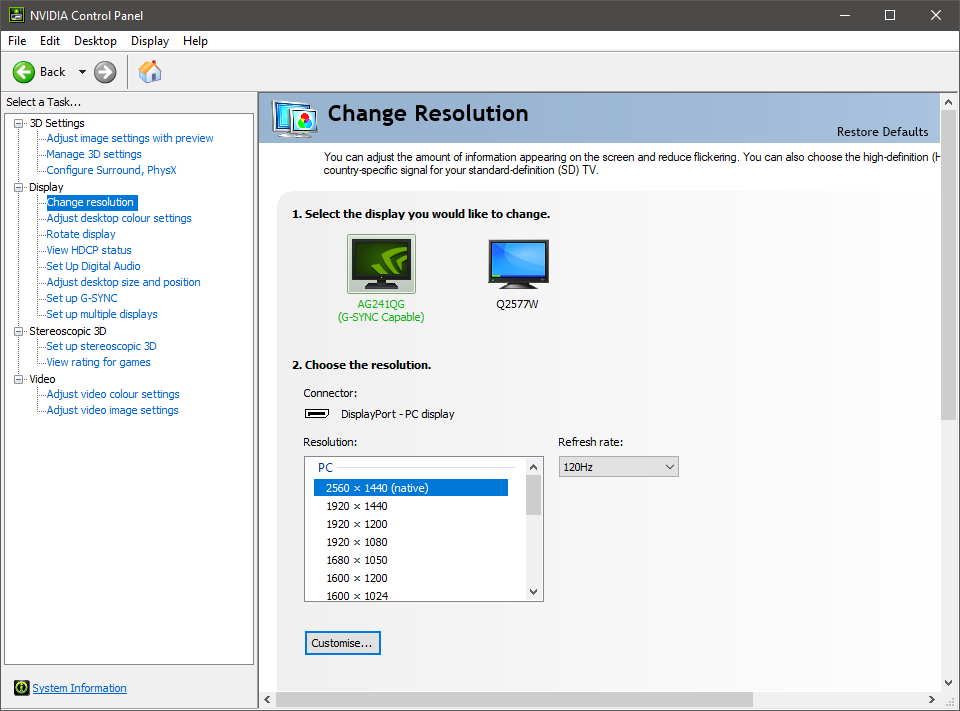
- Set the refresh rate to its highest. In Change Resolution, set the refresh rate to the top value your monitor supports, then click Apply.
If the Enable G-Sync box is greyed out, the usual cause is a monitor whose VRR setting is still off, or an HDMI connection. Turn on the monitor’s own FreeSync setting first, switch to DisplayPort, and the option should appear. On non-tested monitors, you may also need to set Monitor Technology to G-Sync Compatible under Manage 3D Settings.
DisplayPort vs HDMI: the trap to avoid
Here is the mistake that stops most people. NVIDIA’s Adaptive-Sync support runs over DisplayPort, not over older HDMI. FreeSync monitors often list FreeSync over HDMI, but that is AMD’s own version of the feature, and an NVIDIA card cannot use it on HDMI 2.0 or older.
So if you connect a FreeSync monitor to an NVIDIA card with an HDMI cable, VRR usually will not turn on, even when everything else is set right. The fix is simple: use DisplayPort. Nearly every FreeSync gaming monitor and every recent GeForce card has a DisplayPort connector, so this is rarely a real limit, just a cable swap.
Rule of thumb: NVIDIA card plus FreeSync monitor equals DisplayPort. If the sync option refuses to appear, check the cable before anything else.
There is one exception. Newer TVs and monitors that use HDMI 2.1 carry a proper VRR standard that recent GeForce cards can use over HDMI. If your display and card both support HDMI 2.1, VRR can work on that cable. For everyday FreeSync desktop monitors, though, DisplayPort remains the safe pick.
Buying a FreeSync monitor for an NVIDIA card
If you are still shopping, you do not need to pay extra for a native G-Sync monitor. A well-chosen FreeSync screen gives an NVIDIA card the same smooth result for less money. Weigh these points when you compare models.
Check the VRR range. A wider range, such as 48Hz to 144Hz, keeps syncing across more of your frame rates. Narrow ranges only help within a small window.
Aim for 120Hz or higher. High refresh rates are where VRR shines. A 60Hz or 75Hz panel gives you less to gain.
Confirm DisplayPort. Make sure the monitor has a DisplayPort input, since that is your route to VRR on an NVIDIA card.
Look for FreeSync Premium if you can. This tier adds Low Framerate Compensation, which keeps things smooth even when your frame rate drops below the monitor’s floor.
The G-Sync Compatible badge is a bonus, not a must. It means guaranteed plug-and-play, but many unlisted FreeSync monitors work just as well.
You can cross-check whether a specific model has been tested on NVIDIA’s G-Sync monitor list. If your monitor is not on it, do not worry; try enabling VRR by hand, and in most cases it simply works.
Frequently asked questions
Do I need a G-Sync Compatible monitor, or will any FreeSync monitor work?
Any FreeSync monitor will usually work. The G-Sync Compatible badge just means NVIDIA tested that model and confirmed it runs cleanly. Untested FreeSync monitors often work fine too; you may just need to enable it by hand.
Why is the Enable G-Sync option greyed out?
The two common causes are an HDMI connection or FreeSync being off in the monitor. Switch to a DisplayPort cable, turn on FreeSync or Adaptive-Sync in the monitor’s own menu, then check the box again.
Will FreeSync damage my monitor or GPU?
No. FreeSync is just a syncing feature. If it is not supported, nothing turns on and nothing is harmed. The worst case is that VRR simply does not activate, which cannot damage your hardware.
Does FreeSync work over HDMI with an NVIDIA card?
Usually not on HDMI 2.0 or older, since NVIDIA syncs over DisplayPort. It can work on HDMI 2.1 if both your display and card support that standard. For most FreeSync monitors, use DisplayPort.
Which NVIDIA cards support FreeSync?
GeForce GTX 10 series (Pascal) and every card since, including GTX 16, RTX 20, 30, 40, and 50 series. You also need driver 417.71 or newer, so any current driver covers you.
Conclusion
FreeSync monitors and NVIDIA GPUs work together well. Because FreeSync sits on the open Adaptive-Sync standard, any GeForce GTX 10 series or newer card can sync to it and deliver tear-free, smooth gaming. Connect over DisplayPort, update your driver, enable FreeSync in the monitor menu, and switch on G-Sync in the NVIDIA app. A good result looks like clean motion with no tearing and no stutter, and you never need to pay extra for a native G-Sync screen to get it.
Related Post:
Does Undervolting a GPU Decrease Performance? Here Is What Actually Happens
Cooling a GPU With a CPU Cooler: What Actually Works and What Breaks
Does Overclocking VRAM Boost Gaming Performance? What to Expect
How to Fix the “Unsupported GPU Processing Mode” Error in DaVinci Resolve
Should You Use Hardware-Accelerated GPU Scheduling? A Plain 2026 Answer