Red Light on GPU When PC Is Off: What It Means and When to Worry
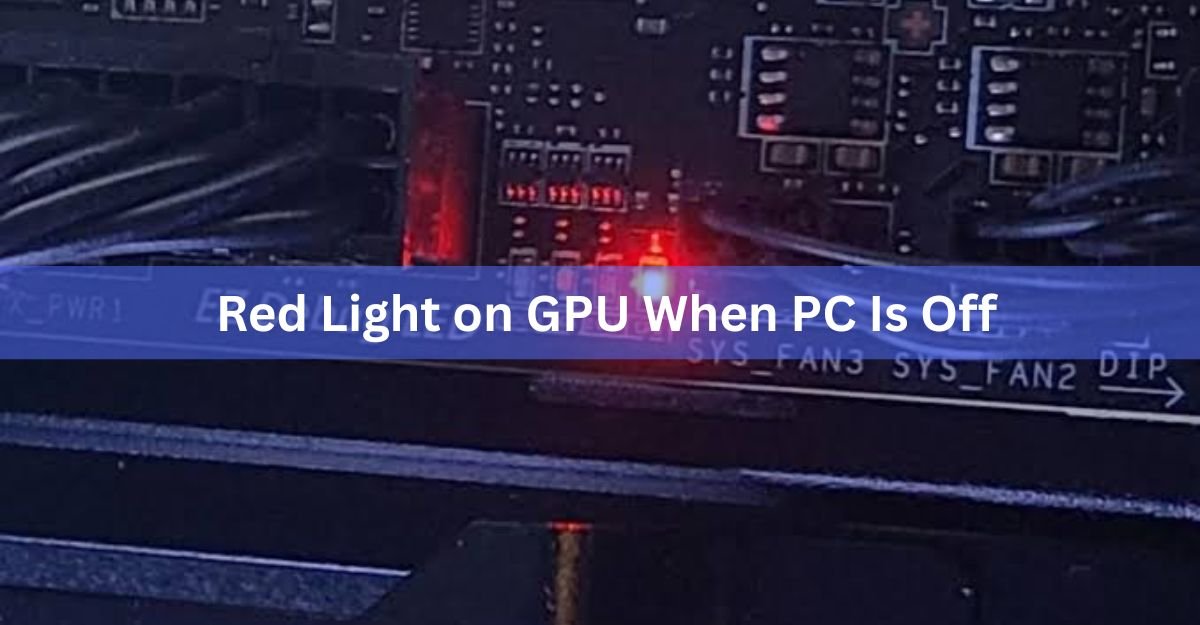
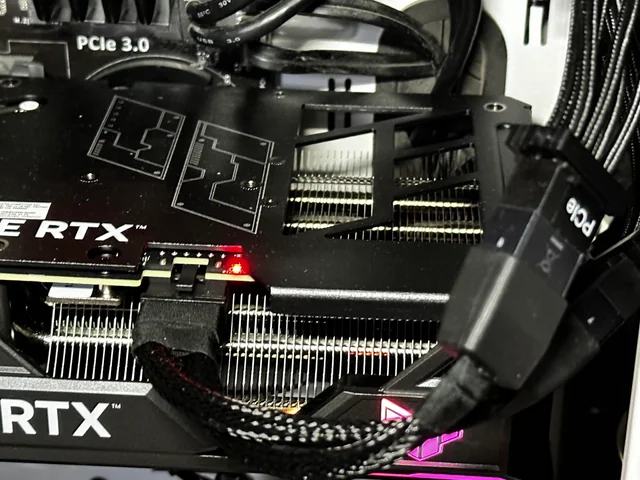
If your graphics card glows red after you shut Windows down, the card is almost certainly fine. That small red dot next to the power connector is a status light, not a fault light. When the system powers off, 12V stops flowing through the PCIe power cable, the card notices, and the LED comes on to report it. Boot the machine and it goes out.
The version worth acting on is the opposite one: a red light that stays lit, or blinks, while the PC is running.
Which red light are you looking at?
Three separate lights can look like a red warning from your graphics card, and they mean very different things.
Next to the power connector. A tiny surface-mount LED sitting just above the 8-pin or 16-pin socket. This is a power-detect indicator, and it is the one this article is about. ASUS ROG Strix and TUF cards have carried it for several generations, and it shows up on RTX 30, 40 and 50 series models in particular.
On the shroud or backplate. Bigger, softer, spread across a logo or a strip. That’s RGB lighting. If red is the colour you picked, or the card dropped back to a default effect, it can look like an alarm when it isn’t one.
On the motherboard, beside the PCIe slot. Boards from ASUS, MSI, Gigabyte and ASRock carry a row of small diagnostic lights labelled CPU, DRAM, VGA and BOOT. A lit VGA light is the motherboard talking about your graphics card, not the card talking about itself. If that one is glowing and you have no picture, reseat the card in its slot and check that the monitor cable goes into the graphics card rather than the motherboard.
Work out which one is glowing before you touch anything. It changes the answer completely.
Why the light comes on after shutdown
A plugged-in PC is never fully off. The power supply keeps a small standby rail running so the board can watch for the power button, a network wake signal, or a keypress. The PCIe slot carries its own low-power auxiliary rail for the same reason.
So a sliver of your graphics card stays awake. Its job is to check whether current is arriving through the PCIe power cable. After shutdown it isn’t, because the main 12V rails are down. The card reports what it sees, and the LED goes red.
Nothing is being damaged and nothing is wearing out. A single indicator LED pulls a fraction of a watt.
What the LED means, state by state
On ASUS cards the light behaves differently depending on which cable you used, which is why two people with the same card can see two different things.
| Situation | Native 16-pin cable | Bundled 8-pin adapter |
|---|---|---|
| Power cable not connected to the card | Red | Red |
| Cable connected, PC shut down or asleep | Off | Red |
| Cable connected, PC running | Off | Off |
A red light while the PC is off is expected behaviour if you’re using the 8-pin to 16-pin adapter that came in the box. With a native 16-pin cable running straight from an ATX 3.0 or 3.1 power supply, the light should stay dark in every state. The per-model chart covers the RTX 30, 40 and 50 series cards that use this indicator.
Sleep and hibernation look identical to a full shutdown from the card’s point of view. Windows drops the 12V rails in all three states, so a light that appears the moment the machine sleeps is the same ordinary behaviour.
Most other brands skip the indicator entirely. Cards from MSI, Gigabyte, Zotac and PNY usually have no power-detect LED at all, so red on one of those is RGB lighting almost every time. Some older cards did carry a plain warning light beside the PCIe socket, but it only lit while the system was running and the cable was missing or underpowered.
One row matters more than the others: cable connected, PC running, light red. That combination is never normal.
Solid, blinking, or flickering: reading the pattern
The pattern carries the detail.
- Solid red while the system runs. The power cable isn’t seated properly. Push it in until the connector body sits flush against the card.
- Blinking at a steady rhythm. The card is seeing less than 10.8V arriving, which points at the power supply or the cable rather than the card.
- Blinking at an uneven rhythm. Something is wrong with how the current is being shared. That covers a single pin carrying more than 9.2A, a pin with no current at all, or an uneven spread across the pins.
The last one deserves respect. The 16-pin connector on recent NVIDIA cards can move up to 600W through six power pins, and uneven distribution is what turns a loose plug into a melted one.
Quick check: grip the connector body, not the wires, and push until you cannot see a gap between the plug and the socket. The 12V-2×6 revision of this connector was designed so the four small sense pins only make contact once the power pins are properly home. If the plug is short by a millimetre, the card knows.
When the red light is genuinely a problem
Act on it when the light is on while the system is running, when it blinks in any pattern, or when it arrives alongside black screens, crashes in games, or a connector that feels hot to the touch. A smell of burnt plastic means power down straight away and leave the card alone until you have looked at the plug.
A light that shows up the same week you fitted a new card is nearly always the cable, not the card. Work through the connection before you consider a return.
Here is the order to work through.
- Shut down and cut power. Switch the PSU off at the back, then press the case power button once to drain the capacitors.
- Unplug and inspect both ends. Look for browning, melted plastic, or bent pins on the card socket, the cable, and the PSU socket.
- Reseat until flush. Push the connector fully home at the card end and at the PSU end. Listen for the click.
- Give each connector its own cable. If you are using the bundled adapter, run a separate PCIe cable from the power supply to every 8-pin leg. Daisy-chained and Y-split cables are the most common cause of this light.
- Check which PSU sockets you used. Some units split their 12V output across separate rails, so the wrong sockets can starve the card.
- Swap the cable. If the light survives all of that, try a different cable or a different power supply before you blame the card.
If a fresh cable and a known-good power supply still leave the light on during use, that is a service issue and worth a warranty claim.
How to make the light go off
Once you have confirmed the card is healthy and you simply want a dark room at night, you have four options.
Turn on ErP in the BIOS. ErP is an energy-saving mode that drops the machine to almost no power draw after shutdown, usually under one watt, which cuts the standby supply those LEDs run on. On ASUS boards it sits under Advanced, then APM Configuration, as ErP Ready. MSI puts it under Settings, Advanced, Power Management Setup. Gigabyte lists it under Platform Power. ASRock calls it ErP Support or Deep Sleep. Turning it on also disables Wake-on-LAN, waking with a keyboard or mouse, and USB charging while the PC is off, so decide whether you want any of those first.
Flip the PSU switch. The switch on the back of the power supply cuts everything at once. The only cost is that some boards forget BIOS settings after a full power loss, so test yours before making it a nightly habit.
Change the lighting, if it is RGB. Shroud and backplate lighting is handled in software: Armoury Crate for ASUS, MSI Center, Gigabyte’s RGB Fusion, Zotac’s Firestorm. Each one has a setting for what the lights do while the system is off. A power-detect LED will ignore all of it, because it isn’t RGB.
Toggle Power Detector, on ROG Strix cards only. ROG Strix models let you switch the power LED behaviour on and off in GPU Tweak III. TUF and Dual cards do not get that option, and no other brand’s software controls it either.
Covering the LED with a scrap of electrical tape is a perfectly reasonable fifth option, as long as you are sure the card is healthy first.
Frequently asked questions
Is a red light on my GPU when the PC is off dangerous?
No. It means the card isn’t receiving 12V, which is exactly what you would expect from a machine that is switched off. The LED draws a fraction of a watt and does nothing to shorten the life of the card.
Why does my GPU light stay red after I unplug the PC?
Capacitors in the power supply hold a charge for a few seconds after you cut the mains. If the glow lasts more than about ten seconds with the cable out, press the case power button once to drain them.
Does a red light mean my power supply is too weak?
Not on its own. A steady blink points at low voltage, under 10.8V at the card, which can mean a weak or failing PSU. A solid light while the PC runs usually means a connector that is not fully seated.
Do all graphics cards have this light?
No. It is most common on ASUS ROG Strix and TUF models. Cards from other brands often have no power-detect LED at all, so a red glow on those is usually RGB lighting you can change in software.
Can I turn the light off without changing BIOS settings?
Yes. Switch the power supply off at the back, or cover the LED with tape. ROG Strix owners can also toggle the power LED behaviour in GPU Tweak III, though that option is not offered on TUF or Dual cards.
Conclusion
A red light beside your graphics card’s power connector while the PC is off is normal, especially with the bundled 8-pin to 16-pin adapter. Power stops reaching the card, the card says so, and the light clears on the next boot. Treat it as a fault only when it stays on or blinks while the system is running. Then reseat the connector until it is flush, give every 8-pin leg its own cable, and swap cables before you suspect the card itself.
Related Post:
Satisfactory “GPU Crash Dump Triggered”: What It Means and How to Fix It
What the DaVinci Resolve GPU Configuration Warning Means (and How to Fix It)
“System Is Out of GPU Memory” in Blender: Why It Happens and How to Fix It
GPU Utilization at 100%: When It’s Normal and When It’s Not
What Is a Good GPU Clock Speed in MHz?