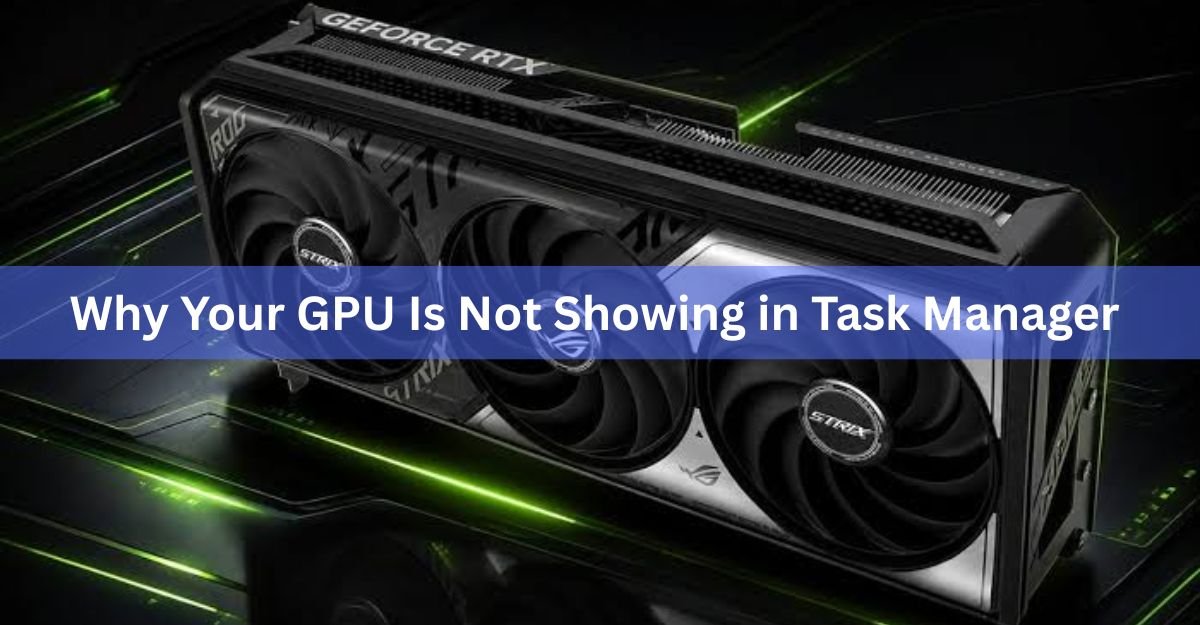
Your GPU is missing from Task Manager almost always for one of three reasons: the graphics driver is too old to feed data to Task Manager, the driver is broken or was never installed properly, or Windows’ performance counters have gone corrupt. The good news is that each of these takes only a few minutes to sort out, and you rarely need to touch the hardware.
This guide sorts the fixes by what you actually see on screen, so you can jump to your exact situation instead of trying everything. Start with the table, find the line that matches your screen, then follow the fix below.
| Symptom | Most likely cause | Where to start |
|---|---|---|
| No GPU section at all in Performance tab | Driver too old for WDDM 2.0, or performance counters broken | Check WDDM in dxdiag, then update driver or rebuild counters |
| Only integrated GPU shows, dedicated one missing | Laptop power switching, or discrete GPU driver not loaded | Wake the dGPU with a game, check Device Manager |
| GPU shows but usage stays at 0% | Watching the wrong engine, or counter glitch | Switch the graph to 3D, or rebuild counters |
| Shows as ‘Microsoft Basic Display Adapter’ | Correct driver never installed | Install the vendor driver from NVIDIA, AMD, or Intel |
Why does this happen in the first place?
Task Manager does not read your graphics card directly. It pulls GPU data from a part of Windows called the Windows Display Driver Model, or WDDM. Think of WDDM as the translator that sits between Windows and your graphics hardware and hands over numbers like usage and memory.
For Task Manager to show any GPU data, your driver has to support WDDM version 2.0 or newer. Microsoft added GPU monitoring to Task Manager in the Windows 10 Fall Creators Update (version 1709), and it has needed WDDM 2.0 ever since. If your driver only supports an older WDDM 1.x version, the GPU section simply will not appear, no matter what you do. Microsoft’s own DirectX engineering team explains that the data comes straight from the GPU scheduler and memory manager inside WDDM, which is why an outdated driver leaves you with a blank.
So before anything else, it helps to know which WDDM version your driver uses. Here is how to check, and it takes about thirty seconds.
- Press Windows key + R to open the Run box.
- Type dxdiag and press Enter.
- Click the Display tab in the window that opens.
- Look in the Drivers section for Driver Model.
If it says WDDM 2.0 or higher, your driver is fine and the problem is elsewhere, so move on to the fixes below. If it says WDDM 1.x, a driver update is your answer, and Fix 2 covers exactly that.
| Rough rule of thumb: any graphics driver from 2016 onward supports WDDM 2.0. Cards and laptops from before about 2015 may never get it, in which case a third-party monitor (covered near the end) is your best bet. |
Fix 1: Make sure you are actually looking in the right place
This sounds obvious, but it trips up more people than any driver bug. GPU usage lives in two different spots in Task Manager, and they behave differently.
The graphs, temperature, and memory readouts sit under the Performance tab, in the left-hand list alongside CPU, Memory, and Disk. If you are staring at the Processes tab looking for a graph, you will not find one there. Open Task Manager with Ctrl + Shift + Esc, and if you see a stripped-down window, click More details at the bottom first.
There is a second catch that makes people think the GPU is broken when it is not. On the Performance tab, each GPU shows one graph at a time, and Windows picks which engine to display. If it is showing the Copy or Video Encode engine while you are gaming, the graph can sit near zero even though the card is working hard. Click the small engine name above the graph (it might say ‘3D’, ‘Copy’, or ‘Video Decode’) and switch it to 3D to see gaming load.
To watch usage per app instead, go to the Processes tab, right-click any column header, and tick GPU and GPU Engine. That adds columns showing which app is using the card and which engine it is hitting.
Fix 2: Update or reinstall the graphics driver
A missing, outdated, or corrupt driver is the single most common reason the GPU section vanishes. If dxdiag showed WDDM 1.x, or if Task Manager lists your card as ‘Microsoft Basic Display Adapter’, this is almost certainly your fix. That generic name means Windows is running a fallback driver because the real one never loaded.
Get the driver straight from the maker of your card, not from a random driver site:
- NVIDIA cards: use the NVIDIA app or the driver download page on nvidia.com.
- AMD cards: use the Adrenalin software or the download page on amd.com.
- Intel graphics: use the Intel Driver & Support Assistant, or grab the driver from intel.com.
If a plain update does not fix it, do a clean reinstall. This clears out leftover files from a half-broken install, which a normal update leaves in place.
- Download the latest driver for your exact card first, so you have it ready.
- Open Device Manager (right-click Start, then pick it), expand Display adapters, right-click your GPU, and choose Uninstall device.
- Tick the box to remove the driver software if it appears, then confirm.
- Restart your PC.
- Install the driver you downloaded, and choose the clean install option if the installer offers one.
For a truly thorough wipe, many people use Display Driver Uninstaller (DDU), a free tool that strips every trace of the old driver in Safe Mode before you install the fresh one. It is worth the extra step if a normal reinstall did not stick.
Fix 3: Rebuild Windows performance counters
Here is the sneaky one. If your card shows up fine in Device Manager, your driver is current, dxdiag reports WDDM 2.0, and the GPU section is still missing (or stuck at 0%), the problem is usually Windows’ performance counters. These are the internal registers Task Manager reads to build its graphs, and they can get corrupted after an update or a bad shutdown.
Rebuilding them is a quick command-line job. You need an admin window for this.
- Press Windows key + X and choose Terminal (Admin) or Command Prompt (Admin).
- Type lodctr /R and press Enter. Note that the R is uppercase.
- Then type cd c:\windows\sysWOW64 and press Enter, followed by lodctr /R again to rebuild the 64-bit counters too.
- Finally, type WinMgmt.exe /RESYNCPERF and press Enter to sync the counters with Windows Management Instrumentation.
- Restart your PC and open Task Manager again.
If you see an error saying the counter could not be rebuilt, run the commands one at a time and check each result. Microsoft documents this whole process on its performance counter support page, including what to do when counters do not come back on the first try.
| Tip: rebuilding counters also fixes cases where CPU or Memory graphs look wrong, so it is a handy repair to keep in your back pocket even beyond GPU issues. |
Fix 4: Laptop with two GPUs? This is often normal
If you are on a gaming or work laptop, read this before you fix anything. Most of these laptops have two graphics chips: a low-power integrated GPU built into the processor, and a stronger dedicated GPU (usually NVIDIA or AMD). This setup goes by names like Optimus or MSHybrid.
To save battery, the laptop keeps the dedicated GPU asleep during light tasks and only wakes it when something demands real graphics power. So when you open Task Manager on the desktop and only see the integrated GPU, that is often the system working exactly as designed, not a fault.
Want to confirm the dedicated GPU is alive? Launch a game or a graphics-heavy app, then check the Performance tab. The second GPU should appear and start showing load. You can also open Device Manager and expand Display adapters; if both chips are listed there, your dedicated card is installed and healthy, even when it is dozing in Task Manager.
Some laptops have a MUX switch or NVIDIA Advanced Optimus, which lets you route the display straight to the dedicated GPU. You will find this in your laptop maker’s app, such as Armoury Crate on ASUS, Legion Vantage on Lenovo, or MSI Center. Worth knowing: when you force the dedicated GPU only, the integrated one drops out of Task Manager entirely, because the display is no longer wired through it. Again, that is expected, not a bug.
Fix 5: Check the physical hardware
This one applies mostly to desktops, and only if the GPU is missing even from Device Manager, not just Task Manager. If Windows cannot see the card anywhere, the fixes above will not help, because there is nothing for the driver to attach to.
Power down fully, unplug the machine, and check three things:
Seating: press the card firmly into its PCIe slot until the clip snaps. A card that has worked loose is a classic cause.
Power cables: make sure any PCIe power connectors from the supply are pushed all the way in. A card starved of power may not register.
Slot health: if you have a spare PCIe slot, try the card there to rule out a dead slot.
It is also worth a quick trip into your BIOS or UEFI. Some boards let you pick the primary display adapter, and if that is set to the integrated graphics, a dedicated card can be sidelined. Look for a setting named something like Primary Display or Initiate Graphic Adapter and set it to PCIe or the dedicated GPU.
When Task Manager just will not cooperate: use a dedicated monitor
If your hardware is genuinely too old for WDDM 2.0, or you just want richer detail than Task Manager offers, a free third-party tool does the job well. GPU-Z gives you a full readout of clocks, temperature, and memory. MSI Afterburner adds an on-screen overlay so you can watch load and temperature while you game. HWiNFO goes deeper still, with sensor data for nearly every part of your system.
These tools read the card in ways that do not depend on the same Windows pipeline Task Manager uses, so they often work even when the built-in GPU section stays blank. For an older machine, this is usually the simplest path to reliable monitoring.
Frequently asked questions
Why does only my integrated GPU show in Task Manager?
On a laptop, this is usually normal. The dedicated GPU sleeps during light tasks to save battery and only wakes for demanding work. Launch a game and it should appear in the Performance tab.
How do I know if my driver supports WDDM 2.0?
Press Windows key + R, type dxdiag, and open the Display tab. Check the Driver Model line in the Drivers section. WDDM 2.0 or higher works with Task Manager; WDDM 1.x does not.
My GPU shows in Device Manager but not Task Manager. Why?
This points to broken Windows performance counters rather than a driver fault. Rebuild them with the lodctr /R command in an admin terminal, run WinMgmt.exe /RESYNCPERF, then restart your PC.
Why is my GPU usage stuck at 0% even during games?
Task Manager may be showing the wrong engine. Click the engine name above the graph and switch it to 3D. If it still reads zero, rebuild the performance counters to fix the readout.
Do I need to reinstall Windows to fix this?
Almost never. A driver update or clean reinstall, plus a performance counter rebuild, fixes the vast majority of cases. Reinstalling Windows is a last resort and rarely needed for this specific problem.
Conclusion
Nine times out of ten, a GPU missing from Task Manager comes down to a driver that is too old for WDDM 2.0, a driver that needs reinstalling, or corrupt performance counters, and each takes only minutes to fix. Check your WDDM version in dxdiag first, then work through the fixes that match your screen. On a laptop, remember the dedicated GPU staying hidden during light use is normal. A good result looks simple: open the Performance tab, and your card is right there with a live graph.
Related Post:
AMD Processor With Nvidia GPU: Does It Work, and Should You Do It?
GPU Fan Speed: What’s Normal, How to Check It, and How to Take Control
Should You Perform Scaling on GPU or Display?
What Does Undervolting a GPU Do? A Plain Guide to Lower Temps and Power
![Fix GPU memory leak [Forge/Fabric]: what it does and how to install it](https://nobelspot.com/wp-content/uploads/2026/08/GPU-Fan-Speed-33.jpg)