Short answer: for most people, most of the time, it barely matters. If you play at your monitor’s native resolution, nothing gets scaled and the setting does nothing. When scaling does kick in, GPU scaling gives you the same result on any screen plus useful extras like integer scaling, while display scaling is the lighter, slightly lower-latency option that competitive players tend to prefer.
That dropdown is the “Perform scaling on” menu in your NVIDIA or AMD control panel. Below, you’ll find what each option really does, whether either one costs you frames, and a simple rule for picking the right one for your setup.
What “perform scaling on” actually means
Scaling happens when a game or app runs at a resolution that doesn’t match your monitor’s native one. Say your screen is 1920×1080 but you launch an old game at 1280×720. Those pixels have to be stretched to fill the panel. Something has to do that stretching, and the “Perform scaling on” setting decides what.
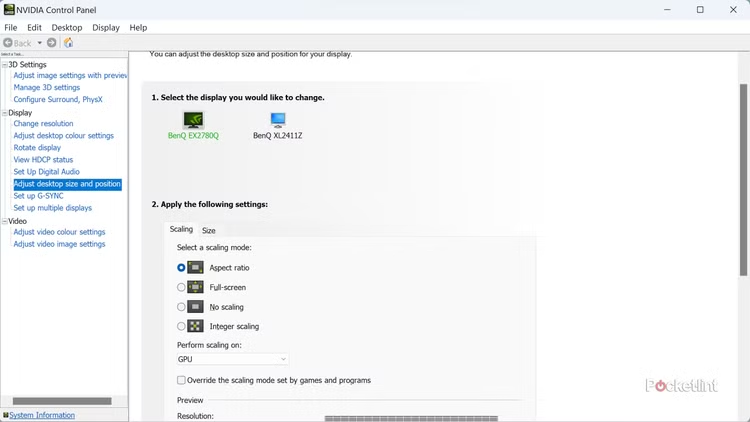
GPU scaling hands the job to your graphics card. It resizes the image first, then sends a full-resolution signal down the cable to your monitor. Because the math runs on your card, you get the same output no matter which display you plug into.
Display scaling sends the raw low-resolution signal to the monitor and lets the monitor’s own chip do the stretching. Every monitor has a built-in scaler, but quality ranges from excellent to poor depending on the model.
Rule of thumb: GPU scaling is predictable across screens. Display scaling is only as good as the monitor doing the work.
GPU vs display scaling at a glance
Here’s how the two stack up on the things people actually care about.
| What matters | GPU scaling | Display scaling |
|---|---|---|
| Who does the work | Your graphics card resizes the image before it leaves the cable. | Your monitor’s built-in chip resizes the image after it arrives. |
| Consistency | Same result on any screen you plug into. | Depends on the monitor. Quality varies a lot by model. |
| Input lag | Adds a tiny delay, usually well under 1 ms on modern cards. | Often the lower-latency path, though good monitors are close. |
| Best for | Retro and pixel-art games, odd resolutions, integer scaling. | Competitive shooters, simple multi-device setups. |
| Extra features | Integer scaling, aspect-ratio control, override options. | Whatever the monitor’s menu offers, nothing more. |
Notice that no row shows a dramatic gap. That’s the honest picture: on modern hardware these are small differences, and the best choice depends on what you play and how picky you are about a crisp image.
Does either one hurt performance?
Not in any way you’re likely to feel. Resizing an image is a cheap operation, and modern graphics cards have dedicated hardware blocks built just for scaling and post-processing. The cost in frames per second is close to zero.
The one thing worth understanding is input lag, the tiny delay between moving your mouse and seeing it on screen. Any extra step in the pipeline can add a sliver of delay. GPU scaling copies the image from one frame buffer to a larger one, which technically adds latency, but on cards from the last several years that delay is usually well under a millisecond.
Display scaling is often described as the lower-latency path because it skips that GPU step, though a good gaming monitor’s scaler is so fast the gap is often too small to notice. The real takeaway is simpler: if you care about every millisecond, the biggest win isn’t the scaling method at all. It’s not scaling in the first place.
For competitive shooters, features like NVIDIA Reflex or AMD Anti-Lag cut far more latency than your scaling choice ever will.
When GPU scaling is the better pick
Choose GPU scaling when you want control and consistency. It shines in a few clear cases:
- Retro and low-res games. Old and pixel-art games. Retro titles and emulators run at low resolutions that look muddy when stretched with a basic scaler.
- Integer scaling. It duplicates each pixel by a whole number (2x, 3x, and so on), so a low-res image stays sharp and blocky instead of blurry. It’s the cleanest way to make old games look right on a modern high-res screen. On NVIDIA cards this needs a Turing-generation GPU (the GTX 16 or RTX 20 series) or newer.
- Multiple screens. If you plug your PC into different monitors or a TV, GPU scaling keeps the image behaving the same everywhere.
- Odd resolutions and full control. You get aspect-ratio control and an override option so games can’t quietly change your scaling behind your back.
There’s also a neat performance trick here. On a 4K monitor with a mid-range card, you can run a demanding game at 1080p and let integer scaling fill the screen. You get higher frame rates and a still-sharp image, since 1080p maps cleanly to 4K at exactly 2x.
When display scaling is the better pick
Reach for display scaling when raw responsiveness or simplicity matters more than fine control:
Competitive gaming. Skipping the GPU step shaves off the last sliver of latency. If you play shooters seriously and own a monitor with a strong scaler, this is a sensible default.
Multi-device setups. A single monitor fed by a desktop, a console, and a laptop can scale all of them from its own menu, with no driver tweaks for each device.
A monitor with a great scaler. Some monitors, especially higher-end ones, have genuinely good built-in scalers. If yours does, there’s little reason to move the work to your GPU.
The catch is that you can’t know how good your monitor’s scaler is without trying it. Budget and older panels often stretch images with a crude method that leaves things soft or slightly jagged. If display-scaled games look worse to your eye, switch back to GPU scaling and compare.
The setting that beats both
Run at your monitor’s native resolution whenever you can. When the game’s resolution matches the panel exactly, there’s nothing to scale, so neither setting does a thing. No stretching, no added latency, no soft edges. This is the sharpest and fastest your display can look.
Scaling only exists to solve a mismatch. If your card can push native resolution at a frame rate you’re happy with, that’s the answer, and the “Perform scaling on” dropdown becomes irrelevant. Scaling is the fallback for when you need to drop resolution for performance, run older software, or use a non-standard mode.
How to change the setting
On an NVIDIA card, the option lives in the control panel. NVIDIA’s own Adjust Desktop Size and Position page explains each mode in detail. The quick version:
- Open the panel. Right-click your desktop and open NVIDIA Control Panel. On Windows 11, click “Show more options” first if you don’t see it.
- Find the page. In the left pane, go to Display, then “Adjust desktop size and position.”
- Pick your scaler. Under “Perform scaling on,” choose GPU or Display.
- Set the mode. Choose a scaling mode: aspect ratio (keeps proportions with black bars), full-screen (stretches to fill), no scaling, or integer scaling if your card supports it.
- Save. Click Apply. The screen may flash black for a second.
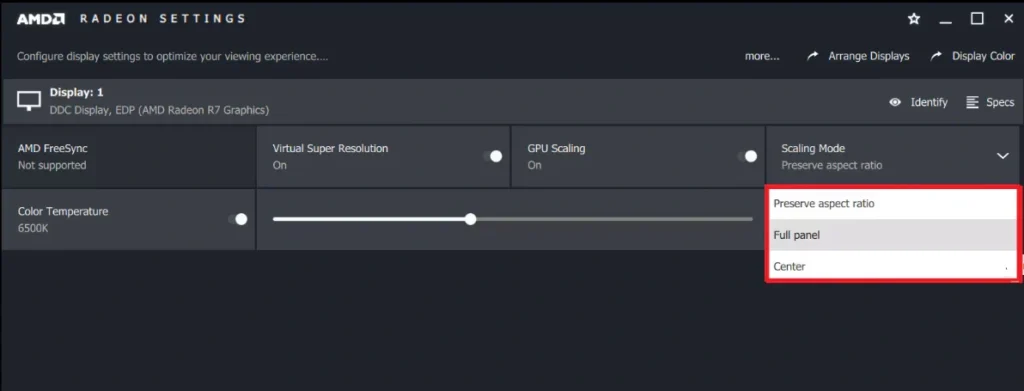
On AMD cards, open AMD Software and search for “GPU Scaling” or “Integer Scaling” in the settings, then toggle it on and pick your mode. One quick note for GPU scaling on either brand: it needs a digital connection like HDMI, DisplayPort, or DVI. It won’t work over old analog VGA.
Frequently asked questions
Should I turn GPU scaling on or off?
Leave it off if you play at native resolution, since it won’t do anything. Turn it on when you run games below native resolution and want consistent results or integer scaling for retro titles.
Does GPU scaling reduce FPS?
Almost never in a way you’d notice. Modern cards have dedicated scaling hardware, so the frame-rate cost is close to zero. Any impact is far smaller than dropping your game’s resolution would be.
Does GPU scaling cause input lag?
It can add a tiny delay, usually well under a millisecond on recent hardware. Display scaling is often slightly faster, but for most players the difference is too small to feel.
Which is better for competitive gaming?
Display scaling, if your monitor has a strong built-in scaler, since it skips the GPU step and trims latency. Better still, play at native resolution and enable NVIDIA Reflex or AMD Anti-Lag.
What is integer scaling?
It enlarges a low-resolution image by whole-number multiples, so pixels stay crisp instead of blurry. It’s ideal for pixel-art and retro games and needs GPU scaling plus a supported graphics card.
Conclusion
If you play at native resolution, stop worrying about this setting, it does nothing. When scaling is needed, pick GPU scaling for consistent results and integer scaling on retro or pixel-art games, and pick display scaling for the lowest latency in competitive titles if your monitor has a good scaler. A good result is a sharp image with no delay you can feel. The safest move is to try both on your own hardware and keep whichever looks and feels better.
Related Post:
AMD Processor With Nvidia GPU: Does It Work, and Should You Do It?
GPU Fan Speed: What’s Normal, How to Check It, and How to Take Control
Should You Perform Scaling on GPU or Display?
What Does Undervolting a GPU Do? A Plain Guide to Lower Temps and Power