An overheated GPU is a graphics card that has passed its safe operating temperature, which for most modern cards means a core temperature stuck at 85 to 90°C or higher under load. When that happens, the card slows itself down to survive, and if the heat keeps climbing, your PC crashes or shuts off. The cause is almost always one of four things: dust, poor airflow, a lazy fan curve, or dried-out thermal paste. All four are fixable at home. This guide shows you how to confirm the problem with real numbers, find the cause, and cool the card down for good.
How do you know your GPU overheated?
The classic sign is a game that runs fine for the first ten or twenty minutes and then falls apart. Frame rates drop, the picture stutters, and the fans spin up to a roar. That pattern is thermal throttling: the card hits its temperature limit and cuts its own clock speeds to shed heat, trading performance for survival.
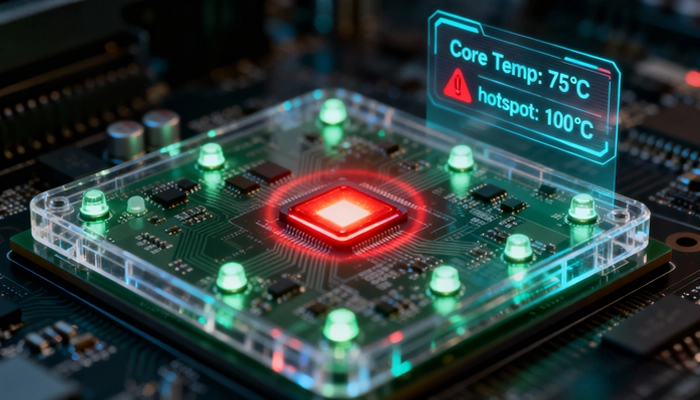
If the heat keeps building past the throttle point, the symptoms get worse. You may see the screen go black mid-game, the driver crash back to the desktop, or the whole PC switch off without warning. That last one is an emergency shutdown, a built-in protection that kills power before the silicon cooks.
Visual glitches can show up too. Flickering textures, stray colored pixels, and strange shapes on screen (usually called artifacts) often appear when the memory chips on the card get too hot, even while the main chip reads a normal temperature.
One caution before you blame heat: a failing power supply causes crashes that look identical. If your PC shuts off randomly but the temperature readings never spike, the problem is probably power, not heat. That is exactly why the next two sections matter.
What temperature counts as overheating?
There is no single magic number, because every card has its own limit. Most modern GPUs are built to run in the 60s and 70s under load and start throttling somewhere between 83 and 90°C on the core. A few examples: NVIDIA lists 90°C as the maximum for the RTX 4090, and many older cards are rated into the low 90s. Your card’s spec page will state its exact limit.
| Core temperature | What it means | What to do |
|---|---|---|
| 30 to 45°C at idle | Normal | Nothing. This is a healthy resting state. |
| 60 to 80°C under load | Normal for gaming | Nothing, though the low 70s is a comfortable place to aim. |
| 83 to 90°C under load | Throttle territory | The card is cutting clocks to protect itself. Time to act. |
| 90°C+ sustained | Overheating | Crashes and shutdowns are likely. Stop and fix the cooling. |
Modern cards also report two more readings, and both matter. The hotspot (sometimes called junction temperature) is the single hottest point on the chip, and it normally runs 10 to 20°C above the core on NVIDIA cards. AMD’s RX 7000 series is designed to let the hotspot reach as high as 110°C, so a big number there is not automatically a fault. The memory temperature matters as well: the GDDR6X chips on high-end cards are rated to 110°C, but keeping them under 95°C is better for stability and long-term health.
The useful warning signs are a hotspot that sits more than 20°C above the core, which points to poor contact between chip and cooler, and a core that climbs past 90°C and stays there.
Check the real numbers before you touch anything
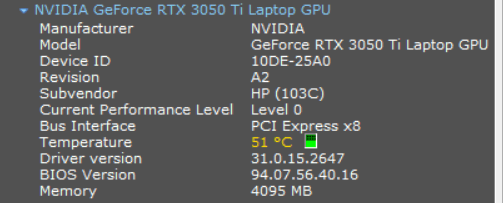
Guessing wastes time, so measure first. Install a free monitoring tool such as HWiNFO, open the sensors window, and find four readings for your graphics card: core temperature, hotspot, memory temperature, and fan speed. GPU-Z and the NVIDIA and AMD apps work too, and Windows Task Manager shows a basic GPU temperature under the Performance tab.
Then create some heat. Play the game that causes trouble, or run a benchmark, for a solid 10 to 15 minutes. Short tests lie, because fans and heatsinks take a few minutes to catch up. Note the peak core temperature, the peak hotspot, and what the fans did while it happened.
The readings tell you where to look. Fans that never ramp up past a gentle hum while the core hits 88°C point to a fan curve problem. A hotspot running 25°C above the core points to dried paste or a mounting issue. Everything running hot together, with fans at full speed, points to dust or airflow. And normal temperatures with crashes anyway mean the problem is not heat at all.
Why GPUs overheat
Almost every overheated GPU traces back to one of these causes, listed roughly from most to least common.
- Dust. A graphics cooler works by pushing air through tightly packed metal fins. A layer of dust on those fins acts like a blanket, and a dusty card can run 10 to 15°C hotter than a clean one.
- Poor case airflow. The GPU cooler can only work with the air the case gives it. Blocked intakes, a case shoved against a wall or sitting on carpet, tangled cables, or too few case fans all starve the card of cool air.
- A lazy fan curve or a dead fan. Many cards keep fans slow or fully stopped for quiet operation and ramp up late. A fan that has failed outright, or spins slower than its neighbors, is worse.
- Dried thermal paste. The paste between the chip and the heatsink dries out over years of heat cycles. On desktop cards this usually takes three years or more; on gaming laptops it can happen in one to three.
- Overclocking. Extra clock speed and voltage mean extra heat. A tuning profile that was stable last year can push a card past its limits after a driver update.
- Background software load. Uncapped frame rates on menus, browser tabs running heavy graphics, screen recorders, and buggy drivers can all keep a card at full power when it should be idling.
- A hot room. Every degree of extra room temperature passes straight through to the card. A setup that behaves in winter can overheat in a heatwave.
How to fix an overheated GPU, step by step
Work through these in order. The cheap and easy fixes come first, and they solve most cases.
- Shut down and let it cool. If the card is hitting 90°C+ or shutting the PC off, stop gaming on it until you have fixed the cause. Continuing to push an overheating card just adds wear.
- Clean out the dust. Power off, unplug, and open the case. Use compressed air to blow dust out of the GPU fans, the heatsink fins between them, the case intake filters, and the case fans. Hold each fan still with a finger while you blow so it does not overspin. This one step often drops load temperatures by 10°C or more.
- Fix the airflow. Cool air should enter at the front or bottom of the case and leave at the rear or top. Tidy cables out of the path, leave a few centimeters of clearance around every vent, and get the case off carpet. A quick test: run your benchmark with the side panel off. If temperatures drop several degrees, case airflow is your problem.
- Set an earlier fan curve. Install MSI Afterburner, enable the user-defined fan curve, and make the fans ramp up noticeably around 65 to 70°C instead of waiting until the card is already hot. Run the same 10-minute test and compare peak temperatures.
- Reset clocks and refresh the driver. Remove any overclock and return the card to stock settings. Then install the latest NVIDIA or AMD driver using the clean install option. If the overheating started right after a driver update, roll back to the previous version instead.
- Cap the frame rate and try undervolting. Limiting a game to your monitor’s refresh rate can cut power draw, and heat, dramatically. Undervolting goes further: running the chip at a slightly lower voltage often cuts 10°C or more with no measurable performance loss, and Afterburner’s curve editor makes it a 30-minute job.
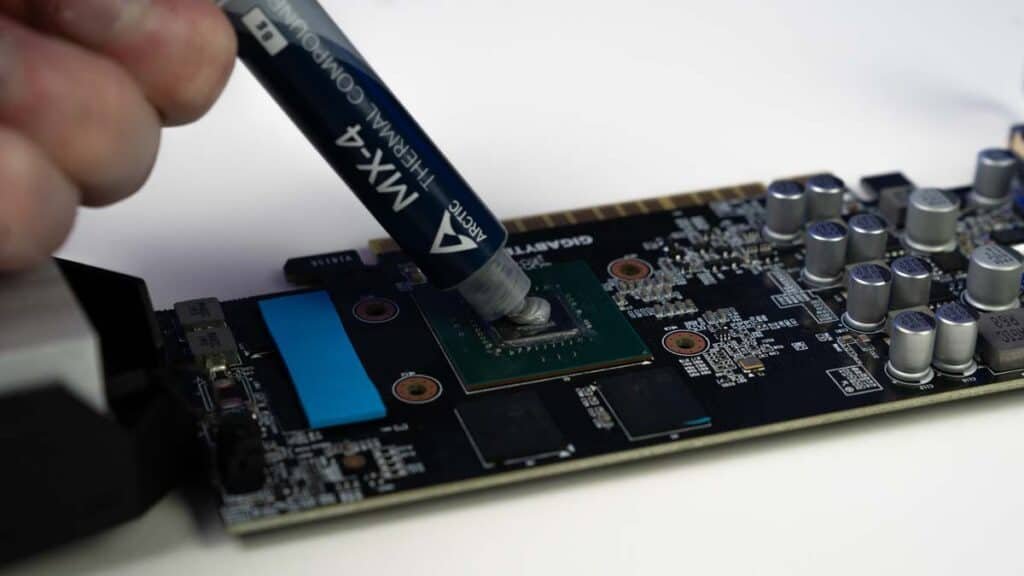
- Repaste as a last resort. If the hotspot still runs far above the core after everything else, the thermal paste has likely dried out. Replacing it means removing the cooler, cleaning the old paste off with isopropyl alcohol, and applying a thin fresh layer. It works, but check your warranty first, because opening some cards voids it. If the card is still covered, contact the manufacturer instead.
- If nothing works, think hardware. A fan that has died needs replacing, and many cards have replacement fan kits available by part number. If temperatures stay extreme after cleaning, airflow fixes, a repaste, and stock settings, stop stress testing and send the card for warranty service or professional repair.
Change one thing at a time, then rerun the same 10-minute test. If you change three things at once, you will never know which one actually worked.
What about gaming laptops?
Laptops overheat for the same reasons but with less room to breathe. The intakes are usually on the bottom, so a laptop on a bed, sofa, or lap suffocates. Use a hard flat surface, and consider a cooling pad that lifts the machine and feeds air to those intakes.
The software fixes carry over almost unchanged and matter even more here. Cap your frame rates, pick the balanced power profile in your laptop’s control software instead of the maximum one, and undervolt if your machine allows it. Compressed air through the vents every few months helps too.
Laptop thermal paste also ages faster than desktop paste, often degrading within one to three years of heavy use. If an older gaming laptop runs far hotter than it used to and cleaning has not helped, a repaste by a repair shop is usually the real fix.
Did the heat damage your card?
Probably not, if you caught it reasonably quickly. Modern GPUs defend themselves in layers: they throttle first, and if that fails, they force a shutdown before temperatures reach destructive levels. A single overheating session followed by a fix almost never leaves lasting damage.
Sustained heat over months is the real enemy. It dries paste and thermal pads faster, wears fan bearings, and stresses the memory chips and power circuitry. A card that spent a year pinned at its thermal limit will not fail on a schedule, but it will age faster than a cool one.
After you fix the cooling, watch for two things: artifacts that persist even at normal temperatures, and crashes that continue with good readings. Either one suggests the card needs service, not just cleaning.
Frequently asked questions
Is 85°C too hot for a GPU?
It is warm but usually within spec, since most cards throttle between 83 and 90°C. Treat 85°C as a signal rather than a crisis: the card is fine today, but cleaning, better airflow, or an earlier fan curve would give it healthy headroom.
Can an overheated GPU be permanently damaged?
Rarely from a single event, because the card throttles and then shuts down before reaching destructive temperatures. The real risk is months of sustained heat, which dries paste, wears fans, and stresses memory. Fix the cause promptly and the card almost always recovers fully.
Why did my GPU suddenly start overheating?
Something changed. The usual suspects are dust that finally crossed a threshold, a fan that failed, a driver update, an overclock profile that no longer holds, a new game pushing more power, or simply a hotter room. Compare current temperatures against fan behavior to narrow it down.
How do I cool down my GPU fast?
Close the game, let the fans run, and the card will drop to idle temperatures within a couple of minutes. For a quick in-game reduction before deeper fixes, cap the frame rate and lower the most power-hungry settings, such as ray tracing and resolution scale.
Should I keep using a GPU after it overheated?
Light desktop use is fine, since the card barely warms up outside heavy loads. Avoid long gaming or rendering sessions until you have cleaned it, checked airflow, and confirmed with a monitoring tool that load temperatures are back in the safe range.
Conclusion
An overheated GPU is one running at roughly 85 to 90°C or above on the core, and the fix follows a simple order: measure the real temperatures, clean the dust, improve airflow, set an earlier fan curve, refresh the driver, cap frames or undervolt, and repaste only if the hotspot still runs away. A healthy result is a card that stays in the 60s or 70s under load with fans you can live with. Retest after every change, and stop at the first one that works.
Related Post:
Steam Deck GPU Equivalent: Which Graphics Card It Matches
The Best GPU for Games Like Overwatch and Minecraft (2026)
CPU and GPU Temp: What’s Normal, What’s Too Hot, and How to Check