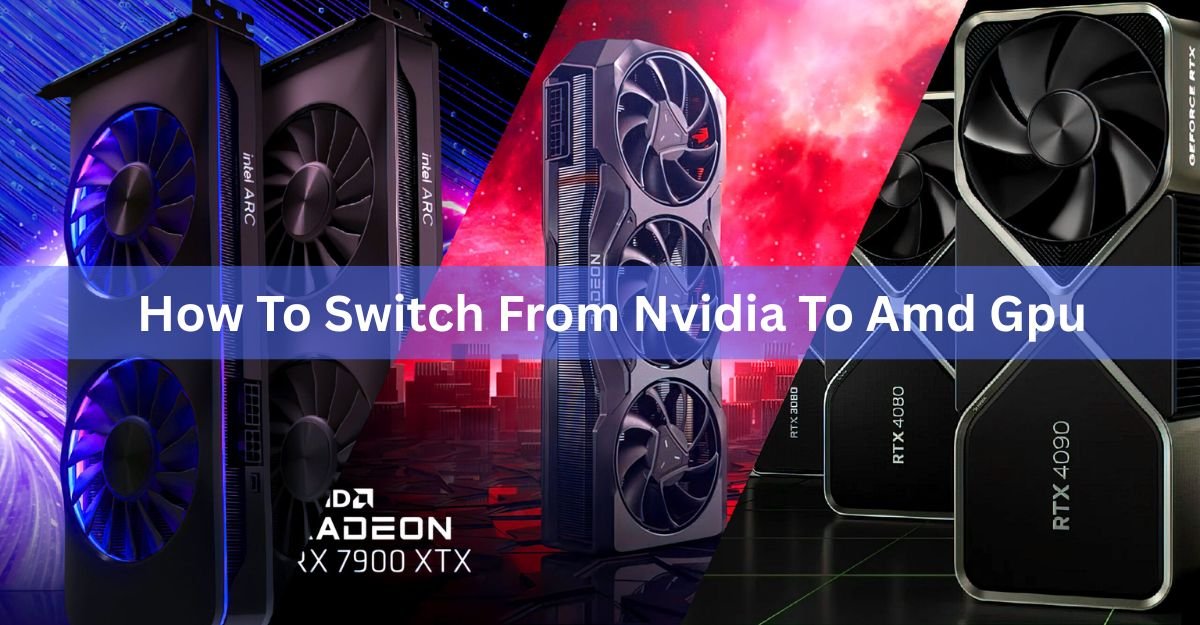
Switching from an NVIDIA card to a Radeon takes about an hour, and the order of the steps matters more than anything else you do. Remove the NVIDIA drivers first, while the old card is still in the machine and the PC is offline. Then shut down, swap the cards, boot up, and install AMD’s Adrenalin software. You don’t need to reinstall Windows, and you don’t need to reinstall a single game. Do it in the wrong order and you’ll spend the evening chasing black screens and failed driver installs.
Check four things before you open the case
Your new card has to fit, your power supply has to feed it, and your monitor may not behave the same way afterwards. Sort all of this out before the screwdriver comes out.
Space. Graphics cards are measured in length and in slot height, and both numbers are on the box. The ASUS Prime Radeon RX 9070 XT, for example, is 312 mm long and 2.5 slots thick, which is normal for a card in that class. Measure from the back of your case to whatever sits in front of the slot, whether that is a drive cage, a radiator or a front fan.
Power connectors. Most Radeon RX 9000 cards take two standard 8-pin PCIe cables. A few of the higher clocked models take three, and a small number use the 16-pin 12V-2×6 connector instead. If you are coming from an RTX 40 or 50 series card you have probably been running a single 16-pin cable, so dig out the loose 8-pin PCIe cables that came with your power supply. Use one cable per connector where you can, rather than a single cable with two plugs on the end.
Wattage. The RX 9070 XT is a 304W card and the RX 9070 sits at 220W. Recommended supply ratings run from about 750W up to 900W depending on the model and how hard it is clocked, so use the figure for the exact card you bought instead of the one for the reference design.
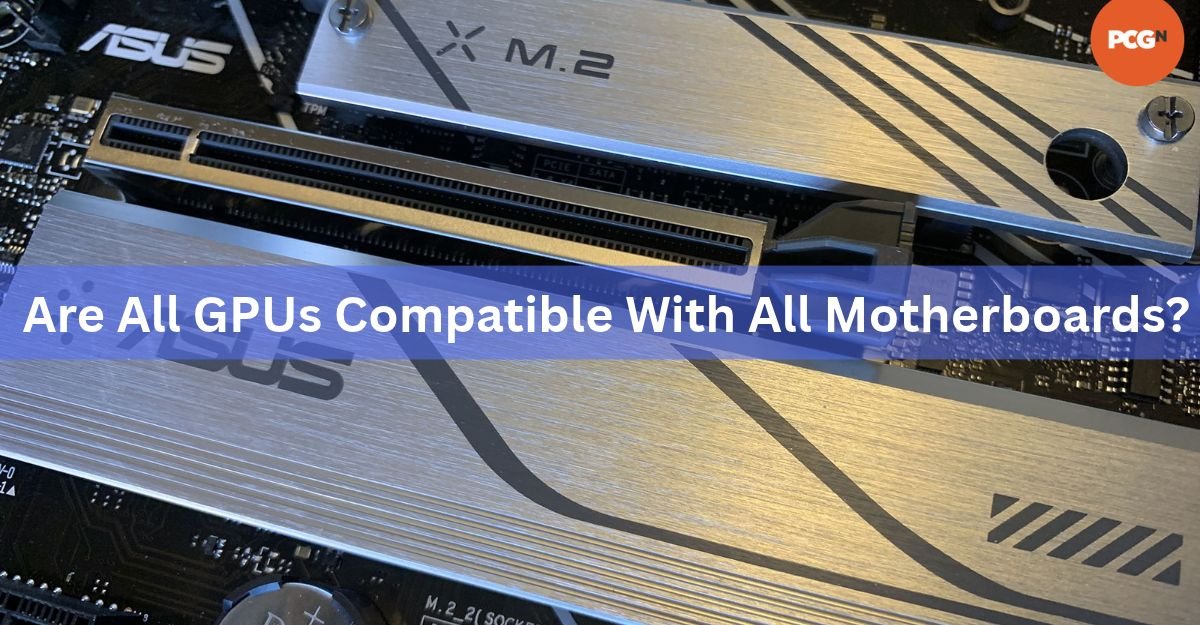
The slot itself. Every desktop Radeon drops into the top PCIe x16 slot, and the standard is backwards compatible, so a PCIe 5.0 card runs perfectly well on a 4.0 or 3.0 board. Older platforms cost you a little bandwidth, not compatibility.
Your monitor. This is the check people skip. A display with a real G-Sync module inside it loses variable refresh rate on a Radeon card. The picture is fine, but the smoothing stops. A display badged G-Sync Compatible is an ordinary Adaptive-Sync panel, and it runs FreeSync straight away.
Step 1: Strip the NVIDIA drivers out
Do this while the NVIDIA card is still installed. Display Driver Uninstaller clears the registry entries, leftover folders and driver store packages that a normal uninstall leaves behind. Get it from Wagnardsoft’s official DDU page, where the current build, 18.1.5.7, went up in August 2026.
There is no need to uninstall the NVIDIA driver through Windows first. DDU handles both jobs in one pass.
- Download both installers first. Grab the AMD Adrenalin package, which is roughly 1.6 GB, along with DDU, and save them somewhere obvious like the desktop. You want them on the drive before you go offline.
- Disconnect from the internet. Unplug the ethernet cable or switch off Wi-Fi. Left online, Windows Update will quietly install a display driver of its own halfway through the job.
- Check you know your Windows password. Safe Mode may refuse a Windows Hello PIN or fingerprint, and being locked out of your own desktop at this point is a miserable way to spend twenty minutes.
- Run DDU. Pick GPU and NVIDIA from the drop-down menus, then click Clean and restart. It reboots into Safe Mode by itself, does the work, and comes back.
- Expect an ugly desktop. Windows falls back to a basic display driver, so you get a low resolution and oversized icons. That is the sign it worked.
Stay offline until the AMD driver is installed. This one habit prevents most of the driver trouble that comes out of a brand switch.
Step 2: Swap the card
Power everything down properly first. Shut down Windows, flip the switch on the back of the power supply, pull the plug from the wall, then hold the case power button for a few seconds to drain what is left in the system.
- Touch a bare metal part of the case to discharge static before you handle either card.
- Undo the bracket screws at the back, then unplug the power cables from the NVIDIA card. Most connectors have a small clip you press before pulling.
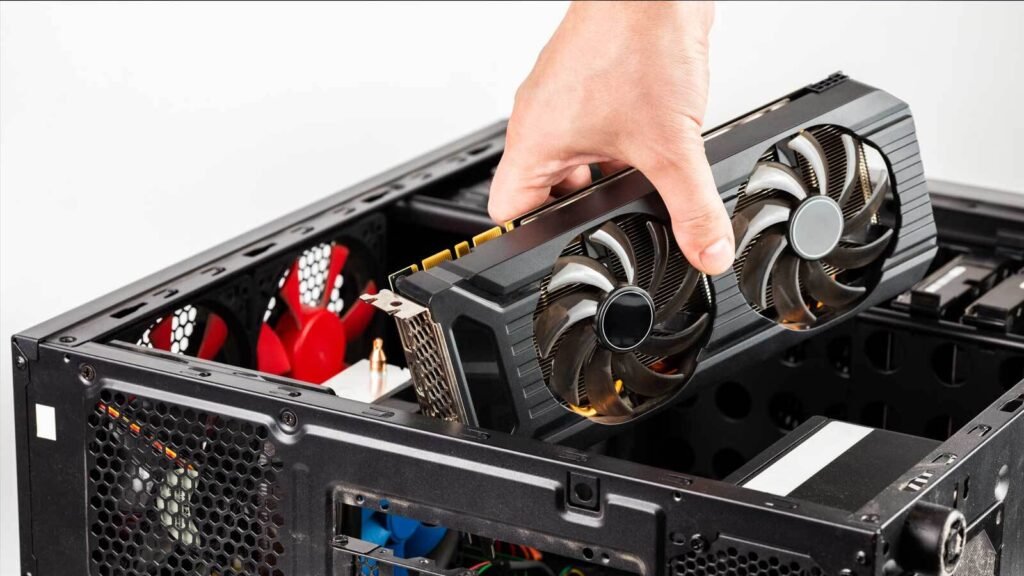
- Push the plastic latch at the end of the PCIe slot. It is usually stiff and often hidden under the card. Lift the card straight up rather than at an angle.
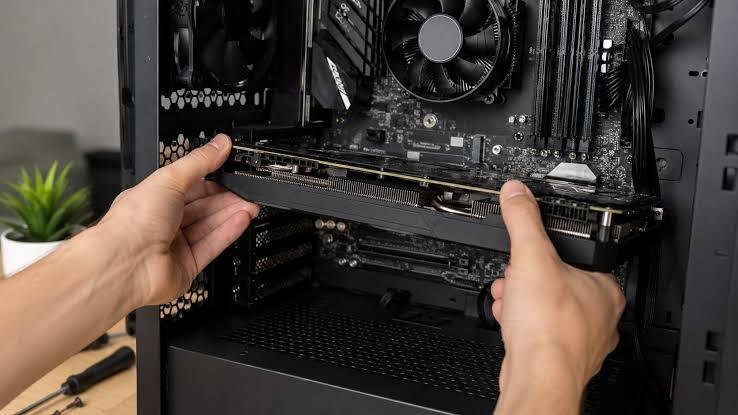
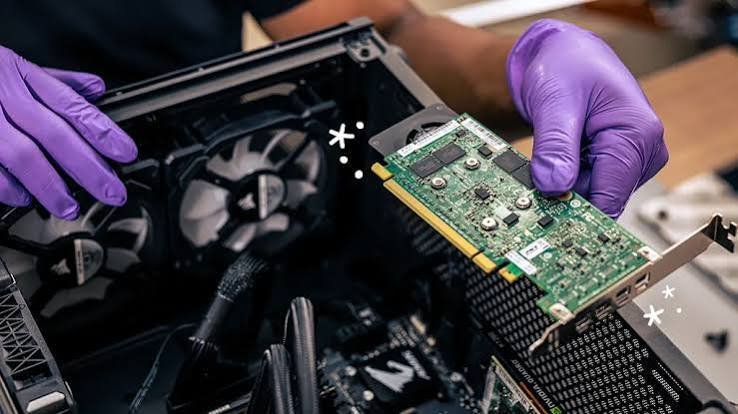
- Lower the Radeon into the top PCIe x16 slot and press down evenly until the latch clicks. Put the bracket screws back in, because an unsupported card sags over time.
- Connect the power cables, then plug your monitor into the outputs on the graphics card, not the ones on the motherboard.
Step 3: Install the AMD driver
Run the Adrenalin installer you already downloaded, and do not wait for Windows to find something on its own. Version 26.8.1 went out on 20 August 2026 and covers the whole current Radeon range.
Take the full install package rather than the driver-only option unless you have a reason not to, since the Adrenalin app is where every setting lives. Inside the installer, open Additional Options and tick Factory Reset. It is the belt to DDU’s braces and it costs you nothing.
Reboot when it asks. Your resolution and refresh rate should snap back to normal, and you can reconnect to the internet.
If the installer stops with error 1604, a piece of an older AMD install is still on the drive. Run the AMD Cleanup Utility, reboot, then install again. In stubborn cases it takes fifteen to twenty minutes, and it makes its own restore point before it touches anything.
Step 4: Turn on what the driver leaves off
A fresh install does not switch on everything you paid for. These settings are worth five minutes of your time.
Smart Access Memory is AMD’s name for Resizable BAR, which lets the processor address the whole of the card’s memory at once instead of through a 256 MB window. It lives in the BIOS: enable Above 4G Decoding and Re-Size BAR Support, with CSM turned off. Adrenalin will tell you whether it is active. Expect a few percent in most games and rather more in a handful of them.
FreeSync needs turning on in the monitor’s own menu as well as in Adrenalin’s display settings. DisplayPort is the safer connection for it.
Shader cache is worth clearing once. Adrenalin has a Reset Shader Cache button in its graphics settings, and wiping what the old card left behind saves you some odd stutter later.
FSR Upscaling can also be forced from the driver. Adrenalin can switch most DirectX 12 games that already ship with FSR 3.1 over to the newer machine-learning upscaler, which pulls in several hundred titles that were never patched for it. The toggle sits under Gaming, then Graphics.
HYPR-RX is a single toggle that switches on Radeon Super Resolution, Anti-Lag, Radeon Boost and driver-level frame generation together. Try it, then turn it off for competitive shooters, where generated frames add latency you can feel.
What changes in your software
The features have new names and most have a close counterpart. Here is how the day-to-day list translates.
| On GeForce | On Radeon | Worth knowing |
|---|---|---|
| DLSS | FSR Upscaling | Runs on RX 9000 and RX 7000 cards across more than 300 games. RX 6000 support is due in early 2027. |
| DLSS Frame Generation | FSR Frame Generation, plus AFMF | AFMF works at driver level in most DirectX 11 and 12 games, with no support needed from the game itself. |
| Reflex | Radeon Anti-Lag and Anti-Lag 2 | Anti-Lag 2 needs the game to build it in. |
| ShadowPlay | Record & Stream | Built into Adrenalin, with the same instant-replay style capture. |
| Broadcast noise removal | AMD Noise Suppression | Also built into Adrenalin. |
| NVENC | AMD’s hardware encoder | AV1 encoding on RX 7000 cards and newer. |
| CUDA | HIP, ROCm and OpenCL | Check your creative and AI apps before you buy. |
AMD renamed FSR 4 to FSR Upscaling, and it now sits inside a wider set called Redstone alongside frame generation, ray regeneration and radiance caching. Upscaling reached RX 7000 cards in the 26.6.2 driver on 22 June 2026, so a last-generation Radeon is no longer stuck on the older algorithm.
If you stream or record, open OBS and change the encoder after the swap, because it will still be set to NVENC and will simply fail to find it. AV1 encoding is available on RX 7000 cards and newer, which is the setting worth picking on platforms that support it.
CUDA is the item on that list worth real attention. Blender’s Cycles renderer works on Radeon through HIP rather than OptiX. DaVinci Resolve wants its GPU processing mode set to OpenCL. Local AI tools are the weakest spot, because many of them assume CUDA is present, and the ones that do support Radeon go through ROCm, which is thinner on Windows than it is on Linux. Check the apps you actually rely on before the card arrives, not after.
Your games and Windows stay put
Nothing needs reinstalling. A graphics card swap does not affect your Windows licence, and Steam, Epic and the rest do not care which brand is in the slot.
Two things do change. The first time you launch each game it rebuilds its shader cache, so expect a longer load and some stutter for the first few minutes of play. It settles down and does not come back.
The second is in-game settings. Any DLSS option vanishes from the menu, and a game that had it selected falls back to something else, sometimes to a resolution scale you would never have picked yourself. Open the graphics settings once per game, choose FSR, and set the quality level you want.
When something goes wrong
Black screen at first boot. Check that the monitor cable is in the graphics card and not the motherboard, then reseat the card and make sure both power cables are clipped in.
Stuck at a tiny resolution. The driver has not installed. Run the Adrenalin installer again, this time as administrator.
The installer fails. Run the AMD Cleanup Utility, reboot, and try once more.
Smart Access Memory greyed out. CSM is usually still enabled in the BIOS, or the board needs a firmware update.
FreeSync missing. Check the monitor’s own menu, and use DisplayPort rather than HDMI.
Performance well below what the card should manage. Open GPU-Z and look at the bus interface line while a game runs. A card sitting at x4, or at an old PCIe generation, is usually not pushed fully into the slot.
Frequently asked questions
Do I have to uninstall the NVIDIA drivers before fitting an AMD card?
Yes, and before rather than after. Old NVIDIA files left in the Windows driver store are the usual cause of black screens and failed AMD installs. Run DDU while the NVIDIA card is still in the machine.
Can I leave an NVIDIA card and an AMD card in the same PC?
Windows will load both sets of drivers, but combined-graphics setups bring their own problems, and some games fail to launch or crash on startup with two brands present. For a straight upgrade, take the old card out.
Will my G-Sync monitor still work with an AMD card?
It will display fine either way. A monitor with a hardware G-Sync module loses variable refresh rate on a Radeon card. One listed as G-Sync Compatible is an Adaptive-Sync panel and runs FreeSync without any fuss.
How long does the whole switch take?
About an hour, and most of that is waiting. Downloads and DDU take roughly twenty minutes, the physical swap ten, and the driver install and reboot another fifteen. Add time for shader rebuilding the first time you open each game.
Do I need a new power supply for a Radeon?
Probably not. An RX 9070 XT draws 304W and an RX 9070 draws 220W, so a good 750W to 850W unit handles either one. What matters more is having the right number of separate PCIe 8-pin cables free.
Conclusion
Get the order right and this is a one-evening job. Clean out the NVIDIA drivers with DDU while you are offline, swap the card, install Adrenalin with Factory Reset ticked, then switch on Smart Access Memory and FreeSync. A good result looks like this: the correct resolution at first boot, your monitor’s full refresh rate available, Smart Access Memory showing as enabled, and games running normally after one round of shader rebuilding.
Related Post:
What the DaVinci Resolve GPU Configuration Warning Means (and How to Fix It)
“System Is Out of GPU Memory” in Blender: Why It Happens and How to Fix It
GPU Utilization at 100%: When It’s Normal and When It’s Not
What Is a Good GPU Clock Speed in MHz?
Fix GPU memory leak [Forge/Fabric]: what it does and how to install it