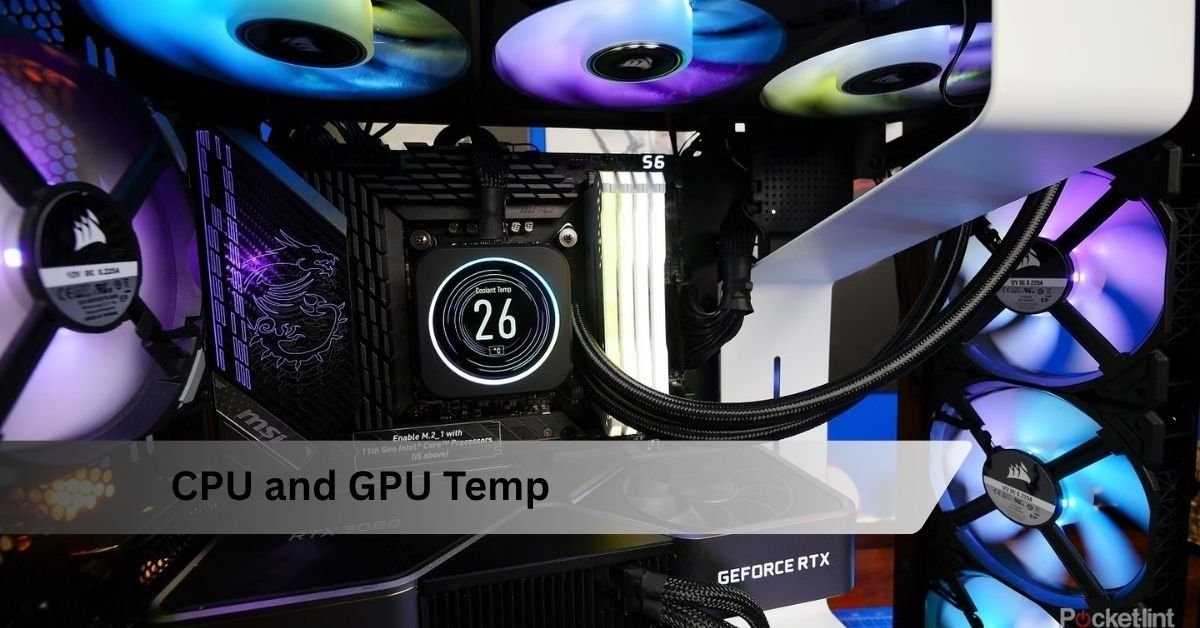
A healthy CPU or GPU usually sits between 30 and 50°C when your PC is doing nothing, and climbs to somewhere in the 60 to 85°C range while you game or edit video. Those are the numbers worth remembering. If your temperatures land in that band, everything is working the way it should, and there is nothing to fix.
The reason people worry is that a big number looks scary on its own. Seeing 82°C mid-game feels alarming until you know it is normal. A temperature only means something when you read it next to two other things: what the machine is doing at that moment, and the limit your specific chip is built to handle. Get those two ideas straight and you can judge any reading yourself. Here is how it all fits together.
What counts as a normal CPU and GPU temp?
For a desktop under normal use, idle should sit between 30 and 50°C, gaming between 60 and 85°C, and a long, heavy load between 70 and 90°C. Graphics cards behave much the same way. The table below is a quick reference you can check your own readings against.
| What the PC is doing | Normal CPU temp | Normal GPU temp |
| Idle (desktop, nothing open) | 30 to 50°C | 30 to 50°C |
| Light use (browsing, video, office) | 40 to 60°C | 40 to 60°C |
| Gaming | 60 to 85°C | 60 to 85°C |
| Heavy load (rendering, stress test) | 70 to 90°C | 75 to 90°C |
| Too hot for long stretches | Above 90°C | Above 90°C core |
Two things shift these numbers a little. Room temperature is the big one. A warm room in summer can push an idle reading up by 5 to 10°C, so the same PC reads hotter in July than in January. The second is the chip itself. A high-end processor that draws a lot of power runs warmer than a modest one doing the same task, and that is expected, not a fault.
Why idle, load, and gaming temps are so different
Heat is just the byproduct of work. When your processor or graphics card runs harder, it draws more power, and that power turns into heat. So the temperature you see is really a picture of how busy the chip is right then.
At idle, your PC is barely doing anything. The desktop is showing, a few background tasks are ticking over, and heat output is low, so a good cooler keeps things in the 30s or 40s. Open a game and the load jumps to near full on both chips. Temperatures rise fast and settle at a higher level for as long as you play. Stop the game and they drop back down within a minute or two.
A quick gut check: if your temperature climbs under load and falls again when you stop, your cooling is doing its job. The warning sign is heat that stays high after the work is done, or an idle reading that sits far above 50°C.
This is why a single number never tells the whole story. 85°C at the desktop is a red flag, because nothing should be generating that much heat while idle. The exact same 85°C in the middle of a demanding game is fine. Same reading, completely different meaning.
How hot is too hot? Throttling, TjMax, and the danger zone
As a rule of thumb, under 90°C is comfortable, 90 to 95°C is pushing the design, and steady operation above 95°C is your cue to look at cooling. Brief spikes to those higher numbers during a heavy scene are not the same as sitting there for hours.
Every modern chip has a built-in ceiling. On CPUs it is called TjMax, short for maximum junction temperature. It is the hottest the silicon is rated to run before the chip protects itself. Once a chip reaches that limit, it does something called thermal throttling: it lowers its own speed to make less heat. You feel that as sudden frame-rate drops in a game or a render that suddenly takes longer. If temperatures still climb after throttling, the system shuts down to avoid damage.
The exact limit depends on the chip. Most Intel desktop processors are rated to a junction temperature of 100°C, and some newer ones go to 105 or 110°C. You can confirm the figure for your exact model on Intel’s own support page for processor temperature, which explains how to look up the Tjunction value in the spec sheet.
For Intel chips, the official reference is Intel’s processor temperature page, which also makes an important point: reaching the maximum temperature during a heavy workload is not automatically a problem, because the chip constantly manages its own power to stay safe.
AMD sets its own limits by generation. Many recent Ryzen chips, including the 7000 and 9000 series, are designed to run right up to 95°C under load on purpose. Their boost feature uses all the thermal room it can to squeeze out extra speed, so seeing 90°C on one of these while gaming means the chip is working correctly, not overheating. The number to watch there is idle: a Ryzen sitting at 90°C while doing nothing would point to a cooling problem.
What about the graphics card?
Graphics cards follow the same logic with slightly higher ceilings. Nvidia cards typically start easing off their speed somewhere in the mid to high 80s°C on the core, with an emergency limit well above that. Nvidia’s own guidance is that cards are built to run reliably up to their rated maximum, and the driver throttles performance to stay under it, then shuts down the system if heat keeps rising.
Nvidia lays this out on its GPU maximum operating temperature page, and notes the exact limit varies from card to card, so the product page for your model is the place to check.
AMD graphics cards are tuned to tolerate higher internal readings by design, which brings us to the one number that confuses people most.
Core temp vs hotspot: reading the right number
Your monitoring software may show more than one temperature for the same chip, and the gap between them can look scary. It usually is not. Knowing which number to trust saves a lot of needless worry.
The core temperature is an average across the main part of the chip, and it is the number you should judge safety by. The hotspot, sometimes called junction temperature, is the single hottest point on the die at that instant. Because it is one tiny spot rather than an average, it always reads higher than the core.
On Nvidia cards the hotspot usually runs 10 to 20°C above the core, so a card showing 75°C core and 88°C hotspot is perfectly healthy. AMD cards go further on purpose: a 20 to 35°C gap is built into the design, so a reading of 70°C core alongside a 100°C hotspot is normal for those cards. Judge your card by the core number and treat the hotspot as extra detail, not a crisis.
If the gap between core and hotspot grows much wider over time, that can hint at old thermal paste or dust building up. A steady, expected gap is nothing to act on.
Intel’s newer processors add a small wrinkle of their own. They split their cores into performance cores and efficiency cores, and the performance cores run around 10 to 15°C hotter under load. The ‘CPU Package’ reading in your software gives you the single most useful figure to track.
Do laptops run hotter? Yes, and that’s fine
Laptops run warmer than desktops doing the same job, and that is a trade-off for being thin and portable, not a defect. A desktop might idle at 35°C while a laptop sits at 45 to 50°C doing the same light task.
The reason is simple: a slim laptop chassis has far less room for airflow and thinner cooling hardware, so it cannot move heat away as quickly. Manufacturers know this and build their laptops to run safely at higher temperatures. Many laptop chips carry a slightly higher rated limit to match. A gaming laptop touching 90°C during a demanding session is behaving as designed.
A few habits keep a laptop cooler. Use it on a hard, flat surface so the vents underneath stay clear, since a bed or couch blocks the intakes and traps heat. Keep the vents free of dust. If it runs hot in summer, moving to a cooler room genuinely helps.
How to check your CPU and GPU temp
The fastest way to see both temperatures on Windows takes about ten seconds and needs no downloads. Here is the quick route, then a couple of better options for keeping an eye on things while you play.
The no-download way (GPU)
1. Press Ctrl + Shift + Esc to open Task Manager.
2. Click the Performance tab.
3. Select GPU in the left-hand list. Your current graphics card temperature shows near the readings.
Task Manager shows GPU temperature but not CPU temperature, and only in real time, so it is handy for a fast look but not for tracking over a session.
The BIOS way (CPU)
1. Restart your PC and press the BIOS key during startup, usually Delete, F2, or Esc depending on your motherboard.
2. Find the section named Hardware Monitor, PC Health, or similar.
3. Read the CPU temperature listed there.
This only shows an idle temperature, since you cannot run the BIOS while gaming. For live readings you want software.
Free software for both, including while gaming
• HWiNFO shows every sensor on your system, including individual CPU cores, GPU core and hotspot, and fan speeds. It is the most thorough free option.
• Core Temp is a small, simple tool focused on processor temperature if that is all you need.
• MSI Afterburner, paired with RivaTuner, puts a live overlay of CPU and GPU temps on screen while you play, so you can watch them under real load. It works with any brand of card, not just MSI.
If you own a graphics card, the driver software also has a built-in overlay. AMD’s Adrenalin software and Nvidia’s app both let you show temperatures on screen during a game without any extra tools.
To see a true peak, watch your temperatures during something demanding, then note the highest number after five to ten minutes of steady load. A quick glance at the desktop only tells you the idle figure.
What makes temps climb, and how to bring them down
If your readings are running hotter than the ranges above, the cause is almost always one of a short list, and most fixes are cheap and quick. Work through them roughly in this order.
Dust
Dust is the most common culprit. It clogs fans, heatsinks, and vents, and chokes off the airflow that carries heat away. Blowing it out with a can of compressed air every few months can drop temperatures by several degrees on a dusty machine. Do it near an open window, since the dust cloud can be considerable.
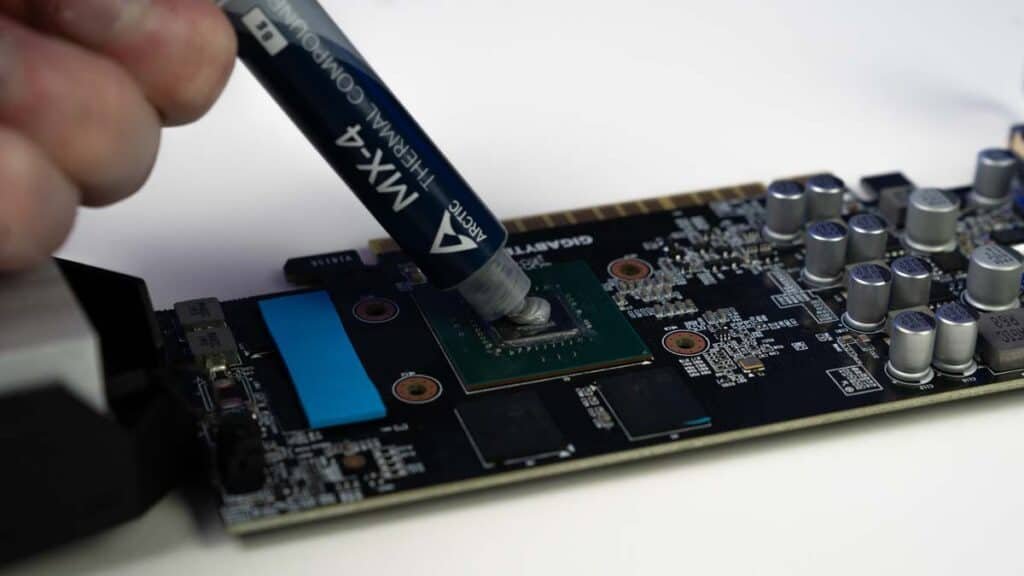
Old thermal paste
Thermal paste is the thin layer between the chip and its cooler that helps heat cross over. It dries out over the years and stops working as well. On a build that is several years old, fresh paste can bring temperatures down by around 10°C. The paste itself is cheap, and it is one of the most effective single fixes.
Airflow and room heat
A cooler can only push heat into the case, so if the case has poor airflow the heat has nowhere to go. Make sure cool air comes in the front or bottom and warm air leaves the back and top, and do not cram the PC into a tight cabinet or against a wall. A hot room makes all of this harder, so a cooler spot or a bit of air conditioning in summer helps every component at once.
A cooler that is out of its depth
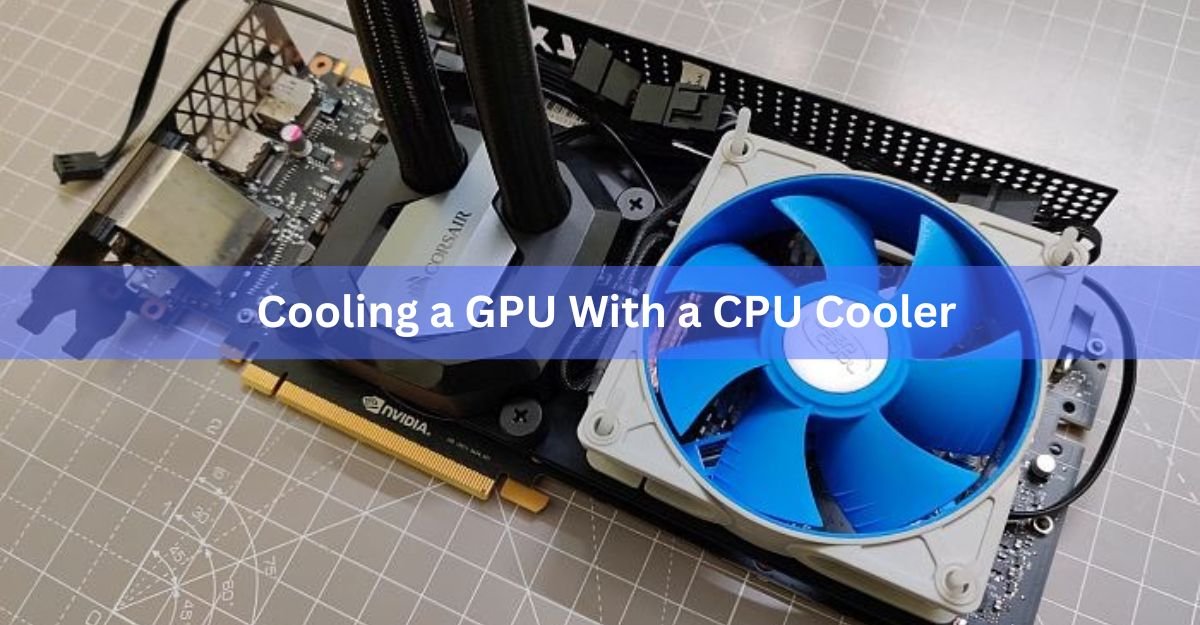
Newer high-performance chips draw a lot of power in short bursts to hit their top speeds, which simply makes more heat than older parts. A cooler that was fine for a previous build might not keep up with a hungrier new one. If you have ruled out dust, paste, and airflow and temperatures are still high, a stronger air cooler or a liquid cooler is the next step.
Undervolting, for the graphics card
Undervolting means running the card at slightly lower voltage for the same speed. It is a software tweak that can cut graphics card temperatures by several degrees with little or no loss of performance. It takes a bit of testing to get stable, but it is popular for good reason and costs nothing but time.
Frequently asked questions
Is 80°C too hot for a CPU or GPU while gaming?
No. 80°C under gaming load is normal and safe for both a CPU and a GPU. Modern chips are built to run in the 60 to 85°C range while working hard, and many are designed to push even higher during boost.
What temperature is dangerous for a CPU or GPU?
Trouble starts when a chip holds above 90 to 95°C for long periods, or hits its rated limit and starts throttling or shutting down. Most CPUs are capped around 95 to 105°C, and cards protect themselves before real damage occurs.
Why is my GPU hotspot so much higher than the core temperature?
The hotspot is the single hottest point on the chip, so it always reads higher than the core average. A gap of 10 to 20°C on Nvidia cards and 20 to 35°C on AMD cards is normal by design. Judge safety by the core number.
Is it normal for my CPU and GPU to be different temperatures?
Yes. They are separate chips with separate coolers and separate workloads, so their temperatures rarely match. During gaming the GPU often runs a little hotter, while some tasks load the CPU more. Both being in range is what matters.
How do I check my temps without downloading anything?
Open Task Manager with Ctrl + Shift + Esc, go to the Performance tab, and select GPU to see the graphics card temperature. For CPU temperature without software, check the Hardware Monitor section of your BIOS at startup.
Conclusion
Aim for idle temperatures in the 30s or 40s°C and gaming temperatures somewhere in the 60s to mid-80s°C, and you are in good shape. Read any number next to what the machine is doing and the chip’s own rated limit rather than panicking at a big figure, since 85°C mid-game is fine while 85°C at idle is not. If readings sit above 90°C for long stretches, clear the dust, check airflow, and consider fresh thermal paste. A good result is a PC that runs warm under load and cools down the moment you stop.