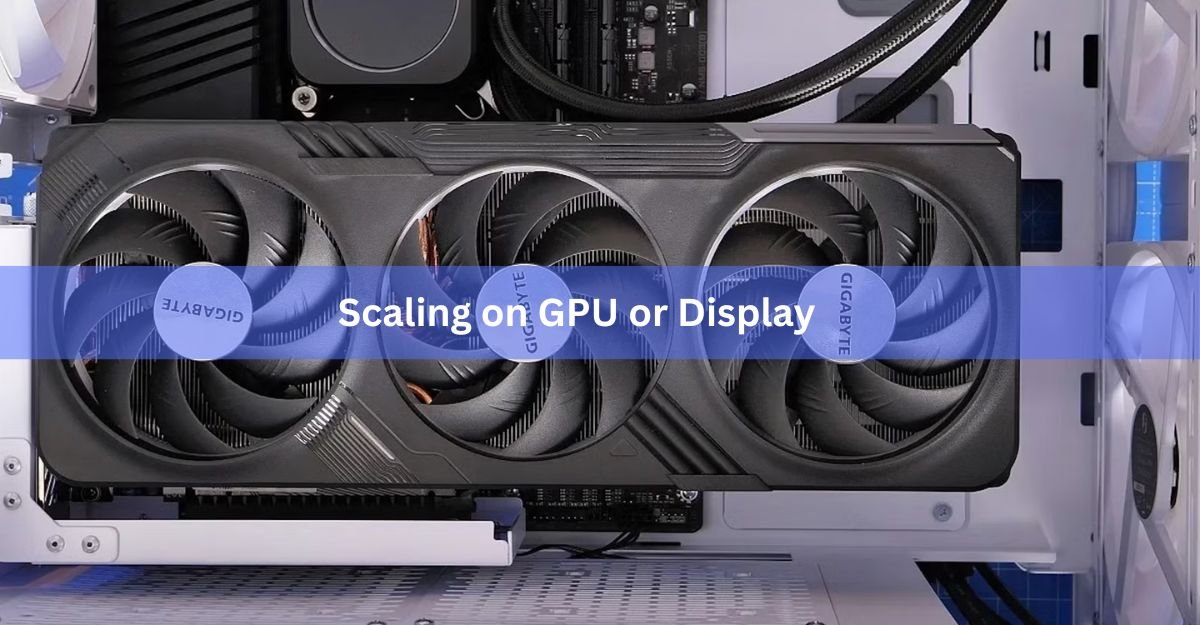
Pick GPU. That is the short answer for most people. GPU scaling gives you a consistent image, more control over how the picture fits your screen, and it costs around a millisecond of extra delay at most. Display scaling hands the job to your monitor instead, and that is only worth doing if your monitor has a genuinely good built-in scaler and you want every last scrap of responsiveness.
One thing matters more than the choice itself, though. This setting only does anything when your PC sends the monitor a resolution below its native one. If you run your games and desktop at native resolution, both options behave exactly the same, because nothing needs to be resized. So before you agonize over it, check what resolution you actually play at.
What the setting actually controls
Every monitor has one native resolution, the exact grid of physical pixels built into the panel. A 1440p monitor has 2560 by 1440 of them, no more and no less. When a game outputs a lower resolution, say 1920 by 1080, or an older aspect ratio like 4:3, the image no longer matches that grid. Something has to stretch it to fill the screen.
The “Perform scaling on” option in NVIDIA Control Panel, and the GPU Scaling toggle in AMD software, decides which piece of hardware does that stretching. Choose Display and your monitor’s internal scaler chip does the work. Choose GPU and your graphics card resizes the frame to native resolution before it ever leaves the card. The end result sounds identical on paper, but the two paths behave differently in practice.
What happens when you pick Display
With display scaling, the graphics card sends the low-resolution signal to the monitor untouched. A small chip inside the monitor then blows the image up to fill the panel.
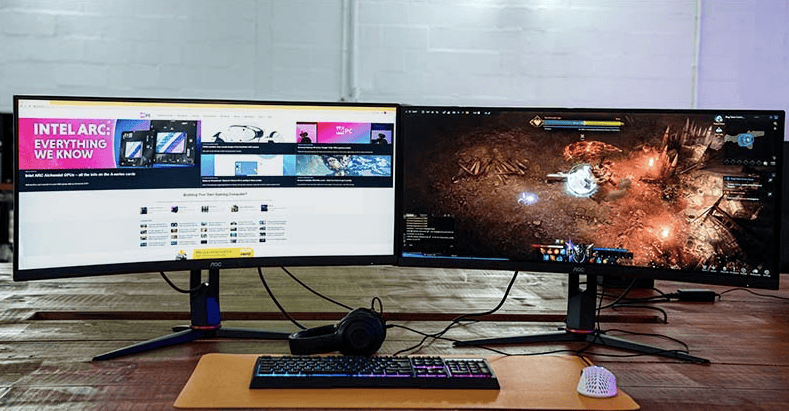
The upside is speed. The scaler chip is built for this one job, so on a good monitor it adds almost no delay, and your GPU spends zero effort on resizing. The downside is that you are at the mercy of whatever chip your monitor shipped with. Quality varies a lot between models. Cheaper panels often use a basic resize that looks soft or shimmery, many monitors force a full stretch with no way to keep the correct aspect ratio, and some refuse unusual resolutions outright and just show a blank screen.
What happens when you pick GPU
With GPU scaling, the driver resizes each frame to your monitor’s native resolution first. The monitor receives a native-resolution signal and has nothing left to do.
This buys you consistency. The result looks the same no matter which screen you plug in, because the same hardware always does the resize. It also unlocks options the monitor cannot offer, like keeping the original aspect ratio with black bars, or integer scaling for pixel-perfect retro games. The cost is a small amount of extra work for the card and, in the worst case, roughly a millisecond of added delay. On a modern GPU that is close to nothing.
GPU vs display scaling at a glance
| GPU scaling | Display scaling | |
| What does the resize | Your graphics card and driver | A scaler chip inside the monitor |
| Image quality | Consistent on any screen | Depends entirely on the monitor |
| Added delay | Around 1 ms or less | Usually the lowest possible |
| Aspect ratio control | Full control, black bars possible | Often full stretch only |
| Odd or old resolutions | Handled reliably | Some monitors reject them |
| Integer scaling | Available on supported GPUs | Not available |
Which one should you choose?
For most setups, set it to GPU and forget about it. You get predictable results on any screen, correct aspect ratios, and a delay penalty too small to feel.
Competitive shooter players are the main exception. If you play something like Counter-Strike 2 at a stretched 4:3 resolution such as 1280 by 960, display scaling can shave a hair of delay, provided your monitor stretches that resolution the way you want. Test both. The gap is about a millisecond, so pick whichever looks and feels right rather than chasing the number.
Retro and older games push things the other way. Titles built for 640 by 480 or 800 by 600 look far better through the GPU, where you can keep the original shape of the image or use integer scaling to get sharp, blocky pixels instead of smeared ones.
If you only ever run native resolution, leave the setting wherever it is. It will never activate. And if you game on a laptop’s built-in screen, the choice is made for you, because laptop panels have no scaler chip and the GPU always does the job.
Quick rule: GPU for consistency and control, Display for a monitor you have tested and trust, and neither matters at native resolution.
How to change the setting
On an NVIDIA card, right-click the desktop and open NVIDIA Control Panel, then go to Display and Adjust desktop size and position. Pick a scaling mode at the top, then set “Perform scaling on” to GPU or Display and click Apply. Ticking “Override the scaling mode set by games and programs” forces every game to respect your choice, which helps when a stubborn title keeps stretching itself. NVIDIA describes each option in its control panel scaling help page if you want the fine print.
On an AMD card, open AMD Software: Adrenalin Edition, type “Display” into the search box, and open Display Settings. Flip GPU Scaling to Enabled and choose a scaling mode below it. The screen goes blank for a second while it switches, which is normal. AMD walks through the whole process in its GPU scaling support article. Turning the toggle off hands scaling back to the monitor.
On Intel graphics, the same choice lives in Intel Graphics Command Center under Display, where you can select whether the display or the GPU handles the scaling.
The scaling modes, briefly
Whichever hardware does the work, you also choose how the image gets fitted. The names differ slightly between NVIDIA and AMD, but there are four basic behaviors.
Aspect ratio (Preserve aspect ratio on AMD) enlarges the image as far as it can without changing its shape, then fills the leftover space with black bars. A 4:3 game on a widescreen monitor gets bars on the left and right. This is the safest default, because nothing ever looks squashed or fat.
Full-screen (Full panel on AMD) stretches the image to cover the whole panel no matter what. Circles become ovals if the shapes do not match. Some competitive players want exactly this for stretched resolutions; everyone else usually does not.
No scaling (Center on AMD) shows the image at its true size in the middle of the screen, surrounded by black. It is small but perfectly sharp.
Integer scaling multiplies each pixel by a whole number, so 1080p becomes exactly 4K with no blur. It needs GPU scaling turned on, and on NVIDIA it requires a GTX 16 series or RTX card or newer. It is the best-looking option for old games and pixel-art titles.
Two other “scaling” settings this is not
Windows has its own display scaling under Settings, System, Display, the percentage that makes text and icons bigger on high-resolution screens. That runs inside Windows and has nothing to do with the GPU-or-display choice in your driver.
DLSS, FSR, and XeSS are different again. Those render a game at a lower internal resolution and rebuild a sharper image to raise your frame rate, and they work inside the game itself. The GPU-or-display setting only kicks in afterward, and only if the final signal still is not native.
Frequently asked questions
Does GPU scaling cause input lag?
It can add roughly a millisecond or less on a modern graphics card, which is far below what people can feel. If you play competitively at a stretched resolution, test display scaling too, but for everyone else the difference is not worth thinking about.
Does this setting matter at native resolution?
No. Scaling only activates when the signal sent to the monitor is below native resolution. If your desktop and games all run at native, the image is never resized, so GPU and Display behave identically and you can leave the setting alone.
Which is better for stretched 4:3 in Counter-Strike 2?
Both work. Display scaling may respond a touch faster if your monitor stretches 1280 by 960 correctly, while GPU scaling guarantees the stretch happens on any screen. The gap is about a millisecond, so try both and keep the one that feels right.
Why does my game still stretch after I chose Aspect ratio?
The game is probably overriding you. On NVIDIA, tick “Override the scaling mode set by games and programs.” Also make sure the game runs in exclusive fullscreen, because borderless mode outputs your desktop’s native resolution, so no scaling ever happens.
Is GPU scaling the same as DLSS or FSR?
No. DLSS and FSR upscale inside the game to boost frame rates using smart reconstruction. GPU scaling is a simple driver resize that fits a finished, lower-resolution image onto your screen. They solve different problems and can even be used together.
Conclusion
Set scaling to GPU unless you have a specific reason not to. It only matters when you run below native resolution, and when it does, the GPU gives you a consistent picture, proper aspect ratio control, and integer scaling, for about a millisecond of extra delay. Reserve display scaling for competitive play on a monitor you have tested and trust. At native resolution, the setting sits idle either way, so there is nothing to worry about.
Related Post:
CPU and GPU Temp: What’s Normal, What’s Too Hot, and How to Check
The Best GPU for Games Like Overwatch and Minecraft (2026)
Steam Deck GPU Equivalent: Which Graphics Card It Matches
![Fix GPU memory leak [Forge/Fabric]: what it does and how to install it](https://nobelspot.com/wp-content/uploads/2026/08/GPU-Fan-Speed-33.jpg)