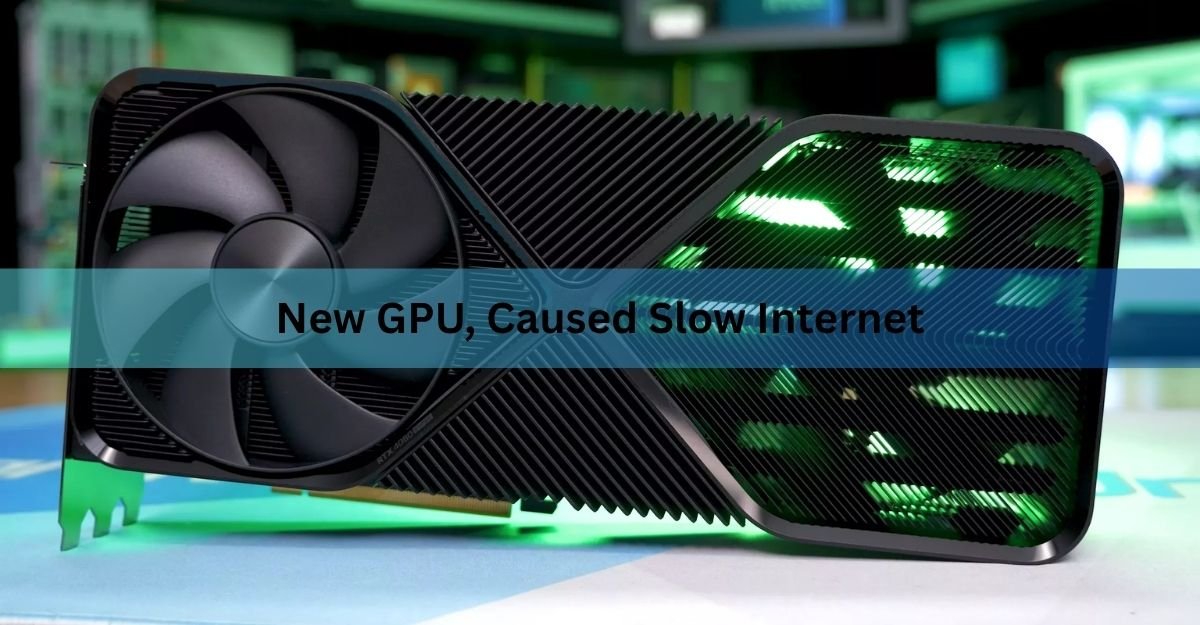
Your new graphics card can’t change your internet plan, so if your connection got slower right after you fitted one, the card didn’t rewrite your bandwidth. Something about the install is getting in the way. It usually comes down to one of a few things: radio noise from the card near your WiFi antenna, bundled software that meddles with network traffic, a messy driver install, shared lanes on your motherboard, or a power supply that’s now stretched too thin.
The good news is that each cause has a clear test and a clear fix. Work through them in order and you’ll usually land on the culprit in a few minutes. Here’s how the pieces fit together.
Can a graphics card actually slow your internet?
Not directly. A GPU renders images. Your network card and router move data. They are separate parts that don’t share a job, and the card has no way to reach into your connection and throttle it.
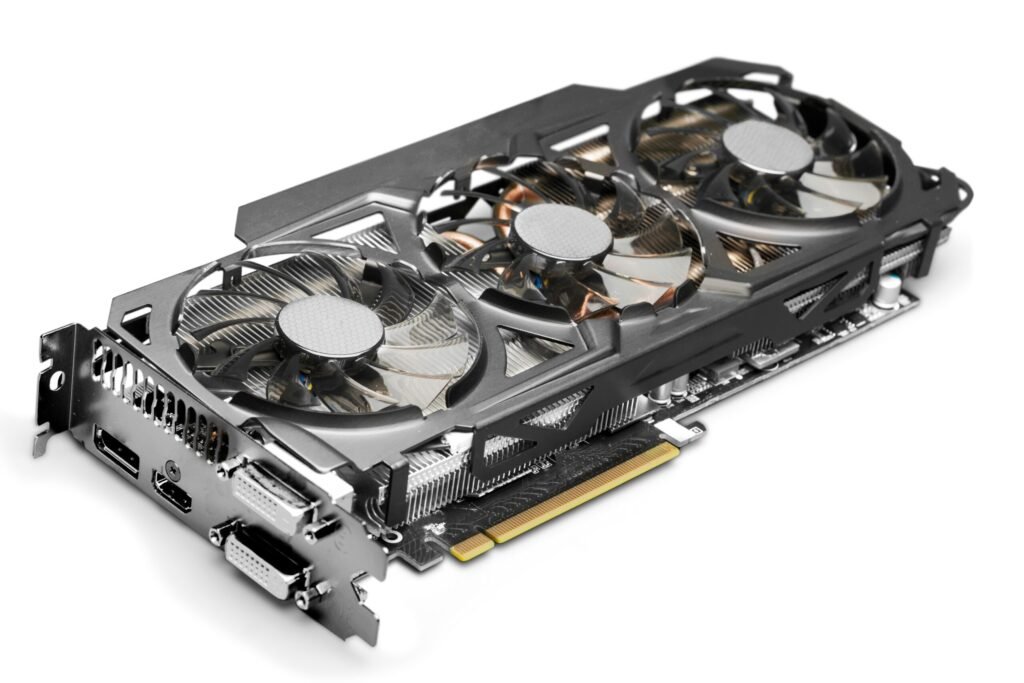
What a new card can do is create side effects that land on your network. A powerful card pulls more current, runs hotter, throws off more electrical noise, and often arrives with its own software. Any of those can knock your connection sideways while the card itself sits there doing nothing wrong. So the honest framing isn’t “the GPU slowed my internet.” It’s “installing the GPU changed something, and that something is slowing my internet.” Find the change and you’ve found the fix.
The real causes, from most to least common
Radio interference near your WiFi antenna
This is the big one for anyone on wireless. A graphics card is a dense block of fast-switching electronics, and under load it gives off electromagnetic noise. Some of that noise sits in the same 2.4GHz band that older WiFi uses. If your WiFi antenna or card sits close to the GPU, that noise bleeds into the signal and drags your speed down.
The tell is simple: the slowdown shows up on WiFi but not on a wired cable, and it gets worse when the card is working hard, like during a game or a video export. People have measured this in the real world. Move a phone or laptop right next to a running card and download speeds can drop noticeably; move it a metre away and they recover. Faster modern cards draw more power and boost their clocks harder, which is exactly when they radiate the most noise, so the pricier the upgrade, the more likely you’ll notice.
Bundled network ‘optimizer’ software
Plenty of cards and motherboards ship with extra software that promises lower latency or “gaming” priority for your network. It sits between Windows and your network card and reorders traffic. In practice this software is a common source of odd slowdowns, stalls, and pages that take an age to load even when a speed test looks fine.
The clue here is that the problem hits everything, wired and wireless alike, and often shows up as web pages crawling while raw throughput looks normal. If a page like Google took a second before and now takes twenty, a background network tool is a prime suspect. Uninstalling it fixes it more often than people expect.
A corrupted or conflicting driver install
Installing GPU drivers can occasionally step on your network drivers. It sounds far-fetched, but it happens, and the symptom is oddly specific. A frequent pattern is a download speed that collapses while upload stays fine, or the other way around. One person on a gigabit line watched downloads fall to 80Mbps while uploads held near 900Mbps straight after a driver install.
Extra companion apps that ride along with the driver, the overlay and telemetry pieces you didn’t ask for, are a repeat offender. A clean reinstall that strips out the leftovers usually sorts it.
Shared PCIe lanes on your motherboard
Your CPU and chipset only have so many PCIe lanes to hand out. These lanes are the data paths that connect the graphics slot, storage drives, and often your WiFi card. On many modern boards, some slots share their lanes: fill one and another gets throttled or switched off. Fit a card that grabs the full sixteen lanes, or add an M.2 drive at the same time, and a shared WiFi or network card can end up short-changed.
This one is easy to overlook because nothing looks broken. If your wireless card runs slower or keeps dropping only since the new GPU or drive went in, dig out your motherboard manual and read the section on lane sharing. The manual’s block diagram spells out which slots share with which. This ASUS explainer on PCIe lanes walks through how the sharing works if you want the background.
A power supply that’s now stretched too thin
A stronger card eats more watts. If your power supply was already near its limit, the extra draw can leave the rest of the system starved, and that instability can show up as network drops, stutters, or crashes under load. Loose or half-seated power cables to the card cause the same kind of flaky behaviour.
Suspect power if the trouble only appears when the card ramps up and the whole system feels unstable, not just the connection. Reseating the power cables costs nothing and rules out the simplest version of this fast.
Which cause is yours? A quick reference
Match your symptoms to the most likely cause before you start changing things.
| What changed | Real internet impact | Typical fix |
|---|---|---|
| RF/EMI noise near a 2.4GHz WiFi antenna | Wireless only, worse under load | Move the antenna, switch to 5GHz or wired |
| Bundled network ‘optimizer’ software | Wired and wireless, all traffic | Uninstall it, clean-install the driver |
| Corrupted or conflicting driver install | Often download-only or one direction | DDU wipe, reinstall the base driver |
| PCIe lanes shared with WiFi or M.2 | Wireless card runs slow or drops | Move the card, check the board manual |
| Power supply too weak for the new card | Random drops, crashes under load | Fit a bigger PSU, reseat power cables |
How to find your cause in a few minutes
Run these checks in order. Each one rules out a chunk of the possibilities so you’re not fixing blind.
- Test wired versus wireless. Plug an Ethernet cable straight from your router to the PC and run a speed test. If wired is fine and only WiFi is slow, you’re looking at radio interference or the WiFi card’s lanes. If wired is slow too, it’s software, a driver, or power.
- Compare idle versus load. Run a speed test with the card idle, then again while a game or render pushes it hard. A big gap under load points at interference or power.
- Test a second device. Check another device on the same network. If your phone and laptop are fine and only the new build is slow, the problem is inside that PC, not your internet.
- Check what got installed. Open your installed programs list and look for anything with “network,” “LAN,” “gaming,” or “boost” in the name that arrived with the card. Note it for removal.
- Watch Task Manager. Open the Performance tab during a slowdown and watch the network graph. Steady throughput with slow-loading pages points at meddling software; erratic drops point at interference or hardware.
| Quick tip: A wired cable is the fastest single test you own. If Ethernet restores full speed instantly, you’ve narrowed it to wireless in one step and can skip straight to the interference fixes. |
How to fix each cause
Fix radio interference
Start by putting distance between the card and the WiFi antenna. A few moves that work:
- Move the antenna away from the case. Most boards use a screw-on antenna at the back. Use one with an extension lead and stand it up on your desk, away from the PC, rather than pressed against the metal chassis.
- Switch to the 5GHz band. It sits away from the noisiest part of the GPU’s output and is far less prone to this kind of interference. Connect to your router’s 5GHz network if you have one.
- Relocate a PCIe WiFi card. If your wireless card is a separate card sitting right under the GPU, move it to the lowest slot you can, as far from the card as possible. That also keeps it out of the card’s hot exhaust.
- Go wired if you can. An Ethernet cable sidesteps radio interference entirely and is the most reliable fix of all.
Fix bundled software and driver conflicts
If a background network tool came with the card, uninstall it from your programs list and restart. Test again before doing anything else.
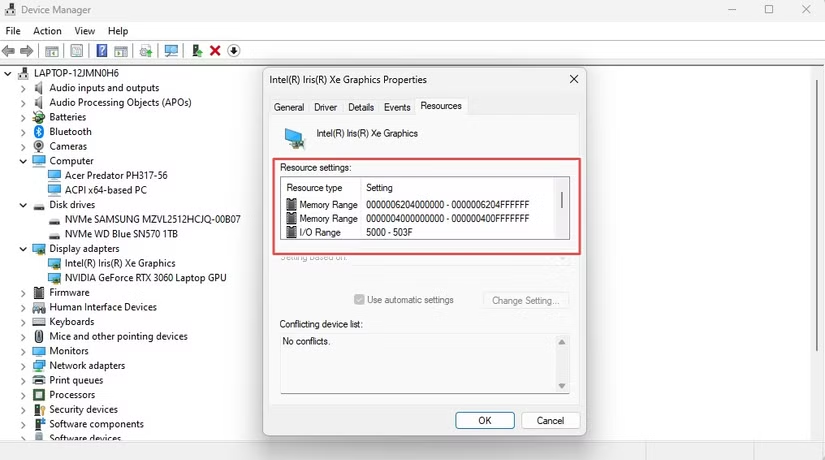
If that doesn’t do it, or a download speed has collapsed in one direction, do a clean driver reinstall to clear out any leftovers:
- Download the latest driver for your card from the maker’s official site first, plus your chipset drivers if you’re on a Ryzen system, and save them locally.
- Download Display Driver Uninstaller (DDU), the standard tool for stripping graphics drivers down to nothing.
- Disconnect from the internet so Windows can’t auto-install a driver mid-process, then run DDU in Safe Mode and choose the clean-and-restart option.
- Reinstall the driver you downloaded. Skip the optional overlay and telemetry extras when the installer offers a custom or minimal install.
- Reconnect and run a speed test.
- A clean install like this clears the driver conflicts that a normal uninstall leaves behind, and it’s the step that fixes the one-direction speed drops most often.
Fix shared PCIe lanes
Open your motherboard manual and find the lane-sharing notes and the block diagram. If your WiFi or network card shares lanes with the graphics slot or an M.2 drive you just added, you have options: move a card to a slot that doesn’t share, move an M.2 drive to a different slot, or drop a slot’s speed in the BIOS so the network card keeps its lanes. If wireless is the casualty, switching to a USB WiFi adapter or a wired cable sidesteps the lane fight completely.
Fix power problems
First, reseat every power cable to the card, pushing each connector fully home until it clicks. Loose connectors cause more flaky behaviour than people credit. If the trouble continues and your power supply is close to its rated limit for the new card, fitting a higher-wattage unit is the real fix. Check the card maker’s recommended supply and give yourself headroom above it.
When it’s not the GPU at all
Timing can trick you. Sometimes a slowdown lands the same week you fit a card and has nothing to do with it. Before you tear the machine apart, rule out the ordinary suspects.
- A background download or update quietly eating your bandwidth.
- A router that needs a restart or a firmware update.
- An outdated network driver that was due an update anyway.
- A genuine problem on your ISP’s end, which the second-device test will expose.
If every device on your network is slow, the card is almost certainly innocent and the issue lives in your router or with your provider.
Frequently asked questions
Can a graphics card really affect internet speed?
Not directly, since the GPU and your network card do different jobs. But a new card can cause radio interference, ship with meddling software, disturb a driver, or share motherboard lanes, and any of those can slow your connection.
Why is only my WiFi slow after installing a new GPU, but not Ethernet?
That points to radio interference. The card gives off electrical noise in the 2.4GHz WiFi band when it’s working. A wired cable isn’t affected, so moving your antenna, switching to 5GHz, or going wired fixes it.
Does GeForce Experience or bundled software slow down internet?
It can. Background network tools that came with a card sit between Windows and your network card and reorder traffic, which sometimes makes pages crawl even when a speed test looks fine. Uninstalling the tool usually fixes it.
How do I know if it’s a driver problem or interference?
Test with a wired cable. If Ethernet is fine and only WiFi is slow, it’s interference. If wired is slow too, or download speed collapsed in one direction, it’s more likely software or a driver conflict, so do a clean reinstall.
Will a bigger power supply fix slow internet after a GPU upgrade?
Only if power is the cause. A card that draws more than your supply can handle causes instability that shows up as drops or crashes under load. Reseat the power cables first, then upgrade the supply if the card is near its limit.
Conclusion
A new GPU can’t shrink your internet plan, so a slowdown after fitting one is a side effect to track down, not a lost cause. Test wired against wireless, compare idle against load, and check what software came along for the ride. From there the fixes are quick: move the WiFi antenna or switch to 5GHz for interference, uninstall meddling network tools, do a clean driver reinstall, sort out shared lanes, or shore up your power. A good result is full speed restored with the card still in place.
Related Post:
Why ICUE Crashes Your GPU (and How to Fix It)
CPU and GPU Temp: What’s Normal, What’s Too Hot, and How to Check
![Fix GPU memory leak [Forge/Fabric]: what it does and how to install it](https://nobelspot.com/wp-content/uploads/2026/08/GPU-Fan-Speed-33.jpg)