High GPU usage from the Client Server Runtime Process (csrss.exe) is almost always caused by a display setting or a driver, not by a virus. The usual triggers are mouse pointer trails or a custom cursor, hardware-accelerated GPU scheduling, an outdated graphics driver, or a buggy Windows build. Change those and the process drops back to near zero.
This guide covers what the process actually does, why it starts pulling GPU power when you move the mouse or scroll, and the fixes that work, starting with the ones that solve it most often.
What is the Client Server Runtime Process?
The Client Server Runtime Process is a core Windows system process. Its file name is csrss.exe and it lives in C:\Windows\System32. It has shipped with every version of Windows since Windows NT 3.1 in 1993, and back then it ran the whole graphical side of the operating system: drawing windows, managing the console, putting things on screen.
That changed with Windows NT 4.0 in 1996, when most graphics work moved into the Windows kernel. On Windows 10 and 11 the process keeps a much shorter job list: it helps shut down processes and threads cleanly, supports console windows, and draws the mouse pointer in certain situations. That last job matters, because it explains most cases of high GPU usage.
One more thing to know before you start troubleshooting: you can’t end this process. Windows marks it as critical, and killing it in Task Manager triggers an instant blue screen. The fix is always to remove the cause, never to stop the process itself.
How much GPU should csrss.exe use?
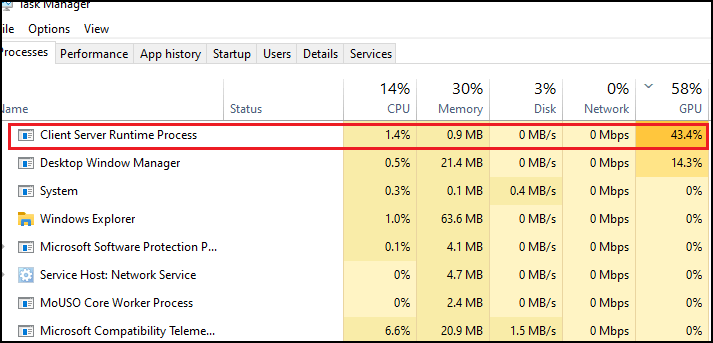
Close to nothing. On a healthy PC the Client Server Runtime Process sits at 0 to 1 percent GPU, even under load. When something is wrong, it can jump to 30, 40, or even 50 percent the moment you move the mouse, scroll a web page, or play a video, then fall back to zero the instant you stop.
That pattern is the giveaway. Spikes tied directly to pointer movement or scrolling point at how Windows is drawing the cursor and the desktop, not at the process itself misbehaving. The Desktop Window Manager (dwm.exe) often spikes right alongside it, since both are part of the same drawing pipeline. The side effects are loud fans, stutter on the desktop, and frame drops in games that your hardware should handle easily.
Quick test: open Task Manager, sort by GPU, then wiggle your mouse in circles for five seconds. If csrss.exe only climbs while the pointer is moving, Windows is drawing your cursor in software. Fix 1 below will almost certainly solve it.
Why is the Client Server Runtime Process using high GPU?
A few different problems all show up as the same symptom. Here are the causes, from most to least common:
- A software-rendered cursor. Your graphics card has a built-in hardware cursor that costs almost nothing to draw. Turning on pointer trails, installing a custom cursor pack, or using some accessibility pointer options forces Windows to redraw the cursor in software on every frame instead, and csrss.exe does that work.
- Hardware-accelerated GPU scheduling. This Windows feature hands scheduling work to the GPU itself. On some driver and hardware combinations it clashes with the desktop drawing path and pushes csrss.exe and dwm.exe usage up.
- An outdated or broken graphics driver. A bad driver install can break the hardware cursor and other display shortcuts, so the system falls back to slower software paths.
- A buggy Windows build. A past cumulative update shipped with this exact problem and later patches fixed it. A PC that is months behind on updates can still be running the broken code.
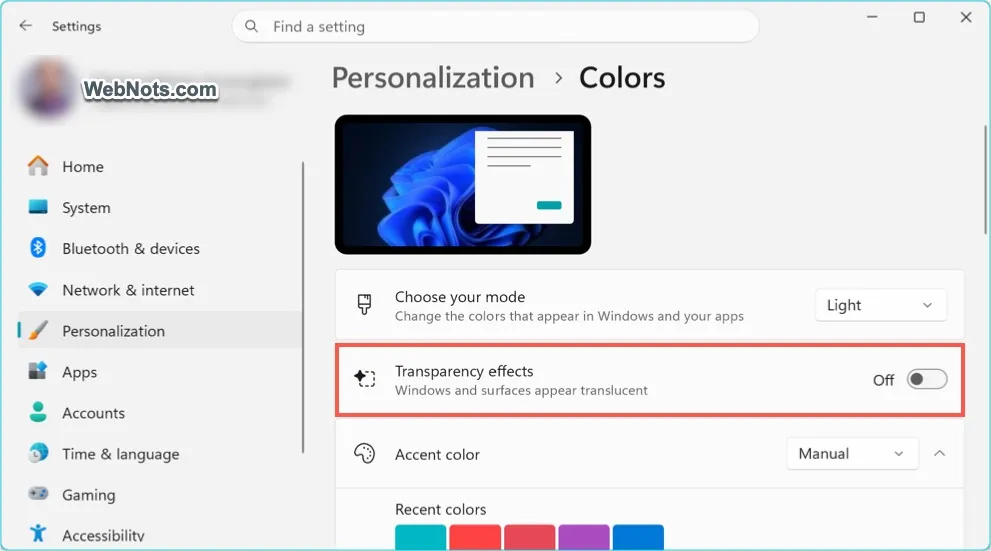
- Transparency effects. The blur and glass effects in Windows 10 and 11 add constant GPU work to the desktop pipeline and can make the spikes worse.
- Corrupt system files or a conflicting app. Damaged display components, or software that hooks into the desktop (overlays, screen recorders, RGB tools, remote desktop apps), can keep the drawing path busy.
How to fix Client Server Runtime Process high GPU usage
Work through these in order. Most people are done after the first two or three.1. Turn off pointer trails and use a default cursor
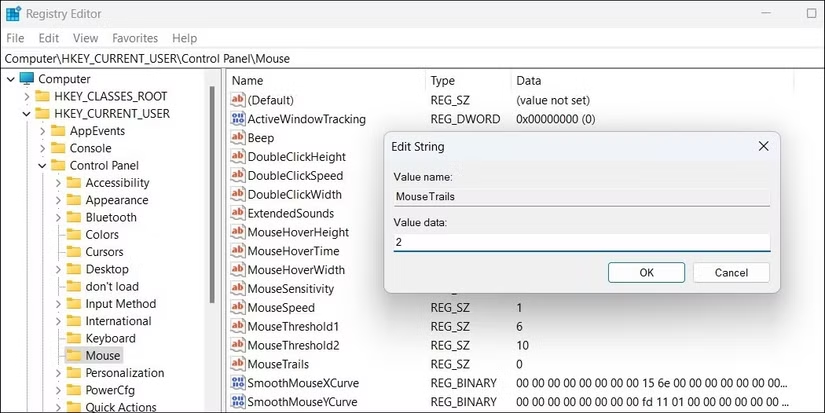
This is the number one cause, and the fix takes under a minute. Press Windows + R, type main.cpl, and press Enter to open Mouse Properties. On the Pointer Options tab, untick Display pointer trails and Show location of pointer when I press the CTRL key. Then switch to the Pointers tab and set the scheme back to Windows Default if you have a custom cursor installed. Click OK and test with the Task Manager trick above.
2. Disable hardware-accelerated GPU scheduling
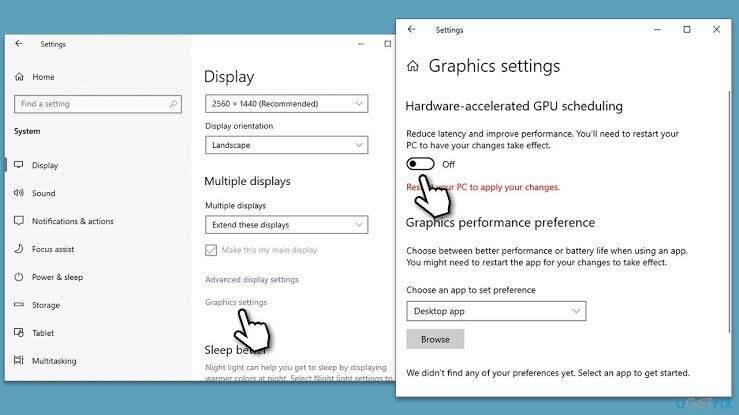
Go to Settings > System > Display > Graphics > Default graphics settings and switch off Hardware-accelerated GPU scheduling, then restart. Microsoft’s DirectX developer blog explains what the feature does in depth, but the short version is that it changes who manages GPU work, and on some setups that change misfires. If turning it off cures the spikes, you can leave it off. The main thing you lose is DLSS Frame Generation on newer Nvidia cards, which needs it switched on.
3. Update or reinstall the graphics driver
Get the newest driver straight from Nvidia, AMD, or Intel rather than relying on Windows Update, since the versions there often lag months behind. If the problem started right after a driver update, roll back instead, or do a clean install: the Nvidia and AMD installers both offer a factory reset option that wipes old settings during setup.
4. Install Windows updates
Open Settings > Windows Update, check for updates, and install everything offered, including optional cumulative updates. Because this problem once shipped inside a Windows update and was fixed in later ones, an out-of-date system can be stuck with a bug that a ten-minute update removes. Restart when it finishes.
5. Turn off transparency effects
Go to Settings > Personalization > Colors and switch off Transparency effects. The desktop loses a bit of visual polish and gains a lighter GPU load. On many machines this alone cuts the csrss.exe and dwm.exe spikes in half.
6. Repair system files
Corrupt display components can force the slow drawing paths described above. Open Command Prompt as administrator and run these two commands, one after the other, letting each finish:
DISM.exe /Online /Cleanup-image /Restorehealth
sfc /scannow
The first repairs the Windows component store, the second replaces damaged system files from it. Microsoft documents both tools on its System File Checker support page. Restart when the scans complete.
7. Do a clean boot to find a conflicting app
If nothing above helped, some background program is likely hooking into the desktop. Common suspects are game overlays (Discord, GeForce Experience), screen recorders, RGB lighting suites, and remote desktop tools. Type msconfig into Start, open System Configuration, hide all Microsoft services on the Services tab, disable the rest, disable startup apps in Task Manager, and restart. If the GPU usage is normal in the clean boot, re-enable programs in small groups until the culprit shows itself.
Is csrss.exe a virus?
The real process is not, but malware sometimes borrows the name because it knows the file is trusted. Checking takes seconds: in Task Manager, right-click Client Server Runtime Process and choose Open file location. The genuine file sits in C:\Windows\System32 and its properties show a valid Microsoft digital signature. A file with the same name anywhere else, such as a user folder or a temp directory, deserves a full antivirus scan.
Seeing two instances of the process is also normal. Windows runs one per session, so a copy for the system session and one for your login is expected, and neither should be using the GPU at rest.
Symptoms and causes at a glance
| What you see | Most likely cause | Start with |
| GPU spikes only while the mouse moves | Software-rendered cursor (trails or custom cursor) | Fix 1 |
| Spikes while scrolling or watching video | GPU scheduling or transparency effects | Fixes 2 and 5 |
| Started after an update | Bad driver or Windows build | Fixes 3 and 4 |
| Constant high usage, even idle | Conflicting app or fake process | Fix 7, then the virus check |
Frequently asked questions
Can I end the Client Server Runtime Process in Task Manager?
No. Windows marks csrss.exe as a critical process, and ending it causes an immediate blue screen and restart. Fix the cause of the GPU usage instead, starting with pointer trails and GPU scheduling.
Why does my GPU spike only when I move the mouse?
Windows is drawing your cursor in software instead of using the graphics card’s built-in hardware cursor. Pointer trails, custom cursor packs, and some pointer accessibility options cause this. Turn them off in Mouse Properties and the spikes stop.
Is the Client Server Runtime Process a virus?
The genuine process is a trusted Windows component, not malware. Right-click it in Task Manager and choose Open file location: the real file is in C:\Windows\System32 with a Microsoft signature. The same name in any other folder calls for an antivirus scan.
Should hardware-accelerated GPU scheduling be on or off?
If csrss.exe or dwm.exe shows high GPU usage, try it off. On stable setups it can slightly reduce latency, and Nvidia’s DLSS Frame Generation needs it on, so re-enable it later and see whether the problem returns.
Why do csrss.exe and Desktop Window Manager spike together?
Both belong to the same desktop drawing pipeline, so anything that makes rendering expensive, like a software cursor, transparency effects, or a bad driver, pushes them up at the same time. The fixes for one bring down both.
Conclusion
The Client Server Runtime Process should barely touch your GPU, so high usage means a setting or driver is forcing Windows to draw the desktop the slow way. Turn off pointer trails and custom cursors first, then disable hardware-accelerated GPU scheduling, update your graphics driver and Windows, and switch off transparency effects. After the fix, csrss.exe should sit at 0 to 1 percent GPU no matter how fast you move the mouse.
Related Post:
Is 70°C Too Hot for a GPU? What the Number Really Means
Red Light on GPU When PC Is Off: What It Means and When to Worry
Satisfactory “GPU Crash Dump Triggered”: What It Means and How to Fix It
What the DaVinci Resolve GPU Configuration Warning Means (and How to Fix It)
“System Is Out of GPU Memory” in Blender: Why It Happens and How to Fix It