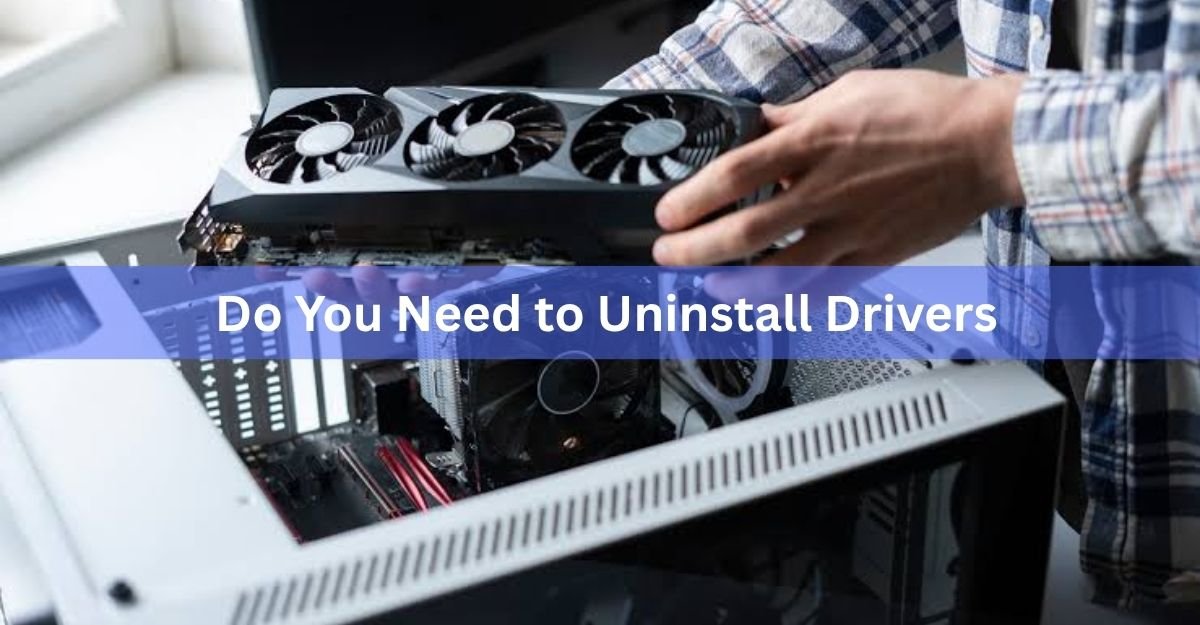
Usually, no. If you are swapping one NVIDIA card for another NVIDIA card, or one Radeon for another Radeon, you can shut down, fit the new card, boot up, and install the latest driver on top. Windows sorts out the rest.
Removing the old driver first matters in a smaller set of cases: when you change brands, when you jump several generations, or when the install on your machine has been through years of updates and a few crashes. Here is how to tell which situation you are in, and how to do the clean removal without breaking anything.
Which GPU upgrades actually need a driver uninstall?
Only a few of them. This table covers almost every swap people do.
| Your upgrade | Uninstall first? | Why |
| NVIDIA to NVIDIA, both recent (RTX 4070 to RTX 5070) | No | One driver package already covers both cards |
| AMD to AMD, both recent (RX 7800 XT to RX 9070) | No | Same package, same story |
| Same brand, big generation gap (GTX 1660 to RTX 5060) | Worth doing | The driver on your PC predates the new card |
| NVIDIA to AMD, or AMD to NVIDIA | Yes | Two driver stacks and two control panels clash |
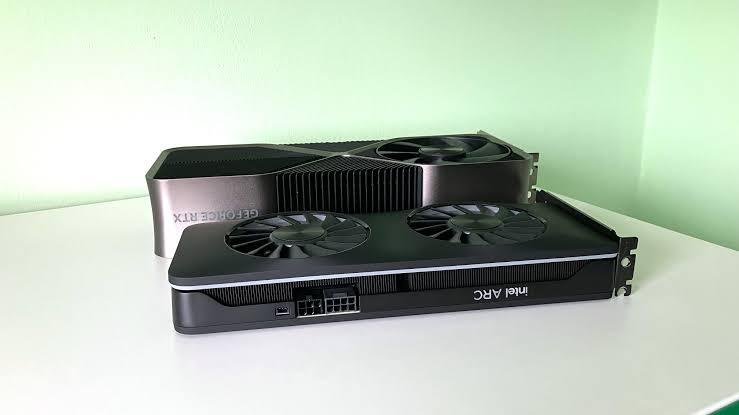
| To or from an Intel Arc card | Yes | Counts as a brand change |
| Same card, newer driver version | No | The installer replaces it in place |
A same-brand swap is painless because one driver package covers a whole lineup. The driver already sitting on your PC for an RTX 4070 also contains support for an RTX 5070, since both cards are listed in that same package. Windows keeps the package in its driver store, spots the new device on boot, and matches the two up on its own.
This breaks down when the package on your machine is too old to have heard of your new card. NVIDIA’s Release 580 branch was the last one built for Maxwell, Pascal and Volta chips, which covers the GTX 700, 900 and 10 series. Move from a GTX 1070 to a current RTX card and the driver on that PC predates your new hardware by several generations, so it cannot run it at all.
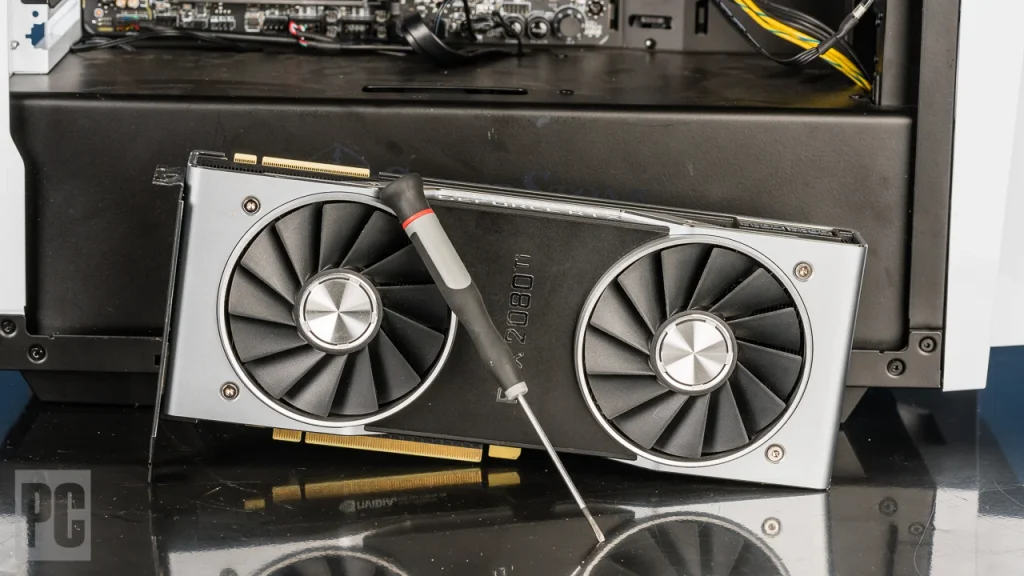
Intel Arc follows the same rule as any other brand change. Whether you are moving to an Arc card or away from one, treat it as a switch and clear the old driver out first.
What happens if you just swap the card and change nothing
In the easy case, nothing dramatic. Same brand, recent card to recent card, and you boot to your desktop at the right resolution after a flicker or two. You should still install the current driver so the new card gets the fixes and features built for it, but nothing is broken while you wait.
A brand switch looks worse. Windows falls back to a basic display driver, so you get a low resolution, no hardware acceleration, and often only one monitor lighting up. In the background, the old vendor’s services and software are still loading, aimed at a card that is no longer in the machine.
Windows often steps in by itself here. Within a few minutes of that first boot, Windows Update usually finds and installs a working driver for the new card without being asked. It gets you back to a normal resolution, but the version it picks is frequently months behind, so the vendor’s own package is still the one you want.
That mismatch is where the real trouble starts. Leftover drivers tend to show up as:
- The driver installer failing partway through or rolling itself back
- Black screens or long blank stretches during boot
- A control panel or app that will not open, or reports no compatible hardware
- Stutter and frame drops that benchmarks cannot explain
- Two graphics cards listed under Display adapters when only one is fitted
When a clean removal is worth the extra twenty minutes
Do the full uninstall if any of these fit you:
- You are changing brands in either direction, including to or from Intel Arc
- The old card is several generations behind the new one
- The system already had driver crashes, black screens, or failed driver updates
- The new card is second-hand, or came out of another PC
- The same Windows install has been carried across builds for years
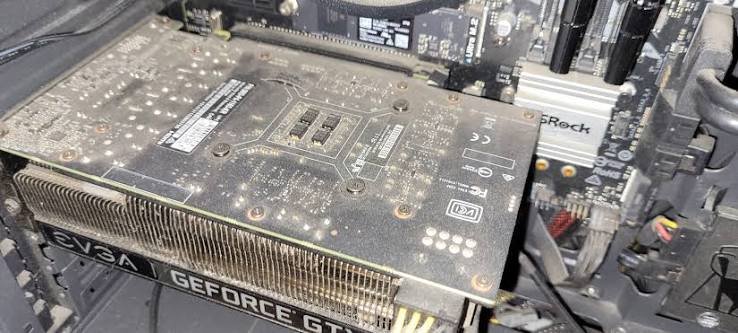
If none of that applies, skip it. A clean wipe is not a hidden performance boost, and doing it on a healthy system mostly costs you your saved settings for no gain.
How to swap the card without a full uninstall
This is the short path, and it is the right one for most same-brand upgrades.
- Download the new driver first. Grab the package for the new card while the old one still works, so you are not hunting for it later on a screen running at 1024 by 768.
- Shut down and cut the power. Turn the PC off, switch off the power supply, unplug it, then hold the power button for five seconds to drain what is left.
- Swap the cards. Release the PCIe slot latch, lift the old card out, seat the new one until the latch clicks, screw the bracket down, and connect every power cable it asks for.
- Move the monitor cable across. It has to go into the new card, not the motherboard’s video output.
- Boot and open Device Manager. Under Display adapters you should see either your new card or Microsoft Basic Display Adapter. Both are fine at this stage.
- Run the driver installer and restart when it asks.
How to remove the old GPU drivers properly
The tool for this is Display Driver Uninstaller, a free utility that strips NVIDIA, AMD and Intel display drivers along with the registry keys, driver store entries and orphaned folders a normal uninstall leaves behind. Run it in Safe Mode, where the driver is not loaded and its files are not locked.
- Download the new driver and the removal tool first, then create a system restore point.
- Disconnect from the internet or pause Windows Update, so Windows does not push its own driver in halfway through.
- Launch the tool, pick the brand of the card you are removing, and let it restart you into Safe Mode.
- Choose clean and shut down if the old card is still fitted. Choose clean and restart if the new card is already in.
- Fit the card if you have not already, boot back into Windows, and install the driver you downloaded.
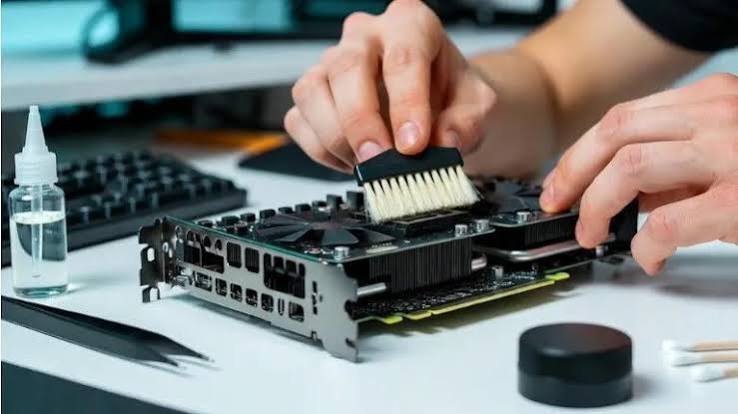
AMD owners have a first-party option too. The AMD Cleanup Utility removes AMD graphics and audio drivers and software while leaving AMD chipset drivers alone. It creates its own restore point before it touches anything, works best in Safe Mode, and can take fifteen to twenty minutes on a machine with a lot to clear. Slow is normal there, not a sign that it has frozen.
Before you reboot into Safe Mode, check two things: that you know your account password and not just your PIN, and that you have your BitLocker recovery key if the drive is encrypted. Safe Mode can refuse a Windows Hello PIN, and that is a bad moment to find out.
The clean install option hiding in the installer
Both vendors build a lighter version of this into their own installers, and for a same-brand upgrade it is usually enough. In the NVIDIA installer, choose Custom (Advanced) and tick Perform a clean installation. In the AMD installer, open Additional Options and tick Factory Reset. Each one clears the previous version’s settings and components before installing, with no Safe Mode and no third-party tool involved.
What neither can do is remove a rival vendor’s software, which is why a brand switch still needs the full removal.
One current side effect is worth knowing. A clean NVIDIA install now takes the old NVIDIA Control Panel with it. Those settings moved into the NVIDIA app during 2026 and the classic panel has been retired for Game Ready and Studio drivers, so after a clean install you configure the card in the app instead.
What to expect on the first boot with the new card
It will look wrong, and that is normal. Expect a low resolution, oversized icons, and possibly a single working monitor until the driver is on.
Once the driver is installed and you have restarted, a few things need attention:
Resolution and refresh rate go back to defaults, so set them again
G-Sync or FreeSync is often switched off and needs turning back on
HDR and colour settings return to their defaults
Per-game profiles, undervolts and custom fan curves are gone
Shader caches rebuild from scratch, so the first few minutes in a game can stutter
Then check Device Manager once more. Display adapters should list your new card by name, with no warning triangle and no ghost entry for the card you removed. If the old one is still sitting there, that is your cue to run the removal tool after all.
Frequently asked questions
Will my PC still boot if I install a new GPU without uninstalling the old drivers?
Yes. Windows falls back to a basic display driver when it cannot match your card, so you get a picture at a low resolution. Install the proper driver and restart to get full performance and your normal display settings back.
Do I need to uninstall drivers when switching from NVIDIA to AMD?
Yes. Remove the NVIDIA driver and software first, ideally in Safe Mode. Leaving two vendors’ driver stacks on one machine is the most common cause of failed installs, black screens and software that refuses to open after a swap.
Should I uninstall the old driver before or after taking the card out?
Before is easier. Run the cleanup while the old card is still displaying properly, pick the shut down option, then fit the new card. That way you are not working through a removal tool at 1024 by 768 on a basic driver.
Is Display Driver Uninstaller safe to use?
Yes, when you get it from the developer’s own site and run it in Safe Mode with a restore point in place. It only touches display drivers and their leftovers, and it leaves your files, games and other hardware alone.
Will Windows Update install the GPU driver for me?
Usually, within a few minutes of the first boot on the new card. It is a working driver, but often an older version without recent game fixes, so it is still worth installing the current package from NVIDIA or AMD yourself.
Conclusion
For most upgrades you do not need to uninstall anything. Fit the new card, boot, and install the current driver over the top, and a same-brand swap between recent cards will sort itself out. Save the full removal for brand switches, big generation jumps, and machines that were already unstable, and do it in Safe Mode with a restore point in place. A good result is a first boot at full resolution, one card in Device Manager, and nothing left behind.
Related Post:
Is 70°C Too Hot for a GPU? What the Number Really Means
Red Light on GPU When PC Is Off: What It Means and When to Worry
Client Server Runtime Process High GPU Usage: Why It Happens and How to Fix It
How to Know If Your GPU Is Failing: 7 Warning Signs and How to Test It
Satisfactory “GPU Crash Dump Triggered”: What It Means and How to Fix It