100% GPU utilization is normal, and usually a good sign, when you’re gaming, exporting video, or running anything else that leans hard on graphics. It only points to a problem in three cases: it shows up with nothing demanding open, your frame rate is far below what the hardware should manage, or the card is running hot enough to slow itself down.
The number on its own tells you very little. What matters is what your PC was doing when it hit 100.
What the 100% figure actually measures
It measures time, not capacity. Your graphics card looks at a short sampling window, somewhere between a sixth of a second and a full second depending on the model, and reports how much of that window had at least one job running. If the work never paused, you get 100%.
That’s a lower bar than most people assume. The counter asks whether something was running, not whether everything was running. A card can read 100% while large parts of the chip sit unused.
Windows adds a second twist. A modern GPU isn’t one block of silicon. It holds several engines that work in parallel: a 3D engine for rendering, a video decode engine for playback, an encode engine for recording and streaming, and a copy engine for shuffling data around. Task Manager takes its numbers straight from the Windows graphics scheduler and video memory manager, and it displays the busiest single engine as the figure for the whole card. So a video export that saturates only the encode engine still reads as 100% GPU.
That’s why the same number means different things in different apps. On the Processes tab, right-click a column header and add GPU and GPU Engine. The engine name tells you which part of the card is actually busy.
It also explains why tools disagree. Task Manager, MSI Afterburner, and your driver’s own overlay all sample differently and may pick different engines, so a 15 or 20 point gap between them is common and not a sign of anything broken.
When 100% is exactly what you want
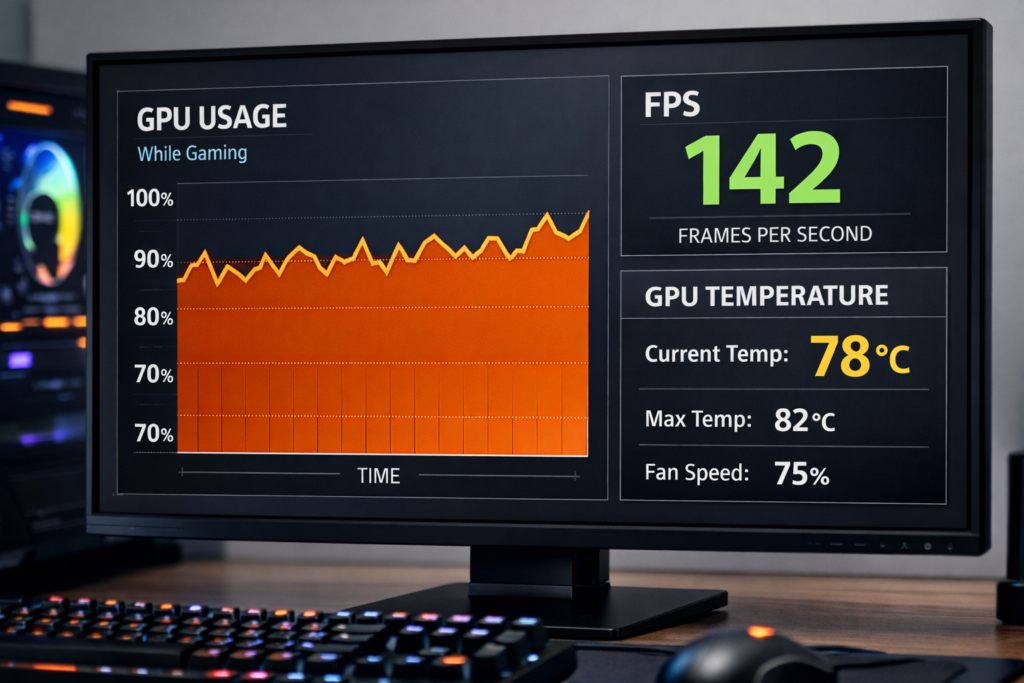
In a game, 100% GPU usage means you’re GPU-bound, and that is the healthy state. Your graphics card is the part setting your frame rate, which is what you bought it to do. Everything else in the system is feeding it fast enough to keep it busy.
The reading worth worrying about is the opposite one. If a demanding game sits at 50% GPU while one CPU core is pinned, your processor is the limit and the graphics card is waiting for work. Spending money on a faster GPU in that situation buys you almost nothing.
The same logic covers video exports, 3D renders, and AI image generation. Full load means the job is finishing as fast as your hardware can finish it.
If your GPU sits at 95 to 100% and your frame rate is high and steady, nothing is wrong. Close Task Manager and go play.
What your CPU reading should look like next to it
A low CPU number alongside 100% GPU is normal and good, not a mismatch. Total CPU usage in Task Manager is an average across every core, so a game that leans on four threads of a sixteen-thread processor can show 25% while one of those threads is completely saturated. The average hides the bottleneck.
For the real picture, look at per-core usage. Right-click the CPU graph in Task Manager and choose logical processors, or use an overlay that reports each core separately. One core pinned at 95% while the GPU hovers in the 60s is a CPU limit. Every core relaxed while the GPU is maxed is the balance you want.
When 100% is a red flag
Context does all the work here. The same number reads completely differently depending on what you were doing when you saw it.
| What you see | What it usually means | Where to look |
|---|---|---|
| 100% while gaming, frames smooth | GPU-bound and working properly | Nothing to fix |
| 100% on the desktop with nothing open | Background app, driver bug, or malware | Task Manager, sorted by GPU |
| 100% in a menu or on a loading screen | Uncapped frame rate on a simple scene | Frame rate limiter |
| 100% with frames far below normal | Throttling, VRAM overflow, or a power cap | Temperature and clock speed |
| 100% with stutter every few seconds | VRAM spilling into system memory | Texture and shadow settings |
| 100% at idle with loud fans | Overlay, instant replay, or browser acceleration | App settings |
Only the first row needs nothing from you. Everything below it is fixable, and most cases turn out to be a setting or a stray app rather than a failing card.
Why 100% GPU usage can come with low FPS
If the card reads maxed out but the frame rate is poor, something is slowing the work down rather than the work being genuinely enormous. Check four things, in this order.
Temperature. A hot card lowers its own clock speed to cool off. Watch the core clock during a session. If it starts near the card’s boost figure and drifts downward as temperature climbs, that’s thermal throttling, and the fix is cooling rather than settings.
VRAM. When textures and buffers don’t fit in the card’s own memory, they spill over into system RAM, which is far slower to reach. The giveaway is stutter and sudden drops rather than a steady low frame rate. Drop texture quality one step and see whether it clears.
Power limit. Cards also cap themselves on wattage, and monitoring tools such as HWiNFO or GPU-Z will show a power reason for the cap. A daisy-chained power cable or a supply with little headroom makes this more likely.
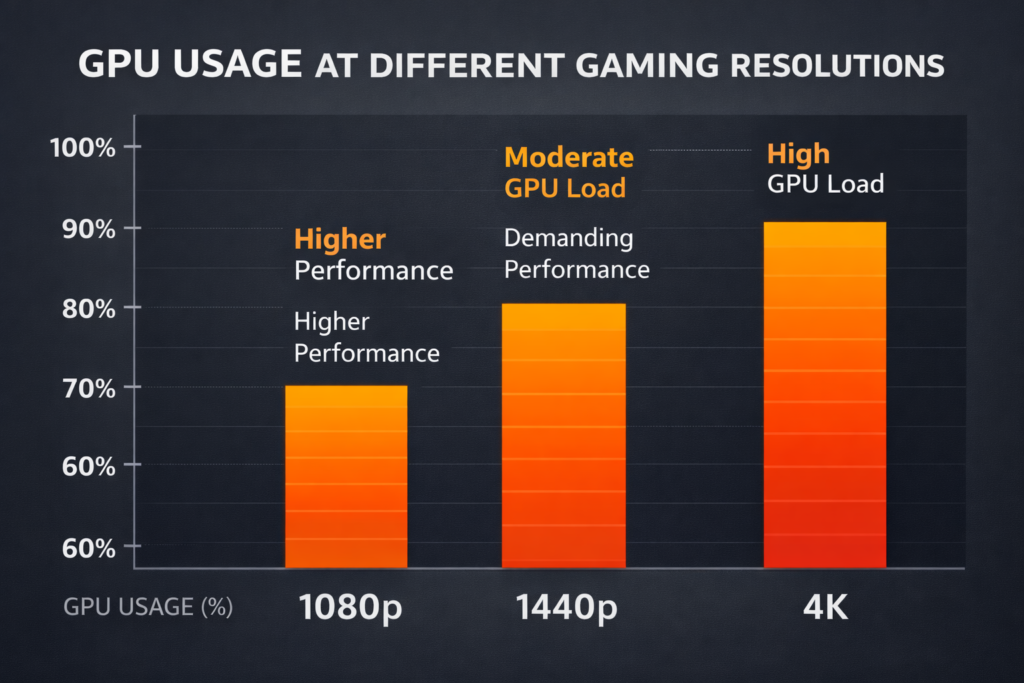
Settings you forgot about. Ray tracing, high-resolution shadows, and heavy anti-aliasing at 1440p or 4K will flatten almost any card. 100% usage with 35 fps in that case is an honest report, not a fault.
It’s also worth checking whether the problem is one game or all of them. A single title behaving badly right after an update usually points at the game, not at your hardware.
Tracking down 100% GPU usage at idle
This is the version that genuinely needs fixing. Work through it in order.
- Find the owner. Open Task Manager, go to Processes, add the GPU and GPU Engine columns, and sort by GPU. Something is nearly always named.
- Rule out the usual suspects. Background recording such as Instant Replay in the NVIDIA app or the record feature in AMD Adrenalin, animated wallpaper software, chat overlays, and browser hardware acceleration with a heavy tab open all keep the card awake.
- Confirm the load is real. Open GPU-Z or HWiNFO and check temperature, clock speed, and power draw together. A card sitting at 40C on low clocks and idle wattage is not doing 100% of anything, whatever the graph says. That’s a reporting bug, not a workload.
- Reinstall the driver cleanly. Use the manufacturer’s installer and pick the clean install option rather than upgrading over the top.
- Toggle hardware-accelerated GPU scheduling. Go to Settings, System, Display, Graphics, then Change default graphics settings. Flip it, reboot, and check again. This setting has been behind idle reporting problems on Windows more than once.
- Scan for malware. If the card is genuinely hot and busy and no process claims it, run a full scan. Mining software hides itself and often pauses the moment Task Manager opens.
Does running at 100% wear the card out?
Not on its own. Graphics cards are designed to run flat out for hours, and load alone doesn’t consume anything the way a moving part does. Heat is the variable that matters, and every modern card defends itself. It lowers clock speeds as it nears its rated maximum temperature, and it will shut the system down before it lets itself cook. Each model has its own limit, listed on the manufacturer’s product page.
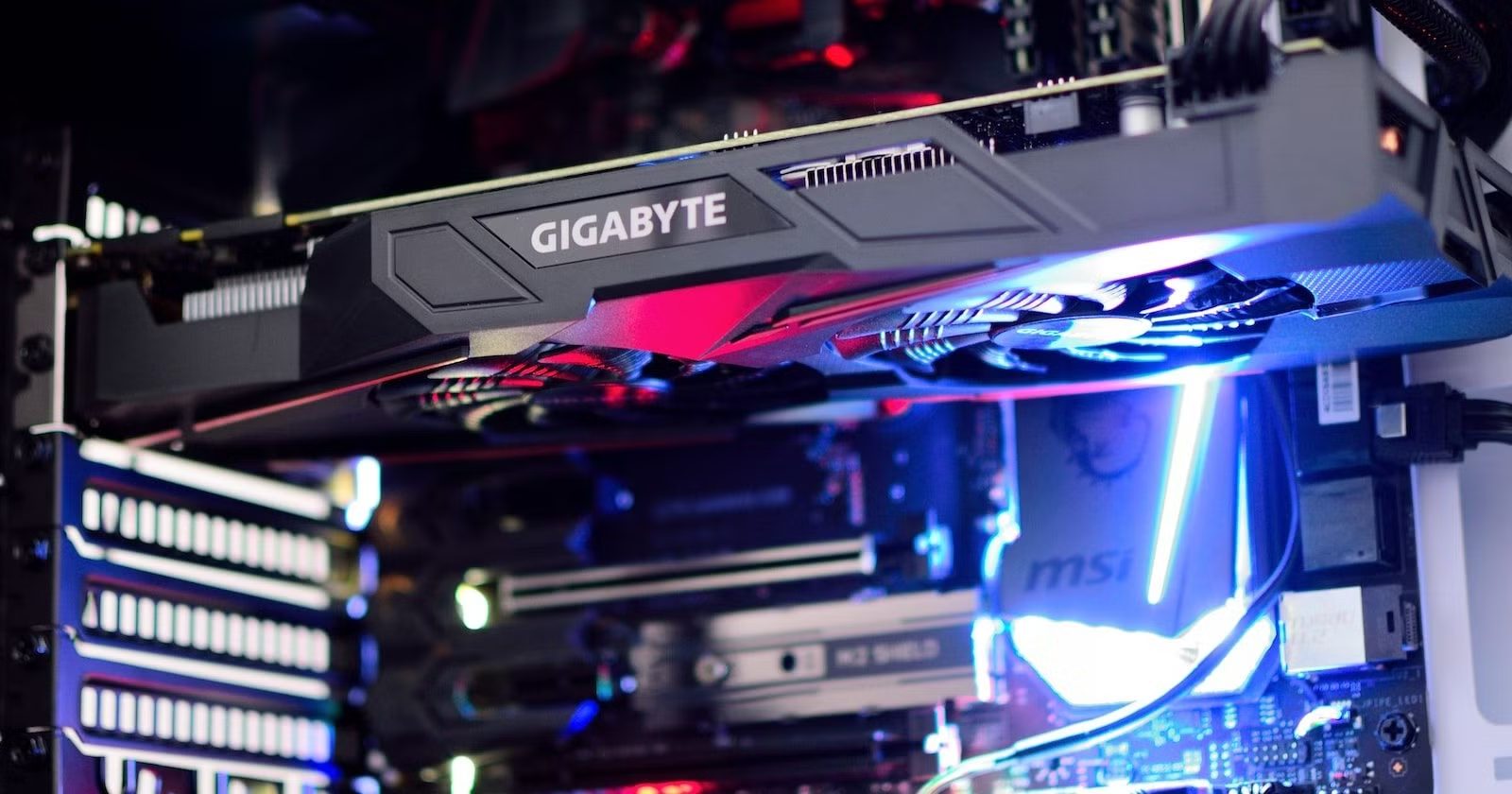
A practical target is to keep the core below roughly 80C during long sessions. That leaves room to spare, keeps clocks high, and keeps the fans quieter. If you’re running hotter than that, the fixes are unglamorous and effective: clear dust out of the heatsink and case filters, add or redirect a case fan, raise the fan curve, or repaste a card that’s several years old.
The parts that do wear are mechanical. A card that has spent years running loud is far more likely to develop a rattling fan than a failing chip, and fans can usually be replaced on their own.
How to bring GPU usage down on purpose
Sometimes a quieter, cooler machine is worth more to you than every last frame. Capping the frame rate is the cleanest lever, and it helps most in menus, loading screens, and older games where the card churns out hundreds of frames nobody sees.
NVIDIA’s Max Frame Rate control sits under Manage 3D Settings and accepts anything from 20 to 1000 fps. AMD’s equivalent is Frame Rate Target Control in Radeon Software, and plenty of games have a limiter built into their video options. Set it two or three frames below your monitor’s refresh rate, which also keeps G-Sync or FreeSync working in its best range.
After that, the usual moves. Turn off background recording. Drop one or two expensive settings, since shadows and ray tracing cost the most for the least visible gain. Switch on upscaling such as DLSS or FSR so the card renders at a lower internal resolution and scales the result up. Each of these gives the GPU less to do, which is the only real way the number comes down.
Frequently asked questions
Is 100% GPU usage normal while gaming?
Yes. It means your graphics card is the part setting your frame rate, which is the ideal state for gaming. As long as frames are smooth and temperatures are sensible, there is nothing to fix.
Why is my GPU at 100% when nothing is running?
Something is using it: background recording, animated wallpaper, browser hardware acceleration, or in rare cases mining malware. Sort Task Manager’s Processes tab by GPU to find the owner. If the card is cool and drawing idle power, the reading itself may be wrong.
What temperature is too hot at 100% GPU usage?
Aim to stay under about 80C on the core during long sessions. Cards throttle themselves near their rated limit, which varies by model and is listed on the manufacturer’s product page, so hitting that ceiling costs you performance before it costs you hardware.
Why is my GPU at 100% but my FPS is still low?
Usually thermal throttling, VRAM running out, or a power cap holding clocks down. Check temperature and clock speed first, then VRAM use. If all three look fine, your settings are simply heavier than the card can handle.
Should I try to lower my GPU usage?
Only if you want less heat and noise, or you are capping frames for a variable refresh display. Lower usage does not mean better performance. It usually just means the card has less work to do.
Conclusion
Treat 100% GPU utilization as information, not a warning. During a game or a render it means your card is the thing setting the pace and nothing is holding it back, and a smooth, steady frame rate confirms it. Look closer only when the load appears with nothing running, when frames fall well below what the card should deliver, or when temperatures climb past the low 80s. Fix the context, not the number.
Related Post:
What Is a Good GPU Clock Speed in MHz?
Fix GPU memory leak [Forge/Fabric]: what it does and how to install it
M4 Pro GPU Equivalent: What NVIDIA and AMD Cards It Matches
How to Fix “Could Not Find a Version That Satisfies the Requirement faiss-gpu”