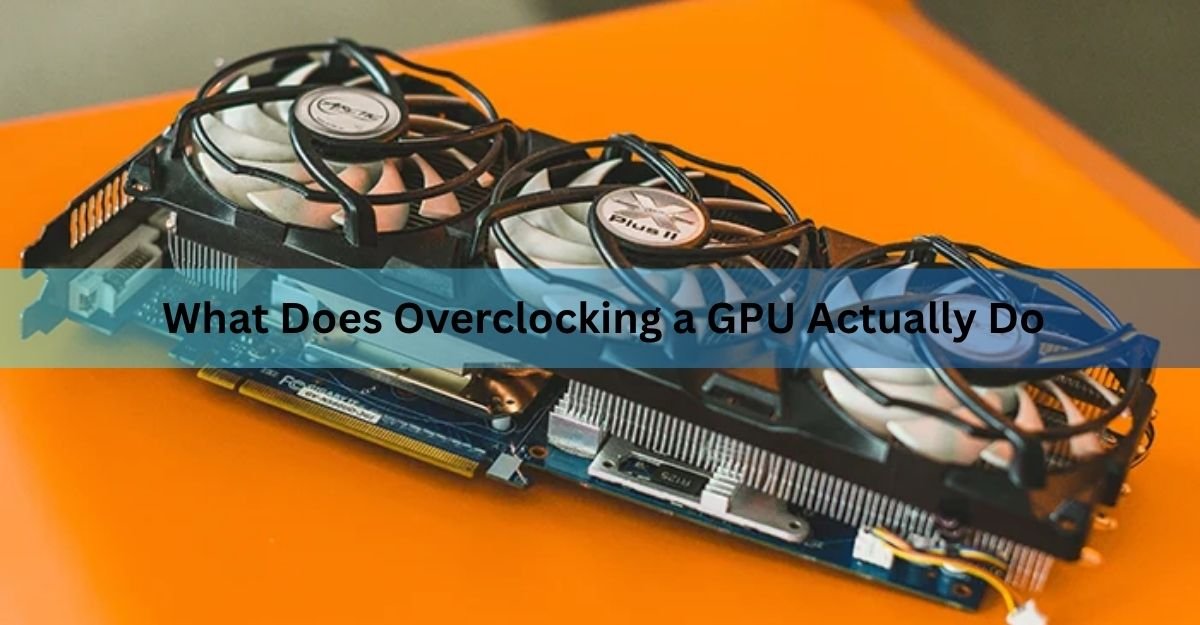
Overclocking a GPU means pushing its core clock and memory clock past the speeds the manufacturer set at the factory. That extra speed lets the chip run through more calculations every second, which usually shows up as a higher frame rate and smoother motion in games. It does not make a game look sharper or add detail that wasn’t there before. It just makes the hardware you already own work a little faster. Most gamers who overclock see gains of roughly 5 to 15 percent, depending on the card, the cooling, and a bit of luck with the individual chip. Here is exactly what changes when you push those clocks up, what stays exactly the same, and what it costs you in return.
How does a GPU’s clock speed work?
A graphics card runs on two separate clocks: the core clock and the memory clock. The core clock controls how fast the GPU’s processing cores handle instructions, so a higher core clock means more rendering work gets done each second. The memory clock controls how quickly the card’s video memory, or VRAM, feeds data to those cores. Push it higher and you increase memory bandwidth, which matters most in games that lean on large, detailed textures.
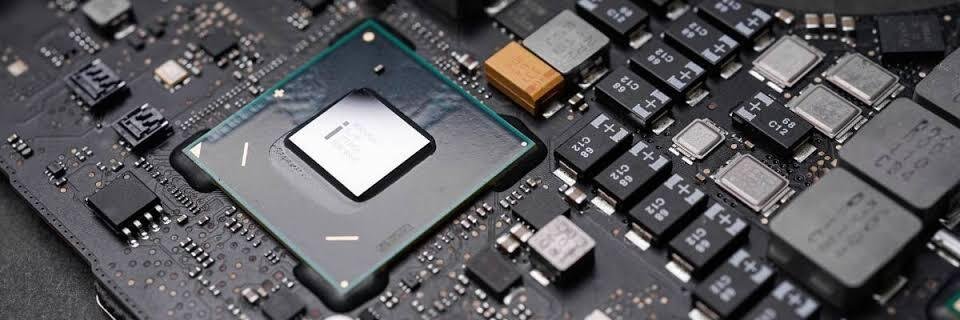
Modern cards do not run at one fixed speed. NVIDIA and AMD both use a dynamic system that raises the clock automatically whenever there is spare power and thermal headroom, then pulls it back down when things heat up. NVIDIA calls its version GPU Boost, and it can push a card well above the boost clock listed on the box as long as temperature and power stay inside their limits. Manual overclocking works on top of this system. Instead of setting one fixed speed, you raise the ceiling that GPU Boost is allowed to reach, and the card climbs toward that new ceiling whenever conditions allow.
What actually happens when you overclock a GPU?
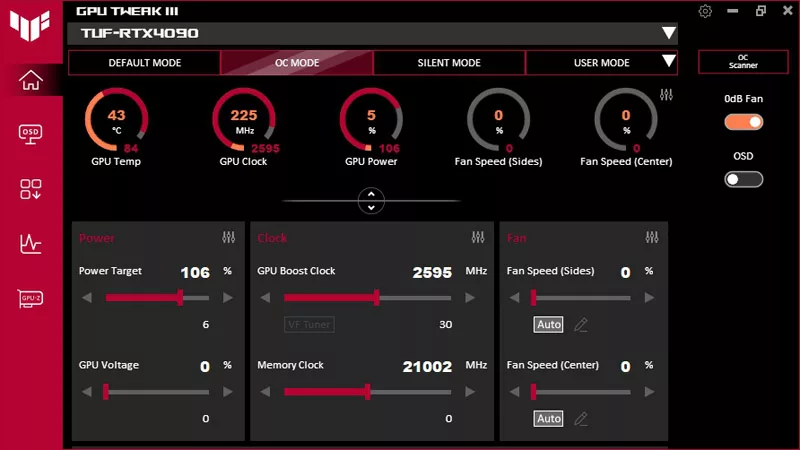
Overclocking increases the number of instructions the GPU can process per second, which typically raises your frame rate and cuts down on stutter. On a well cooled card, a core clock bump of 100 to 150 MHz combined with a memory clock increase often adds somewhere between 5 and 15 percent more frames per second in a demanding game. Cards that are already tuned aggressively at the factory, which is common on high-end models, tend to have less room left to gain.
The improvement is not only about the average frame rate. Overclocking tends to help the worst moments in a scene more than the best ones. If a card is struggling and briefly dropping to a low frame rate during a busy scene, a modest overclock can raise that low point noticeably, even when the average frame rate only moves a little. That shows up to a player as fewer stutters and a steadier feel, which often matters more than a few extra frames on the counter.
Key takeaway: overclocking is a speed change, not a visual one. It raises how many frames the GPU produces per second, especially during the roughest moments, without touching resolution, textures, or effects at a given setting.
Does overclocking improve visual quality?
No. Overclocking changes speed, not image quality. It does not increase resolution, sharpen textures, add anti-aliasing, or improve lighting and shadow detail. Two identical game settings run at stock and overclocked speeds will render the exact same image, just at a different frame rate.
There are two indirect exceptions worth knowing. A faster memory clock can reduce texture pop-in in games that stream textures from VRAM on the fly, since the data arrives sooner and low-resolution placeholder textures show up less often. And because overclocking gives you more headroom, it can let you turn up in-game settings, like shadow quality or anti-aliasing, and still hold a playable frame rate. In that case the visuals do improve, but the overclock itself only made room for the change. The settings did the actual work.
What are the risks of overclocking a GPU?
Overclocking always increases power draw and heat, and it can shorten a component’s working life if pushed too far. A card rated at 250 watts might pull 280 to 300 watts once its clocks and power limit are raised, and most GPUs begin throttling their clock speed once core temperatures reach somewhere around 83 to 87 degrees Celsius to protect themselves.
The main risks to weigh are:
- Higher temperatures and louder fans, since the card works harder to remove the extra heat.
- Increased power draw, which puts more load on your power supply and slightly raises your electricity use.
- System instability, including crashes, driver resets, or visual glitches if the clock speed goes past what the chip can handle reliably.
- Faster wear over years of use, mainly from sustained higher voltage and heat, though a moderate overclock on a well cooled system rarely causes short-term damage.
- A voided warranty on some cards, since manufacturers do not guarantee stability outside their factory settings.
None of this means overclocking is dangerous when done carefully. Modern GPUs have built-in safeguards, including automatic clock throttling and hard shutdowns, that step in before a small mistake turns into permanent damage.
Factory overclocked cards vs. manual overclocking
Many graphics cards already ship with a factory overclock. These “OC edition” models run at a slightly higher clock than the reference design, usually a 3 to 5 percent bump, and the manufacturer tests that speed extensively before it ships, so it is fully covered by warranty. They often come with a beefier cooler than the base model to support the extra clock, which is a big part of what you are paying for.
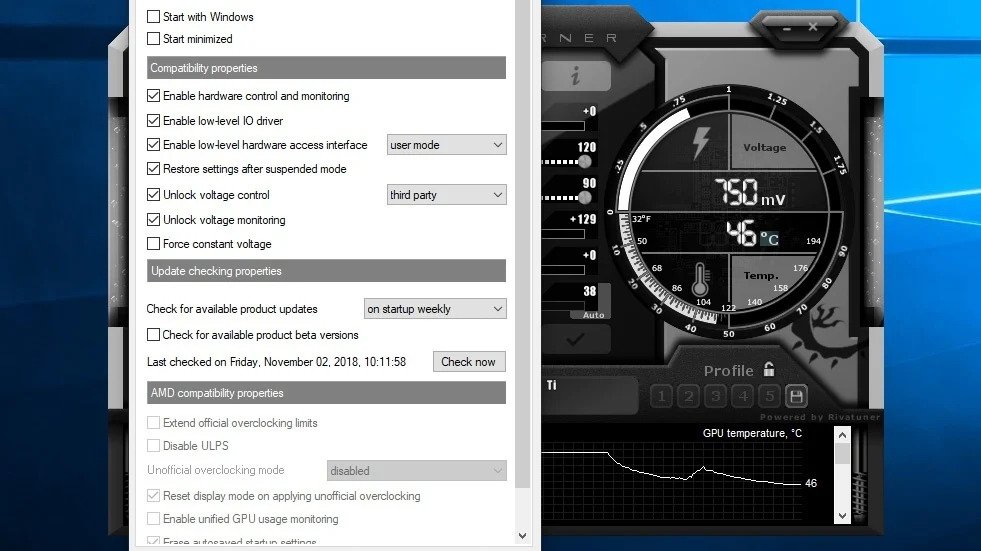
Manual overclocking goes further. Using a tool such as MSI Afterburner, you set your own limits for core clock, memory clock, and power target, then test for stability yourself. Gains from careful manual tuning typically land in the 8 to 12 percent range on top of stock performance, though the exact number depends heavily on the specific chip inside your card. Two cards with the same model number can have noticeably different overclocking headroom, since manufacturing always produces some natural variation in chip quality.
Is overclocking a GPU worth it in 2026?
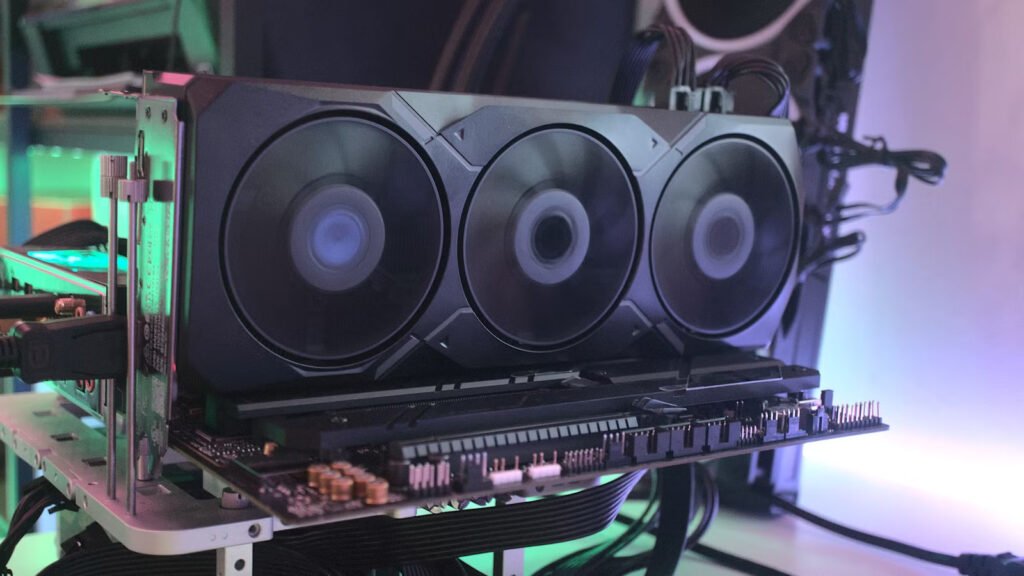
The answer depends on what card you already own. High-end GPUs like the RTX 4090 and RTX 5090 already draw 400 watts or more and are pushed close to their efficient limits at the factory, so a manual overclock on one of these cards typically buys only a small frame rate gain in exchange for a real jump in heat, noise, and power draw. Many owners of these cards get more practical value from undervolting instead, which lowers the voltage at a given clock speed to cut heat and noise while keeping nearly all of the stock performance.
Mid-range and older cards tend to have more relative headroom, since manufacturers are usually more conservative with their factory settings on these models. If your card is starting to feel outmatched by newer games, a careful overclock can add a real few extra frames per second and help stretch its useful life a bit longer before you need to upgrade.
How to overclock a GPU safely
Getting a stable overclock is a slow, methodical process, not a single slider you drag to the right and forget.
- Benchmark your card first. Run a demanding game or a tool like 3DMark at your normal settings and record the frame rate, temperature, and clock speed as a baseline.
- Raise the core clock in small steps. Add around 10 to 15 MHz at a time using an overclocking tool, then run a short stress test after each change to check for crashes or visual glitches.
- Test the memory clock separately. Once the core clock is stable, reset it to your last working value and repeat the process with the memory clock alone, so you know exactly which setting caused a problem if one shows up.
- Watch your temperatures the whole time. Back off if the card is regularly hitting the high 80s Celsius or if the fans are constantly maxed out.
- Give it a longer real-world test. Play for 30 to 60 minutes once you land on settings that pass a short stress test, since some instability only appears after the card has been under sustained load.
If Windows freezes, the screen shows artifacts, or a game crashes, drop the clock speed by 10 to 20 MHz and retest. That is your card telling you where its actual limit sits.
Frequently asked questions
Does overclocking a GPU void the warranty?
It can. Factory overclocked cards are covered because the manufacturer tested that speed. Pushing clocks yourself beyond stock settings often falls outside warranty coverage, so check your card maker’s policy before you start.
How much FPS can you gain from overclocking a GPU?
Most well cooled cards gain around 5 to 15 percent more frames per second, with manual tuning often landing near 8 to 12 percent. High-end cards that are already tuned hard at the factory usually see smaller gains.
Is overclocking a GPU safe long term?
A moderate overclock on a well cooled system is generally safe for years of use. Pushing voltage aggressively or ignoring rising temperatures is what actually shortens a card’s working life.
What is the difference between overclocking and GPU Boost?
GPU Boost is the automatic clock adjustment built into the card, raising speed on its own within factory limits. Overclocking raises the ceiling GPU Boost is allowed to reach, pushing performance past what the factory settings allow.
Should I overclock or undervolt my GPU?
Overclock if you want more frames per second and your card has thermal headroom to spare. Undervolt if you already have enough performance and want lower heat, quieter fans, and less power draw instead.
Conclusion
Overclocking a GPU raises its core and memory clock speeds beyond the factory default, which mainly translates into a higher frame rate and smoother gameplay, usually somewhere in the 5 to 15 percent range. It never changes resolution, texture detail, or how sharp an image looks at fixed settings. Done gradually, with an eye on temperatures, it is a safe way to get more out of hardware you already own, especially on mid-range or older cards with real headroom left to give.
Related Post :
Steam Deck GPU Equivalent: Which Graphics Card It Matches
The Best GPU for Games Like Overwatch and Minecraft (2026)
CPU and GPU Temp: What’s Normal, What’s Too Hot, and How to Check
![Fix GPU memory leak [Forge/Fabric]: what it does and how to install it](https://nobelspot.com/wp-content/uploads/2026/08/GPU-Fan-Speed-33.jpg)