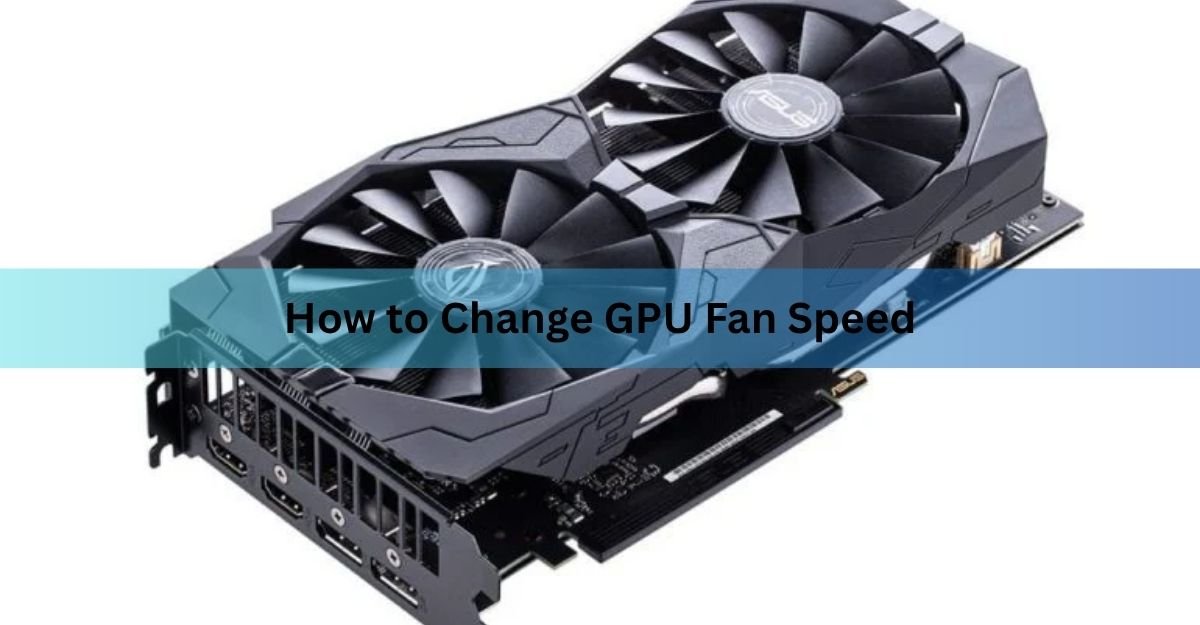
You change GPU fan speed with software, not a physical switch. If you have an NVIDIA card, the NVIDIA app lets you set a maximum fan speed. If you have an AMD card, AMD Adrenalin has built-in fan sliders. And if you want full control on any card, a free tool called MSI Afterburner lets you draw a custom fan curve that ties fan speed to temperature.
Below you will find the exact steps for each option, plus how to build a fan curve that keeps your card cool without sounding like a hairdryer. Most of this takes about five minutes.
What changing GPU fan speed actually does
Your graphics card sets its own fan speed by default. It reads its temperature and spins the fans up as it gets hotter. This works, but the factory settings often lean one way or the other. Some cards stay quiet and let the chip run hot. Others ramp up fast and get loud over tiny temperature changes.
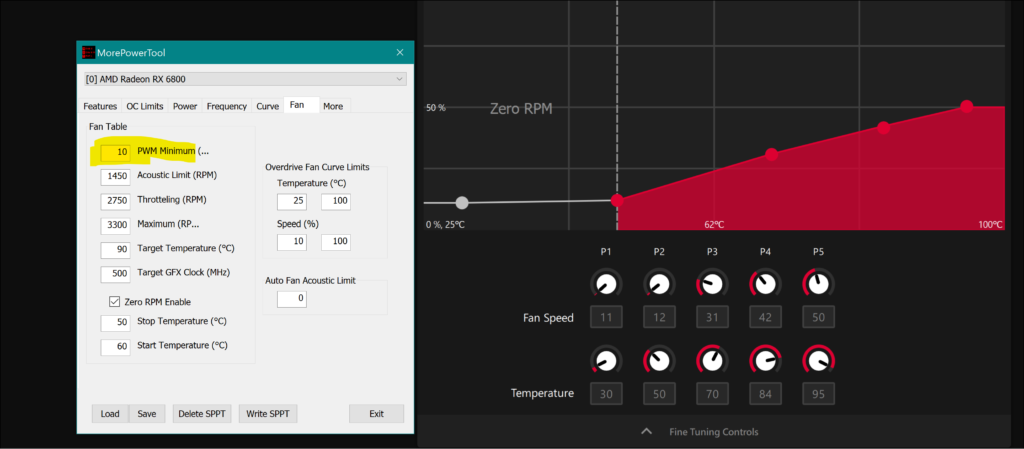
When you change the fan speed, you take over that decision. You can run the fans faster to get lower temperatures, or slower to get less noise. There is a trade-off either way. Faster fans mean a cooler, quieter-running chip but more fan noise. Slower fans mean less noise but higher temperatures. The goal is to find the balance you like for your room and your games.
Tip: Keep your GPU under about 80°C during gaming. Above that, most cards start to “thermal throttle,” which means they slow themselves down on purpose to cool off, and your frame rate drops.
Which tool should you use?
Your options depend on your card, but you always control the fans through software. Here is a quick way to pick:
| Tool | Works with | Best for |
|---|---|---|
| NVIDIA app | GeForce RTX cards | A quick max-speed cap, no extra download |
| AMD Adrenalin | Radeon cards | A built-in min and target speed, no extra download |
| MSI Afterburner | NVIDIA, AMD, Intel Arc | A full custom fan curve, any brand |
| FanControl | NVIDIA, AMD, Intel Arc | Controlling GPU and case fans together |
Full steps for each of these are below.
Before you start
A few quick things to sort out first:
- Update your graphics driver. Fan control lives in the driver software, so get the latest version from NVIDIA or AMD before you begin.
- Know your temperature limit. Most modern gaming GPUs are fine up to 83–85°C. Staying under 80°C gives you a safe buffer.
- Pick one tool. Do not run two fan control apps at once. They will fight each other and your fans will act strangely.
- Have a way to check temperature. Afterburner shows it, the NVIDIA app and Adrenalin show it, or you can use a free monitor like HWiNFO.
How to change fan speed on an NVIDIA card
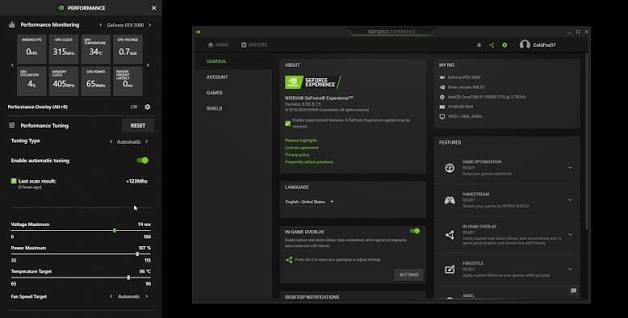
The NVIDIA app now has fan control built in, so you may not need anything else. Note that it gives you a maximum fan speed target, not a full curve. Here is how to set it:
- Open the NVIDIA app and click System in the left menu.
- Go to the Performance tab and click the small enable toggle so the tuning controls unlock.
- Find the Fan Speed section. You can either leave it on automatic tuning or switch to manual control.
- Drag the fan speed slider to the maximum level you want, then apply.
- This is the simplest route and needs no extra download. If you want a true fan curve on NVIDIA, where the speed changes at each temperature step, use MSI Afterburner further down.
How to change fan speed on an AMD card
AMD Radeon cards have solid fan control right inside Adrenalin, the same software that came with your driver. You get a minimum and a target speed, plus a full tuning graph on most cards.
- Right-click your desktop and open AMD Software: Adrenalin Edition.
- Click the Performance tab at the top, then Tuning.
- Switch tuning control to Manual, then turn on Fan Tuning.
- Drag the Min Fan Speed and Target Fan Speed sliders, or move the points on the graph to shape your curve.
- Click Apply Changes in the top right.
- AMD’s guide, the Fan Control section of the Radeon settings documentation, walks through the same sliders if you want the official reference. If you run more than one AMD card, set the fan speed on each one separately.
How to change fan speed on any card with MSI Afterburner
MSI Afterburner is the tool most people reach for, and it works on NVIDIA, AMD, and Intel Arc cards no matter who made them. You do not need an MSI graphics card to use it. It is free, and it gives you the most control, including a proper fan curve.
Download and install MSI Afterburner, then open it.
Click the Settings (gear or cog) icon.
Open the Fan tab and tick Enable user defined software automatic fan control. This unlocks the curve graph.
On the graph, the bottom axis is GPU temperature and the side axis is fan speed as a percentage. Drag the points to shape the line the way you want.
Click Apply, then OK.
If you just want a single fixed speed instead of a curve, skip the settings menu. On the main window, click the Auto button next to the fan speed to turn it off, then drag the fan speed slider to a set percentage and hit apply. That runs the fans at that speed all the time.
Tip: One catch with Afterburner: your custom curve only works while the app is running. Enable “Start with Windows” in its settings so your fan curve loads every time you boot.
Building a fan curve that works
A fan curve is just a line on a graph. Each point says “at this temperature, spin the fans at this speed.” A good curve keeps the fans quiet when you are browsing and ramps them up smoothly as a game heats things up. Here is a simple starting point that suits most cards:
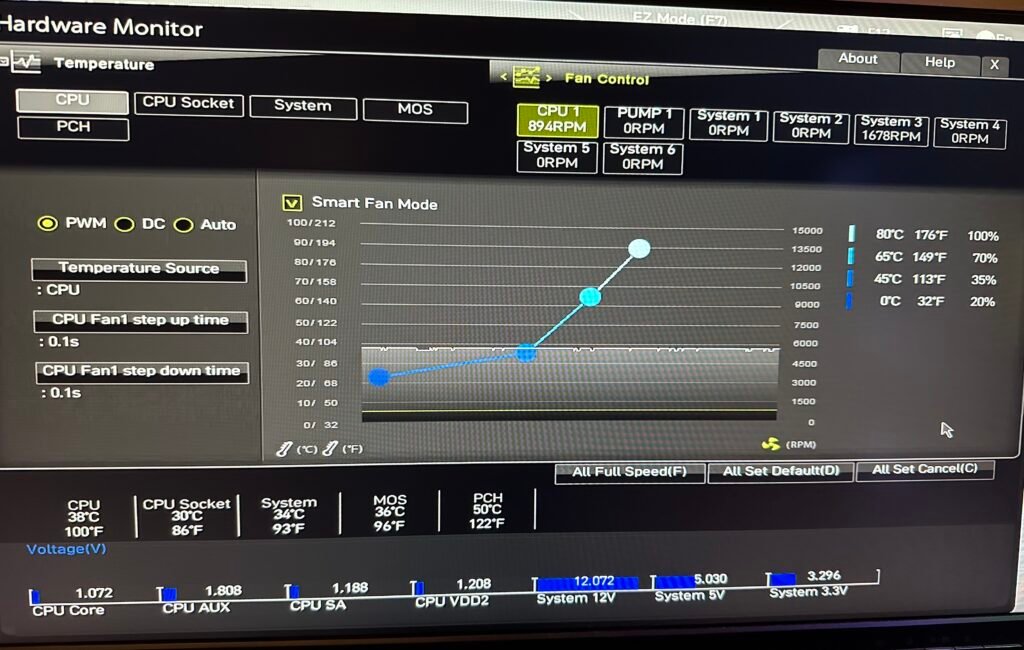
- Below 40°C: fans off or very low. Idle desktop use makes almost no heat.
- 50°C: around 40% speed. Light load, barely audible.
- 60°C: around 55%. The card is working now.
- 70°C: around 75%. Under real gaming load.
- 80°C: 100%. This is your safety ceiling, so give it everything.
Load a demanding game for 15 to 20 minutes and watch your temperature. If it climbs past 80°C, make the curve steeper so the fans ramp up sooner. If the fans are louder than you like and temps stay well under 75°C, ease them down a little. Adjust, test, repeat until it feels right.
Avoid a curve that jumps up and down over a couple of degrees. If your fans surge loud and then quiet again every few seconds during normal use, smooth the low end of the curve out. Many tools also have a hysteresis setting, which is just a small delay that stops the fans reacting to every tiny temperature blip. A value of a few degrees keeps things steady.
One thing to know about modern cards
Newer NVIDIA cards will not let software set the fans below about 30%. If you drag a point under 30%, the card either ignores it or shuts the fans off entirely. Many cards are also built to stop the fans completely at idle, usually once the chip drops below roughly 35 to 45°C. So the very bottom of your curve behaves a little differently than the numbers suggest. If your fans switch fully off at low temperatures, that is normal and by design, not a fault.
Is changing GPU fan speed safe?
Yes. Setting a fan speed or a curve is one of the safest tweaks you can make, and it will not void your warranty or damage the card. You are only changing how the cooler runs, not the chip’s power or clock speed.
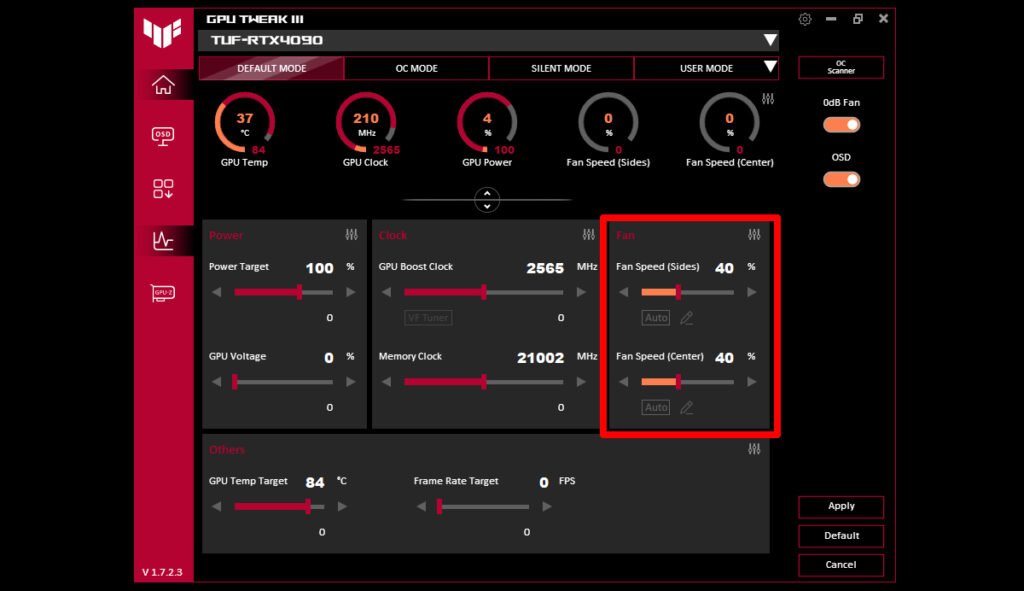
The one thing to keep an eye on is running the fans too slowly. If you set them low to chase silence and your temperature creeps past the mid-80s, the card will throttle and you will lose performance. Running fans at 100% all the time is also fine for the card, though it wears the fan bearings a bit faster over years of use and it is loud. For most people, a sensible curve that tops out at 100% only when things get hot is the sweet spot.
Frequently asked questions
What is a good GPU fan speed while gaming?
There is no single number, since it depends on your card and case. A good target is whatever keeps your GPU under 80°C during a demanding game. That often lands the fans somewhere between 60% and 80% under full load.
Can I control GPU fan speed without any software?
No. GPU fans are controlled by the card’s driver, so you always need software. The good news is your NVIDIA app or AMD Adrenalin is already installed with your driver, so no extra download is needed for basic control.
Why won’t my GPU fans go below 30%?
Many modern NVIDIA cards set a 30% floor for software fan control. Below that, the card ignores the command or switches the fans fully off at idle. This is built into the hardware and is completely normal, not a bug.
Does running GPU fans at 100% damage the card?
No, it will not damage the chip. Full speed keeps the card very cool. It is loud, and the fan bearings wear slightly faster over many years, but the card itself is safe. A curve that only hits 100% when hot is usually the better choice.
Will changing fan speed void my warranty?
No. Adjusting fan speed or setting a fan curve does not affect your warranty and does not harm the card. It only changes how the cooler runs, unlike overclocking, which pushes the chip harder.
Conclusion
Changing GPU fan speed comes down to picking a tool and shaping how the fans respond to heat. Use the NVIDIA app or AMD Adrenalin for quick built-in control, or MSI Afterburner for a full custom curve on any card. Aim to keep gaming temperatures under 80°C while running the fans no louder than you need. Test with a real game, tweak the curve, and you will land on a card that stays cool and quiet on your terms.
Related Post:
Why ICUE Crashes Your GPU (and How to Fix It)
CPU and GPU Temp: What’s Normal, What’s Too Hot, and How to Check